
In an increasingly digitized world, the way we consume media has undergone a profound transformation. Traditional cable television, once the undisputed king of home entertainment, is steadily giving way to the convenience and flexibility of streaming services. Among these, YouTube TV has emerged as a formidable contender, offering a compelling alternative for those looking to cut the cord without sacrificing access to live television, sports, and news. But for many, the journey into live TV streaming can seem daunting. This guide will demystify the process, walking you through every step of acquiring, setting up, and mastering YouTube TV, ensuring you harness its full technological potential.
Understanding YouTube TV: What It Is and Why It Matters
Before diving into the mechanics of acquisition, it’s crucial to grasp what YouTube TV is and why it has garnered such significant traction in the streaming landscape. At its core, YouTube TV is a live TV streaming service that offers more than 100 channels, including major broadcast networks, popular cable channels, and a robust selection of sports networks. It’s distinct from regular YouTube, which hosts user-generated and professional on-demand videos; YouTube TV focuses squarely on live linear programming, akin to traditional cable, but delivered over the internet.
The Cord-Cutting Revolution and Live TV Streaming
The shift from cable to streaming is driven by several factors, primarily cost, flexibility, and personalized viewing experiences. YouTube TV addresses these by offering a single, comprehensive package accessible across a multitude of devices, from smart TVs and streaming sticks to smartphones and tablets. Its internet-based delivery liberates users from cumbersome cable boxes and rigid contracts, allowing for easy subscription management and on-the-go access. This technological paradigm shift empowers consumers with unprecedented control over their entertainment consumption.
Core Features: Channel Lineup, DVR, and Multiple Streams
YouTube TV’s appeal isn’t just about channel quantity; it’s about the quality and utility of its features, all enabled by sophisticated software engineering.
- Extensive Channel Lineup: Beyond local broadcasters like ABC, CBS, FOX, and NBC, YouTube TV typically includes popular cable networks such as ESPN, TNT, CNN, HGTV, FX, and many more, varying by geographic location. This wide array ensures diverse content for every household member.
- Unlimited Cloud DVR: Perhaps its most celebrated technological feature, YouTube TV offers an unlimited cloud Digital Video Recorder (DVR). This means users can record as many shows, movies, and sports events as they wish, simultaneously, and store them for nine months. This feature leverages robust cloud infrastructure, eliminating the need for local storage devices and making recordings accessible from any compatible device.
- Multiple Simultaneous Streams: A single YouTube TV subscription typically allows for up to three simultaneous streams, meaning different household members can watch different content on different devices at the same time. This multi-user capability is critical for modern households with diverse viewing preferences.
- Family Sharing: A single YouTube TV account can support up to six individual user profiles, each with their own personalized library, recommendations, and DVR recordings. This feature is a testament to the platform’s intelligent user management system.
Device Compatibility: From Smart TVs to Mobile
One of YouTube TV’s greatest strengths lies in its broad device compatibility. This extensive reach ensures that users can access their content from virtually anywhere.
- Smart TVs: Most modern smart TVs (e.g., Samsung, LG, Vizio, Sony) come with built-in support for YouTube TV, or users can download the app directly from their TV’s app store.
- Streaming Media Players: Devices like Roku, Amazon Fire TV, Apple TV, Google Chromecast, and NVIDIA Shield TV are fully supported, offering seamless integration with existing home entertainment setups.
- Gaming Consoles: PlayStation and Xbox consoles also provide YouTube TV apps, turning gaming machines into comprehensive entertainment hubs.
- Mobile Devices: Dedicated YouTube TV apps for iOS and Android smartphones and tablets offer complete functionality, including live streaming, DVR management, and casting capabilities.
- Web Browsers: For desktop and laptop users, YouTube TV is fully accessible through most modern web browsers (e.g., Chrome, Firefox, Safari, Edge), providing flexibility for office or travel viewing.
The Seamless Subscription and Setup Process
Getting YouTube TV is a straightforward, technologically intuitive process designed for user convenience. The journey typically begins with a visit to the official YouTube TV website or by downloading the app on a preferred device.
Initiating Your Subscription: Website vs. App
The most common and recommended way to start is by visiting the official YouTube TV website (tv.youtube.com) on a computer or mobile browser. This provides the most comprehensive view of available plans and add-ons. Alternatively, you can download the YouTube TV app directly onto a compatible streaming device (e.g., Roku, Fire TV, Smart TV) and initiate the subscription from there, though the larger screen of a computer often makes this process more comfortable.
Account Creation and Billing Information
If you already have a Google account (e.g., for Gmail, YouTube, Google Drive), you’ll simply log in. If not, you’ll be prompted to create one – a quick process that ties your streaming service to a universally recognized digital identity. You’ll then be asked to confirm your home location (crucial for local channel access) and provide your billing information. YouTube TV typically offers a free trial period, allowing you to explore the service before your first payment. Ensure your internet connection is stable throughout this setup to avoid interruptions.
Navigating the Interface: First Impressions and Customization
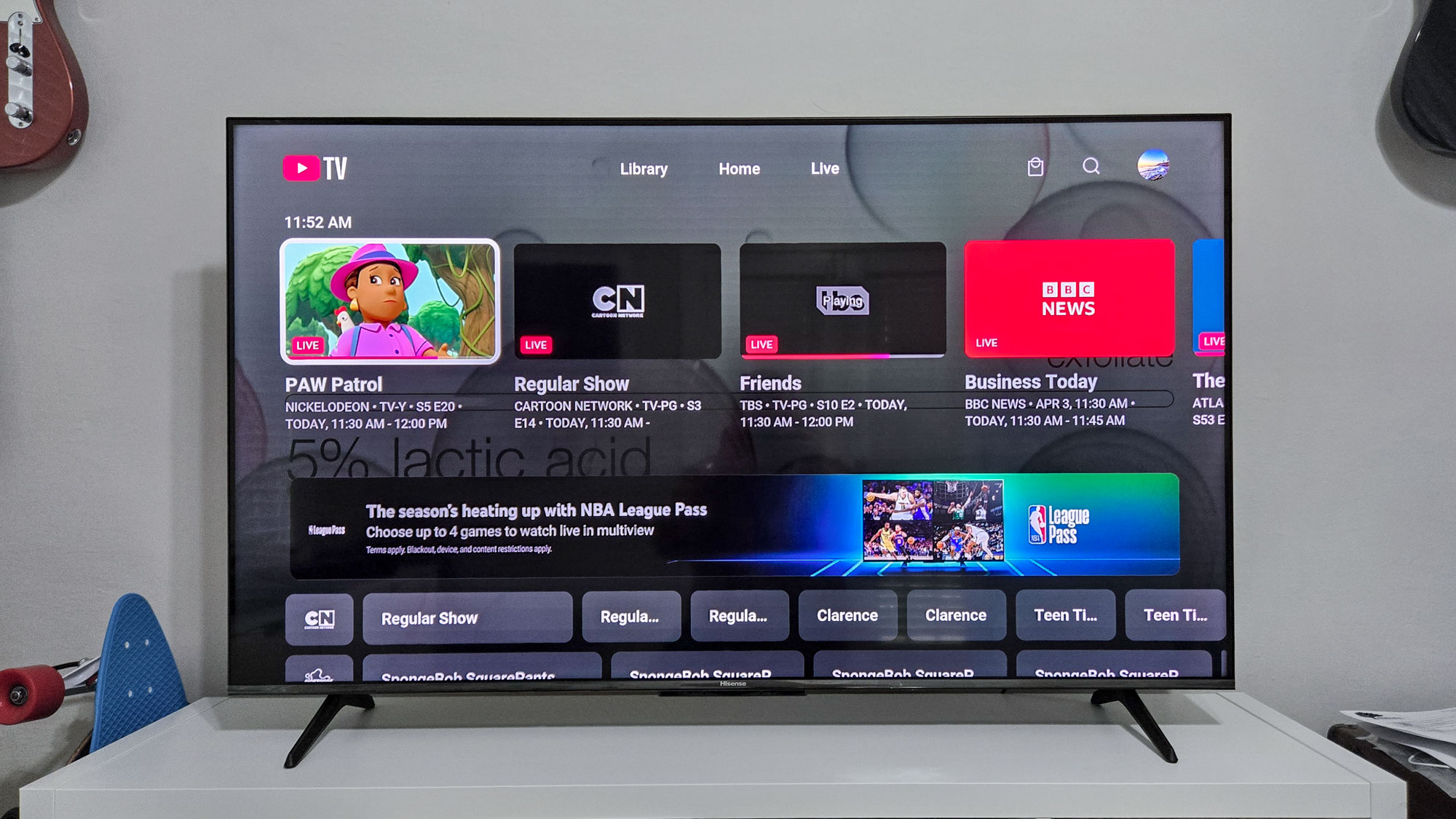
Once subscribed, the app’s interface is designed for intuitive navigation.
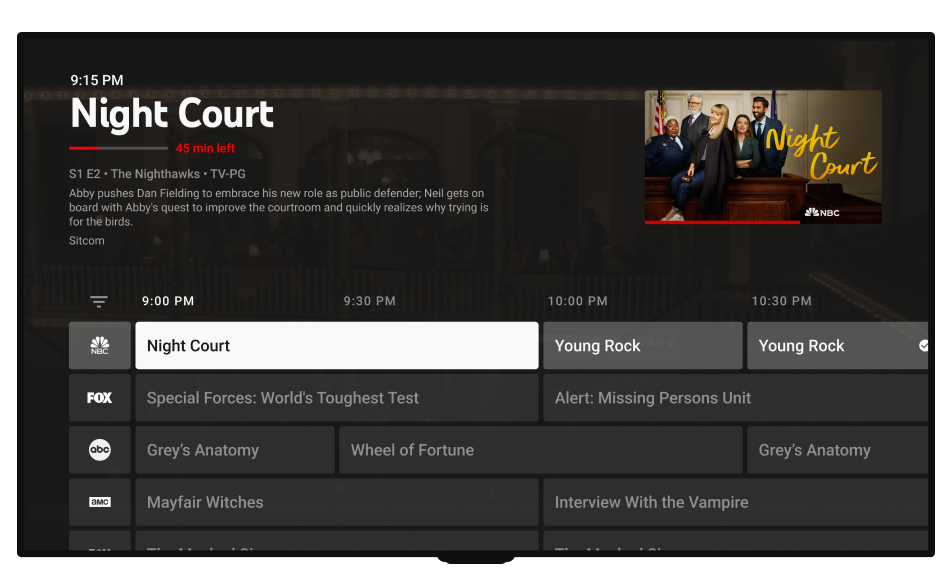
- Live: This section is your electronic program guide (EPG), showing what’s currently airing and what’s coming up. You can scroll through channels, view program information, and immediately tune in.
- Library: Here’s where all your DVR recordings reside. It’s intelligently organized by show, movie, or sport, making it easy to find and manage your saved content.
- Home: This is your personalized hub, offering recommendations based on your viewing habits, trending live programs, and quick access to recently watched channels.
- Search: A robust search function allows you to find specific shows, movies, or channels quickly.
- Settings: This is where you can manage your account, adjust playback quality, customize channel lineups, and set up parental controls.
Take some time to explore these sections. You can reorder channels in the “Live” guide to prioritize your favorites, enhancing your personalized viewing experience.
Exploring Add-ons and Premium Channels
YouTube TV offers a base package that satisfies many, but it also allows for further customization through various add-ons and premium channels. These can include specialized sports packages (e.g., NBA League Pass), movie channels (e.g., Showtime, Starz, HBO Max), or genre-specific content. You can browse and subscribe to these directly within the YouTube TV interface, and they are typically billed alongside your main subscription, streamlining your digital entertainment expenses. This modular approach allows users to tailor their content precisely to their preferences, a significant technological advantage over fixed cable bundles.
Optimizing Your YouTube TV Experience
Having successfully set up YouTube TV, the next step is to master its features to fully unlock its technological potential and elevate your streaming experience.
Mastering the Cloud DVR: Recording and Playback
The unlimited cloud DVR is a game-changer. To record a show, simply find it in the “Live” guide or through “Search,” and select the “Add to Library” option. YouTube TV automatically records all airings of that series, storing them in your “Library” for nine months. You can manage your recordings, delete watched episodes, and prioritize new content directly from the Library section. This automated, cloud-based system ensures you never miss a moment, irrespective of conflicting schedules or time zones. Playback is instantaneous, with standard DVR controls like pause, rewind, and fast-forward.
Personalizing Your Viewing: Channel Order and Recommendations
YouTube TV’s intelligent software learns from your viewing habits to offer tailored recommendations, making content discovery effortless. To further personalize, head to “Settings” -> “Live Guide” and rearrange the channels to your liking. You can hide channels you never watch and bring frequently viewed ones to the top, streamlining your channel surfing. For households with multiple users, setting up individual profiles ensures each person receives personalized recommendations and has their own DVR library, preventing viewing conflicts and enhancing individual experiences.
Sharing Your Account: Family Group Management
As mentioned, YouTube TV supports up to six members within a Google family group. To add members, navigate to “Settings” -> “Membership” -> “Family Group Settings” and invite individuals via email. Each member gets their own login, personalized library, and recommendations, all under the umbrella of a single subscription, maximizing the service’s value and ease of use for multi-person households. This feature is a testament to the robust user management system YouTube TV employs, allowing for complex sharing while maintaining individual privacy.
Troubleshooting and Advanced Features
Even with a user-friendly interface, occasional technical glitches or desires for advanced functionality can arise. Understanding basic troubleshooting and exploring advanced features will empower you as a YouTube TV power user.
Troubleshooting Common Issues: Connectivity and Playback
Most streaming issues are related to internet connectivity. If you experience buffering, poor video quality, or dropped streams:
- Check Your Internet Connection: Ensure your Wi-Fi is strong, or consider a wired Ethernet connection for your streaming device for maximum stability.
- Restart Your Device: A simple reboot of your streaming device or smart TV can often resolve minor software conflicts.
- Restart Your Router/Modem: Power cycling your network equipment can refresh your internet connection.
- Check YouTube TV Status: Occasionally, service-wide outages can occur. Check official YouTube TV social media channels or status pages for updates.
- Adjust Playback Quality: In the YouTube TV player, you can manually set video quality. If your internet is slow, lowering the quality (e.g., from 1080p to 720p) can reduce buffering. This involves direct interaction with the streaming protocol and codec settings.
Integrating with Smart Home Devices and Voice Assistants
YouTube TV seamlessly integrates with various smart home ecosystems, particularly those powered by Google Assistant.
- Voice Commands: Using Google Assistant-enabled devices (like Google Home speakers or Android phones), you can say commands like “Hey Google, play ESPN on YouTube TV” or “Hey Google, switch to CNN on YouTube TV” to control playback on compatible screens. This leverages natural language processing and API integrations for hands-free control.
- Chromecast Integration: If you have a Chromecast device, you can “cast” content from your YouTube TV mobile app directly to your TV, turning your phone into a powerful remote control.
Multi-View and Sports Features
For sports enthusiasts, YouTube TV offers innovative features like “Multi-View,” which allows users to watch up to four live streams simultaneously on a single screen. This cutting-edge technological offering is perfect for tracking multiple games or news channels at once. The service also provides dedicated sports hubs within its interface, making it easy to find live games, scores, and highlights, often featuring real-time data overlays.
Optimizing Streaming Quality and Data Usage
While YouTube TV automatically adjusts video quality based on your internet speed, you can manually override this in the player settings. For mobile users concerned about data usage, the app allows you to set preferences for streaming quality over cellular data, ensuring you don’t exceed your data cap while on the go. This level of control over bandwidth consumption is a key aspect of advanced streaming technology.
The Future of Live TV: YouTube TV in the Streaming Landscape
YouTube TV represents not just a service, but a significant advancement in how we consume live television. Its robust infrastructure, user-centric design, and continuous integration of new features position it as a leader in the cord-cutting movement. As technology evolves, so too will YouTube TV, likely incorporating more personalized AI-driven recommendations, enhanced interactive features, and broader device compatibility. By understanding how to get and leverage this powerful platform, you are not just subscribing to a service; you are embracing the future of television, unbound by the limitations of traditional media.
aViewFromTheCave is a participant in the Amazon Services LLC Associates Program, an affiliate advertising program designed to provide a means for sites to earn advertising fees by advertising and linking to Amazon.com. Amazon, the Amazon logo, AmazonSupply, and the AmazonSupply logo are trademarks of Amazon.com, Inc. or its affiliates. As an Amazon Associate we earn affiliate commissions from qualifying purchases.