
In the ecosystem of modern computing, the Graphics Processing Unit (GPU) has evolved from a simple component used to render basic 2D interfaces into a powerhouse responsible for complex 3D environments, AI computations, and high-definition video processing. However, even the most expensive hardware is only as effective as the software that governs it. This software is the graphics driver.
A graphics driver acts as the vital bridge between your operating system (Windows, Linux, or macOS) and the physical GPU hardware. It translates the instructions from your software—be it a high-end video game or a professional rendering suite—into a language the hardware understands. Keeping this bridge optimized is essential for stability, security, and performance. In this guide, we will explore the technical nuances of upgrading your graphics drivers, ensuring your system operates at its absolute ceiling.
Understanding the Role of Graphics Drivers in Modern Computing
Before diving into the “how,” it is crucial to understand the “why.” A graphics driver is not a static piece of code; it is a dynamic interface that requires frequent updates to keep pace with evolving software standards.
What is a Graphics Driver?
At its core, a graphics driver is a set of files that allows the Operating System (OS) and applications to communicate with the graphics hardware. Without the correct driver, the OS cannot utilize the GPU’s full potential, often defaulting to a “Basic Display Adapter” mode that offers low resolution and sluggish performance. Modern drivers do more than just enable a display; they contain optimizations for specific APIs (Application Programming Interfaces) like DirectX 12, Vulkan, and OpenGL.
Signs Your Driver Needs an Update
While some users adopt an “if it isn’t broken, don’t fix it” mentality, tech enthusiasts know that performance degradation is often subtle. Common signs that your graphics driver is outdated include:
- System Instability: Frequent “Blue Screen of Death” (BSOD) errors or application crashes.
- Visual Artifacts: Strange flickers, missing textures, or “tearing” during video playback or gaming.
- Poor Frame Rates: Significant performance drops in newly released software.
- Software Incompatibility: New creative apps (like Adobe Premiere or DaVinci Resolve) may refuse to launch without a minimum driver version.
The Benefits of Regular Updates
Updating your driver provides more than just bug fixes. Manufacturers like NVIDIA, AMD, and Intel frequently release “Game Ready” or “Studio” drivers. These releases are specifically tuned to provide day-one support for new software, often increasing performance by 10% to 20% in specific applications. Furthermore, drivers often include critical security patches that protect your system from vulnerabilities discovered in the GPU’s memory management.
Preparation: Identifying Your Hardware and Operating System
A common mistake in the driver upgrade process is attempting to install software meant for a different hardware architecture. Precise identification is the first step toward a successful upgrade.
Using Windows Device Manager
The quickest way to identify your GPU is through the built-in Windows Device Manager.
- Right-click the Start button and select Device Manager.
- Expand the Display adapters section.
- Here, you will see the name of your GPU (e.g., NVIDIA GeForce RTX 3080 or AMD Radeon RX 6700 XT).
Utilizing the DirectX Diagnostic Tool (DxDiag)
For a more detailed technical overview, the DirectX Diagnostic Tool is invaluable. Press Windows Key + R, type dxdiag, and hit Enter. Navigate to the Display tab. This screen provides the exact chip type, the amount of VRAM (Video RAM), and the current driver version number and date. This information is vital if you need to manually search for a driver on a manufacturer’s website.
Third-Party Diagnostic Tools
For power users and those using specialized or older hardware, third-party tools like GPU-Z offer granular details that Windows might obscure. GPU-Z can tell you the specific BIOS version of your card, the manufacturing process (nanometers), and the exact release date of the current driver. This level of detail ensures that you are downloading the exact architecture-specific package required for your machine.
The Step-by-Step Guide to Upgrading Drivers

There are several methods to upgrade your drivers, ranging from fully automated processes to manual “clean” installations. Each has its merits depending on your level of technical comfort.
Method 1: Automatic Updates via Windows Update
For the casual user, Windows Update is the simplest route. Windows automatically polls hardware IDs and searches Microsoft’s servers for verified drivers.
- Pros: Safe, tested for stability, and requires zero user intervention.
- Cons: Drivers on Microsoft’s servers are often several months behind the latest releases from the manufacturers. This method is not recommended for gamers or creative professionals.
Method 2: Manufacturer-Specific Software Suites
The most common way to stay updated is through the proprietary software provided by the GPU manufacturer.
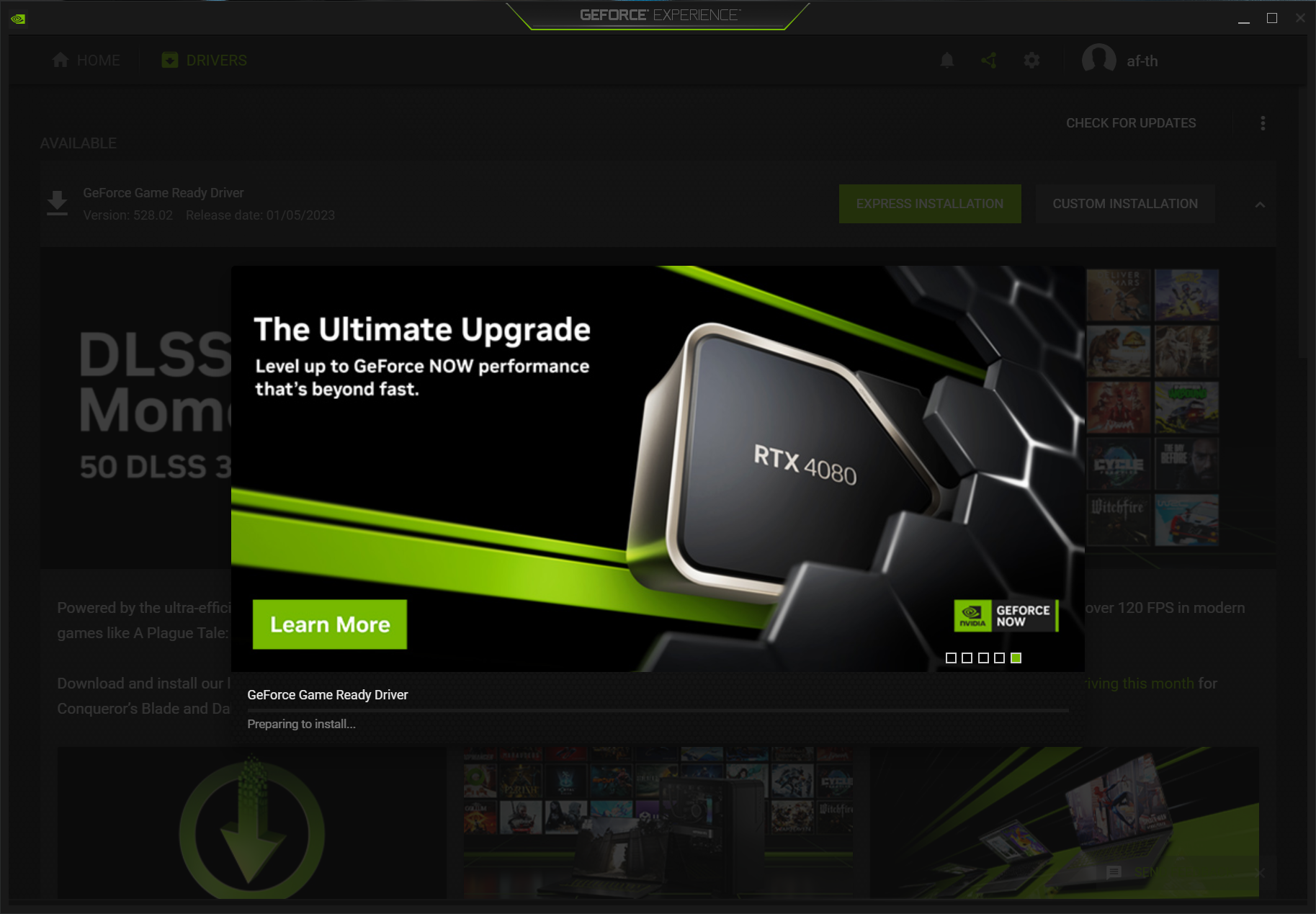
- NVIDIA GeForce Experience/NVIDIA App: This software notifies you the moment a new driver is available. It allows for one-click installation and offers an “Express” or “Custom” install option.
- AMD Software: Adrenalin Edition: Similar to NVIDIA’s offering, Adrenalin provides a robust interface for driver updates, while also allowing users to tune clock speeds and monitor thermals.
- Intel Graphics Command Center: Essential for users with Intel Iris Xe or the newer Arc Alchemist discrete GPUs.
Method 3: Manual Installation (The Professional Choice)
Manual installation involves going directly to the source:
- Visit the NVIDIA, AMD, or Intel driver download page.
- Select your specific product series, OS, and “Download Type” (e.g., “Game Ready” for performance or “Studio” for stability in creative apps).
- Download the executable (.exe) file.
- Run the installer. Most modern installers will automatically remove the old driver before applying the new one.
Troubleshooting and Best Practices for a Smooth Upgrade
Sometimes, an upgrade doesn’t go as planned. Conflicts between old file fragments and new code can lead to performance hitches or system instability.
The “Clean Install” Approach
When installing via manufacturer software, always look for a checkbox labeled “Perform a clean installation.” This resets all global 3D settings to factory defaults and clears out the cache. This is highly recommended if you are experiencing bugs or if you are upgrading from an older generation of the same brand.
Using Display Driver Uninstaller (DDU)
For tech professionals dealing with persistent issues or switching brands (e.g., moving from NVIDIA to AMD), Display Driver Uninstaller (DDU) is the industry-standard tool. DDU is a third-party utility that completely wipes every trace of a graphics driver from the Windows Registry and the file system.
- Warning: DDU should be used in “Safe Mode” to prevent file-access conflicts. Once the wipe is complete, the system will restart in a basic VGA mode, allowing for a pristine installation of the new driver.
Rolling Back to a Previous Version
If a new driver causes more problems than it fixes (a rare but possible occurrence), Windows allows you to “Roll Back.”
- Open Device Manager.
- Right-click your GPU under Display adapters and select Properties.
- Under the Driver tab, click Roll Back Driver.
This will revert the system to the previous stable state.
The Future of Graphics Software: AI and Optimization
As we look toward the future of technology, graphics drivers are becoming more than just translators; they are becoming AI-driven optimization hubs.
AI-Enhanced Drivers (DLSS and FSR)
The current frontier of GPU technology lies in AI upscaling, such as NVIDIA’s Deep Learning Super Sampling (DLSS) and AMD’s FidelityFX Super Resolution (FSR). These features are delivered entirely through driver updates. By upgrading, users gain access to sophisticated AI models that can render a game at a lower resolution and upscale it to 4K in real-time, significantly boosting frame rates without sacrificing visual clarity.
Cloud-Based Optimization and Telemetry
Modern drivers now use cloud-based telemetry to analyze how millions of users are running specific applications. This data allows manufacturers to “crowdsource” bug fixes. If a specific hardware configuration experiences a crash in a new software suite, the manufacturer can identify the pattern and push a driver “hotfix” within hours.

Conclusion
Upgrading your graphics driver is a fundamental aspect of digital maintenance that bridges the gap between hardware potential and software reality. Whether you choose the automated convenience of manufacturer suites or the precision of a manual clean install, staying current ensures that your system remains secure, stable, and high-performing. In an era where AI-driven visuals and complex computational tasks are the norm, your graphics driver is the most important piece of software on your machine. By following the steps outlined in this guide, you ensure that your technology continues to work for you at its absolute peak.
aViewFromTheCave is a participant in the Amazon Services LLC Associates Program, an affiliate advertising program designed to provide a means for sites to earn advertising fees by advertising and linking to Amazon.com. Amazon, the Amazon logo, AmazonSupply, and the AmazonSupply logo are trademarks of Amazon.com, Inc. or its affiliates. As an Amazon Associate we earn affiliate commissions from qualifying purchases.