
In the contemporary digital landscape, the Graphics Processing Unit (GPU) has evolved from a niche component for gaming enthusiasts into a cornerstone of modern computing. Whether you are rendering 4K video, training machine learning models, or navigating a high-fidelity virtual environment, your video card is the engine driving those pixels. However, even the most powerful hardware is only as effective as the software that governs it. This software—the video card driver—acts as the vital translator between your operating system and your hardware. Keeping this “translator” up to date is not merely a matter of maintenance; it is a critical practice for ensuring system stability, security, and peak performance.
Understanding the Role of Graphics Drivers in Modern Computing
To appreciate why updating your drivers is essential, one must first understand what a driver actually does. At its core, a driver is a specialized set of instructions that allows the Windows or macOS operating system to communicate effectively with the GPU hardware. Without an optimized driver, the OS cannot leverage the full capabilities of the silicon, often resulting in “fallback” modes that offer poor resolution and sluggish performance.
Bridging the Gap Between Hardware and Software
Modern software, particularly graphic-intensive applications like Adobe Creative Cloud or AAA gaming titles, changes rapidly. Developers frequently release patches that utilize new rendering techniques or hardware features. The GPU manufacturers—NVIDIA, AMD, and Intel—respond by releasing driver updates that tell the hardware exactly how to handle these new software instructions. This symbiotic relationship ensures that the hardware can execute complex mathematical calculations (like ray tracing or rasterization) with maximum efficiency.
Why Keeping Your GPU Current Matters
There are three primary reasons to prioritize driver updates: performance, stability, and security.
- Performance Gains: It is common for a new driver release to provide a 5% to 20% performance boost in specific applications. Manufacturers often “optimize” drivers for major game releases or software updates, ensuring the hardware doesn’t work harder than it needs to.
- System Stability: Outdated drivers are a leading cause of the “Blue Screen of Death” (BSOD), application crashes, and graphical artifacts. New drivers often contain bug fixes for edge cases discovered by the community.
- Digital Security: While less discussed, GPU drivers can have vulnerabilities. Malicious actors can sometimes exploit driver bugs to gain low-level access to a system. Regular updates patch these security holes, keeping your digital environment secure.
Identifying Your Graphics Hardware
Before you can update your driver, you must precisely identify the hardware you are using. Installing the wrong driver version can lead to installation errors or, in rare cases, system instability. Windows provides several built-in tools to help you identify your GPU model and current driver version.
Using Windows Device Manager
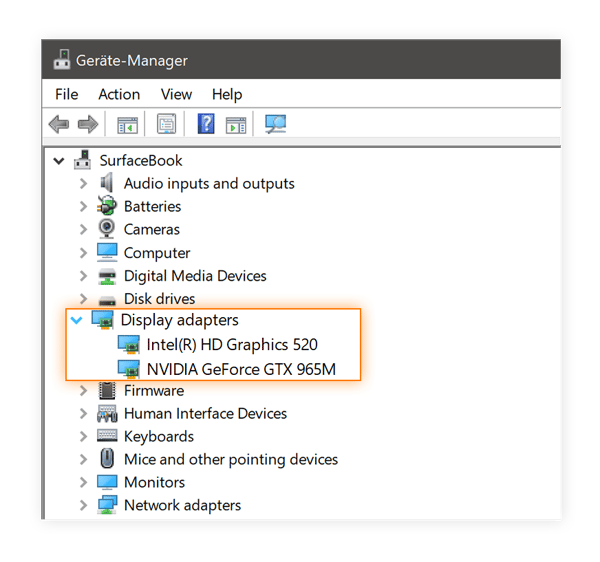
The most direct way to identify your hardware is through the Device Manager. By right-clicking the Start button and selecting “Device Manager,” you can navigate to the “Display adapters” section. Expanding this category will reveal the name of your graphics card—for example, “NVIDIA GeForce RTX 4070” or “AMD Radeon RX 7800 XT.” By right-clicking the device and selecting “Properties,” then the “Driver” tab, you can see the date and version of the current driver installed. If the driver date is more than a few months old, an update is likely available.
Leveraging System Information and Task Manager
For a more detailed overview, the “System Information” tool (type msinfo32 in the search bar) provides exhaustive data regarding your hardware IDs and driver paths. Alternatively, the Windows Task Manager (Ctrl+Shift+Esc) has a “Performance” tab that displays GPU usage in real-time, along with the driver version and the amount of dedicated video memory (VRAM) available. Knowing your VRAM and model series is helpful when navigating manufacturer websites to ensure you select the correct architecture (e.g., distinguishing between mobile/laptop versions and desktop versions).
Step-by-Step Methods for Updating Your GPU Drivers
There are several ways to approach the update process, ranging from fully automated software solutions to manual installations for power users.

Method 1: Automated Updates via Manufacturer Software
The most user-friendly method is to use the proprietary software provided by the GPU manufacturer.
- NVIDIA GeForce Experience: This utility automatically notifies you when a new “Game Ready Driver” is available. It offers a “one-click” installation process and allows you to choose between a “Custom” or “Express” installation.
- AMD Software: Adrenalin Edition: Similar to NVIDIA’s offering, AMD’s suite provides a clean interface for checking for updates. It also includes performance tuning tools and “Radeon Anti-Lag” settings that are updated alongside the drivers.
- Intel Graphics Command Center: For those using integrated Intel UHD/Iris Xe graphics or the new Arc discrete GPUs, this software ensures the system stays current with Intel’s rapid update cycle.
The benefit of these tools is that they verify the hardware compatibility for you, significantly reducing the risk of a “mismatched” driver installation.
Method 2: Manual Installation from Official Portals
For professionals who require a specific driver version for software certification (such as NVIDIA’s “Studio Drivers” for video editors), manual downloading is the preferred route.
- Visit the manufacturer’s official download page (nvidia.com, amd.com, or intel.com).
- Input your GPU model, operating system, and the driver type (Game Ready vs. Studio).
- Download the executable (.exe) file.
- Run the installer as an administrator.
Manual installation is also useful if you are working on a machine with restricted internet access or if the automated software is failing to detect an update.
Method 3: Utilizing Windows Update for Basic Compatibility
Windows Update automatically downloads graphics drivers. While this is the easiest method, it is often not the best for performance. Microsoft’s repository typically hosts “WHQL” (Windows Hardware Quality Labs) certified drivers that are several months old. These are designed for stability rather than peak performance. Use Windows Update if you are a casual user who only needs the computer to function for web browsing and office tasks, but avoid it if you engage in gaming or creative production.
Advanced Maintenance: Clean Installations and Troubleshooting
Occasionally, a driver update can go wrong. Files can become corrupted during the installation process, or a new driver version might introduce a conflict with a specific piece of software. In these instances, a “clean install” or a “rollback” is necessary.
When to Use Display Driver Uninstaller (DDU)
If you are experiencing persistent crashes or are switching from an NVIDIA card to an AMD card (or vice versa), simply installing the new driver over the old one can leave “ghost” files that cause conflicts. Professional tech enthusiasts use a utility called Display Driver Uninstaller (DDU).
DDU is a specialized tool that completely wipes every trace of a graphics driver from the Windows Registry and system folders. By running DDU in “Safe Mode” and then performing a fresh installation of the latest driver, you ensure that no legacy data is interfering with your current setup. This is considered the “gold standard” for troubleshooting graphical issues.
Rolling Back Drivers After a Faulty Update
If your system becomes unstable immediately after an update, Windows offers a “Roll Back Driver” feature. In the Device Manager, under the GPU Properties > Driver tab, you can select “Roll Back Driver” to return to the previously installed version. This is a vital safety net that allows you to remain productive while waiting for the manufacturer to release a “hotfix” for the buggy driver.
The Future of Driver Optimization: AI and Beyond
As we look toward the future of technology, the way we update and interact with video card drivers is shifting. We are entering an era of AI-driven optimization.
AI-Enhanced Features: DLSS and FSR
Modern drivers are no longer just about stability; they are the delivery mechanism for advanced AI tools. NVIDIA’s Deep Learning Super Sampling (DLSS) and AMD’s FidelityFX Super Resolution (FSR) use machine learning to upscale lower-resolution images in real-time. These features are updated through the driver. Without the latest driver, your GPU may lack the latest AI models required to produce sharp images at high frame rates.

Cloud-Based Driver Management
We are also seeing a trend toward cloud-synchronized settings. Manufacturers are moving toward systems where your GPU settings and driver preferences are backed up to the cloud. This ensures that even if you reformat your PC or move to a new machine, your hardware is immediately configured for the specific apps you use.
In conclusion, updating your video card driver is one of the most effective, no-cost ways to improve your computing experience. It is the bridge between the physical silicon of your GPU and the digital world you interact with every day. By understanding how to identify your hardware, choosing the right update method, and knowing how to troubleshoot potential issues, you ensure that your technology remains a tool for productivity and creativity rather than a source of frustration. In the fast-paced world of tech, staying current is the only way to stay ahead.
aViewFromTheCave is a participant in the Amazon Services LLC Associates Program, an affiliate advertising program designed to provide a means for sites to earn advertising fees by advertising and linking to Amazon.com. Amazon, the Amazon logo, AmazonSupply, and the AmazonSupply logo are trademarks of Amazon.com, Inc. or its affiliates. As an Amazon Associate we earn affiliate commissions from qualifying purchases.