
The transition from traditional linear broadcasting to Internet Protocol Television (IPTV) has fundamentally shifted how consumers interact with media. YouTube TV, Google’s premier cord-cutting solution, stands at the forefront of this digital revolution, offering a sophisticated interface and a robust cloud-based DVR system. However, the trial-to-subscription pipeline is a critical juncture for any user. Whether you are conducting a temporary UX comparison or simply testing the network’s latency and channel lineup, knowing how to efficiently terminate the trial is essential for maintaining control over your digital ecosystem.
This guide provides a deep dive into the technical procedures required to cancel a YouTube TV free trial across various platforms, ensuring a seamless exit without unexpected service transitions.
1. Navigating the YouTube TV Infrastructure: Pre-Cancellation Basics
Before initiating the cancellation protocol, it is vital to understand how YouTube TV integrates with the broader Google account infrastructure. Unlike standalone streaming services, YouTube TV is tethered to your Google Identity, which manages authentication, billing preferences, and data synchronization.
Understanding the “Immediate Termination” Policy
From a technical standpoint, YouTube TV handles free trial cancellations differently than its standard paid subscriptions. While a paid subscription typically remains active until the end of the current billing cycle, a free trial is often programmed for immediate termination upon cancellation. This means once you confirm the cancellation, your access to the encoded streams and the cloud DVR interface may cease instantly. Users should verify their remaining trial duration within the “Membership” settings before proceeding.
Account Synchronization and Multi-Device Management
YouTube TV utilizes a centralized database to track subscription status. Whether you initiate a cancellation on a mobile device, a web browser, or a smart TV app, the change is propagated across all devices via your Google Account. However, technical latencies can occasionally occur. It is recommended to perform the cancellation through a stable web browser to ensure the most direct communication with Google’s subscription management servers.
2. Platform-Specific Cancellation Procedures
The technical steps to cancel vary depending on the interface and the operating system you are utilizing. Below are the precise workflows for the most common digital environments.
Executing Cancellation via Desktop Web Browser
The web interface offers the most granular control over account settings.
- Authentication: Navigate to
tv.youtube.comand ensure you are logged into the primary account associated with the trial. - Settings Navigation: Click on your profile avatar in the upper right-hand corner and select “Settings” from the dropdown menu.
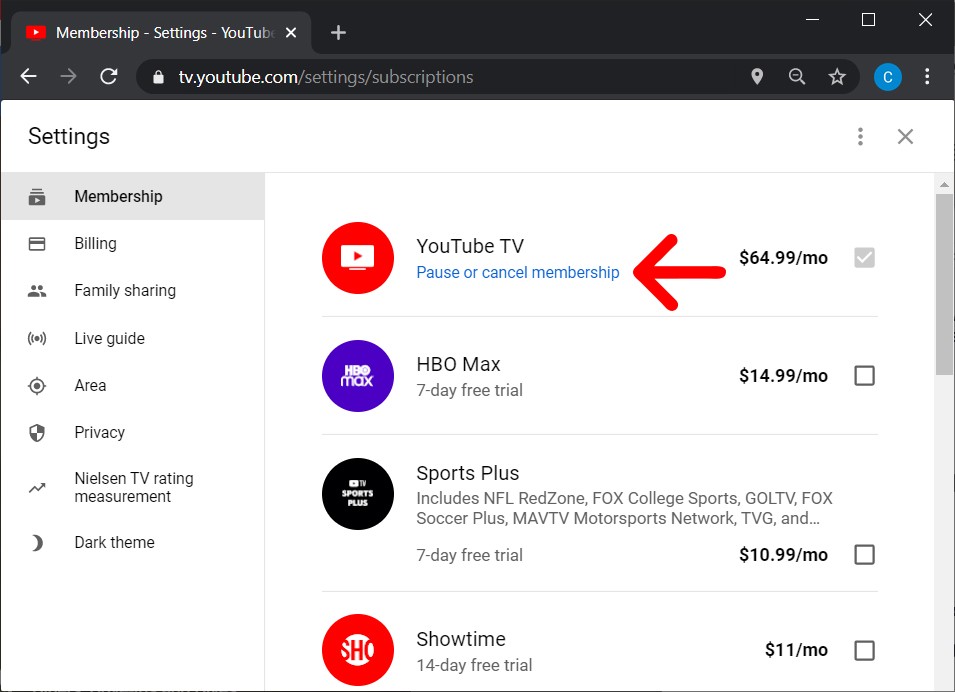
- Membership Module: Within the Settings sidebar, the “Membership” tab will display your current trial status.
- The Deactivation Workflow: Click “Manage.” You will be presented with two options: “Pause Membership” or “Cancel Membership.” While pausing suspends the state of your library for a set duration, “Cancel” initiates the permanent removal of the trial.
- Feedback and Confirmation: Google’s UI/UX includes a brief survey regarding your reason for leaving. Completing this leads to the final “Confirm Cancellation” prompt. Once clicked, the server updates your account status to “Canceled.”
Managing Subscriptions on Android Devices
For users within the Android ecosystem, the process is integrated directly into the YouTube TV application, though it mirrors the web-based logic.
- Open the YouTube TV app.
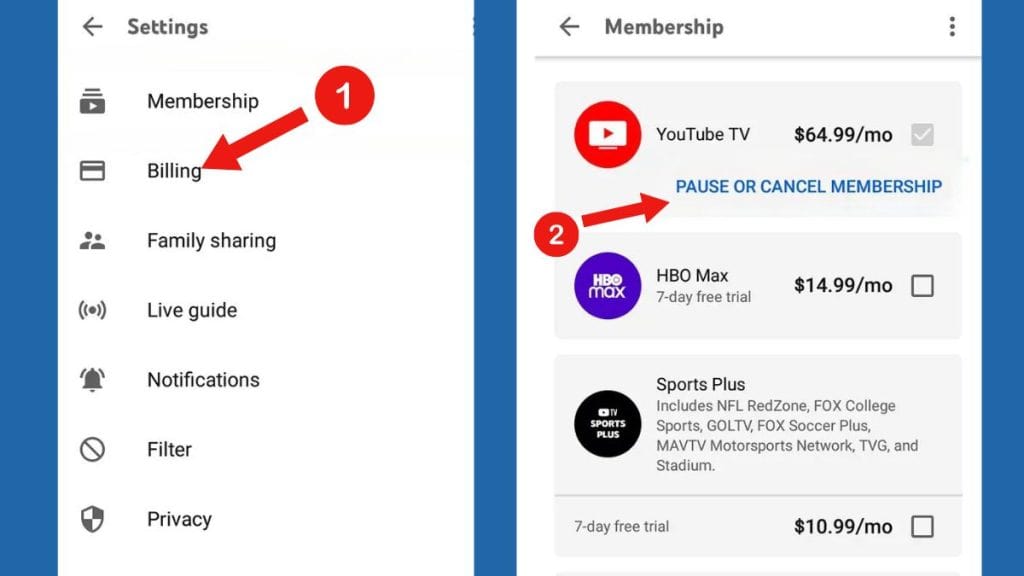
- Tap the profile icon and select “Settings” > “Membership.”
- Select “Manage” and follow the prompts to “Cancel Membership.”
Because Android is a Google product, the handshake between the app and the billing server is usually instantaneous, providing immediate visual confirmation of the cancellation.
The iOS and Apple Ecosystem Paradox
The technical architecture for iOS users depends on how the trial was initiated. If you signed up through the YouTube TV website, you must use the web-based cancellation steps. However, if you utilized Apple’s “In-App Purchase” (IAP) system, the subscription is managed by the iOS App Store’s billing API.
- Open “Settings” on your iPhone or iPad.
- Tap your Apple ID (Name) at the top.
- Navigate to “Subscriptions.”
- Locate YouTube TV and select “Cancel Free Trial.”
Failure to distinguish between these two billing pathways is the most common technical hurdle users face when attempting to terminate their service.
3. Managing Data Persistence and Post-Cancellation Metadata
Cancellation does not merely stop the billing cycle; it triggers a series of backend data management protocols. Understanding what happens to your metadata is crucial for users who might consider returning to the platform in the future.
Cloud DVR Retention and Library State
One of YouTube TV’s most touted features is its unlimited Cloud DVR. Technically, these recordings are not files stored on your hardware but are pointers in a database that link your account to specific broadcast segments on Google’s servers. When you cancel a free trial, your library entries are usually flagged for deletion. If you re-subscribe within a specific “grace period” (often 21 days), Google may preserve your settings and recordings. Beyond that, the pointers are purged to optimize server space.
Algorithmic Recommendations and Watch History
Your watch history and the algorithmic profile developed during the trial are stored within your general Google Activity data. Canceling the YouTube TV service does not automatically delete your viewing history. If you wish to clear the technical footprint of your trial, you must navigate to your “Google My Activity” page and manually purge the “YouTube TV” service logs. This ensures that your future recommendations on standard YouTube are not influenced by the content consumed during the TV trial.
4. Troubleshooting Technical Glitches During Deactivation
Occasionally, software bugs or network conflicts can interfere with the cancellation process. Understanding the technical remedies for these issues is essential for a clean exit.
Resolving “Greyed Out” or Unresponsive Buttons
If the “Cancel Membership” button is unresponsive, it is likely a client-side rendering issue. This can be caused by stale cookies or aggressive ad-blocking scripts that interfere with the site’s JavaScript.
- Technical Fix: Clear your browser’s cache and cookies for
google.comandyoutube.com. Alternatively, attempt the cancellation in an “Incognito” or “Private” window where extensions are disabled.
Addressing Third-Party Billing Conflicts
Users who signed up for YouTube TV through a bundle (such as through an ISP like Frontier or a mobile carrier like T-Mobile) will find that the standard “Membership” tab does not allow for direct cancellation.
- The Technical Bridge: In these cases, the YouTube TV interface acts as a “slave” to the third-party’s “master” billing API. You must log into your service provider’s portal to manage the add-on. The provider then sends a signal to Google’s API to terminate the access token for your account.
Verifying Cancellation via the “Audit Trail”
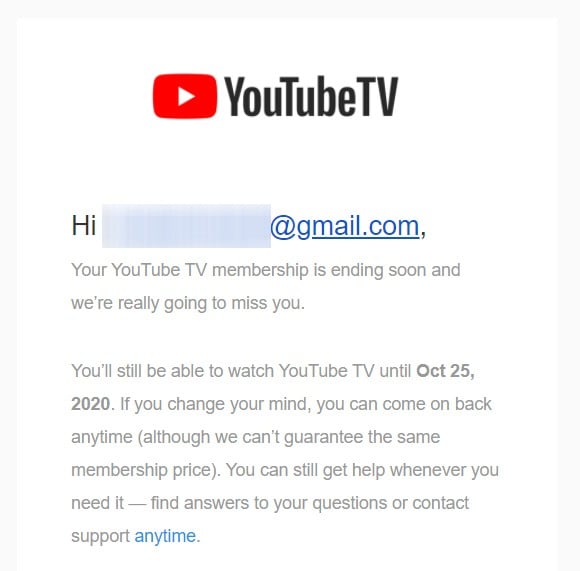
After a successful cancellation, Google’s system is programmed to generate an automated confirmation email. This serves as your digital receipt and audit trail. If you do not receive this email within 10 minutes, the server-side update may have failed. Always check the “Membership” status one final time to ensure the “Resume” button is visible—which indicates the “Cancel” state is active.
5. Security Protocols for Post-Trial Maintenance
Once the trial is cancelled, it is a prudent technical practice to review your account security and third-party permissions to ensure your digital footprint remains secure.
Revoking Third-Party App Permissions
If you used third-party apps to track your viewing habits or integrated YouTube TV with a smart home aggregator, these apps may still have permissions to access your Google Account data. Navigate to your Google Account Security settings and review “Third-party apps with account access.” Revoking permissions for any YouTube TV-related tools ensures that no background API calls continue to pull data from your inactive subscription.
Managing Payment Methods and Autopay Tokens
While the cancellation stops the billing, your credit card or PayPal token remains stored in “Google Pay” (GPay). For users concerned about “ghost charges” or accidental re-activations, removing the specific payment method or disabling the “Subscriptions” toggle within the GPay dashboard provides an extra layer of technical security. This prevents the system from automatically attempting to authorize a transaction if a user error occurs in the future.
By following these technical procedures, you can navigate the complexities of YouTube TV’s subscription management system with precision. Whether you are transitioning to a different IPTV provider or simply concluding a tech evaluation, a structured approach to cancellation ensures that your data remains managed, your billing remains clear, and your digital experience remains entirely under your control.
aViewFromTheCave is a participant in the Amazon Services LLC Associates Program, an affiliate advertising program designed to provide a means for sites to earn advertising fees by advertising and linking to Amazon.com. Amazon, the Amazon logo, AmazonSupply, and the AmazonSupply logo are trademarks of Amazon.com, Inc. or its affiliates. As an Amazon Associate we earn affiliate commissions from qualifying purchases.