
In the dynamic landscape of digital platforms, managing your online presence has become a critical aspect of personal data security and digital wellbeing. While YouTube offers unparalleled opportunities for content creation, consumption, and community building, there may come a time when parting ways with your channel becomes a necessary or desired step. Whether driven by a need for a digital detox, a shift in personal brand, privacy concerns, or simply streamlining your online footprint, understanding the process of canceling a YouTube account is paramount for any tech-savvy individual. This guide delves into the precise technical steps, crucial considerations, and implications of deleting your YouTube presence, ensuring you navigate the process with clarity and confidence.

Understanding What “Canceling” Entails on YouTube
The term “canceling a YouTube account” can sometimes be ambiguous, leading to confusion about its actual impact. It’s vital to differentiate between various levels of deletion and understand the ramifications of each before proceeding. This foundational understanding ensures you make an informed decision that aligns with your specific needs.
Deleting Your YouTube Channel vs. Deleting Your Google Account
At the core of this discussion lies the distinction between your YouTube channel and your overarching Google account. Every YouTube channel is intrinsically linked to a Google account. When you delete your YouTube channel, you are specifically removing your content, subscriptions, comments, and the public-facing identity associated with that channel. However, your underlying Google account (which grants access to Gmail, Google Drive, Google Photos, etc.) remains intact. Conversely, if you choose to delete your entire Google account, this action is far more drastic. It will not only remove all associated YouTube channels but also obliterate all data across all Google services, making it a step that should be taken with extreme caution and only if you intend to completely disconnect from Google’s ecosystem. Our focus here is primarily on deleting a YouTube channel while preserving the Google account.
Implications of Account Deletion: Content, Subscriptions, Data
A permanent deletion of your YouTube channel carries significant implications that are irreversible after a certain grace period. All videos you have uploaded, public and private, will be permanently removed. This includes all associated metadata, descriptions, tags, and analytics. Your channel’s subscriber count will disappear, and any comments you’ve made on other videos or comments left on your videos will also vanish. Furthermore, any memberships you’ve offered or joined, Super Chats, and other monetized features will cease to exist. From a data perspective, this means losing access to all historical performance data within YouTube Studio, including watch time, audience demographics, and revenue reports. This comprehensive data erasure underscores the importance of backup procedures, which we will discuss shortly.
Why You Might Want to Cancel or Hide Your Channel
The motivations behind deleting a YouTube channel are diverse and personal. Some users seek a complete digital detox, aiming to reduce screen time and online distractions. Others might be rebranding or moving to a different platform, rendering their old YouTube presence obsolete. Privacy concerns, such as wanting to remove past content that no longer reflects one’s current values, are also common drivers. For content creators, a desire to start fresh with a new creative direction, free from the shadow of previous work, can also lead to deletion. Understanding your “why” can help determine if permanent deletion is the best course of action or if alternatives like simply hiding your channel might suffice.
Preparing for Account Deletion: Essential Pre-Steps
Before initiating the deletion process, a series of preparatory steps are crucial to prevent data loss, inform your audience, and manage any linked services. These technical pre-checks are foundational to a smooth and regret-free channel termination.
Backing Up Your Data: Videos, Playlists, Comments
Perhaps the most critical pre-deletion step is to secure a backup of all content you wish to retain. YouTube offers tools to download your data, primarily through Google Takeout.
- Videos: You can download individual videos directly from YouTube Studio if they are your own. For a bulk download, Google Takeout allows you to export all your YouTube data, including videos. Ensure you download them in the highest available quality.
- Playlists: While you can’t directly “download” a playlist in a playable format, you can export a list of your playlists and their contained videos via Google Takeout. This provides a record, even if the actual playback links will eventually become defunct.
- Comments: Google Takeout can also export your comment history, providing a textual record of your interactions.
- Channel Art and Branding: Don’t forget to save your channel banner, profile picture, and any other branding assets you might have uploaded. These might be useful for future endeavors or archiving.
Thorough data backup ensures that even if your channel disappears, your creative work and digital history are preserved offline.
Notifying Your Audience and Community
If your channel has an active audience, it’s considered good practice, and often essential for a smooth transition, to inform them of your impending departure. This can be done through a final video, a community post, or social media announcements.
- Final Video: A farewell video can explain your reasons, thank your subscribers, and perhaps direct them to new platforms or future projects.
- Community Post: A written post on your YouTube channel’s community tab is a quick way to communicate.
- Social Media: Announce your decision on other platforms where your audience might follow you (e.g., Twitter, Instagram, Facebook).
- Timing: Provide ample notice (e.g., a week or two) to allow your audience to process the information and potentially subscribe to you elsewhere.
This step fosters goodwill and ensures your community isn’t left in the dark about your sudden disappearance.
Reviewing Linked Services and Subscriptions
YouTube channels often integrate with various third-party services, especially for creators. Before deletion, review and unlink or cancel these integrations.
- Monetization Partners: If you were part of the YouTube Partner Program, ensure you understand the final payment procedures. Any outstanding earnings might be disbursed based on YouTube’s payment thresholds and timelines.
- Merchandise Stores: If you linked a merchandise store, disable or update those links.
- Analytics Tools: Disconnect any third-party analytics services that were tracking your channel’s performance.
- Affiliate Links: Update or remove any affiliate links embedded in your video descriptions that might point to a defunct channel or product if your presence was tied to it.
Careful management of these external connections prevents broken links, unexpected charges, or confusion post-deletion.
The Step-by-Step Process to Delete Your YouTube Channel
With your preparations complete, you are now ready to proceed with the technical steps to permanently delete your YouTube channel. This process is carried out within YouTube Studio, the creator’s dashboard for managing their channel.
Accessing YouTube Studio
- Log In: Ensure you are logged into the Google account associated with the YouTube channel you wish to delete.
- Navigate to YouTube Studio: Go to studio.youtube.com or click on your profile icon in the top right corner of YouTube and select “YouTube Studio” from the dropdown menu.
Navigating to Advanced Settings
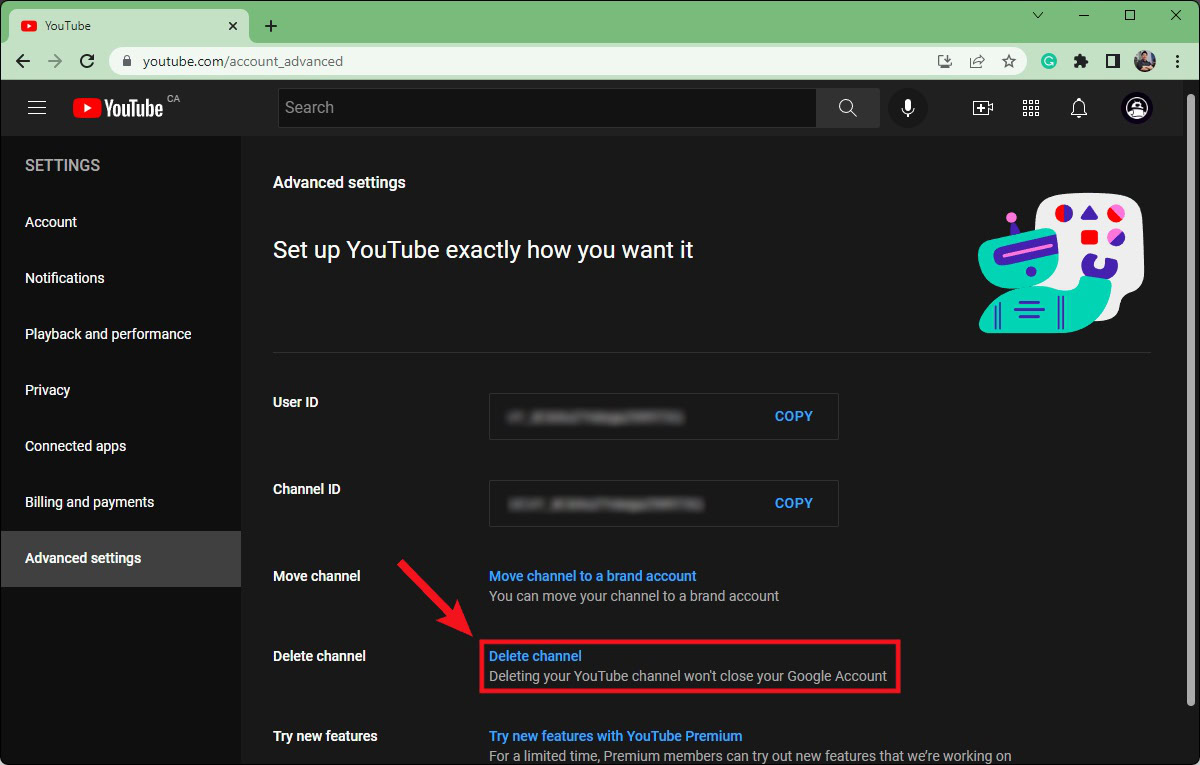
- Settings Menu: In YouTube Studio, look for the “Settings” option in the left-hand sidebar. It’s usually represented by a gear icon. Click on it.
- Channel Settings: Within the settings menu, select “Channel” from the left-hand options.
- Advanced Settings: Click on the “Advanced settings” tab at the top of the Channel settings page.
- Remove YouTube Content: Scroll down to the very bottom of the Advanced settings page. You will find an option labeled “Remove YouTube content.” Click on it.

Confirming Permanent Deletion
- Re-authentication: For security reasons, you will likely be prompted to re-enter your Google account password to verify your identity.
- Choose Deletion Option: You will then be presented with two main options: “I want to hide my channel” or “I want to permanently delete my content.” Select “I want to permanently delete my content.”
- Acknowledge Implications: A box will expand, listing the items that will be permanently removed (your videos, playlists, subscriptions, comments, messages, search history, and watch history). You must check the boxes to confirm you understand these implications.
- Confirm Deletion: Click the “DELETE MY CONTENT” button.
- Final Confirmation: You will be asked to enter your channel name or email address one last time to confirm your decision. This is a final safeguard against accidental deletion. Type the requested information precisely and click “DELETE MY CONTENT.”
Once confirmed, YouTube will begin the process of deleting your channel and its associated data. This can take a few minutes or up to several days, depending on the amount of content you had. During this period, your channel may appear as hidden or unavailable to others.
Distinguishing Temporary Hiding vs. Permanent Deletion
It’s crucial to reiterate the difference between hiding and permanently deleting your channel, as the options are presented together.
- Hiding your channel: This makes your channel, videos, playlists, and subscribers private. Your channel name will not appear on YouTube, and your comment history will be hidden. However, your content and data are not deleted and can be restored at any time by simply making your channel visible again. This is an excellent option if you need a temporary break or are unsure about full deletion.
- Permanently deleting your content: This is irreversible after a short grace period and removes all your content and data, as detailed above. Only choose this if you are absolutely certain you no longer wish to have that YouTube presence.
Recovering a Deleted YouTube Channel (Is It Possible?)
The question of recovery is often the first thought that follows the realization of accidental deletion or a change of heart. While YouTube emphasizes the permanence of deletion, there might be a narrow window of opportunity for recovery under specific circumstances.
Google’s Policy on Channel Recovery
Google (and by extension, YouTube) generally states that once a channel is permanently deleted, it cannot be restored. However, there can be a very short grace period, usually a matter of hours to a few days, during which the deletion might not be fully processed across all servers. If you act extremely quickly after an accidental deletion, there’s a slim chance. This window is not guaranteed and diminishes rapidly. Google’s official stance is to consider permanent deletion as final.
The Importance of Timeliness
Should you regret deleting your channel, immediate action is paramount. The longer you wait, the lower the probability of recovery. If you realize your mistake, try to log back into YouTube Studio with the associated Google account. If the channel still shows up, you might be able to undo the action, or at least you’ll have a clearer indication of its status.
Steps to Attempt Recovery
- Attempt Login: Log into YouTube using the Google account linked to the deleted channel.
- Check YouTube Studio: Go to YouTube Studio. If you see an option to restore or if your channel dashboard is still partially accessible, follow those prompts.
- Contact YouTube Support: If the above steps fail, and you believe you are within a very narrow grace period, try contacting YouTube Creator Support (if you were part of the YouTube Partner Program) or Google Account Support. Clearly explain the situation, emphasizing the recent nature of the deletion. Be prepared for a response indicating that recovery is unlikely. They may ask for specific channel URLs or other identifying information.
It’s critical to manage expectations here. Recovery is rare and usually only possible if the deletion process hasn’t fully propagated through YouTube’s systems. The best policy remains careful consideration and thorough preparation before initiating deletion.
Digital Detox and Account Management Best Practices
Beyond the mechanics of deletion, understanding how to manage your digital life effectively, particularly your online accounts, is a crucial skill in the digital age. Deleting a YouTube account can be part of a broader strategy for digital hygiene.
Regularly Reviewing Your Digital Footprint
Periodically auditing your online accounts and social media profiles is a recommended best practice. This involves:
- Identifying Inactive Accounts: Pinpoint old accounts on platforms you no longer use.
- Checking Privacy Settings: Ensure your active accounts have appropriate privacy settings to control who sees your information.
- Content Audit: Review old content you’ve posted (videos, photos, text) to ensure it still aligns with your current self and values. Remove or archive anything that doesn’t.
- Data Download: Regularly use tools like Google Takeout to download and archive your data from various services, providing a personal backup of your digital life.
This proactive approach helps maintain a clean, secure, and current online presence.
Security Considerations for Inactive Accounts
Leaving old, inactive accounts online can pose security risks.
- Vulnerability to Hacking: Inactive accounts are sometimes targeted by hackers, especially if they use old or reused passwords. A compromised inactive account can be a gateway to other accounts or used for spam.
- Data Leaks: If a platform experiences a data breach, even your inactive account’s data could be exposed.
- Identity Theft: Information on old accounts, even seemingly innocuous details, could be pieced together by malicious actors for identity theft.
Deleting accounts you no longer use eliminates these risks, strengthening your overall digital security posture.
Alternatives to Full Deletion: Privacy Settings, Channel Hiding
For those hesitant about permanent deletion, YouTube offers viable alternatives that provide varying degrees of privacy and content management without the finality of full removal.
- Setting Videos to Private/Unlisted: You can change the visibility of individual videos to “Private” (only viewable by you and specific people you invite) or “Unlisted” (viewable by anyone with the link, but not searchable). This allows you to retain content without it being publicly discoverable.
- Hiding Your Channel: As discussed, this option makes your channel and all its content private but keeps the data on YouTube’s servers, allowing for easy restoration. It’s an excellent choice for a temporary break or if you’re undecided about your channel’s future.
- Removing Specific Content: Instead of deleting the entire channel, you can simply delete individual videos or playlists that you no longer wish to be public.
- Managing Comments: You can disable comments on specific videos or hold all comments for review, giving you control over engagement without removing your entire channel.
These alternatives provide flexibility, allowing users to tailor their YouTube presence to their evolving needs without committing to an irreversible action.
Canceling a YouTube account is a significant digital action that requires careful consideration and precise execution. By understanding the distinction between channel and Google account deletion, preparing meticulously with data backups and audience notifications, and following the technical steps outlined, you can navigate this process effectively. Whether for a digital detox, a rebranding effort, or simply streamlining your online presence, managing your digital footprint is a vital component of modern tech literacy. While the act of deletion is largely irreversible, making an informed decision ensures that your exit from the platform is intentional, clean, and regret-free.
aViewFromTheCave is a participant in the Amazon Services LLC Associates Program, an affiliate advertising program designed to provide a means for sites to earn advertising fees by advertising and linking to Amazon.com. Amazon, the Amazon logo, AmazonSupply, and the AmazonSupply logo are trademarks of Amazon.com, Inc. or its affiliates. As an Amazon Associate we earn affiliate commissions from qualifying purchases.