
The shift from traditional linear cable to Over-the-Top (OTT) streaming services has fundamentally changed how we consume media. YouTube TV has emerged as a titan in this space, offering a robust cloud-based DVR, a vast array of channels, and a seamless integration with the broader Google ecosystem. However, as the digital landscape evolves, users often find themselves needing to audit their software subscriptions. Whether you are transitioning to a different streaming architecture, streamlining your digital footprint, or simply taking a break from live television, understanding the technical nuances of unsubscribing is essential.
This guide provides a deep dive into the technical process of canceling or pausing your YouTube TV subscription, navigating the cross-platform hurdles, and managing your data once the service is terminated.
The Technical Process: Canceling YouTube TV Across Different Platforms
The complexity of modern software ecosystems means that unsubscribing isn’t always as simple as clicking a single button. Depending on where you initially signed up—whether through a web browser, an Android device, or an iOS interface—the pathway to cancellation varies due to different API integrations and billing structures.
Web Browser Method: The Direct Approach
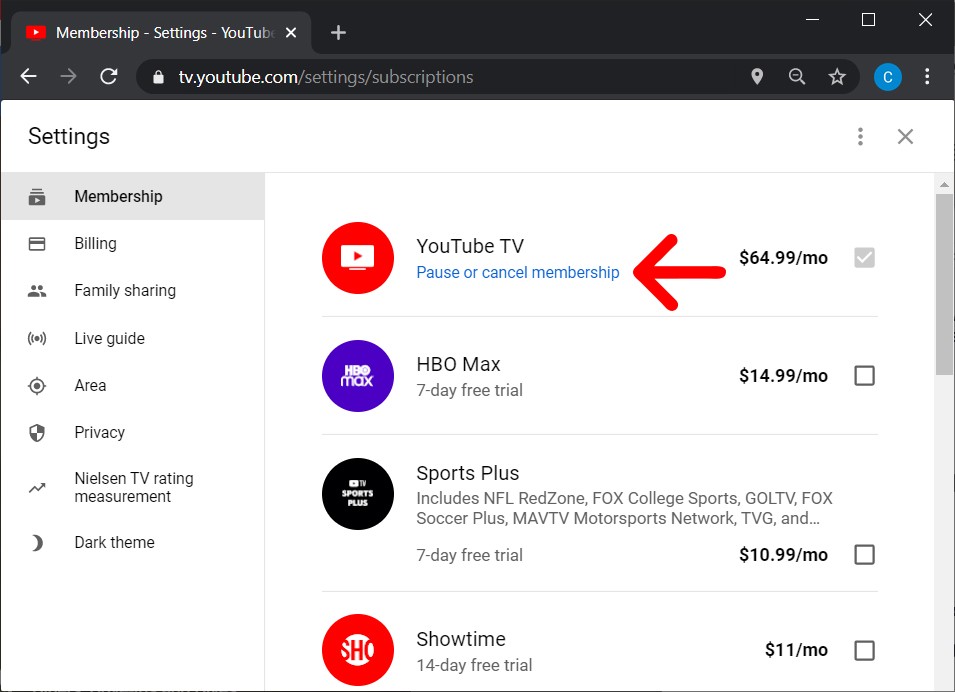
For most users, the most reliable way to manage a Google-based subscription is through a desktop web browser. This method bypasses the limitations often found in mobile application wrappers. To begin, navigate to the YouTube TV web portal and authenticate your account. From a technical standpoint, the subscription management is housed within the “Settings” menu, specifically under the “Membership” tab.
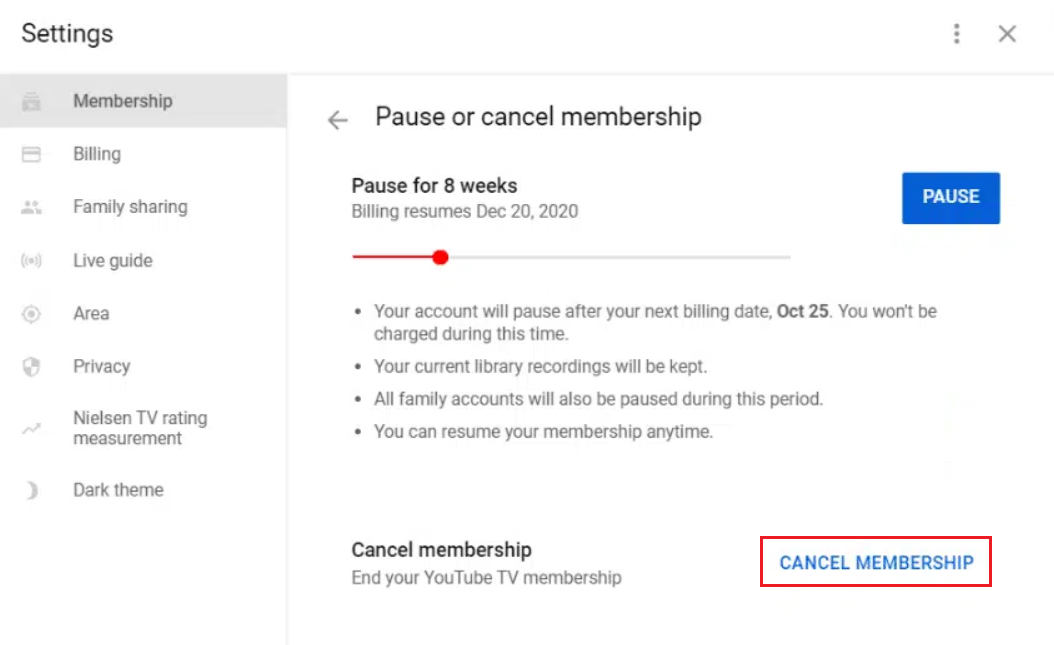
Once you click “Manage,” the software will present you with two primary options: pausing your membership or canceling it entirely. Selecting “Cancel” initiates a sequence of confirmation dialogues designed to ensure the user understands the cessation of service. From a UI/UX perspective, these steps are intentional, serving as both a retention strategy and a safeguard against accidental data loss.
Navigating the Android App Ecosystem
On Android devices, the YouTube TV app is deeply integrated with the Google Play Store’s billing system. When you initiate a cancellation within the app, the software often redirects the request to the Google Play Subscriptions manager. This centralized hub manages the recurring API calls that handle your monthly billing. To cancel here, you must navigate to your profile icon, select “Settings,” then “Membership,” and follow the prompts. The synchronization between the app and the Google Play billing server is instantaneous, ensuring that your access persists only until the end of the current billing cycle.
The iOS and Apple Billing Challenge
If you signed up for YouTube TV via an iPhone or iPad, your subscription might be managed through Apple’s App Store billing system rather than Google’s direct payment gateway. This creates a technical layer of separation. In this scenario, you cannot cancel through the YouTube TV app itself due to Apple’s “In-App Purchase” protocols. Instead, you must go to the iOS “Settings” app, tap your Apple ID, and select “Subscriptions.” Finding YouTube TV in this list allows you to terminate the recurring payment through Apple’s servers, which then communicate the status change back to Google’s database.
Pause vs. Cancel: Understanding Google’s Subscription Software Logic
One of the more sophisticated features of the YouTube TV platform is the ability to “Pause” a membership. This is a distinct technical state compared to a full cancellation, and understanding the difference is crucial for managing your digital assets.
The “Pause” Feature: How it Works Technically
When you choose to pause your subscription, you are essentially instructing Google’s database to suspend billing for a predetermined period—usually between 4 weeks and 6 months. During this “Paused” state, your account remains in a dormant mode. You lose access to live playback and your library, but your settings and preferences are cached on Google’s servers.
From a technical efficiency standpoint, pausing is superior to canceling if you plan to return. It prevents the need to re-configure your custom channel lineups and “Home” area recommendations. At the end of the chosen period, the system automatically triggers a “Resume” command, re-enabling the billing cycle and restoring service access.
Data Retention and DVR Access
A major concern for users unsubscribing from YouTube TV is the fate of their Cloud DVR recordings. YouTube TV offers unlimited storage, but this data is tied to an active or paused membership. If you cancel your subscription entirely, Google’s data retention policy typically dictates that your recorded programs will be purged after 21 days.
However, if you choose to pause, your recordings are preserved for the duration of the pause (subject to the standard 9-month expiration date from the time of recording). For users who have curated a significant library of niche content or sporting events, the “Pause” state acts as a technical “Deep Freeze” for their data, whereas cancellation acts as a “Delete” command with a short grace period.
Troubleshooting Common Technical Hurdles in the Unsubscription Process
Despite the streamlined nature of modern apps, several technical roadblocks can complicate the unsubscription process. These often involve third-party integrations or account synchronization issues.
Third-Party Billing (Roku, T-Mobile, Frontier)
Many users do not pay Google directly for YouTube TV. Instead, they access the service through a “bundle” provided by an ISP like Frontier, a mobile carrier like T-Mobile, or a hardware ecosystem like Roku. In these instances, the “Cancel” button in the YouTube TV settings may be grayed out or redirected.
The technical reason for this is that the “Source of Truth” for your billing resides on the third-party server. To unsubscribe, you must log into the portal of the service provider that handles your billing. The API handshake between the provider and Google is what authorizes your access; therefore, the termination must start at the source. This is a common point of frustration, but it is a necessary byproduct of integrated digital commerce.
Resolving Account Access and “Ghost” Subscriptions
Occasionally, users may find themselves being charged for a subscription they cannot see in their primary Google Account. This usually indicates a “Ghost Subscription” linked to a secondary Gmail or Workspace account. Because YouTube TV allows for “Family Sharing” (up to six accounts), the billing is tied exclusively to the “Family Manager” account.
If you are a member of a family group, you cannot cancel the subscription; only the account designated as the Manager has the administrative permissions to modify the billing state. Identifying the correct administrative UID (User Identification) is the first step in resolving these technical discrepancies.
The Evolution of Streaming Software: Why Users Move On
The decision to unsubscribe is often driven by the technological trajectory of the platform. As YouTube TV evolves, its software overhead and feature set change, leading users to reassess its value compared to other software-based television solutions.
Assessing UI/UX and Feature Sets
The User Interface (UI) of YouTube TV is highly praised for its “Snappiness,” but as the service adds more 4K content and interactive features, the hardware requirements for a smooth experience have increased. Users with older streaming sticks or smart TV hardware may experience “input lag” or “app crashes,” leading them to seek lighter, more optimized software alternatives. When the hardware-software synergy breaks down, unsubscribing becomes a technical necessity to maintain a high-quality viewing experience.
Integration with Smart Home Ecosystems
For many, the tech appeal of YouTube TV is its integration with Google Home and Nest devices. The ability to use voice commands like “Hey Google, play ESPN on the Living Room TV” relies on a complex web of cloud-to-cloud integrations. If a user decides to switch their home automation ecosystem to Amazon Alexa or Apple HomeKit, they may find that YouTube TV no longer fits their “Smart Home” logic as seamlessly as a competitor like Sling TV or Hulu + Live TV might. Unsubscribing is often the final step in a broader hardware ecosystem migration.
Managing Your Digital Footprint After Cancellation
Once the unsubscription is confirmed, there are several “digital hygiene” steps that tech-savvy users should take to ensure their data is secure and their devices are optimized.
Clearing Cache and App Data
After your subscription period ends, the YouTube TV app remains on your device, often holding several hundred megabytes of cached data, thumbnails, and login tokens. On Android or Fire TV devices, navigating to the app settings and selecting “Clear Cache” and “Clear Data” will reclaim this storage space. On iOS, deleting and reinstalling the app is the most effective way to purge residual files.

Reviewing Linked Payment Profiles
Finally, it is a best practice to visit the “Google Payments Center” (pay.google.com). Even after canceling a subscription, your credit card information remains stored in your Google Account for future “1-Click” purchases. From a digital security perspective, if you do not plan on using other paid Google services (like Google One or YouTube Premium), removing the payment method adds an extra layer of protection against unauthorized charges or account compromises.
In conclusion, unsubscribing from YouTube TV is more than just a financial decision; it is a management task within your personal tech stack. By understanding the underlying software logic—from platform-specific cancellation paths to the data retention policies of the “Pause” feature—you can navigate the streaming landscape with technical proficiency and ensure your digital life remains organized and efficient.
aViewFromTheCave is a participant in the Amazon Services LLC Associates Program, an affiliate advertising program designed to provide a means for sites to earn advertising fees by advertising and linking to Amazon.com. Amazon, the Amazon logo, AmazonSupply, and the AmazonSupply logo are trademarks of Amazon.com, Inc. or its affiliates. As an Amazon Associate we earn affiliate commissions from qualifying purchases.