
In an increasingly digital world, the way we consume entertainment has fundamentally shifted. Gone are the days when traditional cable or satellite TV was the only gateway to live sports, breaking news, and prime-time shows. Today, streaming services offer unparalleled flexibility, and among the frontrunners in the live TV streaming arena is YouTube TV. For many, the allure of cutting the cord is strong, but the practical question remains: “How do I get YouTube TV?”
This guide will demystify the process, walking you through every step from understanding what YouTube TV offers to setting it up on your favorite devices and mastering its features. Designed for both tech novices and seasoned streamers, this article provides a professional, insightful, and engaging pathway to transforming your TV viewing experience.
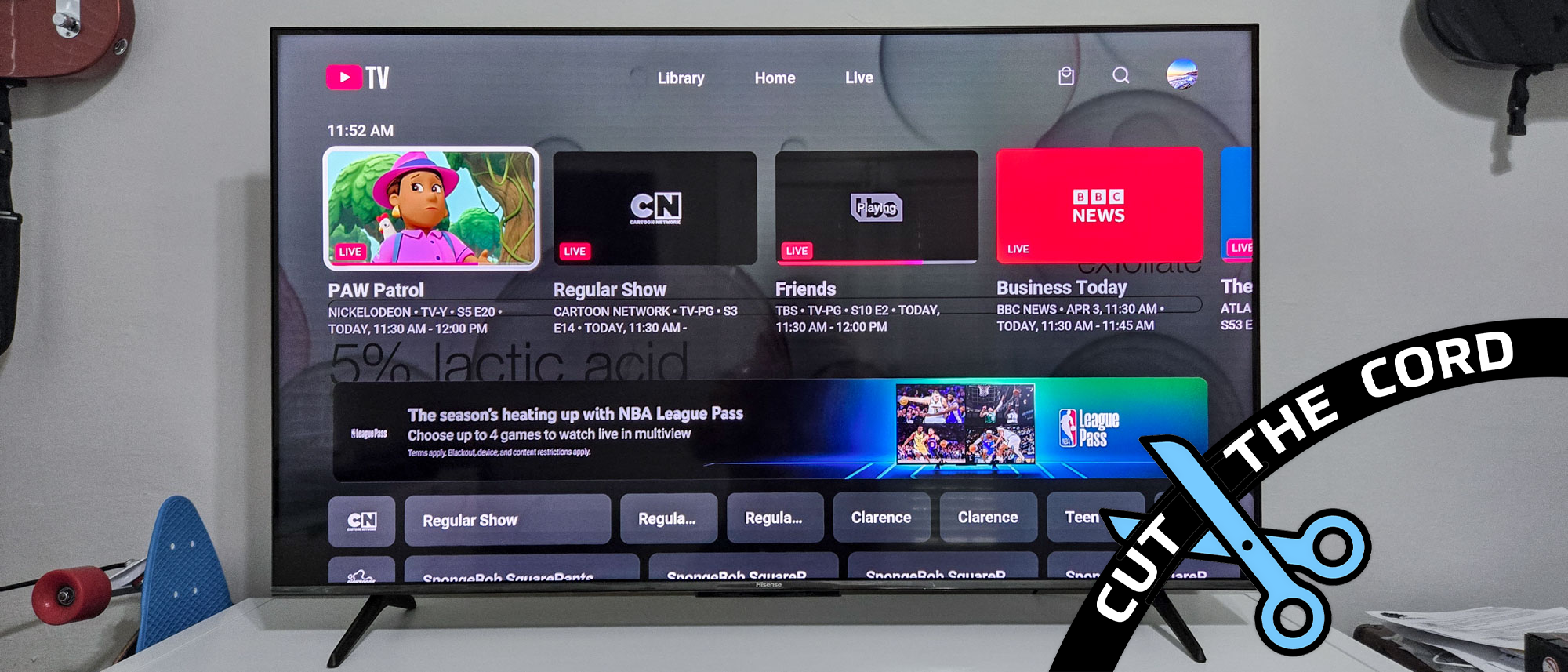
Unpacking YouTube TV: What It Offers and Why It’s a Top Choice
Before diving into the mechanics of acquisition, it’s crucial to understand what YouTube TV is, how it fits into the broader entertainment landscape, and what makes it a compelling alternative to traditional television.
The Evolution of Live TV Streaming and YouTube TV’s Position
The rise of high-speed internet paved the way for a revolution in media consumption. Consumers, tired of expensive cable bundles filled with unwanted channels and rigid contracts, began seeking more agile, on-demand options. This desire fueled the growth of streaming video-on-demand (SVOD) services like Netflix and Hulu, but a gap remained: live television. Enter Live TV streaming services, also known as vMVPDs (virtual multichannel video programming distributors). These services deliver traditional broadcast and cable channels over the internet, mimicking the cable experience but with enhanced flexibility, often at a lower cost, and without long-term commitments.
YouTube TV, launched by Google in 2017, quickly established itself as a leading player in this space. Leveraging the robust infrastructure and brand recognition of its parent company, YouTube TV offers a comprehensive package designed to appeal to a wide audience. It combines the familiarity of traditional TV with the convenience and modern features expected from a digital platform, positioning itself as a seamless bridge for those looking to transition away from conventional cable.
Core Features: Live Channels, Unlimited DVR, and Multi-Device Access
What truly sets YouTube TV apart and makes it a highly attractive option for cord-cutters are its core features:
- Extensive Live Channel Lineup: At its heart, YouTube TV provides access to a broad selection of live channels, including major broadcast networks (ABC, CBS, FOX, NBC, The CW), popular cable networks across news, sports, entertainment, and family programming (e.g., ESPN, TNT, CNN, HGTV, FX, Discovery Channel, Cartoon Network). The exact lineup can vary slightly by location due to local affiliate agreements, but it generally covers the essentials.
- Unlimited Cloud DVR: This is arguably YouTube TV’s most lauded feature. Subscribers enjoy unlimited cloud storage for recordings, allowing them to record as many shows as they want simultaneously, without storage limits, and keep them for nine months. This feature far surpasses the limited storage offered by most traditional cable DVRs and even some competitor streaming services.
- Multiple Simultaneous Streams: A single YouTube TV subscription typically allows for three simultaneous streams. This means different members of a household can watch different shows on different devices at the same time, preventing conflicts and enhancing the family viewing experience.
- Family Sharing: A Google Family Group allows up to six accounts to share one YouTube TV subscription, each with their own personalized library and recommendations, making it a cost-effective solution for households.
- Broad Device Compatibility: YouTube TV is designed to work across a vast array of devices, from smart TVs and streaming media players (Roku, Apple TV, Chromecast, Fire TV) to mobile phones (iOS, Android), tablets, and web browsers. This extensive compatibility ensures you can watch your favorite content wherever and whenever you want.
- No Contracts: Like most streaming services, YouTube TV operates on a month-to-month subscription basis, meaning you can cancel or pause your service anytime without penalty.
Distinguishing YouTube TV from Other YouTube Services
It’s common for newcomers to confuse YouTube TV with other Google-owned video platforms. Clarifying these distinctions is essential:
- Standard YouTube: This is the free, ad-supported platform where users upload, share, and view a vast library of user-generated content, music videos, vlogs, educational videos, and more. It’s primarily on-demand and community-driven.
- YouTube Premium: This is a paid subscription that enhances the standard YouTube experience. It eliminates ads on all videos, allows for background playback on mobile devices, enables video downloads for offline viewing, and includes access to YouTube Music Premium. YouTube Premium does not include live TV channels.
- YouTube TV: This is a separate, dedicated live TV streaming service. It provides access to traditional broadcast and cable channels over the internet, along with on-demand content from those channels and its unique unlimited cloud DVR. While it’s part of the YouTube ecosystem, it’s a distinct product with a specific purpose: replacing cable TV.
Understanding these differences ensures you’re subscribing to the service that aligns with your entertainment needs.
Your Step-by-Step Pathway to Subscribing
Once you’ve determined that YouTube TV is the right fit for your household, the subscription process is straightforward and designed for user convenience.
Essential Prerequisites: What You Need Before You Start
Before you begin the sign-up process, ensure you have the following in place:
- A Stable High-Speed Internet Connection: Live streaming, especially in high definition, consumes significant bandwidth. A reliable internet connection of at least 20-25 Mbps (megabits per second) is recommended per simultaneous stream to ensure a smooth, buffer-free viewing experience. For multiple users or 4K streaming (with the 4K Plus add-on), even higher speeds are advisable.
- A Google Account: Since YouTube TV is a Google product, you’ll need an active Google account (the same one you might use for Gmail, YouTube, or Google Drive) to subscribe and manage your service. If you don’t have one, it’s free and easy to create.
- A Compatible Device: While you can sign up on a computer or mobile phone, you’ll need a compatible device to watch the content on your TV. This could be a smart TV with the YouTube TV app, a streaming stick/box (Roku, Apple TV, Chromecast with Google TV, Amazon Fire TV Stick), a gaming console (Xbox, PlayStation), or even a computer connected to your TV.
- A Valid Payment Method: You’ll need a credit card, debit card, or a Google Play balance to set up recurring payments for your monthly subscription.
The Account Creation and Subscription Flow
The easiest way to subscribe to YouTube TV is via a web browser on a computer or mobile device.
- Visit the Official YouTube TV Website: Go to
tv.youtube.comin your web browser. - Click “Try Free” or “Get Started”: YouTube TV typically offers a free trial period (e.g., 7-14 days). This is an excellent opportunity to test the service before committing. Click the prominent “Try Free” or “Get Started” button.
- Sign In with Your Google Account: You’ll be prompted to sign in with your Google account. If you’re already signed in, confirm the account you wish to use.
- Confirm Your Home Location: YouTube TV uses your home zip code to determine which local channels are available in your area. This is a crucial step, as channel lineups can vary geographically. Ensure your device’s location services are enabled if prompted.
- Review Your Channel Lineup: The system will display the channels included in your base plan based on your confirmed location. Take a moment to review this to ensure your must-have channels are present.
- Select Optional Add-ons: You’ll then be given the option to add premium networks (e.g., HBO Max, Showtime, STARZ) or specialized packages (e.g., Sports Plus, 4K Plus) for an additional monthly fee. You can always add or remove these later.
- Enter Payment Information: Provide your credit card, debit card, or Google Play payment details. This information will be used after your free trial concludes. You won’t be charged until the trial period ends.
- Review and Confirm: Double-check your chosen plan, any add-ons, and payment information. Read and agree to the terms of service.
- Start Your Free Trial: Click to complete the subscription. You’ll instantly gain access to YouTube TV.
Navigating Plans, Pricing, and Optional Add-ons
YouTube TV simplifies its pricing structure by offering one primary base plan, which includes a comprehensive set of channels, unlimited DVR, and multiple streams. The price of this base plan is subject to change over time, so it’s always best to check the official website for the most current pricing.
Beyond the base plan, YouTube TV offers a variety of add-ons to enhance your viewing experience:
- Premium Networks: These are individual subscriptions to popular premium cable channels like Max (formerly HBO Max), Showtime, Starz, and Cinemax.
- Sports Plus: This bundle typically includes several sports-focused channels not found in the base plan, such as NFL RedZone, beIN SPORTS, and Fox Soccer Plus.
- 4K Plus: This add-on provides access to 4K resolution content on demand and for select live events (e.g., sports), allows for unlimited simultaneous streams at home, and enables offline downloads for mobile viewing.
These add-ons are entirely optional and can be managed directly through your YouTube TV settings after subscribing.
Understanding Payment and Billing
YouTube TV operates on a monthly subscription model. Your payment method will be charged automatically at the beginning of each billing cycle (usually monthly) after your free trial ends. You can view your billing history, update your payment information, or pause/cancel your subscription at any time within the YouTube TV settings. Pausing allows you to temporarily suspend your service for a period (e.g., 1-6 months) without fully canceling, which can be useful if you’re going on an extended vacation.
Seamless Setup and Access Across Your Devices
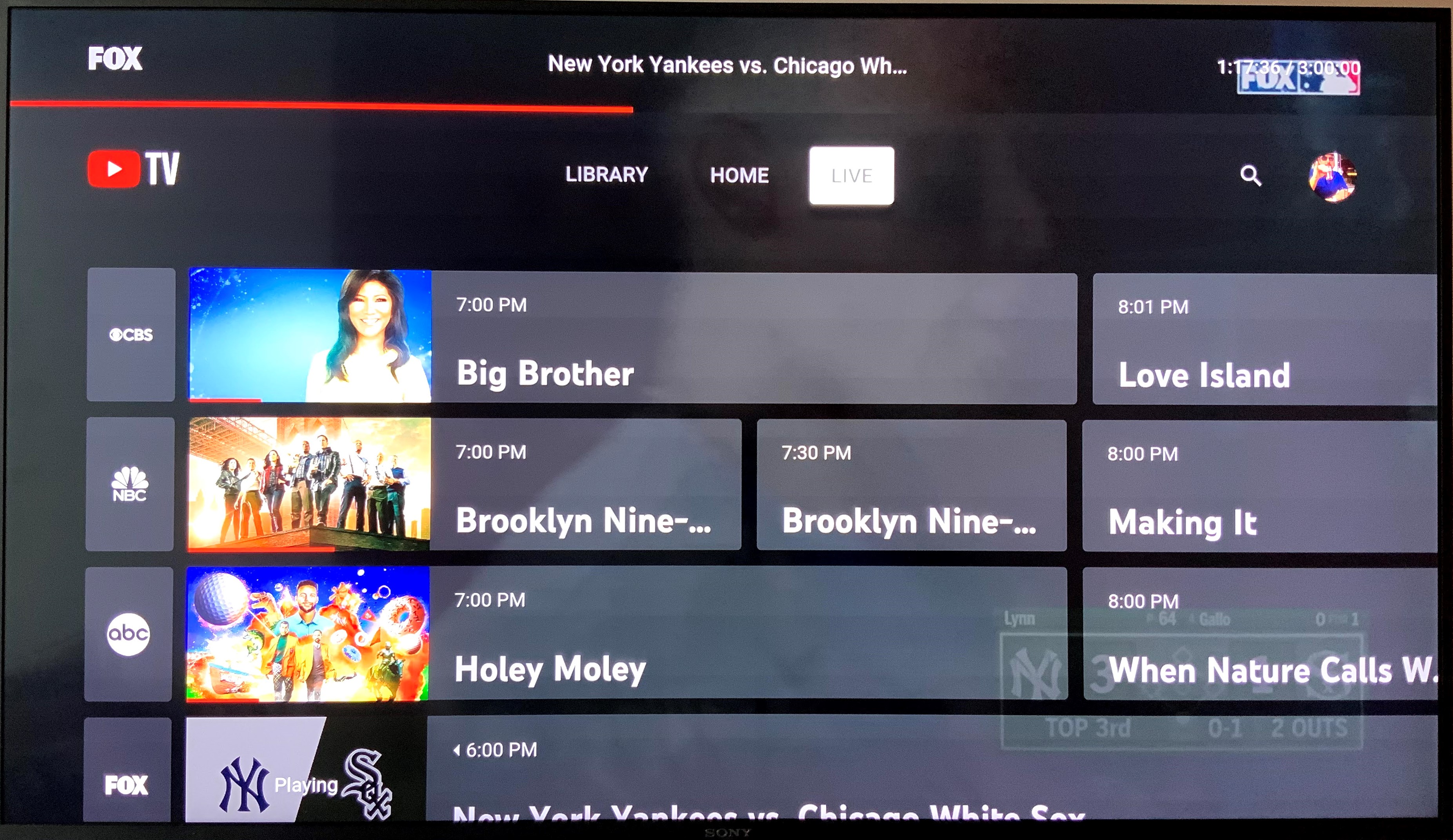
Once subscribed, the next step is to get YouTube TV up and running on your preferred viewing devices. The beauty of streaming is its flexibility, allowing you to watch on almost any screen.
Verifying Device Compatibility and App Installation
YouTube TV supports a wide ecosystem of devices. Before you begin, confirm your device is compatible:
- Smart TVs: Most modern smart TVs (Samsung, LG, Sony, Vizio, Hisense, etc.) running their respective smart TV platforms have a native YouTube TV app.
- Streaming Media Players: Roku devices, Apple TV, Google Chromecast (especially with Google TV), Amazon Fire TV Stick/Cube, and NVIDIA Shield TV.
- Gaming Consoles: Xbox One, Xbox Series X/S, PlayStation 4, PlayStation 5.
- Mobile Devices: Android phones and tablets, Apple iPhones and iPads.
- Web Browsers: Chrome, Firefox, Safari, Edge on Windows, macOS, and Linux.
To install the app:
- Smart TV/Streaming Device: Navigate to your device’s app store (e.g., Roku Channel Store, Apple App Store, Google Play Store, Amazon Appstore for Fire TV). Search for “YouTube TV” and select “Install” or “Get.”
- Mobile Device: Open the Google Play Store (Android) or Apple App Store (iOS), search for “YouTube TV,” and tap “Install” or “Get.”
The Login Process and Account Linking
After installing the app, opening it will typically present you with a sign-in screen.
-
Sign In: You’ll usually have two primary options:
- Sign In on TV/Device: Select this option. You’ll see a unique code displayed on your TV screen.
- Open a web browser on a computer or mobile phone and go to
tv.youtube.com/start. Enter the code displayed on your TV into the website. You’ll then be prompted to sign in with your Google account linked to your YouTube TV subscription. Once successfully signed in, your TV app will automatically update and load YouTube TV. - Sign In on Mobile/Tablet: If you’re on a mobile device, you’ll simply sign in directly using your Google account credentials within the app.
-
Select Your Profile: If you’ve set up a Google Family Group with multiple profiles on YouTube TV, you’ll be asked to select which profile is currently watching.
Optimizing Your Home Network for Flawless Streaming
A robust home network is critical for a high-quality streaming experience.
- Router Placement: Position your Wi-Fi router centrally and away from obstructions (walls, large appliances) for optimal signal strength.
- Ethernet Connection: Whenever possible, connect your streaming device directly to your router via an Ethernet cable. This provides the most stable and fastest connection, eliminating Wi-Fi interference.
- Wi-Fi Band: If using Wi-Fi, utilize the 5GHz band for streaming devices if your router supports it. It offers faster speeds and less interference than the 2.4GHz band, though it has a shorter range.
- Minimize Network Congestion: Avoid running multiple bandwidth-intensive activities (e.g., large file downloads, online gaming) simultaneously when streaming live TV, especially if your internet speed is modest.
- Router Firmware: Ensure your router’s firmware is up to date, as this can improve performance and security.
Initial Personalization: Setting Up Your Preferred Channels and Location
Upon your first login, YouTube TV will automatically present a default channel lineup based on your confirmed home location. However, you can personalize this:
- Customize Live Guide: Go to
Settings>Live Guidewithin the YouTube TV app. Here, you can reorder channels or hide channels you never watch, creating a streamlined guide tailored to your preferences. - Location Services: YouTube TV relies on your device’s location services (or IP address) to deliver correct local channels. Occasionally, you may be prompted to verify your playback area, especially if you travel frequently. Ensure your devices have location services enabled and that you regularly use YouTube TV from your home location to maintain access to your local channels.
Mastering Your YouTube TV Experience: Features and Management
With YouTube TV successfully set up, it’s time to explore its full capabilities and learn how to manage your service effectively.
Navigating the User Interface: Home, Live Guide, and Library
YouTube TV’s interface is designed for intuitive navigation:
- Home: This is your personalized dashboard, offering recommendations based on your viewing habits, recently watched shows, and popular content. It’s a great starting point for discovering something new.
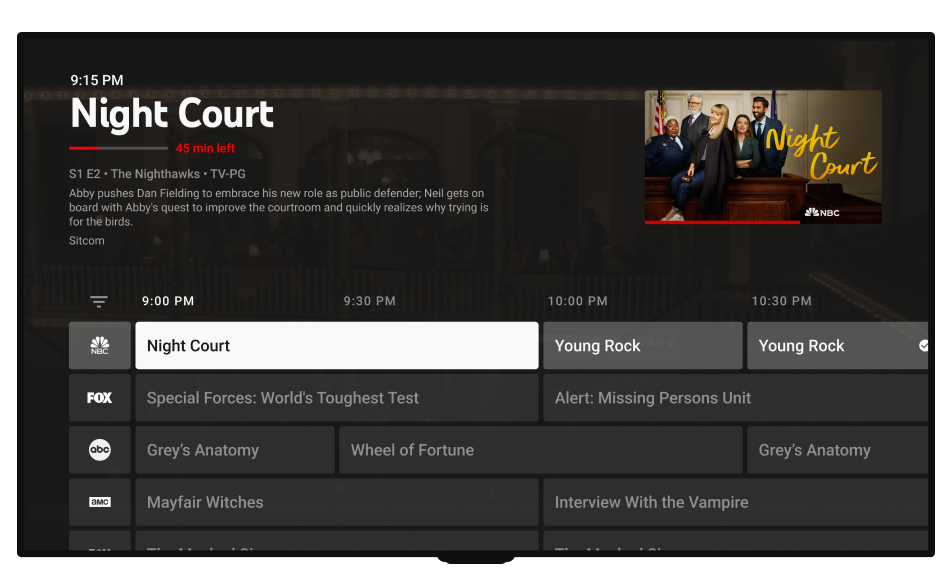
- Live Guide: Accessible from the top menu, the “Live” tab displays a traditional grid-style programming guide, showing what’s currently airing and what’s coming up on all your subscribed channels. You can scroll forward in time to see future programming.
- Library: This is where all your recorded shows, movies, and events are stored thanks to the unlimited cloud DVR. It also keeps track of programs you’ve marked to watch later and past live events from your favored teams.
- Search: A magnifying glass icon allows you to search for specific shows, movies, channels, or sports teams.
Leveraging the Unlimited Cloud DVR for Your Viewing Habits
The unlimited cloud DVR is a game-changer. Here’s how to use it:
- Recording: While watching a live show or browsing the Live Guide, simply select a program and choose “Add to Library” (or the record icon). YouTube TV will then record all upcoming airings of that program (including new episodes and reruns) and store them in your Library for nine months.
- Managing Recordings: In your “Library,” recorded shows are organized by series, making it easy to find specific episodes. You can fast-forward through commercials on DVR recordings, a significant advantage over many traditional DVRs.
- Series vs. Episodes: When you choose to record a show, you generally add the entire series to your library, which means every new episode and often re-runs will be recorded.
Managing User Profiles and Family Sharing
YouTube TV supports up to six individual accounts within a Google Family Group, each with their own personalized experience.
- Switching Profiles: On most devices, you can switch profiles by clicking on your avatar or initial in the top-right corner of the YouTube TV app and selecting “Switch Account.”
- Personalization: Each profile gets its own recommendations, watch history, and DVR library, ensuring that one person’s viewing habits don’t interfere with another’s.
- Home Location: While each profile is distinct, the service is tied to one primary home location. All profiles will receive local channels relevant to that location.
Troubleshooting Tips and Support Resources
Even with the best setup, minor issues can sometimes arise. Here are quick troubleshooting tips:
- Buffering/Playback Issues:
- Check your internet speed (a quick online speed test will suffice).
- Restart your streaming device and your router/modem.
- Ensure no other devices are hogging bandwidth.
- Try lowering the video quality within the YouTube TV playback settings temporarily.
- App Not Responding: Close and reopen the app. If that doesn’t work, uninstall and reinstall the YouTube TV app.
- Login Problems: Double-check your Google account credentials. Ensure you’re signing in with the account linked to your YouTube TV subscription.
- Missing Channels/Local Channels: Verify your home location in YouTube TV settings (
Settings>Area) and ensure your device’s location services are accurate. Contact support if the issue persists after verification.
For more in-depth assistance, YouTube TV offers robust support:
- Help Center: Visit
support.google.com/youtubetvfor a vast database of articles and FAQs. - Chat/Email Support: Within the Help Center, you can usually find options to contact YouTube TV support via chat or email for personalized assistance.
Getting YouTube TV is a straightforward journey into the future of television. By following these steps and understanding the service’s robust features, you can confidently cut the cord, enjoy a personalized viewing experience, and take full control of your entertainment. Welcome to a world of flexible, feature-rich live TV streaming!
aViewFromTheCave is a participant in the Amazon Services LLC Associates Program, an affiliate advertising program designed to provide a means for sites to earn advertising fees by advertising and linking to Amazon.com. Amazon, the Amazon logo, AmazonSupply, and the AmazonSupply logo are trademarks of Amazon.com, Inc. or its affiliates. As an Amazon Associate we earn affiliate commissions from qualifying purchases.