
In the current era of the “subscription economy,” digital management has become a core competency for the modern tech consumer. While the proliferation of streaming services like Paramount Plus offers an unprecedented library of content—ranging from live sports to exclusive cinematic franchises—there often comes a technical or personal necessity to prune one’s digital overhead. Whether you are optimizing your software stack, rotating services to save bandwidth, or simply moving on to a different platform, understanding the technical nuances of subscription termination is essential.
Canceling a service is rarely as simple as clicking a single button. Because the modern tech ecosystem is built on interconnected billing APIs and third-party aggregators, the method by which you cancel depends entirely on the “entry point” of your subscription. This guide provides a deep technical dive into navigating these interfaces, ensuring that you successfully terminate your service without leaving “zombie subscriptions” active in your digital ecosystem.
Navigating the Multi-Platform Ecosystem: Identifying Your Billing Source
Before attempting to cancel Paramount Plus, you must identify the technical gateway through which your account was created. In the world of software-as-a-service (SaaS), this is known as the “Billing Entity.” If you attempt to cancel via the Paramount Plus website but originally signed up through an Apple device, the web interface will likely lack the administrative permissions to modify your financial records.
Identifying Where Your Subscription Lives
The first step is a digital audit. Log into your Paramount Plus account via a desktop browser and navigate to the “Account” section. If you see a message stating that your subscription is managed by a third party (such as Amazon, Apple, or Roku), you have identified a decoupled billing architecture. In this scenario, Paramount Plus acts as the content provider, but the third party acts as the financial intermediary. This separation is a security and convenience feature, but it adds a layer of complexity to the cancellation process.
The Role of Third-Party Billing Aggregators
Third-party aggregators—like Google Play or the Apple App Store—use proprietary APIs to handle transactions. When you subscribe through an iPhone, Apple creates a unique “Subscriber ID” that links your Apple ID to the Paramount Plus service. To cancel, you must communicate with Apple’s servers, not Paramount’s. Failing to understand this distinction is the primary reason users continue to be charged even after they believe they have “deleted the app.” Remember: deleting an application from your device does not terminate the underlying server-side subscription.
Step-by-Step Technical Walkthrough: Canceling via Web and Mobile Apps
For those who subscribed directly through the official website or the native mobile applications, the process involves navigating the service’s internal User Interface (UI).
Direct Web Browser Cancellation
The most direct method is via a desktop browser, which typically offers the most stable UI for account management.
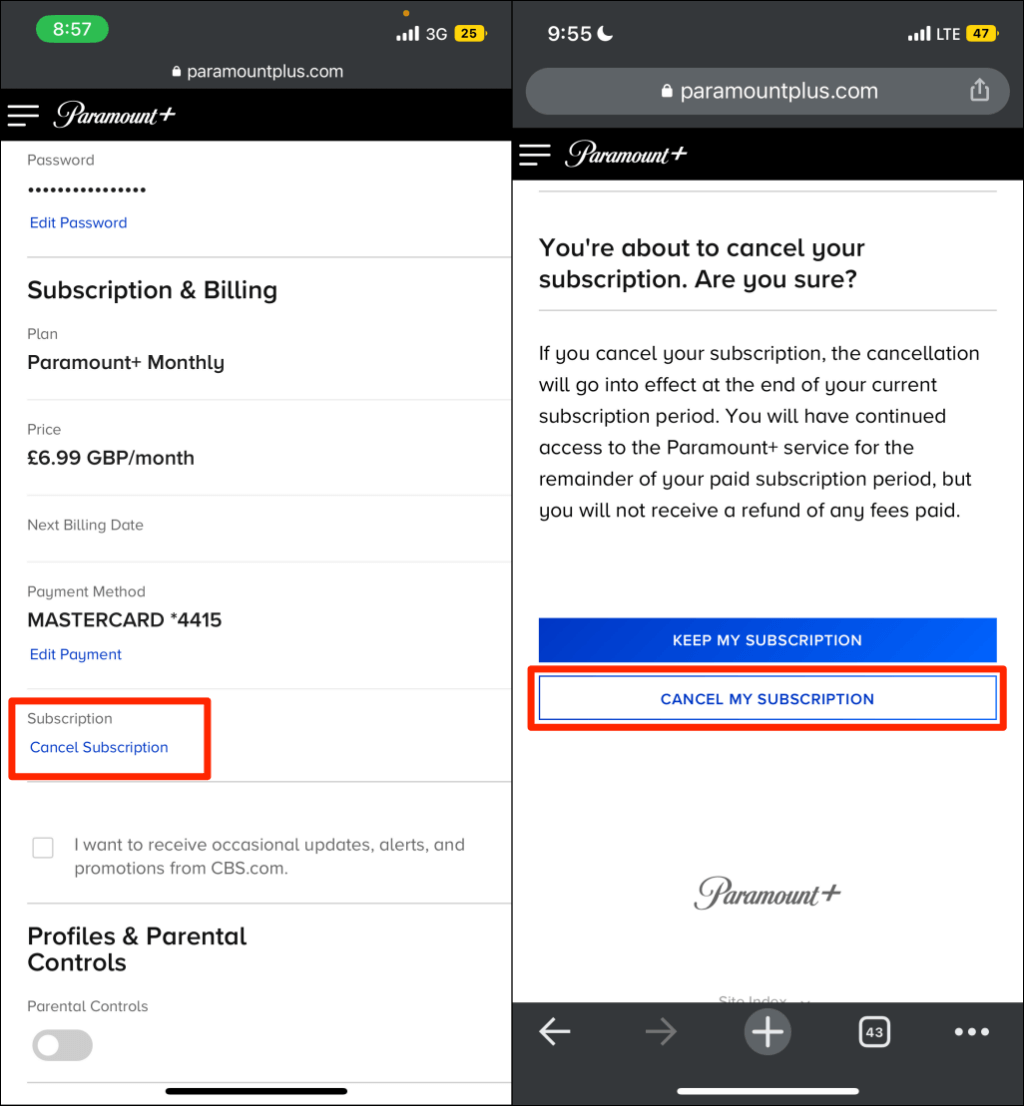
- Authentication: Navigate to the Paramount Plus website and log in with your credentials. Ensure your browser’s cache is clear if you encounter redirect loops.
- Account Navigation: Click on your user profile in the top right corner and select “Account.”
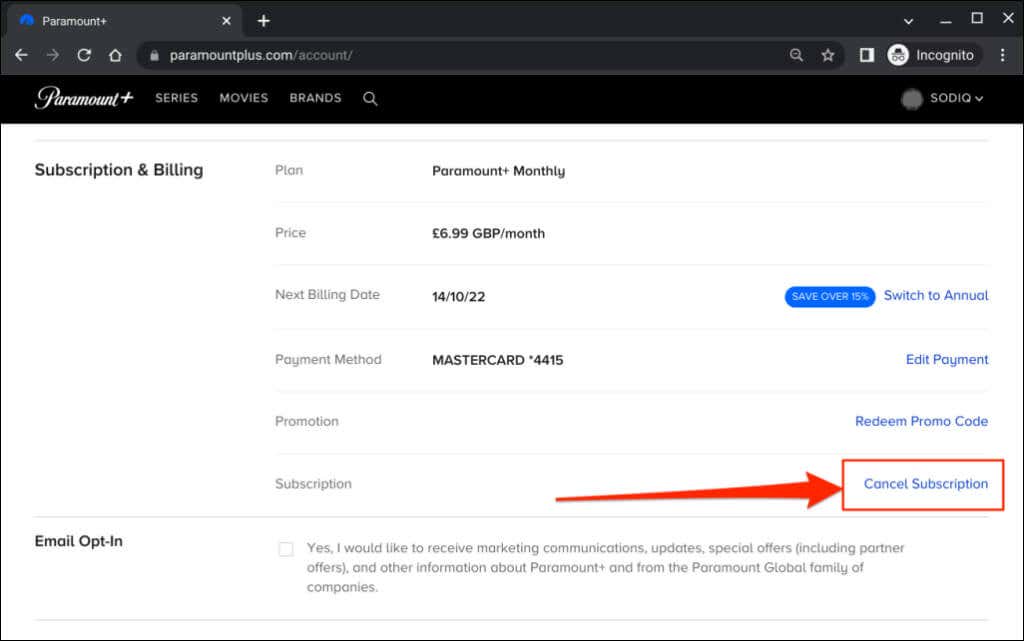
- Subscription Management: Under the “Subscription & Billing” header, locate the “Cancel Subscription” link.
- The Retention Loop: Be prepared to navigate through “retention screens.” These are UI elements designed to offer discounts or highlight upcoming content to prevent “churn” (the technical term for losing a subscriber). You must proceed through these prompts until you receive a formal confirmation screen.
Managing Subscriptions on iOS and Android Devices
If your subscription is tied to your mobile OS, the cancellation must happen at the OS level.
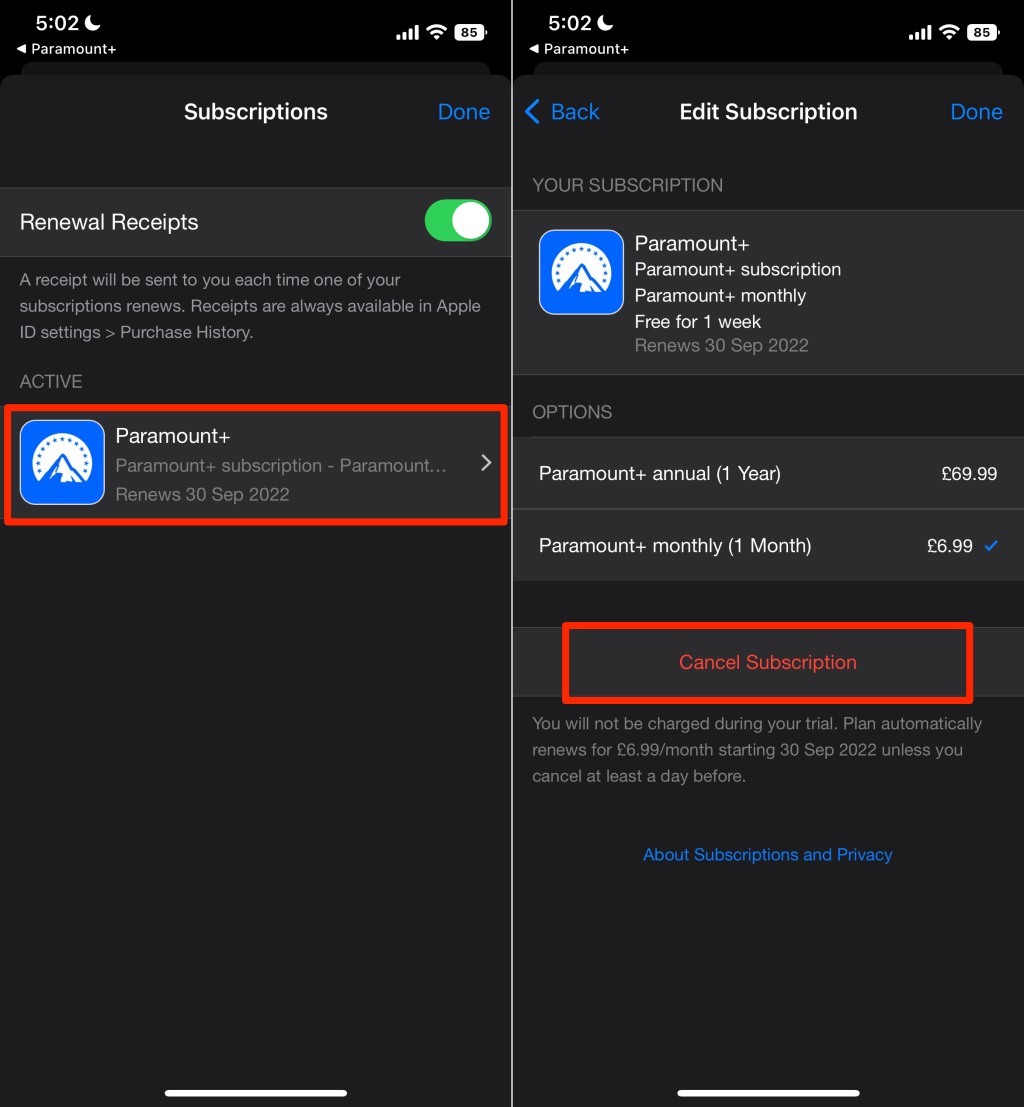
- For iOS (Apple): Open the “Settings” app, tap your Name/Apple ID, and select “Subscriptions.” Locate Paramount Plus and select “Cancel Subscription.” This sends a command to Apple’s billing server to stop the recurring payment token at the end of the current billing cycle.
- For Android (Google Play): Open the Google Play Store app, tap your profile icon, and go to “Payments & Subscriptions” > “Subscriptions.” Here, you can manage the status of the app’s billing permissions.
Managing Secondary Device Ecosystems: Roku, Amazon, and Smart TVs
The complexity of the streaming landscape increases when specialized hardware is involved. Devices like Roku and Amazon Fire TV often serve as “channel” hosts, where the subscription is bundled into the hardware’s proprietary store.
The Amazon Prime Video Channel Hurdle
A common point of confusion occurs when users subscribe to Paramount Plus as a “Channel” within Amazon Prime Video. In this instance, the Paramount Plus app itself has no record of your billing information. To cancel, you must log into your Amazon account, navigate to “Accounts & Lists,” and select “Memberships & Subscriptions.” From there, you must enter the “Prime Video Channels” sub-menu to toggle the auto-renew status to “Off.”
Roku and Gaming Console Management
On Roku devices, you can often manage the subscription directly from the hardware UI. By highlighting the Paramount Plus tile and pressing the asterisk (*) button, you can access the “Manage Subscription” menu. For gaming consoles like PlayStation or Xbox, the subscription is often tied to your PSN or Microsoft Store account. If you signed up through these consoles, you must navigate to the “Services List” in your console’s account settings to terminate the recurring charge.
Post-Cancellation Technicalities: Retention Tactics and Data Privacy
Once the “Cancel” button has been clicked, the technical process is not entirely over. There are several post-termination factors that savvy tech users should monitor.
Navigating “Dark Patterns” and Retention Offers
In UI/UX design, a “Dark Pattern” is a user interface that has been carefully crafted to trick users into doing things, such as not canceling a subscription. You may encounter prompts that say “Pause Subscription” or “Switch to a Cheaper Plan” in larger, more colorful buttons than the “Confirm Cancellation” button. It is vital to read the text carefully to ensure you have actually reached the final confirmation stage. A successful cancellation is almost always followed by an automated confirmation email; if you do not receive this within minutes, the process may not have been completed.
Data Deletion and Account Security Post-Subscription
Canceling a subscription stops future billing, but it does not delete your account or the data associated with it. Paramount Plus will retain your viewing history, preference metadata, and payment methods for a period determined by their data retention policy. If your goal is to minimize your digital footprint, you may need to submit a separate “Data Deletion Request” (often found in the Privacy Policy section) to ensure your PII (Personally Identifiable Information) is purged from their servers, in compliance with regulations like GDPR or CCPA.
Troubleshooting Common Cancellation Hurdles
Despite the best-laid plans, technical glitches can occur during the cancellation process. Understanding how to troubleshoot these issues will save time and prevent unwanted charges.
What to Do if the “Cancel” Button is Missing
If the “Cancel” button is missing from your account page, it usually indicates a synchronization error between the billing server and the UI. This often happens if a payment is currently “pending” or if your account is in a “grace period” following a failed payment. In these cases, the system locks the subscription status to prevent database conflicts. The solution is to wait 24 hours for the transaction to settle or to contact customer support to manually trigger the cancellation via their administrative backend.
Confirming Termination and Avoiding Zombie Subscriptions
A “zombie subscription” occurs when a user believes they have canceled a service, but a secondary billing trigger (like an old PayPal authorization) continues to pull funds. After canceling, it is a professional best practice to:
- Check for the Confirmation Email: This is your “receipt” of cancellation.
- Monitor Your Bank Statement: Check the following month’s statement for any residual charges.
- Revoke Third-Party Permissions: If you used “Sign in with Google” or “Sign in with Apple,” you may want to go into your security settings for those accounts and remove Paramount Plus’s access to your data.
By approaching the cancellation of Paramount Plus as a technical workflow rather than a simple chore, you ensure total control over your digital assets and financial overhead. Managing your subscriptions with this level of technical rigor is the best way to maintain a lean, efficient, and secure digital life.
aViewFromTheCave is a participant in the Amazon Services LLC Associates Program, an affiliate advertising program designed to provide a means for sites to earn advertising fees by advertising and linking to Amazon.com. Amazon, the Amazon logo, AmazonSupply, and the AmazonSupply logo are trademarks of Amazon.com, Inc. or its affiliates. As an Amazon Associate we earn affiliate commissions from qualifying purchases.