
In the modern digital landscape, information is generated at a velocity that far exceeds human processing power. For tech enthusiasts, developers, and digital security professionals, staying ahead of the curve is not just a hobby—it is a necessity. Google Alerts remains one of the most powerful, albeit underutilized, free tools for automating the discovery of new content across the web. By acting as a personalized crawler, it sifts through billions of web pages to deliver specific, filtered information directly to your inbox or RSS feed.
This guide provides an exhaustive walkthrough of how to set up, refine, and optimize Google Alerts to ensure you never miss a critical software update, a security vulnerability report, or a breakthrough in emerging technology.
1. Getting Started with Google Alerts: The Mechanics of Real-Time Monitoring
At its core, Google Alerts is a notification service that sends emails to the user when it finds new results—such as web pages, newspaper articles, blogs, or scientific research—that match the user’s search terms. Understanding the basic mechanics of the interface is the first step toward building a robust information-gathering system.
Creating Your First Alert
To begin, navigate to the Google Alerts homepage (google.com/alerts). You will be greeted with a search bar labeled “Create an alert about…” The process is deceptively simple:
- Enter your keywords: Type the specific tech topic you wish to track. This could be “Quantum Computing,” “Python 3.12 updates,” or “Zero-day exploits.”
- Preview the results: As you type, Google provides an “Alert preview” below the search bar. This is a crucial feature, as it allows you to see if your current keywords are generating the type of technical data you are actually looking for.
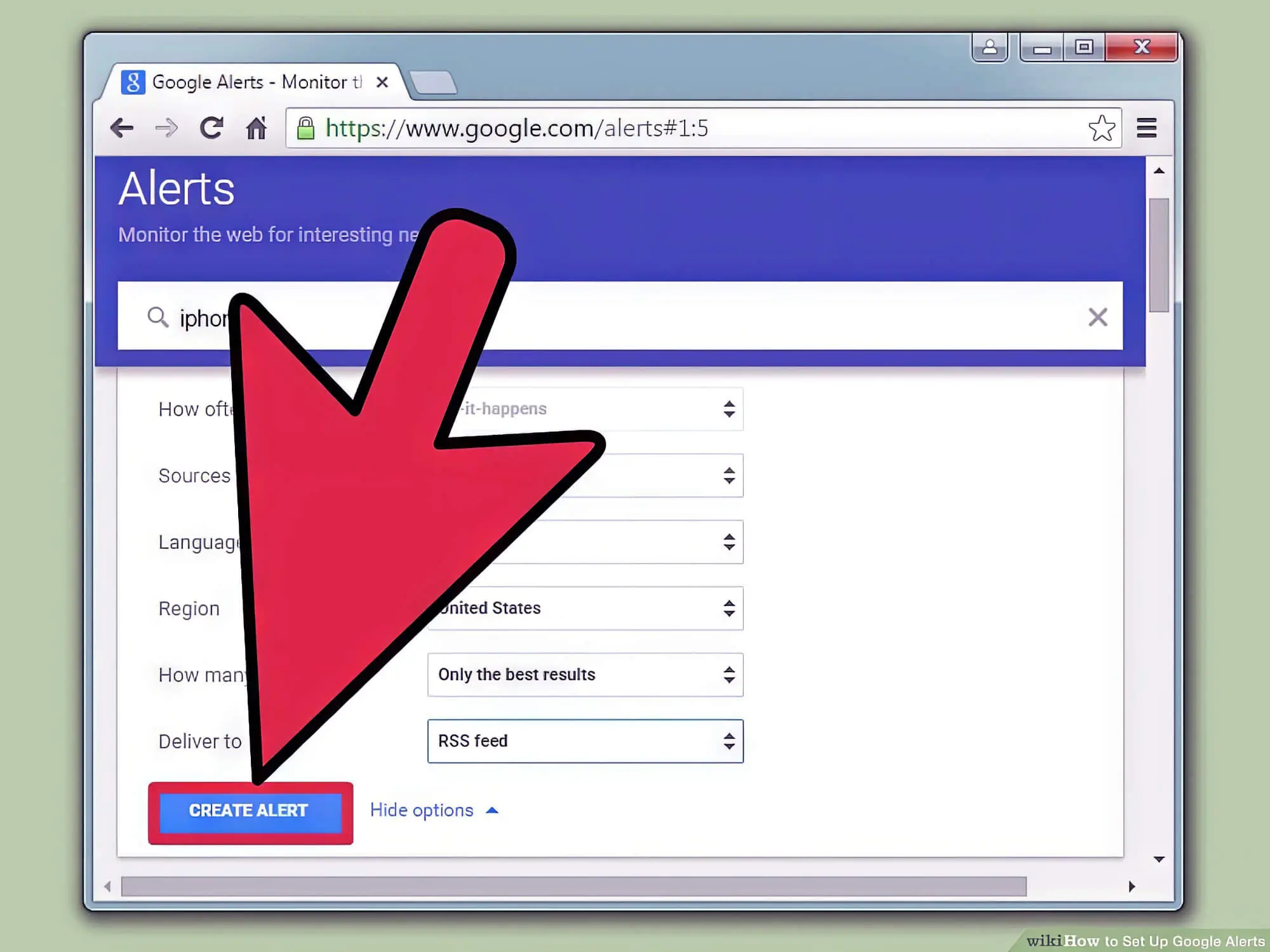
- Click “Create Alert”: If the preview looks accurate, you can finalize the alert immediately. However, for a truly professional setup, you must dive into the “Show options” menu.
Customizing Delivery and Frequency
The “Show options” dropdown is where the technical customization happens. Depending on your workflow, you can adjust several key parameters:
- How often: Choose between “As-it-happens,” “At most once a day,” or “At most once a week.” For critical security monitoring, “As-it-happens” is the standard. For general industry trends, a daily digest prevents inbox clutter.
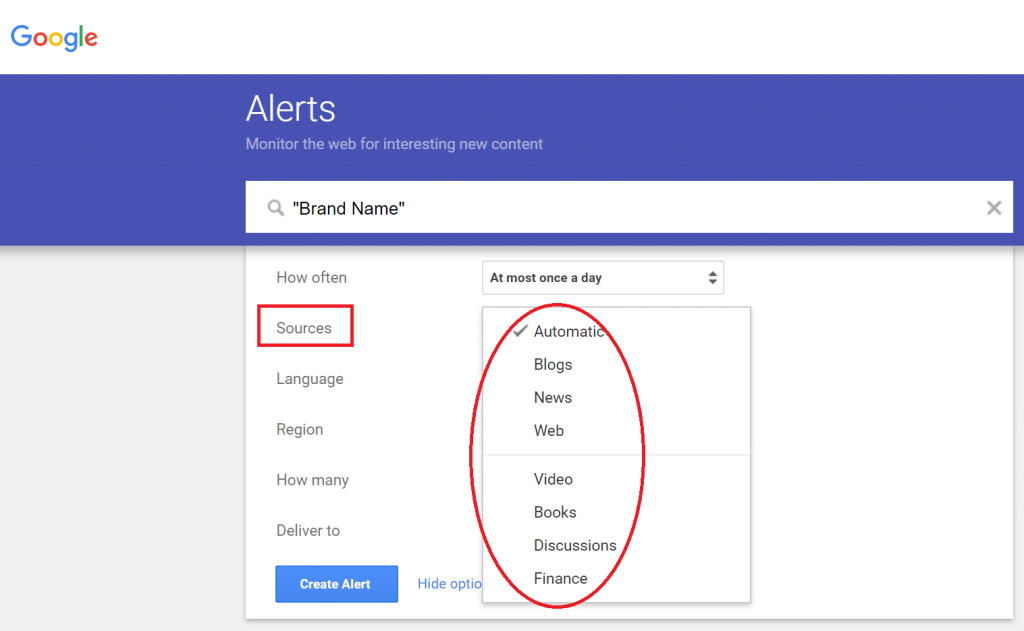
- Sources: You can limit Google’s search to specific types of media, such as News, Blogs, Video, or Books. For tech tutorials and software news, selecting “Blogs” and “News” is often more effective than “Automatic.”
- Language and Region: If you are tracking software development in specific markets (such as the burgeoning tech scene in Estonia or Silicon Valley), filtering by region can eliminate irrelevant noise from other locales.
- How many: You can choose “Only the best results” (Google’s algorithm filters for quality) or “All results.” In a technical context, “All results” is often preferred to ensure niche forum posts or obscure documentation updates are not filtered out.
2. Refining Your Search: Using Advanced Operators for Precision
The most common complaint regarding Google Alerts is that it produces too much “noise”—irrelevant results that share keywords but not context. To solve this, you must apply the same advanced search operators used in Google’s primary search engine.
The Power of Boolean Logic in Alerts
Boolean operators allow you to create complex queries that act as a high-pass filter for information.
- Quotations (” “): If you are looking for a specific phrase, such as “Artificial Intelligence Regulations,” putting the phrase in quotes ensures Google only alerts you when those words appear in that exact order. Without quotes, you might get alerts for “Intelligence” in one paragraph and “Artificial” in another.
- The Minus Sign (-): This is essential for excluding irrelevant sub-topics. For example, if you want to track the “Apple” operating systems but don’t want news about the fruit or the company’s stock price, you might search:
Apple -fruit -stock -shares. - OR Operator: This allows you to track multiple related terms in a single alert. For instance,
"machine learning" OR "deep learning"will capture articles mentioning either technology.
Source Filtering and Language Selection
Beyond basic keywords, you can use technical operators to monitor specific domains or file types.
- Site: Operator: If you want to be notified every time a specific tech site (like TechCrunch or GitHub) mentions a topic, use
site:github.com "cybersecurity". This is particularly useful for tracking mentions of your own software projects or monitoring competitor documentation. - Filetype: Operator: While primarily a search engine feature, incorporating
filetype:pdfinto your alert parameters can help you find newly published white papers, technical manuals, or academic research on specific software architectures.
3. Managing and Optimizing Your Alert Ecosystem
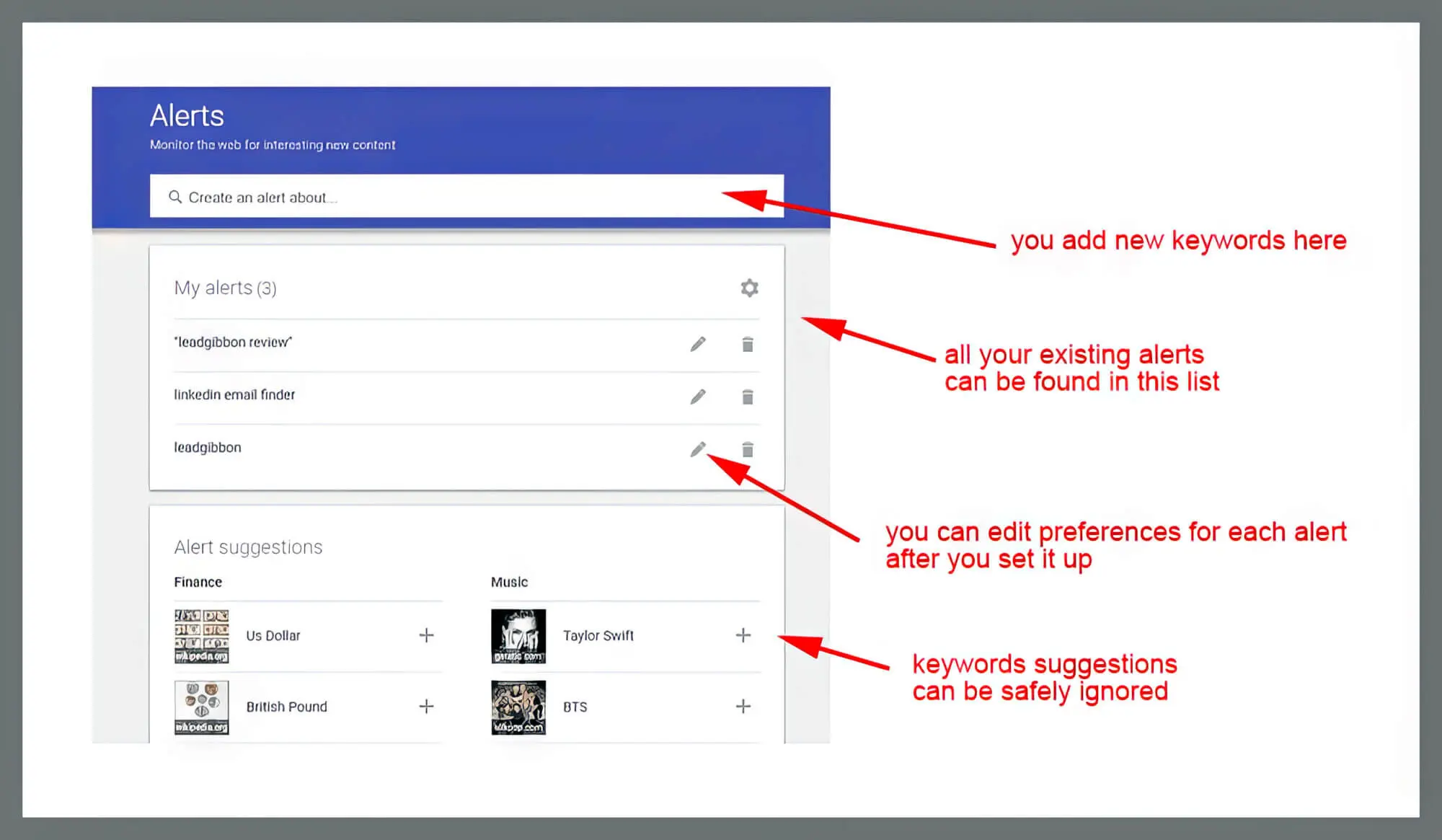
Once you have established a suite of alerts, the challenge shifts from discovery to management. A cluttered alert system can lead to “notification fatigue,” causing you to ignore the very information you sought to capture.
Editing and Deleting Existing Alerts
Technical requirements change rapidly. A framework that was relevant six months ago may now be deprecated. To keep your system lean:
- Audit your list: Periodically visit your Google Alerts dashboard to review which alerts are providing value.
- Adjust the “How Many” setting: If an alert is flooding your inbox with low-quality content, switch from “All results” to “Only the best results.”
- Delete redundant alerts: If you have multiple alerts covering overlapping topics (e.g., “AI,” “Artificial Intelligence,” and “LLMs”), consolidate them into a single, complex Boolean query to reduce the number of individual emails you receive.
Integrating Alerts with RSS Feeds
For those who prefer a centralized dashboard over email notifications, Google Alerts can be delivered via RSS. When setting up or editing an alert, change the “Deliver to” option from your email address to “RSS feed.”
This is a game-changer for tech professionals who use aggregators like Feedly or Inoreader. By funneling alerts into an RSS reader, you can categorize them alongside your favorite tech blogs and journals. This keeps your professional development separate from your primary communication channel (email) and allows for better bulk-reading during dedicated research hours.
4. Practical Applications in the Modern Tech Landscape
To truly master Google Alerts, one must understand how to apply these settings to specific technical goals. Automation is most effective when it serves a clear objective.
Cybersecurity and Data Leak Monitoring
In the realm of digital security, Google Alerts serves as an early-warning system. Security researchers use alerts to monitor for “dorks”—specific search strings that reveal vulnerabilities.
- Sensitive Data Exposure: You can set up alerts for your company’s unique identifiers or internal server names combined with keywords like “index of” or “password list.”
- Vulnerability Tracking: By setting an alert for
"[Software Name]" + "CVE", you can receive immediate updates when a new Common Vulnerabilities and Exposures entry is logged for a tool in your tech stack. This allows for rapid patching before exploits become widespread.
Tracking Software Updates and Beta Releases
Staying updated on the latest builds of languages and frameworks is vital for developers. Instead of manually checking release notes, you can automate the process.
- Framework Evolution: An alert for
"React Native" + "v0.74" OR "v0.75"will notify you the moment documentation or GitHub discussions regarding those specific versions gain traction. - Beta Programs: Many tech companies announce beta testing opportunities via obscure blog posts or forum entries. Setting an alert for
"Beta sign up" + "generative AI"can give you a head start in accessing new tools before they hit the mainstream.
5. Overcoming Common Technical Hurdles
Even with a perfect setup, Google Alerts has limitations that technical users must navigate. Understanding these constraints prevents frustration and ensures you are using the right tool for the right job.
Dealing with Information Overload
The primary hurdle is “The Firehose Effect.” When a topic becomes trending—such as a major tech acquisition or a global outage—the volume of alerts can become overwhelming. To mitigate this, use the “At most once a day” setting during high-traffic periods. This forces Google to aggregate the most relevant stories into a single digest, allowing you to scan headlines quickly rather than processing dozens of individual emails.
Why Some Alerts Might Be Missing
It is important to remember that Google Alerts only indexes the “surface web.” It does not crawl the “dark web,” nor does it always capture real-time social media posts from platforms like X (formerly Twitter) or closed Discord servers. If you find your alerts are missing critical real-time discussions, you may need to supplement Google Alerts with specialized tools like Mention or Brandwatch, which offer deeper social media integration.
Furthermore, Google’s “Only the best results” algorithm is proprietary. If you find that important technical documentation is missing, it is likely because Google’s quality filter has deemed the site “low authority.” Switching to “All results” and using a very specific site: operator is the best technical workaround for this issue.
By treating Google Alerts not just as a notification service, but as a programmable data filter, you can automate the tedious process of manual searching. Whether you are a developer tracking a library, a security analyst monitoring threats, or a tech enthusiast following the evolution of AI, a well-configured Google Alerts dashboard is an indispensable asset in your digital toolkit.
aViewFromTheCave is a participant in the Amazon Services LLC Associates Program, an affiliate advertising program designed to provide a means for sites to earn advertising fees by advertising and linking to Amazon.com. Amazon, the Amazon logo, AmazonSupply, and the AmazonSupply logo are trademarks of Amazon.com, Inc. or its affiliates. As an Amazon Associate we earn affiliate commissions from qualifying purchases.