
In the rapidly evolving landscape of digital entertainment, YouTube TV has established itself as a premier cord-cutting solution for those seeking live sports, news, and network television without the constraints of traditional cable. However, the fluidity of the modern tech ecosystem means that users frequently shift between services, seeking the best user interface, content library, or integration with their existing hardware. Whether you are streamlining your digital footprint, participating in a “service hop” to catch a specific sporting event, or simply looking to reduce your monthly software overhead, knowing how to navigate the specific technical pathways of the iOS ecosystem is essential.
Canceling a subscription on an iPhone is not always as straightforward as it seems, primarily due to the complex relationship between Google (the service provider) and Apple (the platform provider). This guide provides a deep dive into the technical steps required to cancel YouTube TV on your iPhone, the nuances of the Apple billing system, and how to ensure your digital data remains secure during the transition.
1. Understanding the iOS Billing Architecture: App Store vs. Direct Billing
Before initiating the cancellation process, it is critical to understand how your YouTube TV account is billed. This is the most common point of technical confusion for iPhone users. Because of the long-standing “Apple Tax”—the 30% commission Apple takes on in-app purchases—Google often directs users to sign up via a web browser rather than through the iOS app.
The Apple Subscription Model
If you signed up for YouTube TV directly through the App Store using your Apple ID, your subscription is managed by Apple’s billing servers. In this scenario, Google does not have the authority to cancel your subscription or issue refunds; you must interface directly with the iOS Settings app. This integration offers the benefit of “one-tap” management, but it can be frustrating if you are looking for the option within the YouTube TV app interface itself.
Direct Google Billing
Conversely, if you signed up for YouTube TV on a desktop computer or via a mobile browser (Chrome or Safari) and then logged into the app on your iPhone, your billing is handled directly by Google. In this case, the subscription will not appear in your iPhone’s “Subscriptions” list. You will need to use the YouTube TV mobile web interface or the app’s internal settings to redirect to a billing portal. Understanding this distinction is the first step in successful digital account management.
2. Step-by-Step Tutorial: Canceling Through the iOS Settings App
If your subscription is tied to your Apple ID, the process is handled through the global settings of your device. This is the standardized method for all software-as-a-service (SaaS) products integrated into the Apple ecosystem.
Navigating the Apple ID Interface
- Open the Settings App: Locate the gear icon on your iPhone home screen.
- Access Your Profile: Tap on your name (Apple ID, iCloud, Media & Purchases) at the very top of the menu.
- Locate Subscriptions: Tap on the “Subscriptions” tab. This page serves as a centralized dashboard for every recurring payment authorized through your Apple account.
- Identify YouTube TV: Scroll through the list of “Active” subscriptions until you find YouTube TV.
- Execute Cancellation: Tap on the service and select “Cancel Subscription” (or “Cancel Free Trial”).
Technical Confirmation and Grace Periods
Once you tap cancel, iOS will present a confirmation dialogue. A key technical feature of the Apple ecosystem is that, in most cases, your access does not terminate immediately. Instead, your “Paid Access” continues until the end of the current billing cycle. The UI will update to show an “Expires on [Date]” message rather than a “Renews on [Date]” message. This is an important distinction for users who want to maximize their final month of service.
3. Canceling via the YouTube TV Mobile Web Interface
For users who are billed directly by Google, the iOS YouTube TV app often lacks a direct “Cancel” button to avoid violating Apple’s App Store policies regarding external payment links. To circumvent this, you must use a mobile browser.

Using Safari or Chrome on iOS
- Navigate to the Portal: Open your preferred browser and go to
tv.youtube.com. - Authentication: Sign in using the Google Account associated with the subscription.
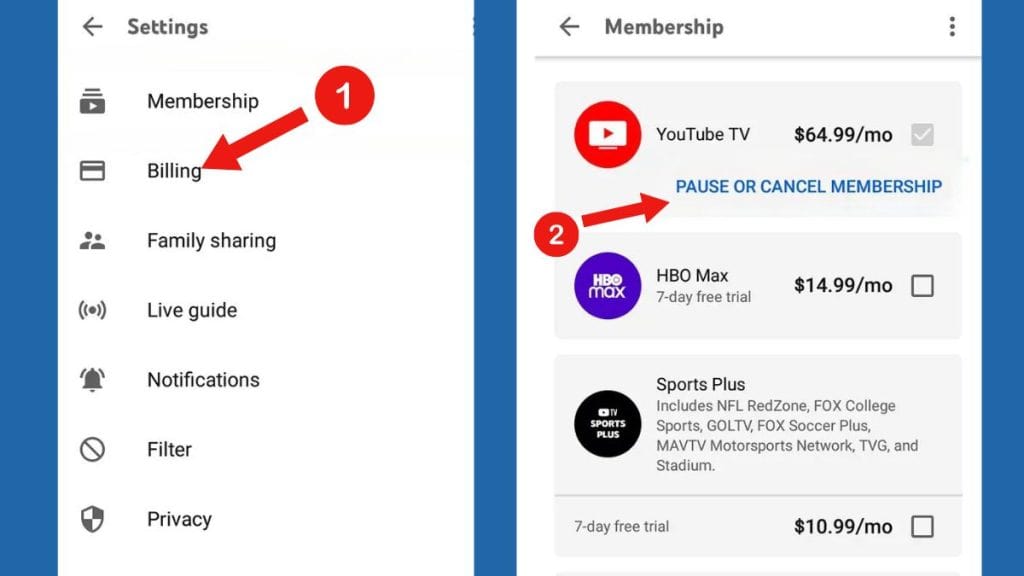
- Access Settings: Tap on your profile avatar in the top right corner and select “Settings.”
- Membership Management: Tap on the “Membership” tab. Here, you will see your current plan details.
- The “Pause” vs. “Cancel” Choice: Google provides a “Deactivate Membership” button. Upon clicking this, the software will offer you the choice to “Pause” for up to 6 months or “Cancel” entirely.
The Utility of the “Pause” Feature
From a technical standpoint, pausing is an excellent tool for users who plan to return for specific seasons (such as the NFL or NBA). Pausing your membership preserves your DVR recordings and personalized recommendations, whereas canceling may eventually lead to the deletion of your saved library after a specific period of inactivity. If your goal is a permanent exit, proceed to “Cancel Membership” and follow the prompts to confirm.
4. Troubleshooting and Advanced Technical Considerations
Even with a clear guide, technical hurdles can arise. These often stem from account permissions or cross-platform synchronization issues.
Family Sharing Conflicts
YouTube TV is popular for its “Family Group” feature, which allows up to six households to share a subscription. However, a common technical roadblock occurs when a family member attempts to cancel the service. Only the Family Manager (the person whose credit card is on file and who initiated the group) has the administrative rights to cancel or pause the subscription. If you are a family member, you will not see the cancellation options in your settings; you can only “Leave the Family Group,” which does not stop the billing for the primary account holder.
Third-Party Billing (Mobile Carriers and Internet Providers)
In some instances, YouTube TV is bundled with a home internet plan (like T-Mobile or Verizon). If your billing is handled by a third-party utility, neither the Apple Settings nor the Google website will allow you to cancel. You will see a notification stating, “Managed by [Provider].” In this scenario, you must log in to your service provider’s mobile app or web portal to remove the YouTube TV add-on from your monthly utility bill.
Verification of Data Security
When canceling a high-profile service like YouTube TV, it is a best practice to review your digital security settings. Once the subscription is canceled, you should visit your Google Account security dashboard to ensure that no unauthorized third-party apps still have access to your playback history or personal data. Additionally, if you used a “Sign in with Apple” relay email, your privacy is protected, but ensure you keep the confirmation email from Apple for your records.
5. The Post-Subscription Landscape: Software Alternatives and Digital Hygiene
Canceling YouTube TV is often the first step in a broader reassessment of one’s digital tools and streaming software. The “Streaming Wars” have led to a fragmented market where niche apps often provide better value for specific user needs.
Evaluating Technical Alternatives
If the cancellation was driven by a desire for a different UI/UX or better integration with iOS, users might consider:
- Hulu + Live TV: Offers a deeper integration with the Disney+ ecosystem.
- Sling TV: A more modular software approach, allowing users to pick specific channel “packs” to save on data and cost.
- FuboTV: Heavily optimized for 4K sports streaming, providing a tech-forward experience for enthusiasts.
Maintaining Subscription Hygiene
In the modern tech era, “Subscription Fatigue” is a real phenomenon. Managing your iPhone apps involves more than just deleting icons; it requires regular audits of your recurring digital payments. Tech-savvy users should make it a habit to check the “Subscriptions” tab in iOS at least once a quarter.
Digital hygiene also extends to your device’s performance. Removing high-bandwidth apps like YouTube TV—which caches significant amounts of data for smooth streaming—can free up gigabytes of local storage on your iPhone. After canceling and the billing cycle ends, deleting the app and clearing the associated system cache ensures your device remains optimized and clutter-free.
Conclusion
Canceling YouTube TV on an iPhone is a process that highlights the intersection of mobile operating systems and cloud-based services. By identifying whether your billing is routed through Apple or Google, you can navigate the menus with precision. Whether you are pausing to save for a few months or switching to a competitor, mastering these technical steps ensures you remain in total control of your digital ecosystem, your privacy, and your software expenses.
aViewFromTheCave is a participant in the Amazon Services LLC Associates Program, an affiliate advertising program designed to provide a means for sites to earn advertising fees by advertising and linking to Amazon.com. Amazon, the Amazon logo, AmazonSupply, and the AmazonSupply logo are trademarks of Amazon.com, Inc. or its affiliates. As an Amazon Associate we earn affiliate commissions from qualifying purchases.