
In the rapidly evolving landscape of personal finance, the physical wallet is increasingly becoming a secondary backup to the digital one. As one of the largest financial institutions in the world, JPMorgan Chase has invested billions into its fintech infrastructure, ensuring that customers have seamless access to their capital through the Chase Mobile app. One of the most practical features of this digital ecosystem is the ability to view your credit or debit card information without needing the physical plastic in hand. Whether you are making an online purchase from a coffee shop or setting up a recurring subscription while your wallet is in the other room, knowing how to navigate the Chase app to find your card details is an essential skill in modern financial management.

The Evolution of Digital Banking and Chase’s Mobile Ecosystem
The transition from traditional banking to a mobile-first approach has fundamentally changed how we interact with our money. In the past, losing a physical card meant a total cessation of purchasing power until a replacement arrived by mail. Today, digital banking tools like the Chase Mobile app bridge that gap, providing “instant” access to account details the moment a new card is approved or when a physical card is temporarily unavailable.
The Shift Toward Cardless Transactions
The modern consumer prioritizes speed and security. As e-commerce continues to dominate the retail sector, the necessity of having a physical card present has diminished. Financial tools now focus on “tokenization” and digital access. Chase has positioned itself at the forefront of this shift, allowing users to not only view their card numbers but also add them to digital wallets like Apple Pay or Google Pay with a single tap. This shift isn’t just about convenience; it is about the fluidity of capital and the ability to manage personal finance in real-time.
Why Accessing Your Digital Card Number Matters
There are several scenarios where viewing your card number via the app is more than just a convenience—it is a financial necessity. For example, if your card is damaged and the numbers are unreadable, or if you are a victim of a lost wallet, having digital access allows you to continue managing your expenses and paying bills while waiting for a replacement. Furthermore, for those who practice strict digital security, keeping the physical card locked away and only accessing the number via a biometric-protected app reduces the risk of physical skimming and “shoulder surfing” in public spaces.
Step-by-Step Guide to Accessing Your Card Details
Accessing sensitive financial information requires a balance between user experience and rigorous security. Chase has designed its interface to be intuitive, yet it hides these details behind several layers of authentication to protect your assets.
Navigating the Chase Mobile App Interface
To begin, ensure you are using the most recent version of the Chase Mobile app available on the App Store or Google Play.
- Login: Open the app and log in using your credentials. For the best experience, utilize biometric authentication (FaceID or Fingerprint).
- Select Account: On the main dashboard, you will see a list of your accounts. Tap on the specific credit card or checking account (for debit cards) for which you need the number.
- Account Services: Once inside the specific account view, scroll down to the “Account services” section. This is the hub for all administrative actions related to that specific financial product.
Authentication and Security Protocols
Before the app reveals your full card number, CVV, or expiration date, it will likely require a second form of verification. This is a critical component of Chase’s “Money” security strategy. You may be prompted to re-enter your password or confirm a Secure Microcode sent to your registered mobile device or email. This “Two-Factor Authentication” (2FA) ensures that even if someone gained access to your unlocked phone, they would face an additional barrier before seeing your full financial details. This layer of protection is vital for maintaining the integrity of your personal finance ecosystem.
Viewing the Full Card Number, CVV, and Expiration Date
Once authenticated, look for a button labeled “Stored cards” or “Digital wallet,” or specifically “Show card details.” Upon tapping this, the app will unmask the 16-digit card number, the three-digit Security Code (CVV), and the Expiration Date. Many users find it helpful to use the “copy” icon located next to the number, which allows you to paste the details directly into a checkout screen, minimizing the risk of transcription errors which can lead to declined transactions and temporary account freezes.
Enhancing Your Financial Security While Using Digital Tools

While the ability to view your card number is a powerful tool for personal finance, it comes with responsibilities. Managing your money digitally requires a proactive approach to security to ensure that your “digital footprint” does not become a liability.
Understanding Virtual Account Numbers vs. Physical Numbers
One of the most sophisticated features in modern financial tools is the use of virtual account numbers. In some instances, the number you see in the app or the one used in your digital wallet may differ from the one printed on your physical card. This is a security feature known as tokenization. If a merchant’s database is breached, the tokenized number is useless to hackers because it is tied specifically to that device or transaction type. Understanding this distinction helps you manage your account more effectively, especially when dealing with refunds or verifying transactions with Chase customer service.
Best Practices for Keeping Your Mobile Banking Secure
To maintain a healthy financial life, you must treat your smartphone with the same level of care as you would a physical vault.
- Avoid Public Wi-Fi: Never access your card details or log into the Chase app while on an unsecured public Wi-Fi network. Use a VPN or your cellular data to ensure an encrypted connection.
- Enable Alerts: Within the Chase app, set up “Real-time Alerts.” This ensures that every time your card number is used—whether physically or digitally—you receive a notification. This is the fastest way to spot fraudulent activity.
- Regularly Update Your App: Chase frequently releases security patches. Keeping the app updated ensures you have the latest defenses against emerging fintech threats.
Troubleshooting Common Issues in the Chase App
Even with a world-class financial tool, users may occasionally encounter hurdles when trying to access their account information. Understanding how to resolve these issues is key to maintaining control over your business and personal finances.
What to Do if the Card Details Option Is Missing
In some cases, the “Show card details” option may not appear. This is often due to the account type or the status of the card. For instance, if a card has been reported lost or stolen, or if it is a brand-new account that hasn’t been fully activated, the digital details may be restricted for your protection. Additionally, some corporate cards or specialized business accounts may have different administrative settings determined by the account holder. If the option is missing, checking your “Alerts” or “Messages” center within the app may reveal a notification regarding account restrictions.
Managing Multiple Accounts and Cards
For those who utilize Chase for both personal and business finance, the app serves as a centralized command center. It is easy to accidentally view the details of a personal sapphire card when you intended to use an Ink business card. To avoid bookkeeping errors, it is recommended to “nickname” your cards within the app. By going to the card settings, you can label them (e.g., “Business Travel” or “Daily Groceries”), which ensures that when you are retrieving a card number for a specific expense, you are pulling from the correct financial bucket.
The Future of Personal Finance: Moving Beyond Physical Plastic
The ability to see your card number on the Chase app is a bridge to a future where physical cards may become obsolete. This transition is a major trend in personal finance and wealth management, as it streamlines the “velocity of money”—the speed at which we can move and utilize our capital.
Integrating Chase with Digital Wallets
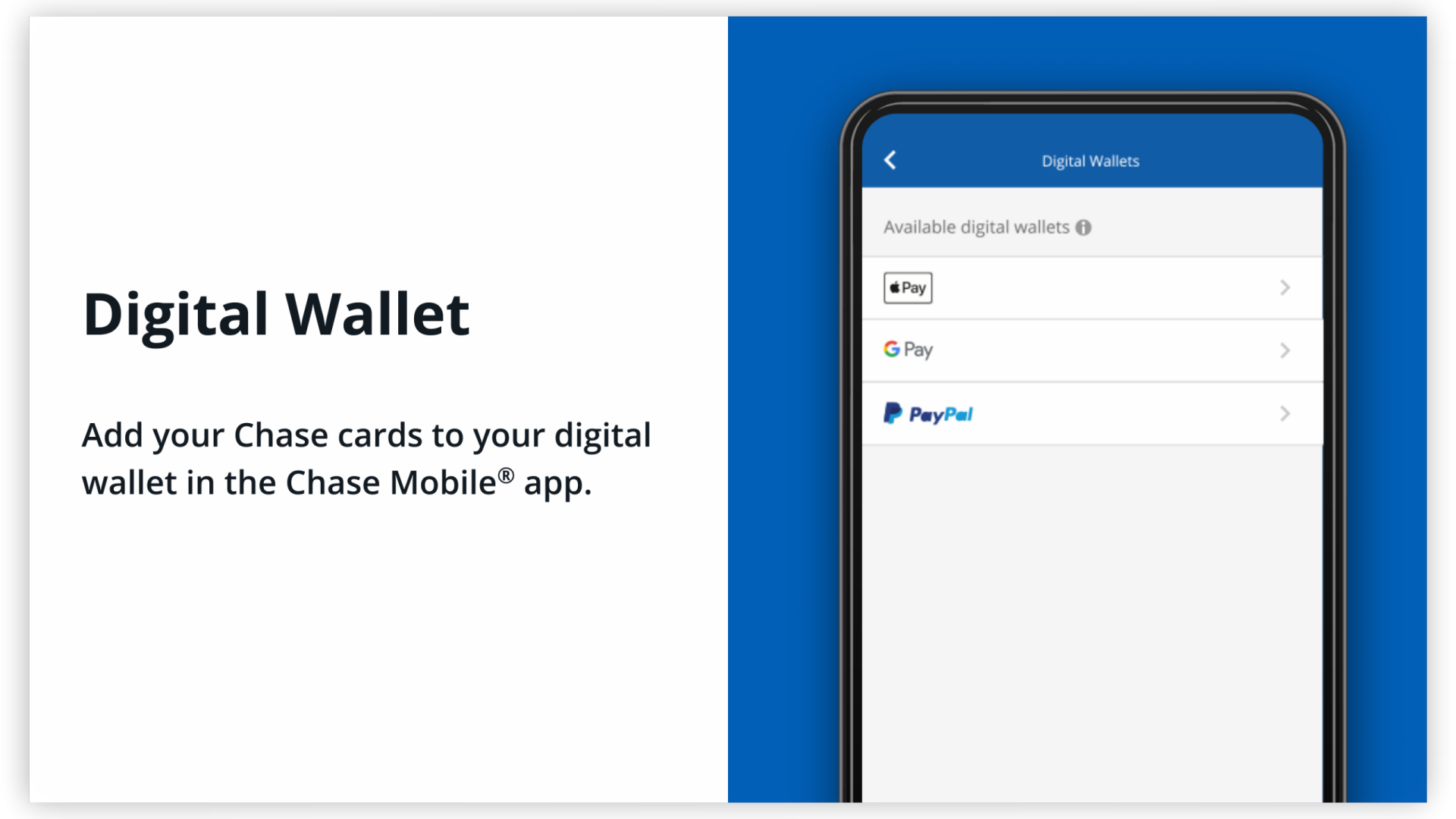
The ultimate goal of accessing your card details digitally is often to move them into a more permanent digital home. By integrating your Chase account with Apple Pay, Google Pay, or Samsung Pay, you create a “contactless” financial existence. This integration allows for “Cardless ATM” access at many Chase branches, where you can withdraw cash using just your phone. This integration represents the pinnacle of modern financial tools, combining the security of a major bank with the agility of mobile technology.
The Role of Chase in the Broader Fintech Landscape
As we look at the broader landscape of “Money” and “Business Finance,” the Chase Mobile app is more than just a viewer for a card number; it is a sophisticated financial advisor in your pocket. From tracking your credit score through “Credit Journey” to managing investments via “J.P. Morgan Self-Directed Investing,” the app facilitates a holistic view of your net worth. The ability to retrieve a card number is simply the entry point into a comprehensive suite of tools designed to help you build, protect, and manage your wealth in a digital-first world.
By mastering these digital tools, you are not just making shopping easier; you are taking a proactive step in managing your financial security and staying ahead of the curve in the ever-changing world of personal finance. Accessing your card details is the first step toward a more organized, secure, and efficient financial future.
aViewFromTheCave is a participant in the Amazon Services LLC Associates Program, an affiliate advertising program designed to provide a means for sites to earn advertising fees by advertising and linking to Amazon.com. Amazon, the Amazon logo, AmazonSupply, and the AmazonSupply logo are trademarks of Amazon.com, Inc. or its affiliates. As an Amazon Associate we earn affiliate commissions from qualifying purchases.