
In the landscape of modern computation, the transition from mental arithmetic to digital precision is anchored by one of the most enduring pieces of technology: the calculator. Whether it is a physical graphing device used by engineers, a scientific software application on a workstation, or an AI-driven mobile app, the ability to input fractions correctly is fundamental to maintaining numerical integrity. While it may seem like a basic task, the technical execution of inputting fractions varies significantly across hardware architectures and software interfaces. Understanding these nuances is essential for anyone operating within the realms of STEM, data analysis, or technical design.

This guide explores the technical methodologies for fraction input across the most prominent calculation platforms, the software logic behind these operations, and how the evolution of digital interfaces has streamlined our interaction with rational numbers.
1. Navigating Hardware Interfaces: The Engineering of the Scientific Calculator
The physical scientific calculator remains a staple in technical environments due to its tactile reliability and dedicated processing power. Unlike general-purpose computers, these devices are hard-coded to handle specific mathematical syntax. The method for entering a fraction depends largely on the “generation” of the device’s display and its firmware.
The Traditional Ab/c Method
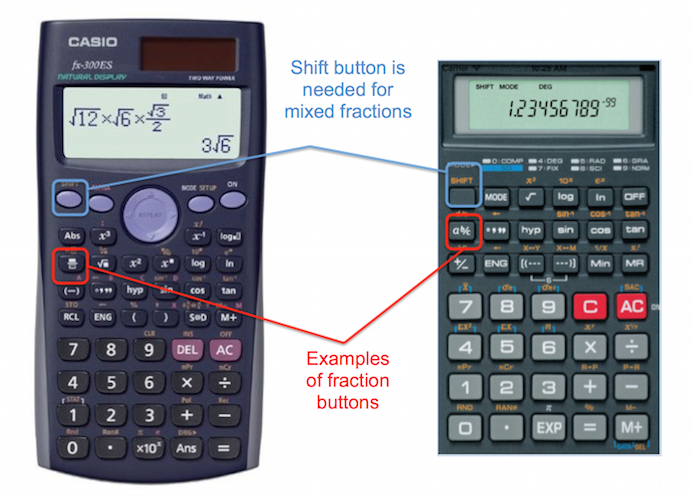
On older or more entry-level scientific calculators, such as the classic Casio fx-series or earlier TI-30 models, you will often find a button labeled [ab/c]. This represents the “Mixed Fraction” key. To input a fraction like 3/4, the technical sequence involves pressing [3], then the [ab/c] key, and then [4].
On the display, this often appears as a small “L” shape or a backward corner symbol (3_|4). This is a limitation of the segmented LCD (Liquid Crystal Display) technology used in older hardware. From a technical standpoint, the calculator treats this as a single numerical entity rather than a division problem, allowing the user to perform operations while maintaining the fractional form in the output.
Natural Display and MathPrint Technology
Modern high-end scientific and graphing calculators, such as the TI-84 Plus CE or the Casio ClassWiz series, utilize “Natural Display” or “MathPrint” technology. These devices use high-resolution dot-matrix screens that can render text exactly as it appears in a textbook.
To enter a fraction on a TI-84, the user typically navigates a software menu by pressing [ALPHA] then [Y=] to access the “FRAC” shortcut. Selecting “n/d” creates a visual template with a numerator and denominator box. This is a significant leap in User Interface (UI) design, as it reduces the cognitive load on the user and minimizes input errors. The hardware’s internal logic processes these as vertical stacks, ensuring that the order of operations (PEMDAS/BODMAS) is preserved without the need for excessive parentheses.
The Role of the “Template” System
Many modern gadgets utilize a template-based entry system. Instead of typing “numerator-operator-denominator,” the user first selects the fraction structure and then “fills” the empty fields. This architectural shift in input logic reflects a broader trend in software engineering: move from linear command-line style entry to structured, object-oriented data entry.
2. Software-Based Solutions: Desktop Applications and Mobile Emulators
As computational work shifts from dedicated hardware to multi-purpose devices, the “calculator” has evolved into sophisticated software. From the native apps on iOS and Android to complex mathematical engines like Desmos, the method for inputting fractions has become more intuitive yet technically complex under the hood.
Native OS Calculators and the Slash Operator
In most standard software calculators (like the default Windows or macOS calculator), there is no dedicated “fraction” button in the basic view. To input 1/2, a user must use the forward slash [/] or the division sign [÷].
Technically, these apps often convert the fraction into a floating-point decimal immediately. For example, entering “1 divided by 2” results in “0.5.” For professionals who require the fraction to remain in its rational form (to avoid rounding errors in complex proofs), the “Standard” view is insufficient. Switching the software to “Scientific Mode” often reveals more advanced memory registers, though true fractional display is frequently reserved for specialized CAS (Computer Algebra System) software.
Mobile Apps and Gesture-Based Input
The mobile app ecosystem has revolutionized mathematical input through touch interfaces. Apps like HiPER Scientific Calculator or the mobile version of TI-Nspire utilize “long-press” functions or swipe gestures to access fraction templates.
The technical advantage here is the integration of haptic feedback and high-density displays. On a smartphone, the “fraction bar” is often a secondary function of the division key. By using long-press logic, developers can pack more functionality into a small screen real estate without cluttering the UI. This is a prime example of modern App Design optimizing technical workflows.
Browser-Based Graphing Engines
Tools like Desmos and WolframAlpha have set the gold standard for digital fraction input. In these environments, typing the forward slash [/] automatically triggers a context-aware UI change, instantly creating a vertical fraction. This is handled via JavaScript or LaTeX-based rendering engines that recognize mathematical syntax in real-time. For technical writers and students, this “Auto-Fraction” logic is a critical feature that bridges the gap between typing and formal mathematical notation.
3. The Integration of AI and OCR in Mathematical Input
The most recent frontier in calculator technology is the move away from manual button pressing toward automated recognition. Artificial Intelligence and Machine Learning have transformed how we “put” a fraction into a digital system.
Optical Character Recognition (OCR) and Photomath
Applications such as Photomath and Google Lens utilize advanced OCR technology to identify fractions from handwritten notes or printed textbooks. When a user points their camera at a fraction, the software’s computer vision algorithm identifies the horizontal or slanted bar and separates the numerical strings into numerator and denominator variables.
This is not merely a visual trick; the AI must interpret the spatial relationship between numbers. A “3” placed above a “4” is reconstructed in the app’s internal logic as a rational number object. This allows the software to solve the problem step-by-step, providing a level of interactive tutorial that physical calculators cannot match.
Natural Language Processing (NLP) in Calculation
With the rise of Large Language Models (LLMs) and tools like ChatGPT or WolframAlpha’s natural language engine, we can now “input” fractions using plain English. Typing “What is three quarters plus five eighths?” into a modern technical engine bypasses the need for a fraction button entirely.
The backend technology parses the string, identifies the fractional components, and converts them into a symbolic math format (like LaTeX or MathML) to perform the calculation. This shift represents the “democratization” of technical tools, where the barrier to entry is no longer knowing which button to press, but knowing how to describe the problem.
Symbolic Computation vs. Floating Point
A key technical distinction in AI-driven calculators is the use of symbolic computation. Traditional calculators often convert 1/3 into 0.33333333. However, high-level AI tools and CAS software treat 1/3 as a “symbolic” entity. This means the fraction is stored as a pair of integers (1, 3) rather than a decimal approximation. This prevents “bit rot” or precision loss during long-sequence technical calculations, which is vital for fields like cryptography and aerospace engineering.
4. Technical Troubleshooting: Conversion, Mixed Fractions, and Syntax
Properly putting a fraction into a calculator also requires an understanding of output formatting. Many users struggle not with the input, but with the “translation” of the result.
Switching Between Fractions and Decimals
Most modern scientific calculators (Tech brands like Casio and TI) feature a toggle key, often labeled [S⇔D] (Standard to Decimal) or [F⇔D]. This is a software interrupt that tells the processor to switch the display mode of the current value in the accumulator register.
When working on a technical project, staying in “fraction mode” (Standard) is often preferred to maintain exactness. However, for real-world applications—such as measuring a physical component—converting that fraction to a decimal is necessary. Understanding this toggle is as important as knowing how to enter the fraction in the first place.
Entering Mixed Fractions (Proper vs. Improper)
A common technical error occurs when entering mixed fractions (e.g., 2 and 1/2). On many calculators, simply typing “2” followed by “1/2” might be interpreted by the software as “2 times 1/2,” resulting in 1.
To correctly input a mixed fraction on a scientific device, one must typically use the [SHIFT] or [2nd] function of the fraction key. This activates a three-box template: [ ] [ ]/[ ]. This ensures the calculator’s logic treats the whole number and the fraction as a single additive unit (2 + 1/2) rather than a multiplicative one.
Syntax Errors and Parentheses
On older digital tools or programming environments (like Python or Excel), fractions must be handled with strict adherence to syntax. In a spreadsheet, typing “1/2” might be auto-formatted as a date (January 2nd). To “input” a fraction as a mathematical value, the tech-savvy user knows to format the cell as a “Fraction” or to start the entry with an equals sign (=1/2).
In programming, the tech niche dictates that “1/2” might result in “0” due to integer division (where the remainder is discarded). Modern software languages have largely moved to “float” division by default, but the technical principle remains: the way you “put” a fraction into a system depends entirely on the environment’s underlying logic.

Conclusion: The Future of Rational Input
The simple act of putting a fraction into a calculator is a window into the broader evolution of technology. We have moved from physical buttons and limited LCD segments to high-resolution templates, touch-screen gestures, and AI-powered visual recognition.
For the modern professional, the choice of tool—whether it is a $150 graphing calculator, a sophisticated mobile app, or a cloud-based computational engine—determines the workflow’s efficiency. By mastering the technical nuances of these interfaces, from the [ab/c] key to symbolic AI parsing, users ensure that their mathematical precision remains uncompromised in an increasingly digital world. As we look forward, the “button” may disappear entirely, replaced by voice and visual inputs that understand the concept of a fraction as intuitively as the human mind, but with the unerring accuracy of a silicon processor.
aViewFromTheCave is a participant in the Amazon Services LLC Associates Program, an affiliate advertising program designed to provide a means for sites to earn advertising fees by advertising and linking to Amazon.com. Amazon, the Amazon logo, AmazonSupply, and the AmazonSupply logo are trademarks of Amazon.com, Inc. or its affiliates. As an Amazon Associate we earn affiliate commissions from qualifying purchases.