
In the ever-expanding universe of streaming services, managing subscriptions has become a digital dexterity test. From blockbuster originals to live sports, platforms like Paramount Plus offer a compelling array of content. However, whether due to budget adjustments, content consumption shifts, or simply decluttering your digital life, the time often comes when you need to part ways with a service. Cancelling a subscription should be a straightforward process, yet the myriad of devices, payment methods, and platform-specific quirks can sometimes make it feel like navigating a labyrinth.
This comprehensive guide is designed to demystify the Paramount Plus cancellation process. We’ll explore the essential steps, clarify common pitfalls, and provide actionable advice to ensure a smooth, hassle-free termination of your subscription, regardless of how you initially signed up. By understanding the underlying mechanics of digital subscriptions and leveraging the right tools and information, you can maintain full control over your media consumption and associated expenditures.
Understanding Paramount Plus Subscriptions and Cancellation Policies
Before diving into the “how-to,” it’s crucial to grasp the fundamentals of how Paramount Plus subscriptions operate and what to expect when you decide to cancel. This foundational knowledge can prevent frustration and ensure you make informed decisions about your digital content management.
Different Subscription Tiers and Billing Cycles
Paramount Plus typically offers various subscription tiers (e.g., Essential with ads, Premium without ads) and billing cycles (monthly or annual). Your specific tier and billing cycle dictate how much you pay and when, but importantly, they also influence when your cancellation takes effect. Understanding your current plan is the first step in a smooth cancellation. You can usually find this information within your account settings on the Paramount Plus website under “Account” or “Subscription.”
Paramount Plus Cancellation Policy at a Glance
Paramount Plus, like most subscription services, operates on a recurring billing model. When you cancel, you are typically cancelling the renewal of your subscription. This means:
- No immediate interruption of service: You will retain access to Paramount Plus content until the end of your current billing period (e.g., the end of the month if you pay monthly, or the end of the year if you pay annually).
- No pro-rated refunds: Paramount Plus generally does not offer pro-rated refunds for the unused portion of your subscription period if you cancel mid-cycle. This is standard practice across the industry. Your access simply runs out when the period you’ve already paid for concludes.
- Cancellation must be done before the next billing date: To avoid being charged for another billing cycle, you must initiate the cancellation process before your next scheduled payment date. Missing this window means you’ll be charged, and your access will extend for another full period.
This policy ensures clarity for both the subscriber and the service provider, emphasizing the importance of timely action when deciding to terminate a subscription.
What Happens After You Cancel? (Access, Refunds, Re-subscription)
Once you’ve successfully navigated the cancellation steps, a few things will happen:
- Continued Access: As mentioned, you’ll continue to enjoy Paramount Plus until the end of the current billing cycle for which you’ve already paid. This is often a welcome grace period, allowing you to finish watching any pending shows or movies.
- No Refunds (Generally): Barring exceptional circumstances or specific promotional terms, don’t expect a refund for any unused time on your current billing cycle. The service is typically rendered for the full period once paid.
- Account Remains Active (Usually): Your Paramount Plus account itself often remains active, even if your subscription is cancelled. This means your profile, watch history, and preferences are typically preserved. This makes re-subscribing in the future remarkably easy, as you won’t need to create a new account or set up your preferences from scratch.
- Confirmation Email: Always look for a cancellation confirmation email. This is your proof that the process was successful and can be invaluable if any billing discrepancies arise later.
Understanding these post-cancellation realities helps manage expectations and confirms that your digital account is in order.
Step-by-Step Guide to Cancelling Paramount Plus
The method you use to cancel your Paramount Plus subscription largely depends on how you originally subscribed. Whether directly through the Paramount Plus website or via a third-party platform, following the correct pathway is key.
Cancelling via the Paramount Plus Website (Most Common Method)
This is the most direct and often recommended method for cancellation, assuming you subscribed directly through paramountplus.com.
- Access the Paramount Plus Website: Open your preferred web browser and navigate to www.paramountplus.com.
- Sign In: Click on the “Sign In” button (usually located in the top right corner) and enter your registered email address and password.
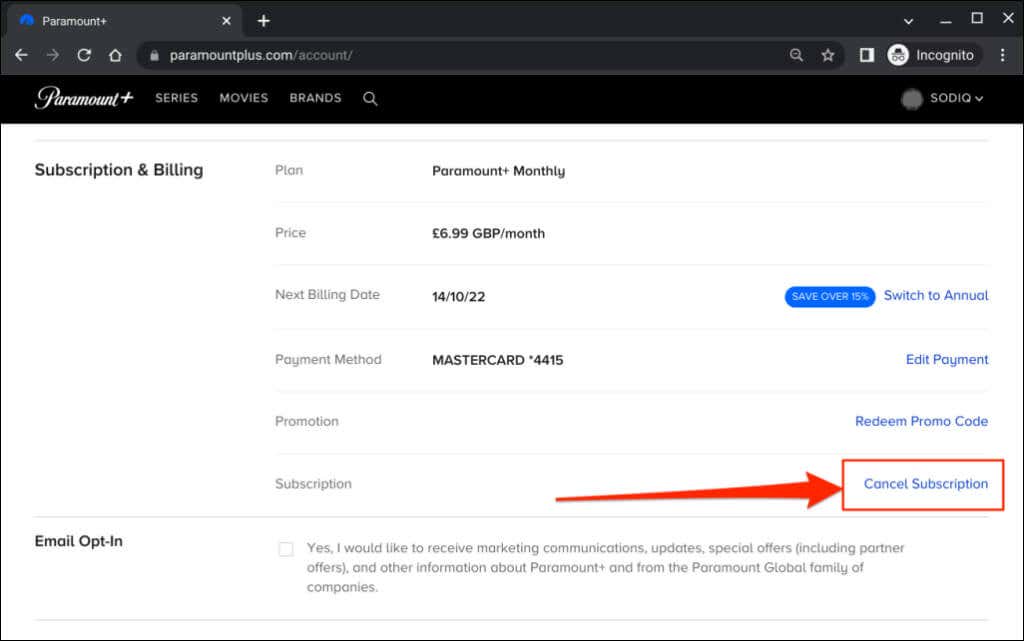
- Navigate to Account Settings: Once logged in, hover over your profile icon (or initials) in the top right corner of the screen. A dropdown menu will appear. Select “Account” or “Account & Billing.”
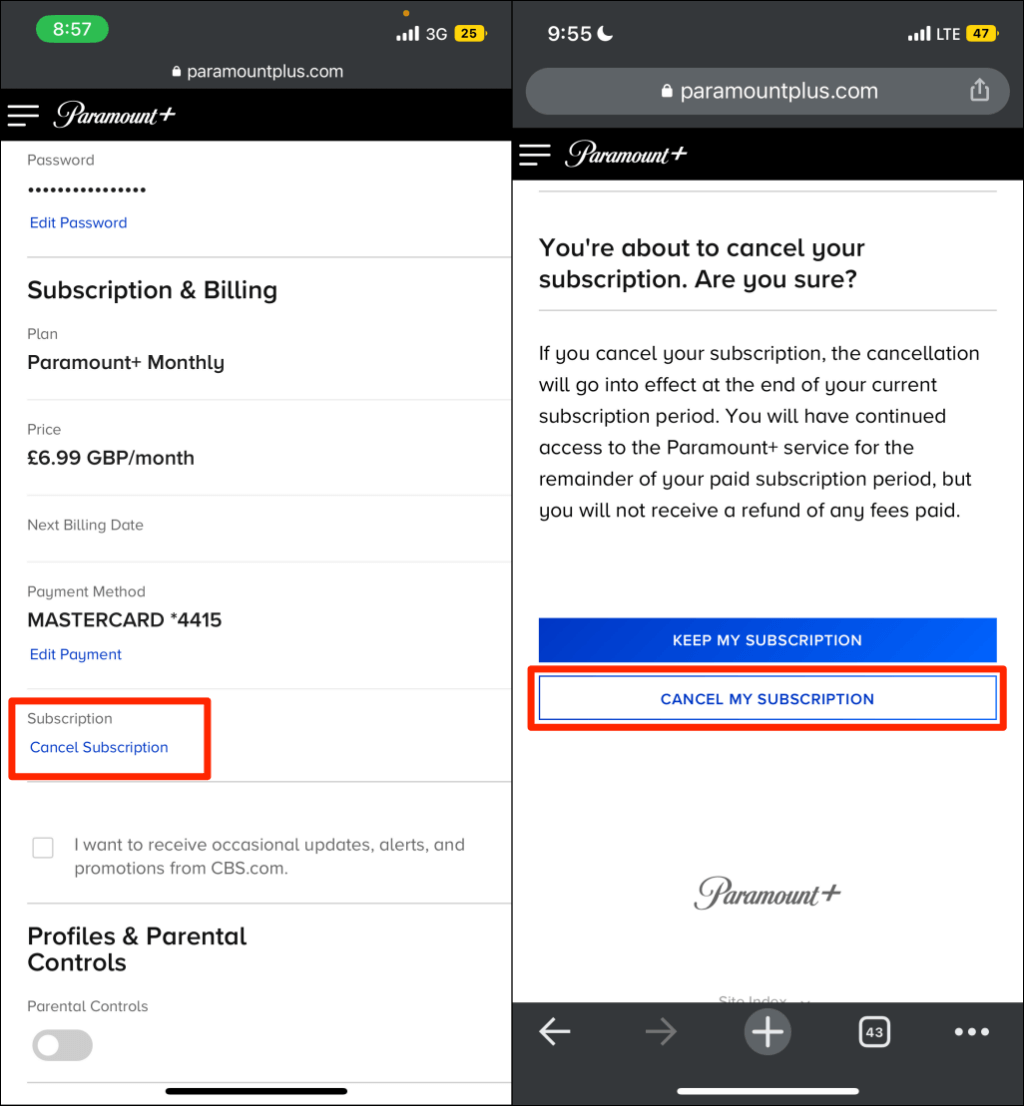
- Locate Subscription & Cancellation: On the Account page, look for a section titled “Subscription & Billing,” “Subscription,” or similar. Here you should see details about your current plan, next billing date, and crucially, an option to “Cancel Subscription.”
- Follow On-Screen Prompts: Click on the “Cancel Subscription” link. You may be presented with a brief survey asking why you’re cancelling, or offered incentives to stay (e.g., a discounted rate for a few months). You can usually bypass these or provide feedback if you wish.
- Confirm Cancellation: Crucially, ensure you follow all prompts until you see a definitive confirmation that your subscription has been cancelled. This often involves clicking a final “Confirm Cancellation” or “Yes, Cancel My Subscription” button.
- Check for Confirmation Email: Immediately after confirming, check the email inbox associated with your Paramount Plus account for a cancellation confirmation email. This email serves as your official record of cancellation. Keep it safe.
Cancelling via Third-Party Billing (Apple App Store, Google Play Store, Amazon, Roku, etc.)
Many users subscribe to Paramount Plus through third-party platforms. If you signed up through your Apple ID, Google Play account, Amazon account, or a device like Roku, you must cancel through that respective platform, not directly through Paramount Plus. The streaming service does not control these subscriptions, and attempting to cancel on their website will often redirect you or inform you that your subscription is managed elsewhere.
For Apple App Store Subscriptions:
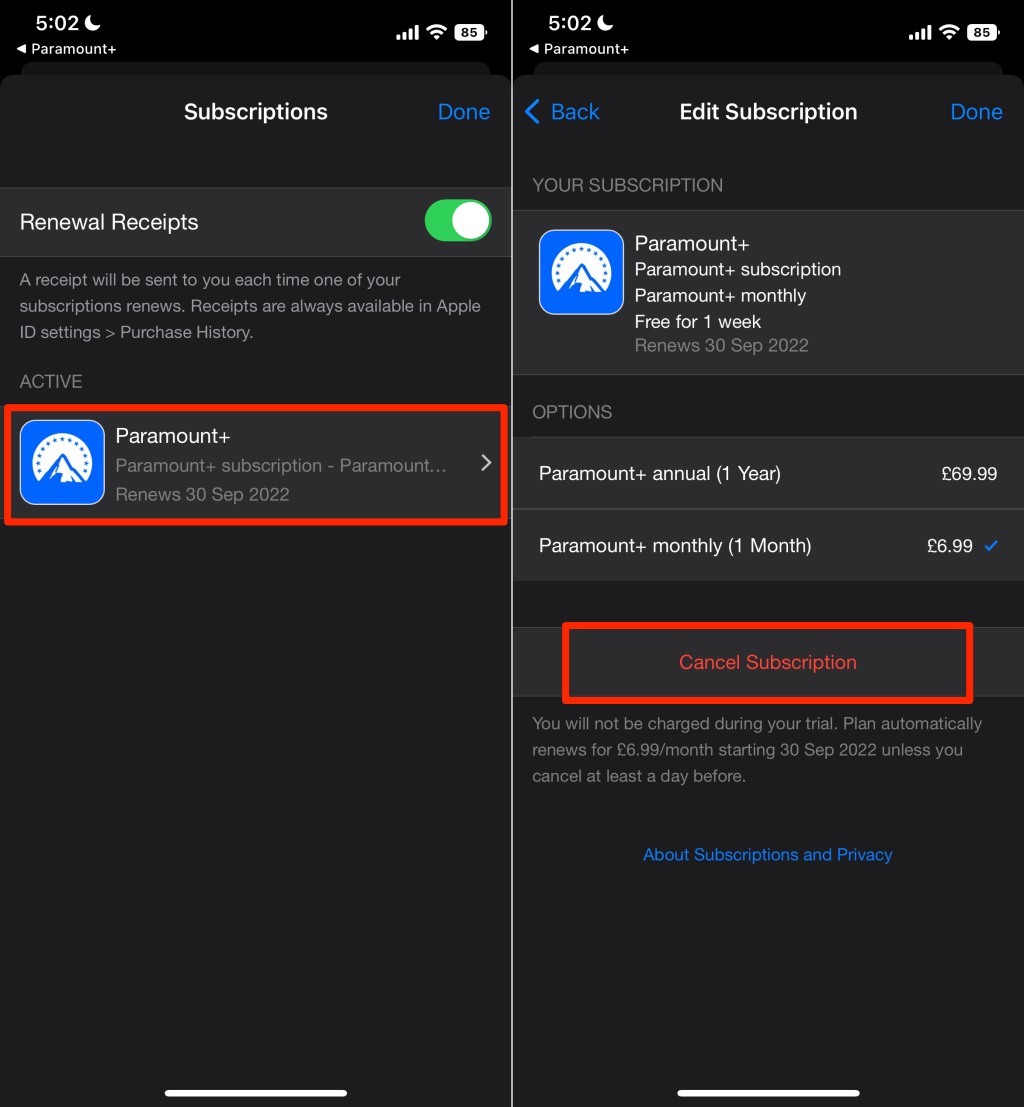
- On an iPhone/iPad: Go to “Settings” > Tap your name at the top > “Subscriptions.”
- On a Mac: Open the App Store > Click your name at the bottom of the sidebar > Click “Account Settings” (you might need to sign in) > Scroll to “Subscriptions” and click “Manage.”
- Find “Paramount Plus” in your list of subscriptions and tap/click “Cancel Subscription.” Follow any remaining prompts to confirm.
For Google Play Store Subscriptions:
- On an Android Device: Open the Google Play Store app.
- Tap your profile icon in the top right corner.
- Tap “Payments & subscriptions” > “Subscriptions.”
- Find “Paramount Plus” and tap “Cancel Subscription.” Follow any prompts to confirm.
- On a Web Browser: Go to play.google.com/store/account/subscriptions, sign in, find Paramount Plus, and click “Manage” > “Cancel Subscription.”
For Amazon Subscriptions (Prime Video Channels or Amazon Appstore):
- Go to www.amazon.com/yourmembershipsandsuscriptions in a web browser.
- Sign in with your Amazon account.
- Find “Paramount Plus” in your list of subscriptions.
- Click “Manage Subscription” > “Cancel Subscription.” Follow any prompts to confirm.
For Roku Channel Store Subscriptions:
- On your Roku Device: Go to the home screen.
- Highlight the Paramount Plus channel icon.
- Press the
*(star) button on your Roku remote. - Select “Manage subscription.”
- Select “Cancel subscription.” Confirm when prompted.
- On a Web Browser: Go to my.roku.com, sign in, click “Manage your subscriptions,” find Paramount Plus, and click “Cancel subscription.”
Cancelling via Smart TV Apps (Roku, Amazon Fire TV, etc.)
While you can often subscribe to Paramount Plus directly from smart TV apps (like those on Roku, Amazon Fire TV, or smart TVs running Android TV), the cancellation process typically directs you to the web interface or the platform’s app store. For example, if you subscribed via Roku on your TV, you’d follow the Roku cancellation steps described above. Always remember the platform where you originally paid is where you need to manage your subscription.
Troubleshooting Common Cancellation Issues
Even with clear instructions, technological hiccups or specific account configurations can sometimes complicate the cancellation process. Here’s how to address some common issues.
Can’t Find the Cancellation Option?
This is perhaps the most frequent point of confusion.
- Check Billing Source First: As highlighted, if you can’t find the cancellation option on the Paramount Plus website, it’s highly probable that you subscribed through a third-party platform (Apple, Google, Amazon, Roku, etc.). Revisit the “Cancelling via Third-Party Billing” section and identify which platform you used for your initial subscription.
- Expired or Paused Subscription: If your subscription has already expired or is paused, there might not be an active “cancel” button, as there’s nothing left to cancel.
- Clear Browser Cache/Cookies: Sometimes, a stale browser cache or cookies can prevent web pages from loading correctly. Try clearing your browser’s cache and cookies, or attempt the cancellation from a different browser or device.
Still Being Charged After Cancellation?
If you received a charge after believing you had successfully cancelled, several factors could be at play:
- Missed Confirmation Step: You might have initiated the cancellation but didn’t complete the final confirmation step. Always look for a final “Confirm Cancellation” button and, crucially, the confirmation email.
- Cancellation After Billing Date: You might have cancelled after your next billing date was processed. Remember, you maintain access until the end of the paid period, but the charge for that period will still go through.
- Multiple Accounts: It’s possible you have more than one Paramount Plus account, perhaps with different email addresses or subscribed via different platforms. Double-check all potential accounts.
- Third-Party Billing Lag: While rare, sometimes there can be a slight delay in communication between Paramount Plus and third-party billing providers. If you cancelled through a third party, confirm the cancellation status directly with them.
- Contact Customer Support: If all else fails and you have proof of cancellation (like a confirmation email), gather your evidence and contact Paramount Plus customer support or the support team of your third-party billing provider.
Problems with Third-Party Billing Providers
If you’re having trouble cancelling through Apple, Google, Amazon, or Roku, the issue lies with that specific platform, not Paramount Plus.
- Apple Support: Visit support.apple.com for assistance with Apple subscriptions.
- Google Play Support: Visit support.google.com/googleplay for Google Play subscription help.
- Amazon Support: Visit www.amazon.com/gp/help/customer/display.html?nodeId=GLUABK8W82Y2HNY5 for Amazon digital orders and subscriptions.
- Roku Support: Visit support.roku.com for Roku subscription management.
Ensure you’re logged into the correct account on the respective platform that holds your subscription.
Contacting Paramount Plus Customer Support
If you’ve exhausted all self-service options and are still facing difficulties, contacting customer support is the next logical step.
- Paramount Plus Support: Visit the official Paramount Plus Help Center at help.paramountplus.com. They typically offer an extensive FAQ, live chat options, and email support. Be prepared with your account details, billing information, and any relevant screenshots or confirmation emails.
- Be Specific: When contacting support, clearly state your issue, the steps you’ve already taken, and provide all necessary account information to help them quickly diagnose and resolve your problem.
Alternatives to Immediate Cancellation and Rejoining
Before definitively cancelling, consider if there are other options that better suit your evolving needs, particularly if you anticipate wanting to return to Paramount Plus in the future.
Pausing Your Subscription (If Available)
Some streaming services offer a “pause” feature, allowing you to temporarily halt your subscription and payments while retaining your account settings and watch history. While Paramount Plus has historically not offered a direct “pause” option, it’s always worth checking your account settings or their help center for any new features. If available, pausing can be an excellent way to take a break without going through the full cancellation and re-subscription process.
Re-subscribing to Paramount Plus Later
One of the benefits of digital subscriptions is their flexibility. If you cancel your Paramount Plus subscription and decide later that you want to return, the process is generally quite simple. Since your account typically remains active (even without an active subscription), you can usually just sign back into your existing account and re-activate your subscription. This often means your watch history, profiles, and preferences are right where you left them, making for a seamless return. Keep an eye out for promotional offers that might entice you back with a discounted rate or a free trial period.
Effectively managing your digital subscriptions means understanding not just how to start them, but also how to pause, cancel, and potentially rejoin them. This empowers you to adapt your streaming portfolio to your current interests and financial situation without unnecessary hassle.
Conclusion
Navigating the landscape of digital subscriptions requires a blend of technical know-how and attentiveness to detail. Cancelling your Paramount Plus subscription, while seemingly simple, can involve specific steps depending on your initial sign-up method. By following the comprehensive guidelines outlined in this article, you are now equipped to confidently manage your subscription, whether you initially subscribed directly through the Paramount Plus website or via a third-party platform like Apple, Google, Amazon, or Roku.
Remember to always:
- Identify your billing source: This is the most critical first step.
- Act before your next billing date: To avoid unwanted charges.
- Confirm cancellation: Always look for that final confirmation message and, crucially, the confirmation email.
- Keep records: Store your confirmation emails in case of future discrepancies.
In the rapidly evolving world of digital entertainment, being adept at managing your tech subscriptions is a valuable skill. This guide ensures that discontinuing your Paramount Plus service is as smooth and stress-free as enjoying its content. Take control of your digital wallet and ensure your media consumption aligns perfectly with your preferences and priorities.
aViewFromTheCave is a participant in the Amazon Services LLC Associates Program, an affiliate advertising program designed to provide a means for sites to earn advertising fees by advertising and linking to Amazon.com. Amazon, the Amazon logo, AmazonSupply, and the AmazonSupply logo are trademarks of Amazon.com, Inc. or its affiliates. As an Amazon Associate we earn affiliate commissions from qualifying purchases.