
For anyone transitioning from a Windows environment to a Mac, or even for long-time Apple users who have never ventured beneath the surface of their operating system, the “Finder” is perhaps the most critical component of the macOS experience. It is the first thing you see when your Mac finishes starting up, and it is the last thing you interact with before shutting down. But what exactly is it?
In the simplest terms, the Finder is the default file manager and graphical user interface shell used on all Macintosh operating systems. It is the digital equivalent of a physical filing cabinet, desk, and office assistant rolled into one. Unlike other applications that you open and close, the Finder is always open, serving as the foundation of your digital workspace.
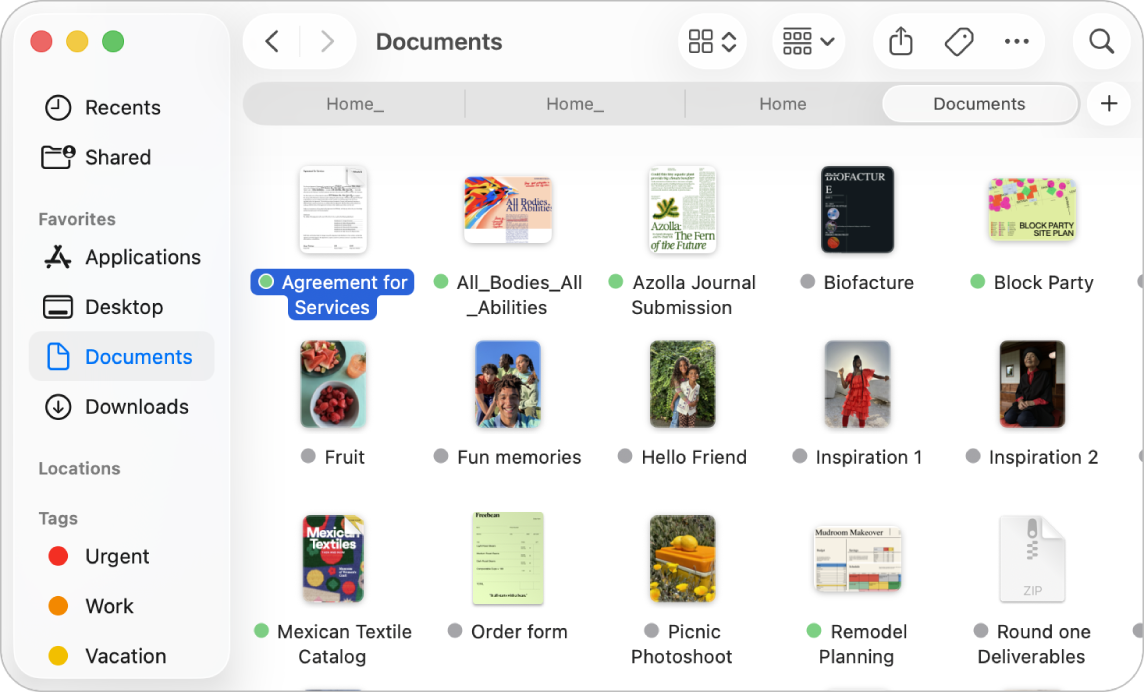
In this guide, we will explore the anatomy of the Finder, its core functions, and the advanced features that turn it from a simple file browser into a powerful productivity tool.
1. Anatomy of the Finder: Understanding the Interface
The Finder is designed to be intuitive, but its simplicity hides a wealth of organizational power. To master the Mac, you must first understand the various components that make up the Finder window.
The Sidebar: Your Navigation Hub
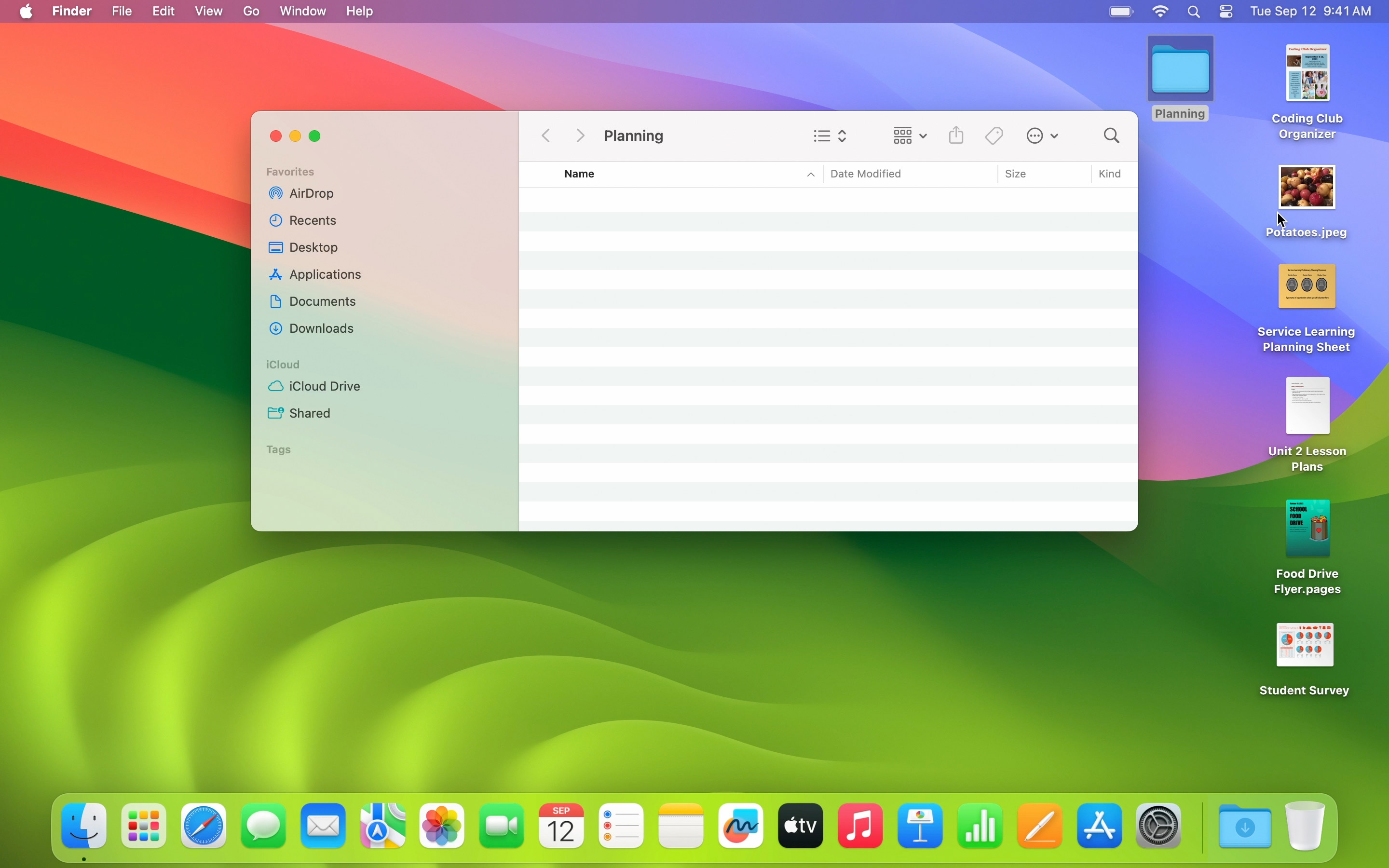
The Sidebar is the vertical pane located on the left side of every Finder window. It acts as a set of shortcuts to the places you visit most often. It is divided into several sections:
- Favorites: This includes default folders like Documents, Downloads, Desktop, and Applications. You can customize this by dragging any folder into the Sidebar.
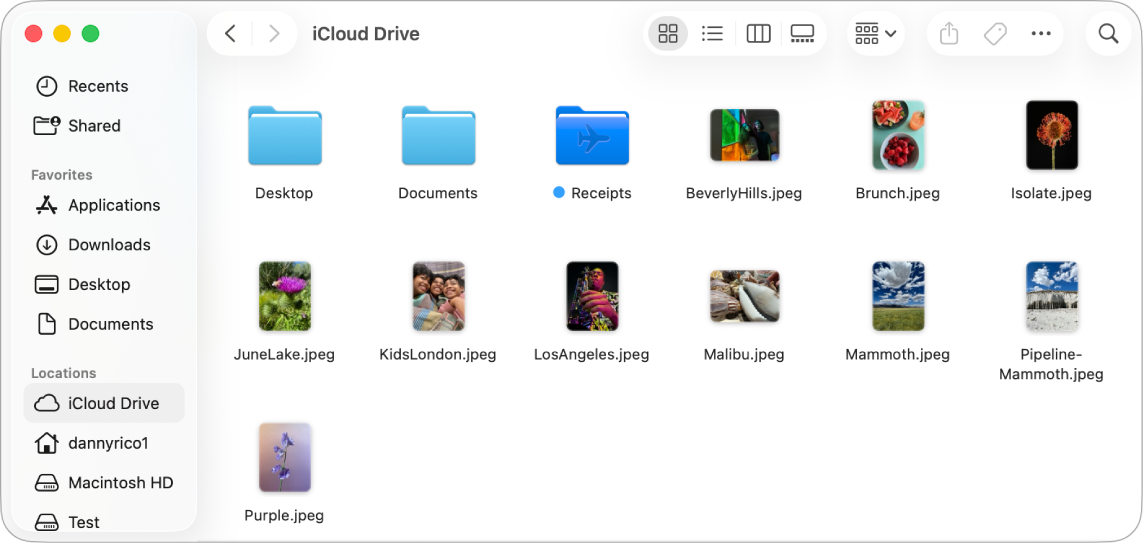
- iCloud: This provides direct access to files stored in iCloud Drive, allowing for seamless synchronization across your iPhone, iPad, and other Macs.
- Locations: This section displays connected hardware, such as external hard drives, USB flash drives, and networked servers.
- Tags: A unique macOS feature that allows you to find files based on color-coded or named labels, regardless of where they are stored on the disk.
The Toolbar and View Options
At the top of the Finder window sits the Toolbar. It contains navigation buttons (back/forward), the search bar, and, most importantly, the four View buttons. Choosing the right view can significantly impact your workflow:
- Icon View: Best for visual browsing, especially for photos and videos.
- List View: Ideal for sorting files by size, date modified, or kind.
- Column View: The preferred choice for power users, as it allows you to navigate through nested folders while maintaining a visual path of where you are.
- Gallery View: Replaces the old “Coverflow,” offering a large preview of the selected file along with detailed metadata in the side pane.
The Desktop: Finder’s Visual Extension
It is important to realize that the macOS Desktop is actually just a special Finder folder. Anything you see on your desktop—files, folders, and disks—is being managed by the Finder process. This is why, if the Finder ever crashes or is “Relaunched,” your desktop icons momentarily disappear and then reappear.
2. Essential Functions and File Management
Beyond simply showing you where your files are, the Finder provides the tools necessary to organize your digital life. Understanding these core functions is the key to maintaining a clean and efficient Mac.
Organizing with Folders and Stacks
The fundamental unit of organization in the Finder is the folder. You can create a new folder by right-clicking or using the shortcut Shift + Command + N. However, macOS takes organization a step further with a feature called Stacks.
If your desktop is cluttered with screenshots, PDFs, and documents, you can right-click on the desktop and select “Use Stacks.” The Finder will automatically group related files into neat piles. You can stack by “Kind,” “Date Last Opened,” or “Tags,” instantly transforming a chaotic desktop into an organized workspace.
Using Quick Look for Instant Previews
One of the most “magic” features of the Finder is Quick Look. Instead of double-clicking a file to open it in a heavy application like Microsoft Word or Adobe Photoshop just to see what’s inside, you can simply select the file and press the Spacebar.
Quick Look provides a high-resolution preview of almost any file type—images, PDFs, Excel sheets, and even videos—instantly. From the Quick Look window, you can also perform “Quick Actions,” such as rotating an image, trimming a video, or marking up a PDF, all without ever fully opening an app.
The Power of Spotlight Integration
The search bar in the top-right corner of the Finder window is powered by Spotlight, Apple’s advanced indexing technology. When you search in Finder, you aren’t just searching for file names; you are searching the contents of those files. If you search for the word “Invoice,” Finder will return documents that contain that word inside the text, as well as files named “Invoice.” You can further refine searches by adding “Kinds” (e.g., kind:pdf) or dates to find exactly what you need in seconds.
3. Advanced Features for Productivity
For users who want to move beyond basic file browsing, the Finder offers several “pro” features that can drastically speed up your daily tasks.
Mastering Tags and Smart Folders
While traditional folders are great, they have a limitation: a file can generally only be in one folder at a time. Tags solve this. By right-clicking a file and assigning it a “Work” tag and a “Urgent” tag, you can find that file in both categories via the Sidebar.
Smart Folders take this a step further. A Smart Folder isn’t a folder at all; it’s a saved search. For example, you can create a Smart Folder that automatically displays every “PDF” created in the “Last 7 Days” that contains the word “Contract.” As you create new files that meet these criteria, they will automatically appear in this folder, saving you the trouble of manual organization.
AirDrop and Cloud Integration
The Finder is the gateway to Apple’s ecosystem. AirDrop, located in the Sidebar, allows you to wirelessly drag and drop files to nearby iPhones, iPads, or other Macs. This eliminates the need for emailing files to yourself or using USB sticks.
Furthermore, the integration of iCloud Drive within the Finder makes cloud storage feel like local storage. You can set your Desktop and Documents folders to automatically sync to iCloud, meaning every file you save on your Mac’s desktop is instantly available on your iPhone via the “Files” app.
Connecting to Servers and Remote Volumes
In a professional or corporate environment, the Finder acts as the bridge to network-attached storage (NAS) and remote servers. By selecting “Go” in the menu bar and clicking “Connect to Server” (or pressing Command + K), you can link your Mac to FTP, SFTP, or SMB servers. Once connected, these remote locations appear in your Sidebar just like a local hard drive, allowing for easy drag-and-drop file transfers across the network.
4. Customizing Finder to Suit Your Workflow
No two users work the same way. Fortunately, the Finder is highly customizable, allowing you to hide what you don’t need and highlight what you do.
Modifying Finder Preferences
By clicking “Finder” in the top-left menu bar and selecting “Settings” (or “Preferences” on older macOS versions), you can control the behavior of the application.
- General: Choose what appears on your desktop (Hard disks, external disks, etc.) and what folder opens when you launch a new Finder window.
- Tags: Manage your custom labels and choose which ones appear in the Sidebar.
- Sidebar: Toggle which items (Movies, Music, Pictures, Cloud Storage) are visible in your navigation pane.
- Advanced: Enable features like “Show all filename extensions” (crucial for developers and designers) or “Remove items from the Trash after 30 days.”
Enhancing the View with Path and Status Bars
To make the Finder even more informative, you can use the “View” menu to enable two essential bars:
- The Path Bar: Located at the bottom of the window, it shows the exact file path of the selected item (e.g., Macintosh HD > Users > Name > Documents). You can double-click any folder in this path to jump directly to it.
- The Status Bar: This shows you how many items are in the current folder and, more importantly, how much storage space remains on your drive.
Conclusion: The Heart of the macOS Experience
The Finder is much more than a simple application; it is the central nervous system of your Mac. By moving beyond basic point-and-click navigation and embracing features like Quick Look, Tags, Smart Folders, and Keyboard shortcuts, you can transform your Mac into a highly efficient workstation.
Whether you are a creative professional managing thousands of high-resolution images or a student organizing semester notes, mastering the Finder is the single most effective way to improve your digital proficiency. It is a tool designed to stay out of your way when you don’t need it, yet provide immense power the moment you do. As you become more familiar with its nuances, you’ll find that the Finder isn’t just a place to store files—it’s the place where your work truly comes together.
aViewFromTheCave is a participant in the Amazon Services LLC Associates Program, an affiliate advertising program designed to provide a means for sites to earn advertising fees by advertising and linking to Amazon.com. Amazon, the Amazon logo, AmazonSupply, and the AmazonSupply logo are trademarks of Amazon.com, Inc. or its affiliates. As an Amazon Associate we earn affiliate commissions from qualifying purchases.