
For decades, Microsoft Outlook has served as the cornerstone of professional communication and personal organization. Whether you are managing high-stakes corporate correspondence or keeping track of personal appointments, Outlook functions as more than just an email client; it is a sophisticated information manager. At the heart of this ecosystem, particularly for those using Windows, lies a specific file format that dictates how your data is stored, moved, and preserved: the PST file.
PST stands for Personal Storage Table. To the average user, it may appear as just another file extension in a folder, but to a database administrator or a power user, it represents a critical vessel for digital history. Understanding what a PST file is, how it functions, and how to manage it is essential for maintaining data integrity and ensuring that years of communication remain accessible in an increasingly cloud-reliant world.
The Anatomy and Functionality of a PST File
A PST file is a proprietary file format used by Microsoft Outlook to store local copies of messages, calendar events, contacts, and other items. Unlike many webmail services that keep everything on a remote server, Outlook was designed with the flexibility to store data locally on your computer’s hard drive.
Data Encapsulation and Structure
A PST file acts as a container. Within a single .pst file, Outlook stores a complex hierarchy of information. This includes not only your inbox and sent items but also your drafts, deleted items, custom folders, calendar entries, tasks, notes, and journal entries.
Technically, the PST file is a structured database. It uses a B-tree structure to organize data, allowing Outlook to quickly search and retrieve specific emails or attachments without having to scan the entire file linearly. This architecture is what allows users to manage gigabytes of data with relatively low latency, provided the file remains healthy and within recommended size limits.
Local Storage and Offline Access
The primary purpose of a PST file is local storage. When you use a POP3 email account—a protocol that downloads emails from a server to your computer—the PST file serves as the definitive home for those emails. Once downloaded, the emails are often removed from the server to save space, making the PST file the only copy of that data.
This local nature provides a significant advantage: offline access. Because the data resides on your local disk, you can browse your entire email history, read past attachments, and organize your calendar without an active internet connection. For professionals who travel or work in environments with intermittent connectivity, the PST file is an indispensable tool for productivity.
Managing PST Files: Storage, Creation, and Archiving
As your digital footprint grows, so does the size and complexity of your PST files. Effective management of these files is a core skill for any professional using the Microsoft 365 or Office suite.
Locating Your Data
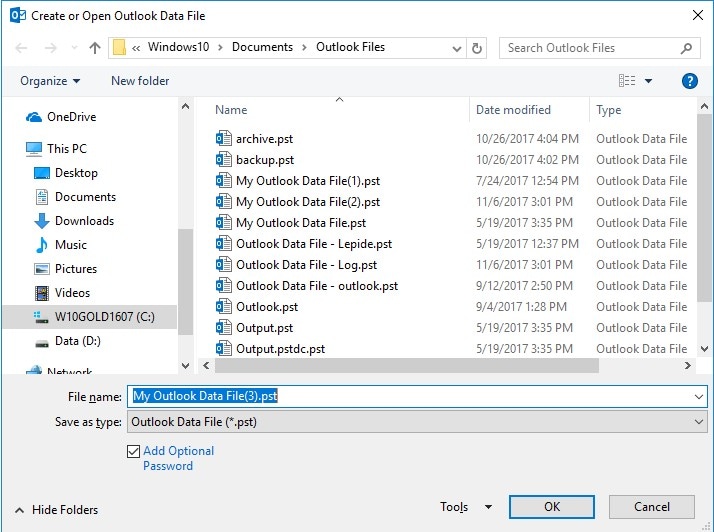
Knowing where your PST files are stored is the first step in digital security and migration. By default, Windows versions of Outlook store these files in specific hidden directories. In modern versions of Windows, you can typically find them in:
C:Users[Username]AppDataLocalMicrosoftOutlook
or
C:Users[Username]DocumentsOutlook Files
Understanding these paths is vital for manual backups. If you are upgrading to a new computer, simply copying the PST file to the new machine and “hooking” it into the new Outlook installation allows you to port your entire digital life across hardware generations without losing a single contact or meeting invite.
The Power of Archiving
One of the most common uses for a PST file is archiving. As an active inbox grows, it can slow down Outlook’s performance. To mitigate this, Outlook offers “AutoArchive” and manual archiving features.
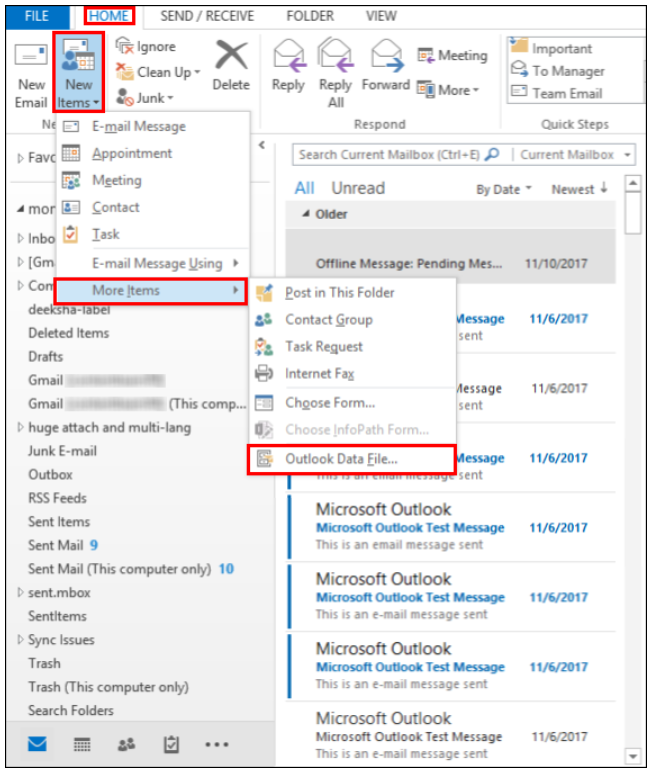
When you archive folders, Outlook moves older items from your primary mailbox (which might be hosted on a server with limited space) into a separate “Archive.pst” file stored locally. This keeps your active workspace lean and fast while ensuring that “legacy” data—such as project details from five years ago—remains searchable and accessible whenever needed.
Technical Evolution: PST vs. OST Files
In the modern era of cloud computing and Microsoft Exchange, a common point of confusion arises between PST files and their sibling, the OST file. While they serve similar roles, their technical implementation and purposes differ significantly.
Understanding the OST (Offline Storage Table)
An OST file is used when you have an Exchange, Outlook.com, or IMAP account. Unlike a PST file, which is a standalone data store, an OST file is a synchronized cache. It mirrors the data that exists on the server. If your computer is destroyed, you can simply log into a new machine, and Outlook will rebuild the OST file by downloading the data from the server.
When a PST is Preferable
While the world has moved toward the “sync-everything” model of OST files, PST files remain relevant for several niche but important technical reasons:
- Permanent Archiving: Since OST files are tied to a specific server account, if that account is deleted (for example, after leaving a company), the OST file becomes inaccessible. A PST file, however, is independent. You can export your data to a PST to ensure you have a permanent, portable record that survives account closures.
- Legal and Compliance Holds: In many industries, specific emails must be preserved for years for legal reasons. Moving these records into password-protected PST files allows for long-term retention without cluttering the primary mail server.
- Space Management: Many corporate mailboxes have strict quotas (e.g., 50GB). Moving older data into local PST files is a standard “Tech” workaround to bypass server-side storage limitations.
Maintenance, Limits, and Security Best Practices
Like any database file, the PST format has its limitations and vulnerabilities. Maintaining the health of these files is critical to preventing data loss.
Navigating File Size Constraints
Historically, PST files had a very small limit (2GB) because they used an older ANSI encoding. Modern Outlook versions (2010 and later) use Unicode encoding, which theoretically allows for PST files up to 50GB.
However, tech experts generally recommend keeping PST files under 20GB. As a PST file grows toward its limit, the risk of “bit rot” or file corruption increases significantly. Large files place a heavy load on the computer’s I/O (Input/Output) operations, which can lead to Outlook “hanging” or crashing during data-intensive tasks like indexing for search.
Dealing with Corruption: ScanPST.exe
Because PST files are frequently written to and read from, they are susceptible to corruption, often caused by sudden power outages, hardware failure, or Outlook being forced to close while a write operation is in progress.
Microsoft provides a built-in “Tech” solution for this: the Inbox Repair Tool (ScanPST.exe). This utility scans the internal structure of the PST file to check for inconsistencies. If it finds errors, it attempts to rebuild the file headers and recover as much data as possible. For any professional, knowing how to run ScanPST.exe is the primary line of defense against a “Cannot open your data file” error message.
Securing Your Personal Data
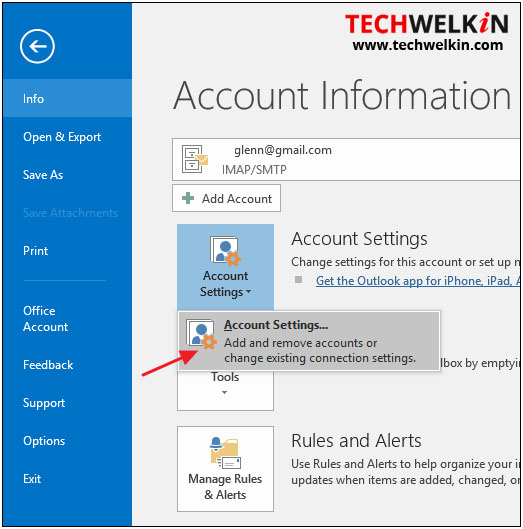
Because a PST file can contain a decade’s worth of sensitive corporate or personal information, security is paramount. Outlook allows users to set a password on the PST file itself. This encryption layer ensures that even if someone gains unauthorized access to your computer’s hard drive, they cannot simply open your PST file in another copy of Outlook to read your messages.
Furthermore, because PST files are local, they are not typically backed up by cloud providers like OneDrive unless specifically configured. A robust digital security strategy involves including your PST files in a regular, encrypted backup routine—either to an external drive or a secure cloud backup service.
Conclusion: The Enduring Relevance of the PST Format
Despite the rise of web-based mail and “headless” cloud storage, the PST file remains a fundamental component of the professional software landscape. It offers a level of control and portability that purely server-side solutions cannot match.
By mastering the technical aspects of PST management—from understanding its internal database structure to implementing aggressive archiving and repair strategies—users can ensure that their digital archives remain both performant and secure. Whether you are a tech enthusiast looking to optimize your workflow or a professional safeguarding critical business intelligence, the PST file is the silent workhorse that makes long-term email management possible. As we move further into the age of AI and massive data sets, the ability to store and curate our own local “Personal Storage Tables” remains a vital skill in the modern technologist’s toolkit.
aViewFromTheCave is a participant in the Amazon Services LLC Associates Program, an affiliate advertising program designed to provide a means for sites to earn advertising fees by advertising and linking to Amazon.com. Amazon, the Amazon logo, AmazonSupply, and the AmazonSupply logo are trademarks of Amazon.com, Inc. or its affiliates. As an Amazon Associate we earn affiliate commissions from qualifying purchases.