
In the landscape of modern peripherals, the computer mouse has evolved from a simple two-button pointing device into a sophisticated piece of hardware packed with sensors, programmable keys, and dedicated microcontrollers. Among these features, the “DPI switch” is perhaps the most ubiquitous yet misunderstood component. Found on everything from high-end gaming mice to standard office peripherals, the DPI switch serves as a critical interface between a user’s physical movement and the digital response on the screen. To understand the utility of this switch, one must delve into the technical mechanics of mouse tracking and how sensitivity impacts different digital workflows.

The Technical Mechanics of DPI and Optical Sensors
At its core, DPI stands for “Dots Per Inch.” However, in the context of computer hardware, it is more accurately described as “Counts Per Inch” (CPI). It represents the number of individual steps or signals a mouse sensor sends to the computer for every inch of physical movement. The DPI switch is the hardware trigger that allows users to toggle between these counts instantaneously.
What Does DPI Actually Measure?
When you move your mouse, an internal optical or laser sensor captures thousands of images of the surface beneath it every second. The on-board Digital Signal Processor (DSP) analyzes these images to detect changes in position. If a mouse is set to 800 DPI, the cursor will move 800 pixels on the screen for every inch the mouse moves on the desk. Increasing this to 3,200 DPI means the cursor will travel four times as far for the exact same physical movement. The DPI switch allows a user to cycle through these levels of sensitivity without needing to open software settings.
How the Optical Sensor Works with the Switch
Modern optical sensors use a CMOS (Complementary Metal-Oxide Semiconductor) sensor and an LED or laser to track surface textures. The DPI switch interacts with the sensor’s firmware to change the resolution of the tracking data. Higher DPI settings require more sensitive data processing, which can sometimes lead to “jitter” or “noise” if the sensor isn’t high-quality. The switch provides a hardware-level shortcut to adjust this spatial resolution, ensuring the user can adapt to their specific environment or task in milliseconds.
High vs. Low DPI: Finding the Technical Sweet Spot
There is a common misconception that a higher DPI always translates to a “better” mouse. In reality, extremely high DPI settings (such as 16,000 or 25,000) are often beyond the threshold of human control. The value of the DPI switch lies in its ability to offer range. Low DPI (400–800) provides immense precision because it requires larger physical movements to move the cursor, while high DPI (1600+) is essential for rapid navigation. The switch gives the user the ability to choose the “sweet spot” based on their monitor resolution and hand-eye coordination.
The Role of the DPI Switch in Modern Computing
The presence of a physical DPI switch—usually located just behind the scroll wheel or on the side of the mouse—is a design choice aimed at streamlining the user experience. In professional and enthusiast circles, the ability to adjust sensitivity “on-the-fly” is not just a luxury; it is a functional requirement.
On-the-Fly Sensitivity Adjustments
The primary benefit of the DPI switch is immediacy. Without it, a user would have to navigate through operating system menus or proprietary software (like Logitech G Hub or Razer Synapse) to change their cursor speed. For a technician multitasking between a granular photo-editing project and a fast-paced data entry task, the switch acts as a mechanical gear shifter, allowing for a seamless transition between precision and speed.
Hardware vs. Software Control
While operating systems like Windows and macOS have “Pointer Speed” sliders, these are often software-based interpretations that can introduce “acceleration” or “skipping.” Software scaling often ignores the raw data from the sensor and uses algorithms to guess where the mouse should go. A hardware DPI switch, conversely, changes how the sensor itself perceives movement. This results in “1:1 tracking,” where the digital movement is a perfect, unadulterated reflection of the physical input.
Multi-Stage DPI Presets
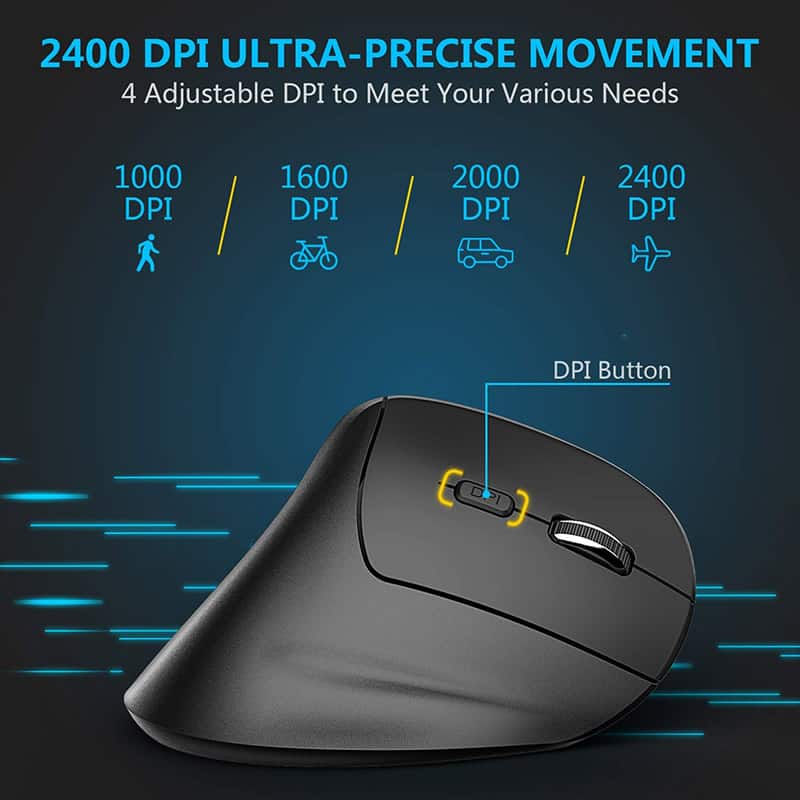
Most modern mice allow users to program several “stages” into their DPI switch. For example, a user might set a four-stage cycle: 400 DPI for precision, 800 DPI for desktop work, 1600 DPI for general gaming, and 3200 DPI for ultra-fast navigation. Usually, these mice feature an LED indicator that changes color to signify which stage is active, providing the user with instant visual feedback on their hardware state.
The Impact of DPI on Gaming and Performance
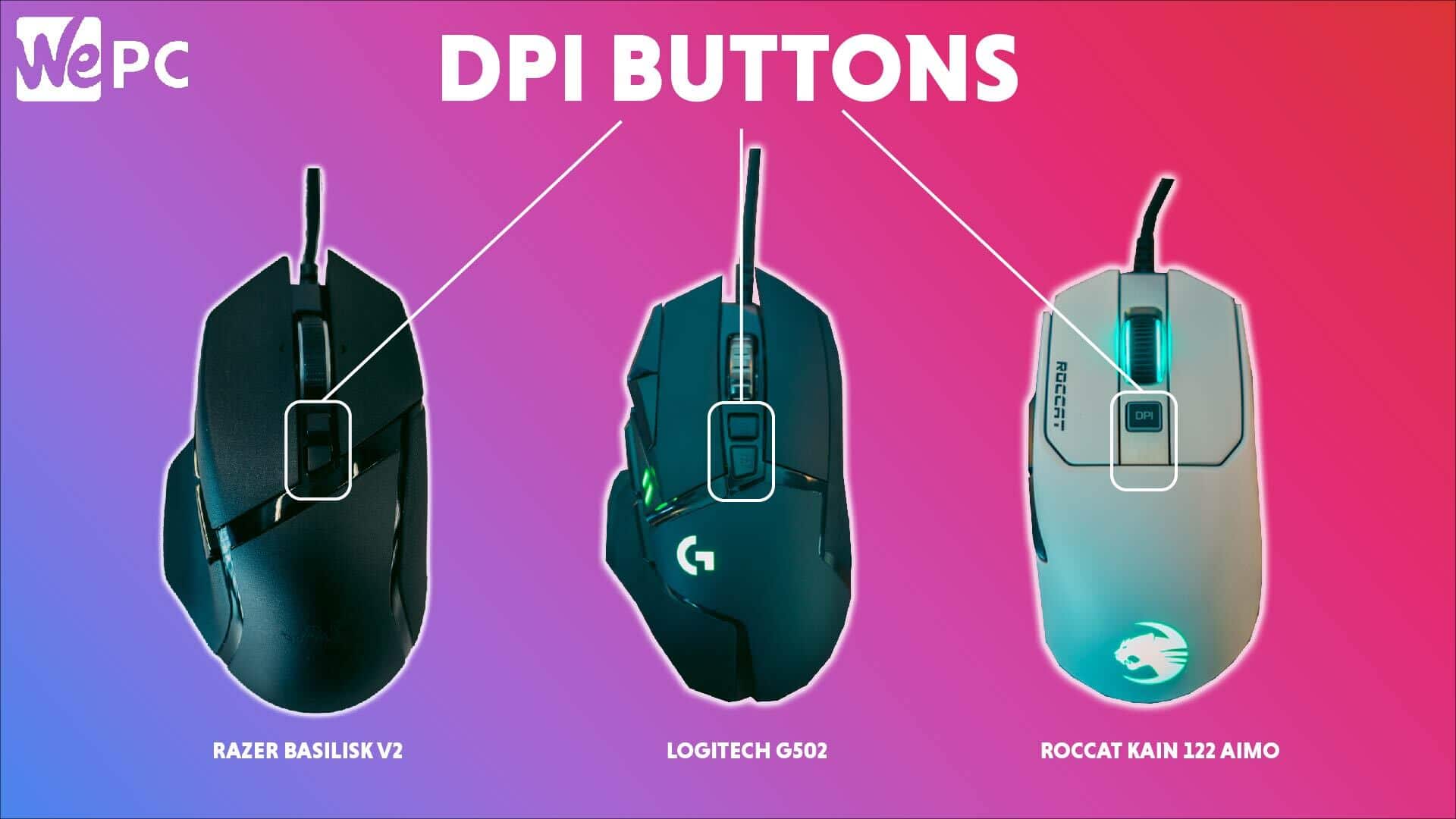
The gaming industry is the biggest driver behind the evolution of the DPI switch. In competitive environments, where milliseconds determine the outcome of a match, the ability to manipulate sensitivity becomes a strategic advantage.
Competitive Gaming and Precision
In First-Person Shooters (FPS), “pixel-perfect” accuracy is required. Many professional players prefer a very low DPI (around 400 or 800) because it allows them to use their entire arm to aim, providing a larger margin for error and more control. However, when they need to turn 180 degrees quickly or navigate a menu, they might use the DPI switch to jump to a higher sensitivity. Some mice even feature a “Sniper Button,” a dedicated DPI switch that temporarily lowers the DPI only while the button is held down, allowing for steady aiming during high-stakes moments.
The Myth of “Higher is Always Better”
Marketing materials often boast about astronomical DPI numbers, but from a technical standpoint, most users never exceed 3,200 DPI. Using a mouse at 20,000 DPI would make the cursor virtually uncontrollable for a human hand. The importance of the DPI switch isn’t to reach the highest number possible, but to provide a stable, reliable sensor that can handle various speeds without “spin-outs” (where the sensor loses track of the surface).
Polling Rate vs. DPI: The Synergy
The DPI switch works in tandem with the “polling rate,” which is the frequency with which the mouse reports its position to the computer (measured in Hertz). While the DPI switch controls the distance the cursor travels, the polling rate controls the smoothness of that travel. A high-DPI mouse with a low polling rate will feel choppy. Therefore, the tech inside the switch often communicates with the onboard MCU (Microcontroller Unit) to ensure that even at high sensitivities, the data stream remains fluid and lag-free.
DPI for Creative Professionals and Productivity
While gaming popularized the DPI switch, it has become an essential tool for creative professionals, including graphic designers, video editors, and CAD (Computer-Aided Design) engineers.
Precision in Graphic Design and Video Editing
When masking an image in Photoshop or trimming a frame in a video editor, a high sensitivity can be a hindrance. A slight tremor in the hand could send the cursor flying across the canvas. By clicking the DPI switch to a lower setting, a designer gains the steady hand needed for intricate paths and fine-tuning. Once the detailed work is done, another click restores the speed needed to navigate across multiple monitors.
Navigating Large High-Resolution Displays
As 4K and 8K monitors become the industry standard, the physical distance the cursor must travel increases significantly. On a 4K screen, a mouse set to 400 DPI would require the user to move the mouse across several feet of desk space just to cross the screen. Here, the DPI switch allows the user to scale up to 2400 or 3200 DPI, enabling them to reach any corner of the high-resolution workspace with a flick of the wrist.
Ergonomics and Reduced Wrist Fatigue
From an ergonomic perspective, the DPI switch can help mitigate Repetitive Strain Injury (RSI). Users who suffer from wrist pain often benefit from higher DPI settings because they can move the cursor using small, efficient movements rather than large, sweeping motions that strain the tendons. The switch allows the user to find the exact level of resistance that feels comfortable for their specific hand anatomy and desk setup.
Choosing and Customizing Your DPI Settings
Understanding what the DPI switch does is the first step; the second is knowing how to calibrate it for your specific tech stack. No two sensors are exactly alike, and “surface compatibility” plays a major role in how DPI is perceived.
Finding Your Ideal Sensitivity
To find your ideal settings, start at a baseline of 800 DPI. Use your computer for thirty minutes, then toggle the switch up or down. Pay attention to whether you are “undershooting” (not reaching your target) or “overshooting” (going past your target). The DPI switch is designed to be a tool for experimentation. Most power users find that they prefer different DPI levels for different applications—higher for web browsing and lower for creative production.
Calibrating Settings Across Different Monitors
If you use a laptop and occasionally plug it into a massive external monitor, your DPI needs will change instantly. The DPI switch is the hardware solution to this hardware change. A setting that feels perfect on a 13-inch 1080p laptop screen will feel sluggish on a 32-inch 4K panel. Instead of digging into the OS settings every time you dock your laptop, the DPI switch provides an instant calibration tool to maintain a consistent “feel” across different displays.
In conclusion, the DPI switch is far more than an extra button; it is a sophisticated control mechanism that manages the resolution of the optical sensor. Whether used for the high-stakes precision of competitive gaming, the intricate demands of digital artistry, or simply the ergonomic comfort of daily office work, the DPI switch empowers users to customize their interface with the digital world. By understanding the tech behind the counts per inch, users can unlock the full potential of their hardware and ensure that their mouse is always perfectly tuned to the task at hand.
aViewFromTheCave is a participant in the Amazon Services LLC Associates Program, an affiliate advertising program designed to provide a means for sites to earn advertising fees by advertising and linking to Amazon.com. Amazon, the Amazon logo, AmazonSupply, and the AmazonSupply logo are trademarks of Amazon.com, Inc. or its affiliates. As an Amazon Associate we earn affiliate commissions from qualifying purchases.