
In the modern computing landscape, the Graphics Processing Unit (GPU) has evolved from a simple component used to render basic desktop icons into the powerhouse of the machine. Whether you are a creative professional rendering 4K video, a data scientist leveraging CUDA cores for machine learning, or a gamer seeking the highest possible frame rates, your GPU is the heart of your visual experience. However, even the most expensive hardware is only as good as the software that communicates with it.
Updating your graphics drivers is one of the most essential maintenance tasks for any PC user. These software packages act as the translator between your operating system and your hardware. Without the correct, up-to-date drivers, you risk system instability, poor performance, and even security vulnerabilities. This guide provides a deep dive into why, when, and how to update your graphics drivers to ensure your system remains at peak performance.

Why Keeping Your Graphics Drivers Updated Matters
Many users adhere to the philosophy of “if it isn’t broken, don’t fix it.” While this might apply to some legacy hardware, it is a dangerous approach for graphics cards. The software environment is constantly shifting; new operating system patches, new software releases, and new graphical APIs (Application Programming Interfaces) like DirectX 12 Ultimate or Vulkan require constant driver adjustments.
Performance Optimization and Gaming
For gamers, driver updates are often synonymous with “Game Ready” releases. Manufacturers like NVIDIA and AMD work closely with game developers before major titles launch. These updates include specific optimizations that can increase frame rates by 10% to 20% or more on day one. Furthermore, modern drivers often unlock new features such as AI-driven upscaling (NVIDIA’s DLSS or AMD’s FSR), which can significantly extend the lifespan of older hardware.
System Stability and Bug Fixes
If you have ever experienced a “Blue Screen of Death” (BSOD) or a sudden application crash while editing video or browsing the web, an outdated or corrupted graphics driver is a likely culprit. Drivers are complex pieces of code that can contain bugs. Manufacturers frequently release “hotfixes” to address specific crashes that occur in professional software like Adobe Premiere Pro, AutoCAD, or Blender. Keeping drivers current ensures that these known stability issues are patched before they disrupt your workflow.
Security Vulnerabilities
In recent years, the tech industry has seen an increase in security vulnerabilities tied to hardware drivers. Because drivers operate at a high level of privilege within the Windows kernel, a security flaw in a graphics driver could allow malicious actors to gain control of a system. Both NVIDIA and Intel have released critical security bulletins in the past year, making driver updates a vital part of your digital security hygiene.
How to Identify Your Graphics Card
Before you can update your drivers, you must know exactly what hardware is tucked inside your computer case or laptop chassis. Downloading the wrong driver can lead to installation errors or, in rare cases, system instability.
Using Windows Device Manager
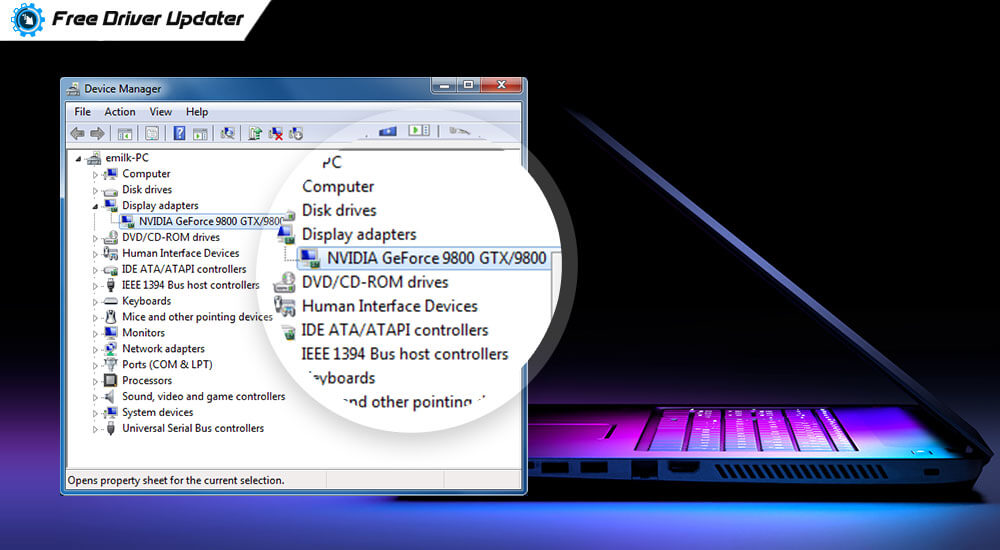
The most direct way to identify your GPU is through the built-in Windows Device Manager.
- Right-click the Start button and select Device Manager.
- Locate the section titled Display adapters and click the arrow to expand it.
- Here, you will see the name of your graphics card (e.g., “NVIDIA GeForce RTX 3060” or “AMD Radeon RX 6700 XT”).
Third-Party Diagnostic Tools
For users who want more detailed information—such as the specific BIOS version of the card, the type of onboard memory (VRAM), or current clock speeds—third-party tools are invaluable. GPU-Z is the industry standard for this. It is a lightweight utility that provides a comprehensive readout of every technical specification of your GPU. Knowing these details can be helpful if you are troubleshooting a specific compatibility issue with high-end professional software.
Step-by-Step Guide to Updating Drivers

There are three primary methods to update your drivers, ranging from the fully automated to the manual “hands-on” approach.
Updating via Windows Update
For the casual user who does not play high-end games or do intensive 3D work, Windows Update is the easiest path.
- Navigate to Settings > Windows Update and click Check for updates.
- Often, graphics drivers are listed under Advanced options > Optional updates.
- Pros: Extremely safe and verified by Microsoft.
- Cons: These drivers are often several months old and lack the latest performance optimizations for new software.
Manufacturer-Specific Software Suites
The most common method for power users is using the proprietary software provided by the GPU manufacturer.
- NVIDIA GeForce Experience / NVIDIA App: This software automatically notifies you when a new driver is available. It allows for “Express Installation,” which handles the entire process with a single click.
- AMD Software: Adrenalin Edition: AMD’s suite is highly robust, offering not just driver updates but also performance monitoring and overclocking tools.
- Intel Arc Control: For users with Intel’s new dedicated GPUs or Integrated Iris Xe graphics, this is the central hub for all updates.
- Pros: Provides the latest “Day 0” updates and feature sets.
- Cons: Requires background software to be running.
Manual Installation from Official Websites
If you prefer to keep your system lean and avoid background utilities, you can download drivers directly from the manufacturer’s support pages.
- Visit the NVIDIA, AMD, or Intel driver download page.
- Manually select your product series, operating system, and driver type (e.g., “Game Ready” for entertainment or “Studio” for creative work).
- Download the executable (.exe) file and run it as an administrator.
Advanced Troubleshooting: Clean Installation and DDU
Sometimes, a standard update isn’t enough. If you are experiencing persistent flickering, “Display driver stopped responding” errors, or if you are switching from an NVIDIA card to an AMD card, a “dirty” installation—where new files are written over old ones—can cause conflicts.
When a Normal Update Fails
If your installation hangs or if performance drops after an update, you may need to perform a “Clean Install.” Most manufacturer installers (like NVIDIA’s) offer a checkbox for a clean installation, which wipes previous settings and profiles before installing the new files.
Using Display Driver Uninstaller (DDU)
For the most stubborn issues, tech enthusiasts turn to Display Driver Uninstaller (DDU). This is a niche but powerful utility that completely nukes every trace of a graphics driver from the Windows Registry and system folders.
- The Process: You must boot Windows into Safe Mode, run DDU to remove the drivers, and then restart and install the new drivers from a freshly downloaded file.
- This is the “nuclear option” for driver management, usually reserved for when a GPU is being replaced or when a system is suffering from major graphical corruption.
Automating the Process and Future Trends
As we look toward the future of technology, the way we handle drivers is becoming increasingly integrated and automated. We are moving away from the era of manual file management and toward a more “service-based” model of hardware maintenance.
The Shift Toward Cloud-Based Optimization
Both NVIDIA and AMD are moving toward cloud-based profiles. In the future, your driver may not just be a static file on your hard drive; it will be a dynamic interface that pulls optimization settings from the cloud based on real-time telemetry from millions of other users. This ensures that if a specific bug is found in a piece of software, your driver can adapt to it almost instantly without requiring a full multi-gigabyte download.
AI-Driven Performance Profiles
With the integration of AI cores (Tensor cores) into modern GPUs, drivers are becoming smarter. Future driver updates will likely focus on “Neural Graphics.” Instead of manual coding for every new game or app, AI models within the driver will learn how to best allocate power and memory based on the specific visual load of the task at hand.
In conclusion, knowing how to update your graphics drivers is more than just a troubleshooting step—it is a fundamental skill for maintaining the health and longevity of your workstation or gaming rig. By understanding the tools at your disposal, from the simplicity of Windows Update to the precision of a DDU clean wipe, you ensure that your hardware continues to deliver the crisp, fast, and secure visual experience you expect. Whether you are chasing the highest frames in a competitive shooter or rendering a complex architectural model, the right driver is the key that unlocks your GPU’s true potential.
aViewFromTheCave is a participant in the Amazon Services LLC Associates Program, an affiliate advertising program designed to provide a means for sites to earn advertising fees by advertising and linking to Amazon.com. Amazon, the Amazon logo, AmazonSupply, and the AmazonSupply logo are trademarks of Amazon.com, Inc. or its affiliates. As an Amazon Associate we earn affiliate commissions from qualifying purchases.