
In the modern computing landscape, the Graphics Processing Unit (GPU) has evolved from a simple component used for rendering desktop windows into the powerhouse of the machine. Whether you are a competitive gamer, a creative professional working with 4K video, or a researcher utilizing AI and machine learning models, your NVIDIA GPU is likely the most critical hardware in your system. However, hardware is only as capable as the software that communicates with it. This is where drivers come in.
Updating your NVIDIA drivers is not merely a maintenance chore; it is an essential practice for ensuring peak performance, security, and compatibility with the latest software. This guide provides a comprehensive deep dive into why, when, and how to update your NVIDIA drivers to maintain a high-performance digital environment.
Understanding the Vital Role of GPU Driver Maintenance
A driver is essentially a translator between your operating system (Windows or Linux) and your hardware. Without a refined driver, the operating system cannot efficiently allocate tasks to the GPU’s thousands of CUDA cores. NVIDIA releases updates frequently, and understanding the “why” behind these updates is the first step toward better system management.
Performance Gains and Frame Rate Stability
For gamers, the most immediate benefit of a driver update is “Day 0” optimization. NVIDIA works closely with game developers before major titles launch. These updates include specific code paths that allow the GPU to render a specific game’s engine more efficiently. Beyond new releases, driver updates often include “Game Ready” optimizations that can increase frame rates by 5% to 15% on older titles through better resource management and shader caching.
Support for Modern Technologies: DLSS and Ray Tracing
NVIDIA’s RTX platform relies heavily on software-driven features like Deep Learning Super Sampling (DLSS) and Frame Generation. These features use AI to upscale images and insert synthetic frames to boost performance. As NVIDIA’s AI models evolve, they deliver these improvements through driver updates. If you are running an outdated driver, you are likely missing out on the latest iterations of DLSS that reduce ghosting and improve image clarity.
System Stability and Security Patches
Software is rarely perfect upon release. Drivers often contain bugs that can lead to the infamous “Blue Screen of Death” (BSOD), application crashes, or screen flickering. Furthermore, GPUs have become targets for security vulnerabilities. NVIDIA regularly patches security holes that could allow unauthorized code execution via the driver interface. Keeping your drivers current is a fundamental aspect of digital security.
Primary Methods for Updating NVIDIA Drivers
There are several ways to approach the update process, ranging from fully automated solutions to manual, precision-based installations. The best method depends on your technical comfort level and how much control you want over your system.
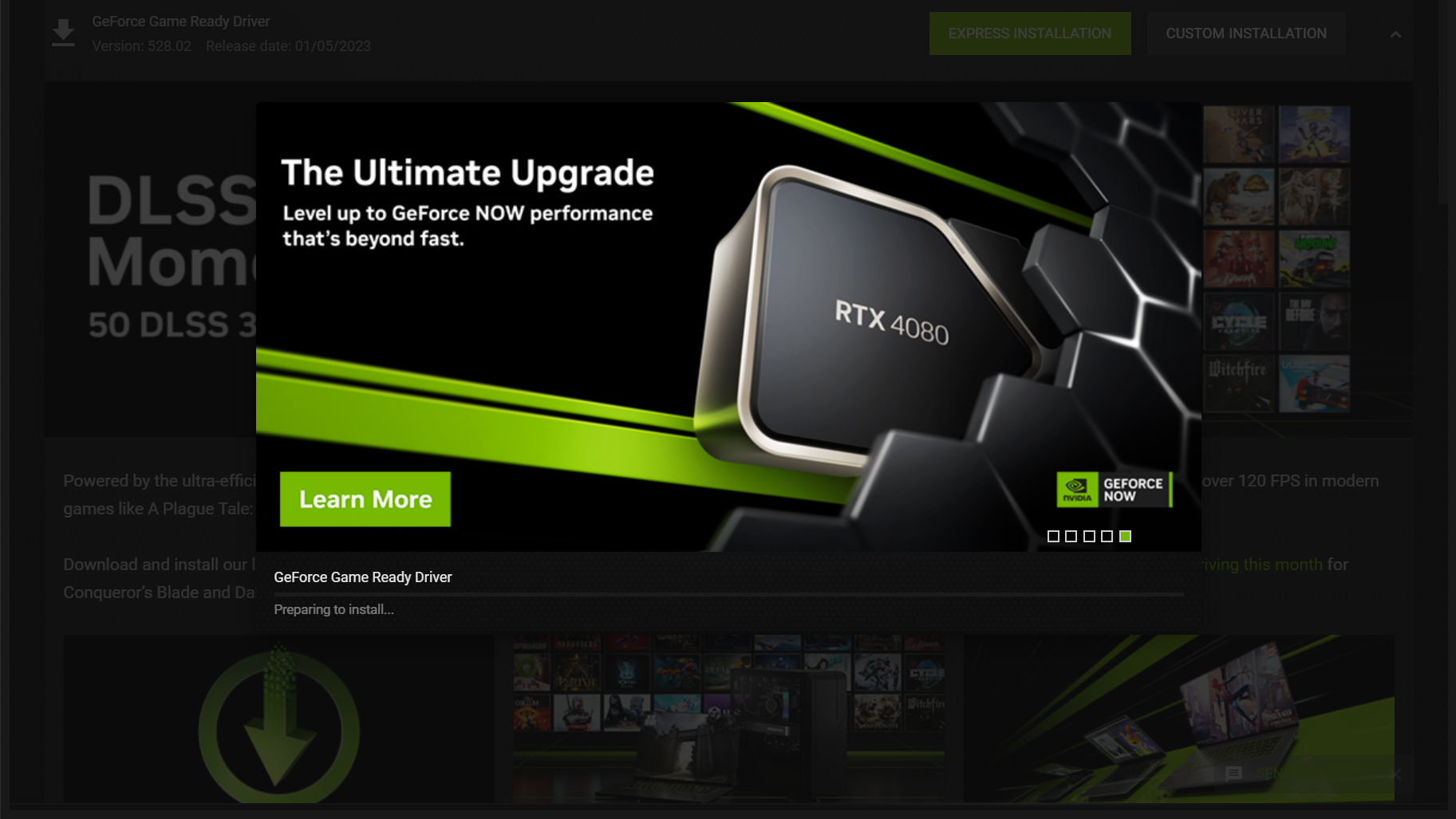
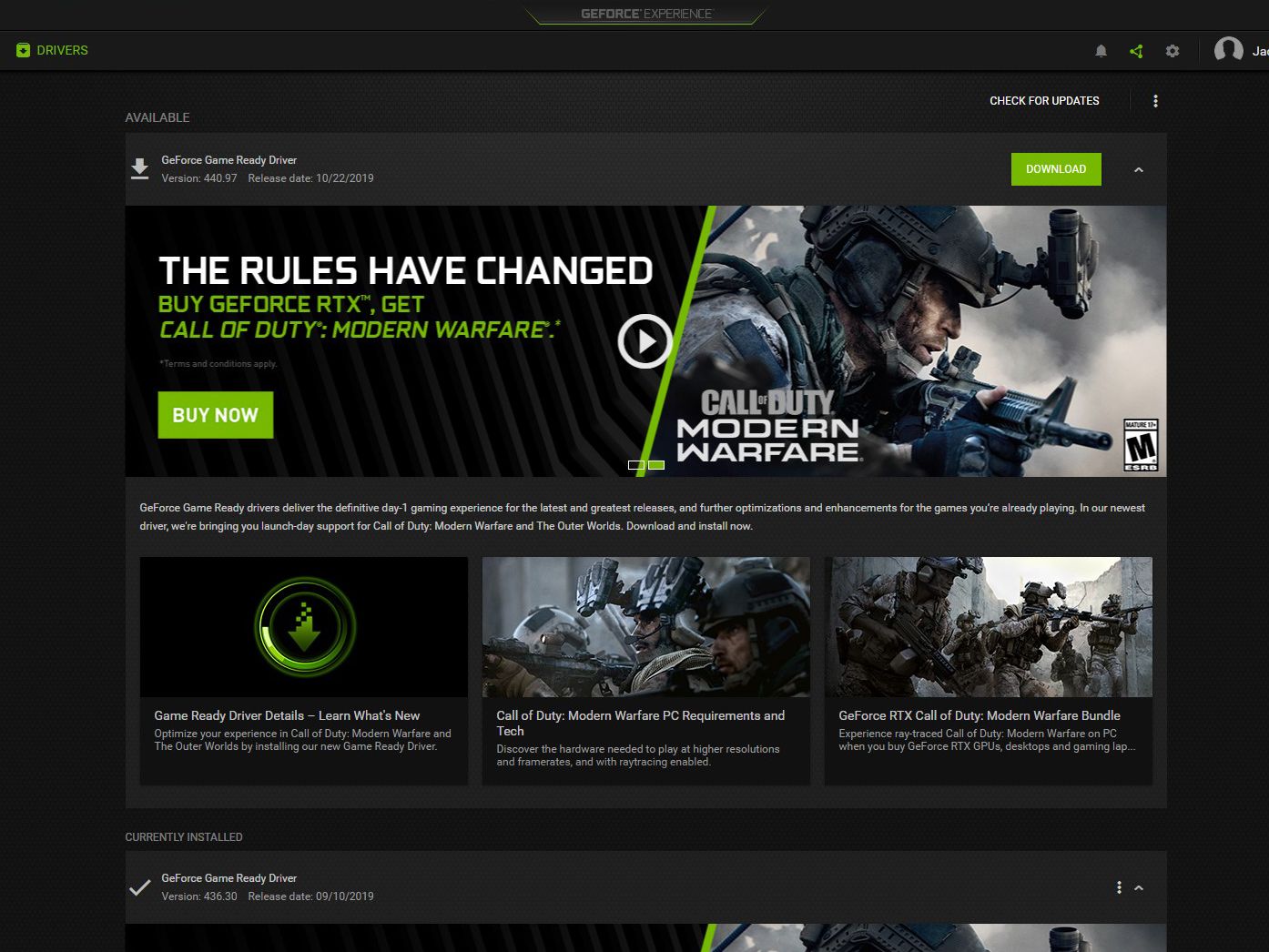
Using NVIDIA GeForce Experience
For the vast majority of users, NVIDIA GeForce Experience (GFE) is the most convenient tool. This application sits in your system tray and monitors for new updates automatically.
- Notification and Download: When a new driver is available, GFE will provide a desktop notification.
- The “Express” vs. “Custom” Choice: GFE offers an “Express Installation,” which keeps all your current settings, and a “Custom Installation.”
- One-Click Optimization: Beyond drivers, GFE allows you to optimize game settings based on your specific hardware configuration, ensuring a balance between visual fidelity and performance.
While GFE is user-friendly, some “power users” prefer to avoid it to minimize background processes. However, for those who want a “set it and forget it” experience, it is the gold standard.
Manual Installation via the NVIDIA Website
Manual installation is preferred by professionals who want to ensure they are getting the exact version of the driver they need without extra telemetry software.
- Product Identification: You must navigate to the NVIDIA Driver Downloads page and manually select your product type (e.g., GeForce), product series (e.g., RTX 40-Series), and operating system.
- Game Ready vs. Studio Drivers: This is a crucial distinction.
- Game Ready Drivers (GRD): Optimized for the latest games and frequent updates.
- Studio Drivers (SD): Optimized for stability in creative applications like Adobe Premiere Pro, DaVinci Resolve, and Maya. If you prioritize work over play, the Studio Driver is the superior choice.
- The Installation File: Once downloaded, you run the .exe file. This method allows you to install the driver even if you do not have an active internet connection on the machine at the time of installation.
Windows Update: The Passive Approach
Windows 10 and 11 are capable of updating GPU drivers automatically through the Windows Update utility. While this is the easiest method, it is often the least effective. Windows Update usually provides “WHQL” (Windows Hardware Quality Labs) certified drivers that are several months old. These drivers are focused on basic stability rather than performance optimization for the latest games or software.
Advanced Techniques: Clean Installations and Troubleshooting
Sometimes, simply clicking “update” isn’t enough. Over time, old driver files can accumulate, leading to “driver bloat” or software conflicts that cause stuttering and performance drops.
When to Perform a Clean Installation
During the installation process (either via GFE or a manual download), there is a checkbox labeled “Perform a clean installation.” Checking this box deletes all previous profiles and settings, resetting the NVIDIA Control Panel to its factory defaults. This is highly recommended if you are:
- Upgrading from an older NVIDIA card to a newer one.
- Experiencing persistent crashes in specific applications.
- Moving from a Game Ready Driver to a Studio Driver.
Using Display Driver Uninstaller (DDU)
For the most stubborn issues, tech enthusiasts use a third-party utility called Display Driver Uninstaller (DDU). This tool is used in “Safe Mode” to completely scrub every trace of the NVIDIA driver from the Windows Registry and the system folders.
This is considered a “nuclear option.” After running DDU, the system treats the GPU as if it were being installed for the very first time. This eliminates any “ghost” settings or corrupted files that a standard uninstaller might leave behind. If you have tried updating and still face performance issues, DDU is the professional’s choice for a fresh start.
Optimizing Your GPU After the Update
Updating the driver is only half the battle. To truly leverage the power of your NVIDIA hardware, you should briefly visit the NVIDIA Control Panel after an update to ensure your settings are optimized for your specific display and workflow.
Navigating the NVIDIA Control Panel
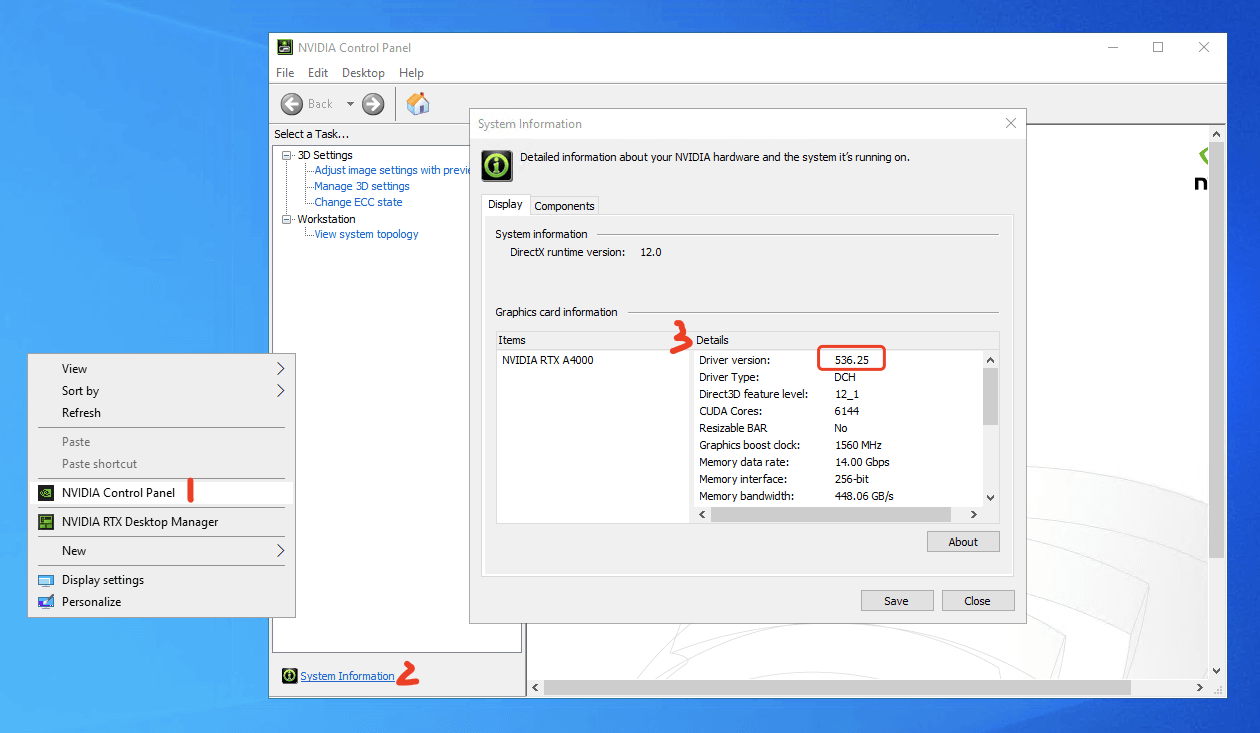
Right-click on your desktop and select “NVIDIA Control Panel.” This interface hasn’t changed much in a decade, but it remains the command center for your GPU.
- Manage 3D Settings: Under the “Global Settings” tab, ensure that “Power Management Mode” is set to “Prefer maximum performance” if you are on a desktop. This prevents the GPU from down-clocking during intense tasks.
- Low Latency Mode: For competitive gamers, setting this to “On” or “Ultra” reduces the frame queue, leading to snappier input response.
- Vertical Sync: Generally, it is best to set this to “Use the 3D application setting” or “Off” if you have a G-Sync compatible monitor.
Configuring G-Sync and Refresh Rates
A common mistake users make after a driver update is forgetting to re-verify their monitor’s refresh rate. Sometimes, a fresh driver install can revert your 144Hz or 240Hz monitor back to 60Hz. Under “Change resolution,” ensure your refresh rate is set to the maximum possible value. Additionally, check the “Set up G-SYNC” tab to ensure variable refresh rate technology is active for both full-screen and windowed modes.
Troubleshooting Common Update Issues
Even with NVIDIA’s robust software, things can go wrong. Understanding common error codes and failure points can save hours of frustration.
Installation Failures and Error Codes
If an installation fails with the message “NVIDIA Installer Failed,” it is usually due to a background process locking a driver file. Common culprits include:
- Antivirus software misidentifying the driver as a threat.
- Windows Update attempting to install a driver at the same time.
- Active recording software (like OBS or ShadowPlay) utilizing the GPU.
The fix is usually to disable the internet temporarily, disable antivirus, and restart the installation.
Reverting to Previous Driver Versions (Rollbacks)
Occasionally, a new driver might introduce a bug that affects your specific setup. If you notice a sudden drop in performance after an update, Windows allows you to “Roll Back Driver” via the Device Manager. Alternatively, you can visit the NVIDIA driver archive and download the previous month’s version. Stability should always take precedence over having the “newest” version if that version is broken for your specific hardware.
The Importance of Regular Audits
In the fast-paced world of technology, staying current is synonymous with staying efficient. By establishing a routine—checking for updates once a month or whenever a major new software package is released—you ensure that your NVIDIA hardware continues to provide the value and performance you paid for. Whether through the automated ease of GeForce Experience or the meticulous control of manual installations, keeping your drivers updated is the single most effective way to maintain your PC’s health.
aViewFromTheCave is a participant in the Amazon Services LLC Associates Program, an affiliate advertising program designed to provide a means for sites to earn advertising fees by advertising and linking to Amazon.com. Amazon, the Amazon logo, AmazonSupply, and the AmazonSupply logo are trademarks of Amazon.com, Inc. or its affiliates. As an Amazon Associate we earn affiliate commissions from qualifying purchases.