
The digital subscription economy has transformed the way consumers interact with software and services. At the forefront of this evolution is Amazon Prime, a multi-faceted digital ecosystem that integrates e-commerce, streaming technology, cloud storage, and logistics. While the Prime free trial offers a comprehensive look into this ecosystem, navigating the technical architecture to terminate a trial requires an understanding of Amazon’s user interface (UI) and account management protocols.
In the modern tech landscape, managing digital permissions and recurring software-as-a-service (SaaS) agreements is a critical skill. This guide provides a deep dive into the technical steps required to cancel an Amazon Prime free trial across various platforms, while exploring the underlying digital design choices that influence the user experience.
Navigating the Amazon Ecosystem: Understanding the Digital Subscription Interface
Amazon’s platform is built on a complex architecture designed to maximize user engagement. When a user signs up for a Prime free trial, they are integrated into a cross-platform database that syncs across web browsers, mobile applications, and smart home hardware like Echo and Fire TV devices. Understanding the layout of this digital environment is the first step in successful subscription management.
The Logic of “Dark Patterns” in UX Design
In the world of software development, “dark patterns” refer to user interface designs intentionally crafted to trick users into doing things they didn’t intend to do—such as staying subscribed to a service. Amazon’s cancellation path is often cited in tech circles as a “Roach Motel” design: easy to get into, but difficult to get out of. Technically, this involves multiple confirmation screens and strategically placed buttons that utilize color psychology to divert the user from the “Cancel” action.
Synchronization Across Devices
Because Amazon utilizes a centralized cloud database for account permissions, canceling on one device should, in theory, propagate across all endpoints instantly. However, cached data on mobile apps or offline devices can sometimes lead to discrepancies. Understanding that your “subscription state” is a server-side variable helps in troubleshooting if the app continues to show “Prime” status after a successful cancellation.
Step-by-Step Technical Guide: Terminating Prime on Desktop and Mobile
The process of canceling a trial varies slightly depending on the operating system and the client being used. Whether you are using a Chromium-based browser or the native Amazon shopping app (built with a mix of native code and web-view wrappers), the technical path to the “End Membership” trigger is specific.
Executing Cancellation via Web Browser
For most power users, the desktop browser remains the most reliable environment for managing account settings due to the full rendering of the “Your Account” dashboard.
- Authentication: Log in to the Amazon portal. This initiates a secure session (HTTPS) and places a session cookie in your browser.
- Account & Lists: Navigate to the top-right “Accounts & Lists” dropdown menu. This is the primary gateway to the user’s relational database entries.
- Prime Membership Management: Select “Prime.” This directs you to a specialized sub-portal (
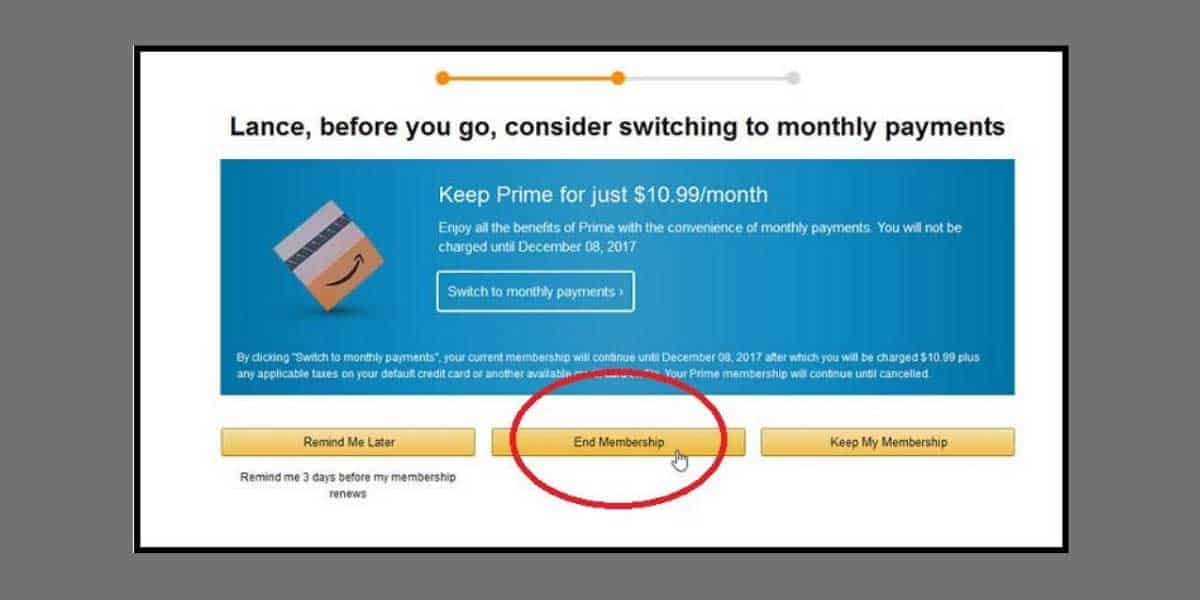
/gp/primecentral) that manages the Prime-specific subscription metadata. - The Termination Sequence: Look for the “Manage Membership” section. From a technical standpoint, clicking “End Membership” initiates a series of conditional logic checks (e.g., “Are you sure?,” “Would you like to switch to a monthly plan?”).
- Final Confirmation: You must proceed through three distinct confirmation pages. The final “Cancel” button sends a
POSTrequest to Amazon’s servers to update your membership status fromactive_trialtopending_termination.
Managing Subscriptions via the Mobile App (iOS and Android)
The mobile experience utilizes a different navigation stack. Because mobile real estate is limited, the “Cancel” trigger is often buried deeper within the app’s view hierarchy.
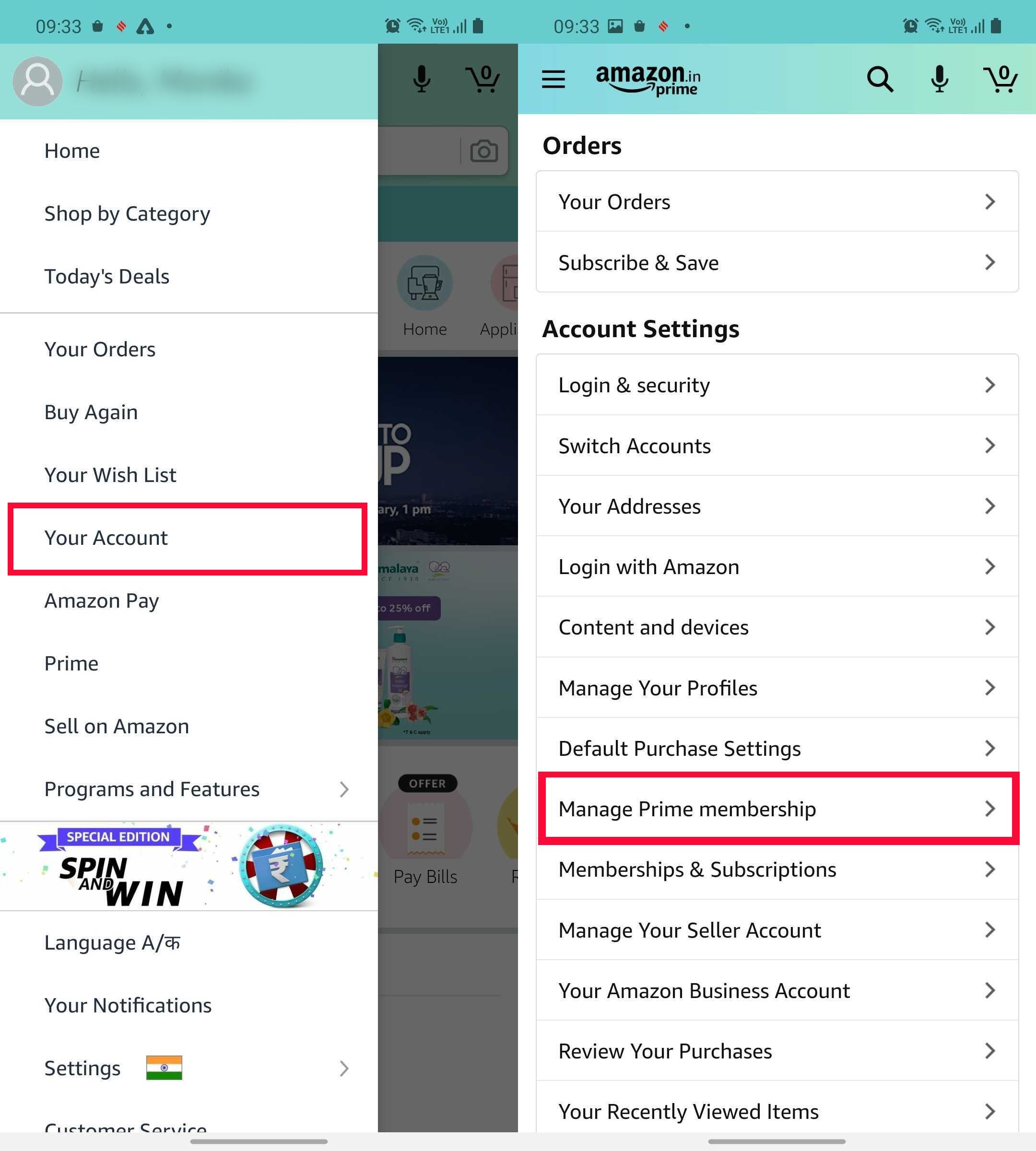
- User Icon: Tap the “User” icon (the person silhouette) in the bottom navigation bar.
- Your Account: Select “Your Account” to pull up the full list of API-linked settings.
- Manage Prime Membership: Scroll to “Account Settings” and select “Manage Prime Membership.”
- Edit Settings: Tap the “Manage Membership” drop-down. The app will then render a mobile-optimized version of the cancellation workflow.
- Termination: Follow the prompts. It is vital to wait for the “Cancellation Confirmed” screen to ensure the mobile app has successfully communicated with the backend server.

Post-Cancellation Technicalities: Data Retention and Access Permissions
Once the cancellation request is processed, the system triggers a series of automated changes to your digital permissions. Understanding what happens to your data and access is essential for maintaining your digital footprint.
Immediate vs. Delayed Termination
Amazon generally allows users to continue using Prime benefits until the exact expiration timestamp of the 30-day trial period. Technically, your account status is updated with a cancel_at_period_end flag. This means the automated billing script (often a cron job running on Amazon’s financial servers) will skip your account when the trial ends, rather than converting it to a paid tier.
Impact on Cloud Services and Digital Content
Amazon Prime is more than just shipping; it is a hub for several digital services. Canceling the trial has technical implications for:
- Prime Video: Access to the Prime-only VOD (Video on Demand) library is revoked at the end of the trial. However, purchased titles remain linked to your account via the Amazon Video digital rights management (DRM) system.
- Amazon Photos: This is a critical technical consideration. Prime members get unlimited full-resolution photo storage. Upon cancellation, your storage limit may revert to the standard 5GB. It is recommended to verify your data usage via the Amazon Photos web portal to prevent data loss or “read-only” status on your cloud drive.
- Kindle Lending Library: Digital licenses for borrowed books are automatically “returned” to the server, and the files are flagged for deletion or rendered inaccessible on your Kindle device upon its next sync with the Amazon cloud.
Troubleshooting and Security: Ensuring a Successful Termination
Sometimes, technical glitches or user errors can result in an unsuccessful cancellation, leading to unexpected charges. Implementing a few technical “best practices” can prevent these issues.
Verifying via the “Paper Trail”
Every successful change to a subscription status triggers an automated transactional email. This email serves as a cryptographic receipt of your request. If you do not receive a “Prime Membership Cancelled” notification within minutes, the server-side update may have failed. Check your “Communication Center” within your Amazon account to see if the message was generated internally.
Dealing with Multiple Accounts and “Ghost” Subscriptions
A common technical hurdle occurs when users have multiple Amazon accounts (e.g., one for work, one for personal use). If you see a charge but your primary account shows no active Prime trial, it is likely linked to a secondary email address. Use an email search for “Amazon Prime” across all your active accounts to identify the correct UID (User Identification) associated with the trial.
Security and Phishing Awareness
Because “canceling Amazon Prime” is a high-volume search term, many malicious actors create fake “cancellation portals” or send phishing emails claiming your trial has expired. Always ensure you are navigating directly to amazon.com (or your regional equivalent) and verify the SSL certificate (the padlock icon in the browser address bar) before entering your credentials. Never provide credit card information via an email link to “cancel” a service.
The Future of Subscription Automation and User-Centric Design
As we look toward the future of software and digital services, the process of managing trials like Amazon Prime is becoming more automated. We are seeing a rise in “Subscription Management” software and AI tools designed to interact with these platforms on behalf of the user.
AI-Driven Subscription Assistants
Emerging AI tools can now scan a user’s transaction history or email headers to identify active trials. Some advanced browser extensions can even automate the clicking process required to navigate through Amazon’s multi-step cancellation flow. This represents a “tech vs. tech” battle where user-centric automation tools work to bypass the friction points designed by corporate UX designers.
Regulatory Changes in Digital Terminations
The tech industry is also facing pressure from regulators (such as the FTC in the United States) to implement “Click to Cancel” rules. This would require the technical architecture of services like Amazon Prime to be as simple to exit as they are to join. Future updates to the Amazon interface may move toward a single-click API trigger for cancellation, significantly altering the current multi-step workflow.
In conclusion, while the Amazon Prime free trial offers a robust gateway into one of the world’s most advanced digital ecosystems, managing the exit from that system requires a proactive approach to technology management. By understanding the UI layout, ensuring cross-device synchronization, and verifying the server-side status of your account, you can navigate the complexities of modern digital subscriptions with professional precision.
aViewFromTheCave is a participant in the Amazon Services LLC Associates Program, an affiliate advertising program designed to provide a means for sites to earn advertising fees by advertising and linking to Amazon.com. Amazon, the Amazon logo, AmazonSupply, and the AmazonSupply logo are trademarks of Amazon.com, Inc. or its affiliates. As an Amazon Associate we earn affiliate commissions from qualifying purchases.