
In the rapidly evolving landscape of Video on Demand (VOD) and Over-the-Top (OTT) platforms, the ease of entry often stands in stark contrast to the complexity of exit. Amazon Prime Video, a cornerstone of the global streaming market, operates within a sprawling digital ecosystem that integrates e-commerce, cloud computing, and digital rights management. For many users, the decision to cancel a subscription isn’t merely a financial one; it is a technical navigation task through a sophisticated user interface designed for retention.
This guide provides a professional technical walkthrough of the cancellation process, examines the structural differences between membership tiers, and explores the user experience (UX) hurdles often encountered when attempting to sever ties with one of the world’s largest digital service providers.

Navigating the Ecosystem: Understanding the Amazon Prime Video Infrastructure
Before initiating a cancellation, it is crucial to understand the underlying architecture of your subscription. Amazon does not treat all video users the same; your “path to exit” depends entirely on how your account was provisioned within their database.
Standalone Membership vs. The Prime Bundle
Amazon offers two distinct technical avenues for video access. The first is the standalone Prime Video membership, a specific SKU designed for users who only want streaming capabilities without the logistical benefits of Amazon Prime (such as free shipping). The second, and more common, is the Prime Video access included as a sub-feature of a full Amazon Prime membership.
Technically, canceling these requires different logic. If you have the full bundle, you aren’t just canceling a video service; you are terminating a suite of API-linked services including Prime Music, Prime Reading, and logistical priorities. Understanding which “bucket” your account falls into is the first step in a successful technical exit.
The Cross-Platform Challenge: Web vs. App
From a software engineering perspective, Amazon’s interface is not perfectly mirrored across all devices. While the Prime Video app on iOS, Android, and Smart TVs provides a robust viewing experience, these applications often lack the administrative permissions to modify billing or subscription status due to the “In-App Purchase” (IAP) restrictions imposed by Apple and Google. Consequently, most technical cancellations must be performed via a web browser to bypass the limitations of mobile operating systems and direct-to-consumer billing restrictions.
Step-by-Step Technical Guide: Terminating Your Subscription
The process of deactivating a digital service requires navigating through several layers of the account management stack. To ensure a clean break without residual charges, follow this systematic approach.
Browser-Based Cancellation (The Desktop Path)
The most reliable method to ensure a subscription is terminated is through the desktop web interface. This bypasses the simplified UIs of mobile apps that often omit deep-link settings.
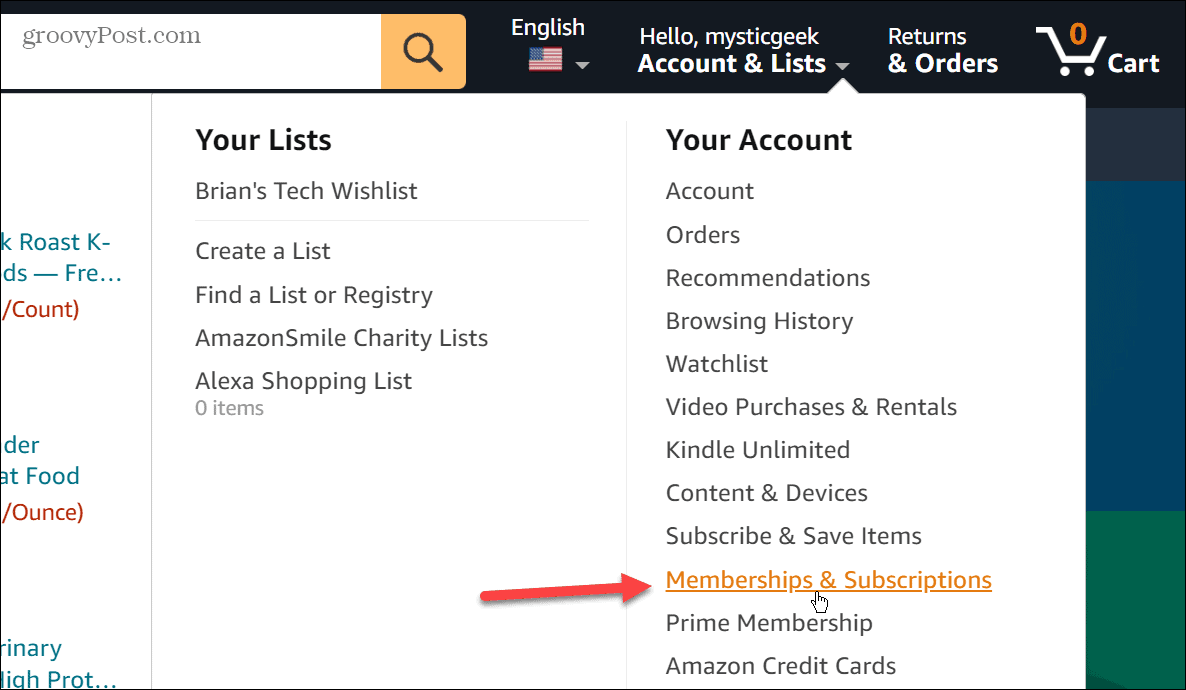
- Authentication: Log in to the Amazon portal and navigate to the “Accounts & Lists” dropdown menu located at the top-right header.
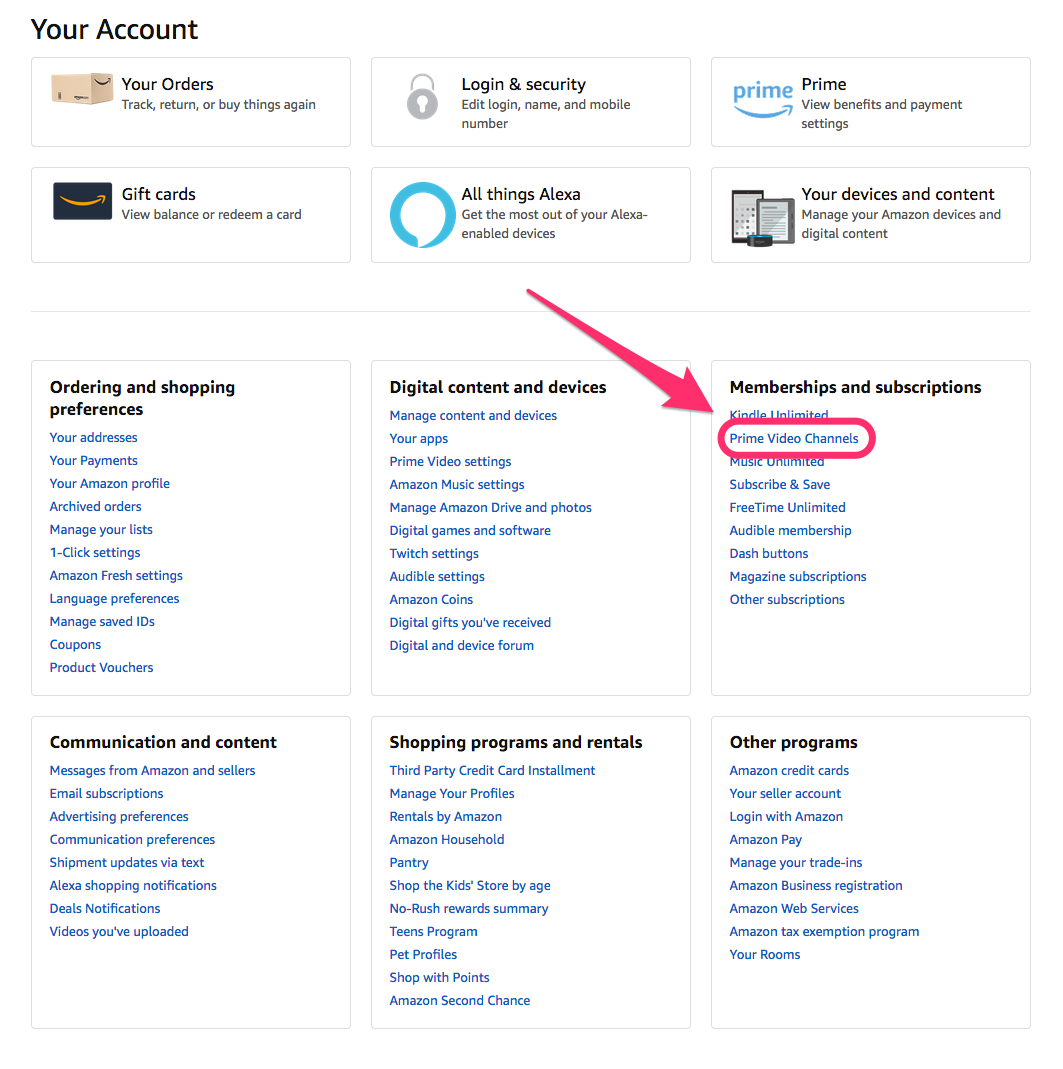
- Memberships and Subscriptions: Select “Memberships & Subscriptions.” This section acts as a centralized dashboard for all active recurring billing cycles associated with your digital ID.
- Prime Video Settings: Locate the “Prime Video” entry. Click on “Prime Video Settings.” This will redirect you from the general Amazon retail environment to the specific video service backend.
- The Termination Sequence: Under the “Your Account” tab, you will see a section for “Your Membership.” Click “End Membership.”
It is important to note that Amazon’s backend will usually offer a “Remind me later” option or a “Switch to a different plan” prompt. From a technical standpoint, the process is only complete once you receive a confirmation email and the status in the “Memberships & Subscriptions” dashboard changes to “Ending on [Date].”
Mobile Interface Limitations and Workarounds
If you are attempting to cancel via a mobile device, you will likely encounter a “Read-Only” version of your account settings within the app. Because Amazon wishes to avoid the 15-30% commission fee charged by Apple’s App Store or Google Play Store, they often disable subscription management within the app if you signed up via a desktop.
To circumvent this, you must use a mobile browser (Chrome or Safari) and request the “Desktop Site” version of the page. This forces the server to deliver the full administrative CSS and JavaScript packages, allowing you to access the cancellation toggles that are hidden in the native mobile app view.
Managing Third-Party Billing (Apple, Google, and ISPs)
In many cases, users discover that the “End Membership” button is missing. This occurs when the subscription is managed by a third-party API. If you originally signed up for Prime Video through an Apple TV, a Roku device, or as a “bolt-on” to your cellular or ISP plan (like Verizon or Comcast), Amazon does not have the administrative authority to cancel your billing. You must log in to the third-party’s portal (e.g., your Apple ID settings or your ISP’s billing dashboard) to revoke the payment token.
Overcoming “Dark Patterns”: The UX of Unsubscribing
In the world of software design, “Dark Patterns” refer to user interfaces designed specifically to trick or hinder users from performing a certain action—in this case, canceling a subscription. Amazon has frequently been cited by consumer advocacy groups for the complexity of its “churn reduction” flow.
Recognizing “The Roach Motel” Design
The “Roach Motel” is a common UI anti-pattern where a user finds it incredibly easy to get into a situation (signing up for a free trial with one click) but finds it exceptionally difficult to get out. When you attempt to cancel Prime Video, you will notice the system utilizes a multi-page confirmation process. Each page is designed to highlight the “value lost” rather than the “action requested.”
From a technical perspective, these are “interstitial pages.” They serve as friction points. You may be asked to confirm your choice three or four times, with the “Keep My Membership” button often highlighted in a vibrant color while the “Cancel” option is presented as a plain text link or a muted grey button. Recognizing these as deliberate design choices helps a user navigate the process without succumbing to “decision fatigue.”
Confirmation Loops and Retention Prompts
Another technical hurdle is the “Retention Prompt” system. Amazon’s algorithm may detect a cancellation attempt and trigger an automated offer—such as a discounted month or a temporary credit—to prevent the user from leaving. While these can be beneficial, they reset the cancellation flow. If you accept a “pause” instead of a “cancel,” the subscription remains active in the database, and billing will resume automatically after the pause period expires. To truly cancel, one must bypass all algorithmic “save” attempts until the database status reflects “Terminated.”
Managing Your Digital Footprint Post-Cancellation
The technical journey doesn’t end once the “Cancel” button is clicked. There are lingering data and access considerations that every tech-savvy user should address to ensure their digital footprint is managed correctly.
Data Retention and Purchased Content Access
One of the most common technical questions is: “What happens to the movies I actually bought?” It is important to distinguish between Subscription Video on Demand (SVOD) and Transactional Video on Demand (TVOD).
When you cancel your Prime Video membership, you lose access to the SVOD library (the “free with Prime” titles). However, your account remains active as a standard Amazon retail account. The digital licenses for movies or shows you purchased individually remain linked to your account ID. You can still access the Prime Video app or website to stream your purchased content without an active monthly subscription. The metadata and licensing tokens for these purchases are stored permanently in your digital locker unless you delete your entire Amazon account.
Securing Your Payment Information
Post-cancellation, it is a best practice to audit your “1-Click” settings. Amazon retains your credit card information for future retail purchases. From a digital security standpoint, if your primary goal was to stop all digital transactions, you should navigate to “Your Payments” and remove the stored credit card tokens. This prevents accidental re-subscription, which can happen with a single misclick on a “Watch Now” button on a Smart TV or Fire Stick.
Furthermore, it is recommended to check the “Active Digital Subscriptions” list one week after cancellation. Occasionally, background synchronization issues between the mobile app and the web server can result in a “ghost subscription” where the billing is stopped but the account remains flagged as active, or vice versa. A quick audit of your bank statement or the “Transactions” tab in your Amazon account ensures the API call to stop billing was successfully executed and recorded in the ledger.
By understanding the technical nuances of the Amazon ecosystem—from the differences in membership tiers to the intentional friction in UX design—users can take full control of their digital subscriptions. Canceling a service in the modern era is more than a simple click; it is an exercise in navigating complex software environments and ensuring data integrity across multiple platforms.
aViewFromTheCave is a participant in the Amazon Services LLC Associates Program, an affiliate advertising program designed to provide a means for sites to earn advertising fees by advertising and linking to Amazon.com. Amazon, the Amazon logo, AmazonSupply, and the AmazonSupply logo are trademarks of Amazon.com, Inc. or its affiliates. As an Amazon Associate we earn affiliate commissions from qualifying purchases.