
In the vast landscape of digital interaction, few actions are as fundamental and frequently performed as “paste.” It’s the silent workhorse behind countless tasks, from compiling research documents and writing emails to coding applications and designing graphics. While seemingly simple, mastering the act of pasting—and its various nuances—is a cornerstone of digital productivity. For many, the simple query “what’s the shortcut to paste?” is the gateway to unlocking a more fluid and efficient workflow. This article delves deep into the world of digital pasting, exploring the universal shortcuts, advanced techniques, platform-specific intricacies, and troubleshooting tips, all aimed at transforming you into a true maestro of the digital clipboard.

The Universal Language of “Paste”: Ctrl+V / Cmd+V
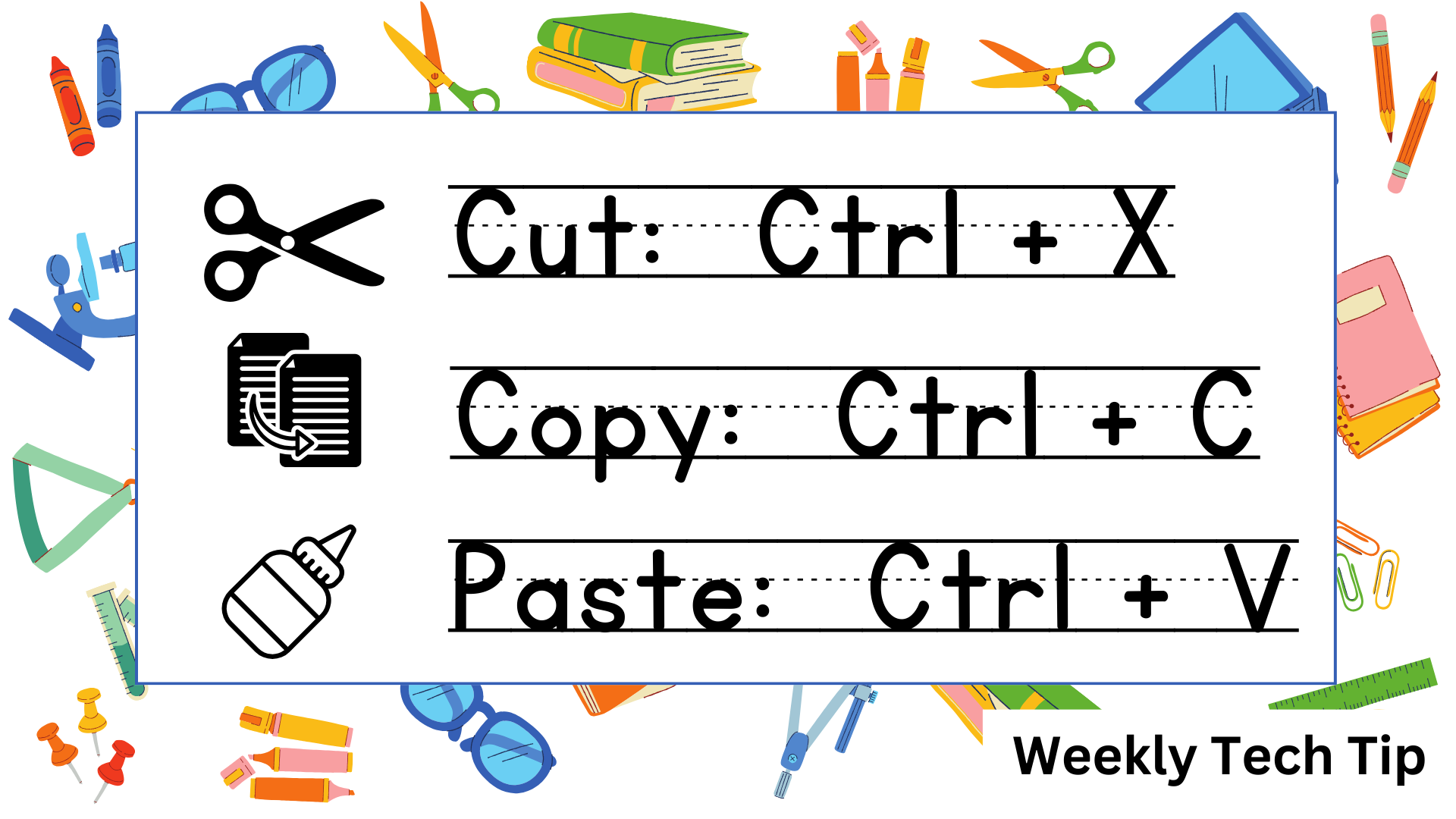
At its core, the shortcut for pasting is one of the most widely recognized and essential keyboard commands, transcending operating systems and applications. This ubiquity is a testament to its fundamental utility, making it a critical piece of knowledge for anyone interacting with a computer.
Understanding the Copy-Paste Mechanism
Before we paste, we must first copy. The copy-paste mechanism relies on a temporary storage area known as the “clipboard.” When you select text, images, files, or other data and use the “copy” command (Ctrl+C on Windows/Linux, Cmd+C on macOS), that data is placed onto this invisible clipboard. It remains there until you copy something else, or in some cases, until you shut down your system (though modern OSes often persist clipboard contents across reboots for a short period).
The clipboard acts as an intermediary, holding the data ready for insertion into another location. This simple yet powerful concept underpins countless daily operations, enabling the rapid transfer and duplication of information without the need for manual re-entry. It’s the digital equivalent of moving a physical object from one place to another without having to recreate it from scratch. This mechanism is not just about convenience; it’s about maintaining consistency and accuracy across documents and applications, preventing errors that could arise from retyping or redrawing.
Executing the Shortcut on Different Platforms
The beauty of the paste shortcut lies in its near-universal application. While the modifier key might change, the principle remains constant.
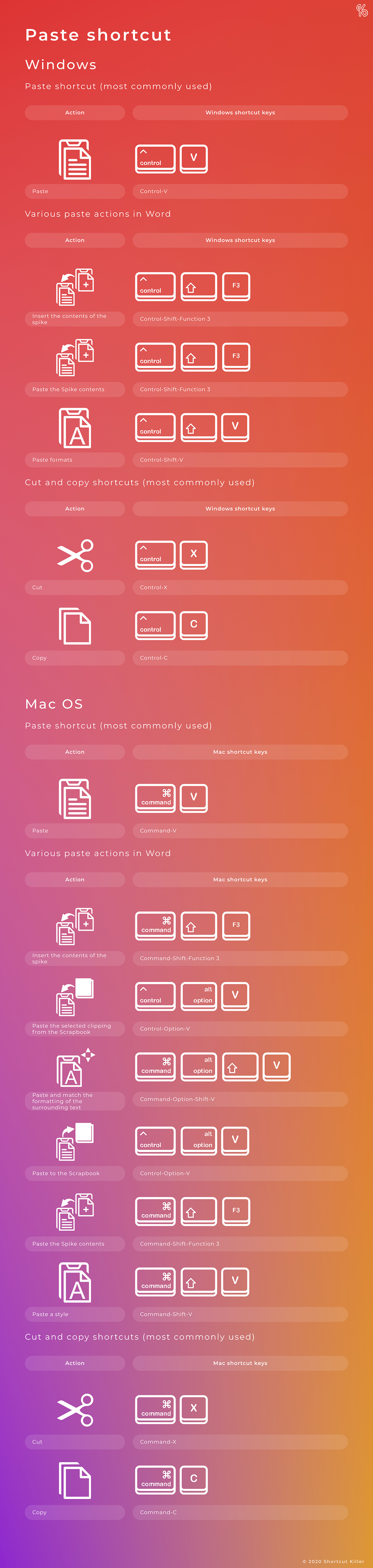
- Windows: On any Windows-based computer, the shortcut for pasting is Ctrl+V. This combination is effective across virtually all applications, including word processors (Microsoft Word, Notepad), web browsers (Chrome, Firefox, Edge), spreadsheets (Excel), email clients (Outlook), and many more. Simply hold down the “Ctrl” key and press the “V” key simultaneously.
- macOS: For Apple’s macOS, the equivalent shortcut replaces the “Ctrl” key with the “Command” key (often labeled “Cmd” and featuring a cloverleaf or pretzel-like symbol). Thus, to paste on a Mac, you use Cmd+V. This applies uniformly across Pages, Safari, Mail, Photoshop, and most other macOS applications.
- Linux: In most Linux distributions and desktop environments (like GNOME, KDE Plasma, XFCE), the Windows convention of Ctrl+V is typically followed. This consistency ensures a smooth transition for users moving between Windows and Linux environments. However, some older applications or specific terminal emulators might also support Shift+Insert as an alternative paste shortcut.
- Web Browsers/Applications: Within web browsers, whether you’re using a Windows, macOS, or Linux machine, the respective platform’s paste shortcut (Ctrl+V or Cmd+V) will function as expected within text fields, online editors, and other input areas. The same applies to most cross-platform applications, which typically adhere to the native OS conventions.
Mastering this fundamental shortcut is the first step towards significantly improving your digital productivity. It reduces reliance on mouse clicks, speeds up navigation, and allows you to keep your hands on the keyboard, maintaining a continuous flow of work.
Beyond the Basics: Advanced Pasting Techniques
While Ctrl+V and Cmd+V are indispensable, the world of pasting extends far beyond a simple direct insertion. Power users know that understanding advanced pasting techniques can save hours of formatting adjustments and unlock new levels of control over their digital content.
Paste Special: Maintaining Formatting or Going Plain
One of the most common frustrations encountered when pasting is the unwanted transfer of formatting. Imagine copying text from a website with a specific font, color, and size, only to have it disrupt the pristine formatting of your carefully crafted document. This is where “Paste Special” (or similar contextual paste options) becomes invaluable.
“Paste Special” allows you to choose how the copied content is inserted into your destination. Instead of merely dumping the data, it provides options to strip away unwanted attributes or, conversely, to carefully integrate specific elements.
-
Why “Paste Special” is Crucial:
- Consistency: Maintain the look and feel of your document by only pasting the plain text, or match the destination’s formatting.
- Data Integrity: In spreadsheets, you might want to paste only the values of cells, not the formulas that generated them.
- Flexibility: Paste specific components like images, text, or embedded objects separately.
-
Applications and Shortcuts:
- Microsoft Word: After copying, instead of Ctrl+V, right-click where you want to paste. You’ll see “Paste Options” with icons for “Keep Source Formatting,” “Merge Formatting,” and “Keep Text Only.” Alternatively, go to the “Home” tab on the Ribbon, click the small arrow below “Paste,” and select “Paste Special…” Here, you can choose options like “Unformatted Text,” “HTML Format,” or “Picture (Enhanced Metafile),” among others. There isn’t a universal single shortcut for “Paste Special” in Word, but Alt+H+V+S can open the dialog, or Ctrl+Alt+V might work in some older versions or contexts.
- Microsoft Excel: Excel’s “Paste Special” is incredibly powerful. Right-click on a cell after copying, and hover over “Paste Special.” Options include “Values” (paste only the numbers, not formulas), “Formats,” “Formulas,” “Column Widths,” “Comments,” and more. The shortcut to open the Paste Special dialog in Excel is Ctrl+Alt+V.
- Google Docs/Sheets: Similar functionality exists here. After copying, right-click and choose “Paste without formatting” (or Ctrl+Shift+V / Cmd+Shift+V) or explore other paste options from the “Edit” menu.
Learning to judiciously use “Paste Special” prevents hours of manual reformatting and ensures your documents maintain a professional and consistent appearance.
Clipboard History: A Power User’s Secret Weapon
What if you need to paste something you copied several items ago? Traditionally, the clipboard holds only the last item copied. This limitation can be incredibly inefficient when you’re moving multiple pieces of information around. Enter clipboard history, a feature that transforms the clipboard from a single-item buffer into a multi-item archive.
- Windows Clipboard History (Win+V): Since Windows 10 (October 2018 Update, version 1809), Microsoft has integrated a native clipboard history feature. Pressing Win+V (hold the Windows key and press V) brings up a panel showing the last several items you copied, including text, images, and HTML. You can then click on any item to paste it. This feature needs to be enabled in Settings > System > Clipboard initially. It’s a game-changer for anyone who frequently copies multiple disparate pieces of information.
- Third-Party Clipboard Managers: For users who need even more robust features or are on platforms without native history (or prefer enhanced functionality), third-party clipboard managers are indispensable.
- For Windows: Popular options include Ditto (free, open-source), ClipClip, and ShareX (which includes a clipboard manager). These tools often offer advanced search capabilities, permanent storage of clipboard items, custom hotkeys, and even sync options across devices.
- For macOS: Apps like Pastebot, Alfred (with Powerpack), CopyQ, and Maccy provide similar rich clipboard history and management features, often integrating seamlessly with the macOS environment.
Utilizing clipboard history can dramatically reduce context-switching and repetitive copying, allowing you to gather all necessary information in one go and then paste selectively. It’s an essential tool for researchers, writers, developers, and anyone dealing with fragmented information.
Platform-Specific Nuances and Productivity Boosters
While Ctrl+V/Cmd+V reign supreme on desktops, the touch-centric world of mobile devices introduces different interaction patterns. Furthermore, specialized applications often build upon the basic paste functionality with unique features tailored to their specific workflows.
Mobile Device Pasting: A Touch-Screen Approach
On smartphones and tablets, the lack of a physical keyboard means clipboard operations rely on touch gestures and contextual menus.
- iOS (iPhone/iPad): To paste text on an iOS device, you typically tap and hold your finger within a text input field until a small black pop-up menu appears. This menu will usually include options like “Paste,” “Select,” “Select All,” and “Look Up.” Tapping “Paste” will insert the content from the clipboard. For images or other media, the process might be integrated into sharing menus or specific app functionalities.
- Android: Android devices also use a tap-and-hold gesture. Long-press on an editable text area, and a context menu will appear, often showing “Paste” and “Clipboard” (which can provide a history, similar to Windows’ Win+V, depending on the Android version and manufacturer’s overlay). Tapping “Paste” inserts the copied item. Some Android keyboards (like Gboard or SwiftKey) also have a dedicated clipboard icon that provides access to recent copied items directly on the keyboard layout.
While less direct than a keyboard shortcut, these touch-based methods are intuitive for mobile users and are designed for the ergonomic realities of smaller screens.
Leveraging Paste in Development & Design Workflows
For professionals in fields like software development and graphic design, the paste function is more than just a convenience; it’s an integral part of their creative and technical processes.
- Code Editors (e.g., VS Code, Sublime Text, IntelliJ IDEA):
- Smart Paste: Many modern code editors offer “smart paste” features. When you paste code, the editor can automatically indent it correctly to match the surrounding code block, saving developers from manually fixing indentation errors.
- Paste and Convert: Some plugins or built-in features allow for pasting text and automatically converting it to a different format (e.g., pasting JSON into an object literal, or pasting raw text into a string array).
- Paste from History: Integrated clipboard history within the editor or via extensions means developers can quickly recall snippets of code, variable names, or file paths without repeatedly copying.
- Graphic Design Tools (e.g., Adobe Photoshop, Illustrator, Figma, Sketch):
- Paste in Place (Cmd+Shift+V / Ctrl+Shift+V): This is a critical shortcut in design. Instead of pasting an object to the center of the canvas (the default for simple paste), “Paste in Place” inserts the copied object at its exact original coordinates relative to the artboard. This is invaluable for maintaining layout precision when moving elements between layers or documents.
- Paste Style/Attributes: Designers often want to copy the style (fill, stroke, effects, font properties) of one object and apply it to another without copying the object itself. Tools like Illustrator and Figma have “Copy Style” and “Paste Style” commands (or similar variations) that achieve this.
- Paste onto all Artboards: In some design applications, you can paste an element simultaneously onto all active artboards, which is useful for adding consistent headers, footers, or branding elements.
These specialized pasting capabilities highlight how a seemingly simple function evolves into a powerful, context-aware tool that significantly enhances professional workflows, reducing repetitive tasks and ensuring precision.
Troubleshooting Common Paste Issues and Best Practices
Even with the ubiquity of the paste function, users occasionally encounter situations where it doesn’t work as expected. Understanding common problems and adopting best practices can help maintain a smooth and efficient digital experience.
When Paste Fails: Common Problems and Solutions
- Clipboard Empty or Overwritten:
- Problem: You try to paste, but nothing happens, or something old pastes instead.
- Solution: Ensure you’ve actually copied something recently. If you’ve copied multiple items, remember the clipboard usually only holds the last one (unless you’re using clipboard history). Re-copy the desired content.
- Application Restrictions:
- Problem: You can copy, but you can’t paste into a specific application or field.
- Solution: Some secure applications (e.g., banking websites for password fields, certain remote desktop clients) might restrict pasting for security reasons. Also, some input fields might only accept specific data types (e.g., only numbers). Check if the application explicitly disallows pasting, or try pasting into a simple text editor first to confirm the content is on the clipboard.
- Malware Interference:
- Problem: Clipboard content is being altered or not pasting correctly, especially with sensitive data like passwords or cryptocurrency addresses.
- Solution: This is a serious security concern. Some malware (e.g., “clipboard hijackers”) can detect copied cryptocurrency addresses or financial information and replace them with the attacker’s own. Ensure your antivirus software is up-to-date and run a full system scan. Always double-check pasted sensitive information before confirming transactions.
- System/Application Glitches:
- Problem: The paste function suddenly stops working across multiple applications, or a specific application freezes when trying to paste.
- Solution: Try restarting the problematic application first. If the issue persists, a full system restart often resolves temporary software glitches affecting the clipboard service.
- Conflicting Shortcuts/Software:
- Problem: Another program or utility might be hijacking or overriding the standard paste shortcut.
- Solution: Review recently installed software, especially keyboard remappers or productivity tools. Temporarily disable them to see if the issue resolves.
Best Practices for Efficient Pasting
- Prioritize Keyboard Shortcuts: While right-click menus offer paste options, using Ctrl+V/Cmd+V is almost always faster. Keep your hands on the keyboard as much as possible to maintain flow.
- Embrace Clipboard History: If your OS or a third-party tool offers clipboard history, enable and learn to use it. It’s a significant time-saver for repetitive data entry or content compilation.
- Understand Source Formatting: Before pasting, consider the source of the content. If you’re copying from a web page or a different document, anticipate potential formatting conflicts and be ready to use “Paste Special” or “Paste without formatting” (Ctrl+Shift+V / Cmd+Shift+V) to maintain consistency.
- Be Mindful of Sensitive Information: When copying passwords, financial details, or other confidential data, be aware that it resides on the clipboard temporarily. Avoid leaving sensitive data on the clipboard unnecessarily, and be cautious about where you paste it.
- Leverage Application-Specific Paste Features: Explore the unique paste options within your most used professional tools (e.g., “Paste in Place” in design software, “Paste Values” in spreadsheets). These tailored functionalities can dramatically enhance your specific workflows.
Conclusion
The humble “paste” function, and its indispensable keyboard shortcuts, is a testament to the power of thoughtful interface design. From the universal Ctrl+V/Cmd+V to advanced “Paste Special” options and modern clipboard histories, mastering these techniques is not just about saving milliseconds; it’s about fostering a more fluid, precise, and less frustrating interaction with your digital environment.
In an era where digital efficiency directly translates to productivity and mental clarity, taking the time to understand and integrate these pasting strategies into your daily routine is a worthwhile investment. By moving beyond the basic click-and-paste and embracing the full spectrum of clipboard capabilities, you empower yourself to navigate the digital world with greater speed, accuracy, and confidence. So, the next time you need to move data, remember the power at your fingertips – the shortcut to paste is your key to unlocking a more efficient digital life.
aViewFromTheCave is a participant in the Amazon Services LLC Associates Program, an affiliate advertising program designed to provide a means for sites to earn advertising fees by advertising and linking to Amazon.com. Amazon, the Amazon logo, AmazonSupply, and the AmazonSupply logo are trademarks of Amazon.com, Inc. or its affiliates. As an Amazon Associate we earn affiliate commissions from qualifying purchases.