
In the vast, interconnected world of social media, your digital identity is often defined by a seemingly simple string of characters: a URL. For Facebook users, knowing your unique Uniform Resource Locator (URL) is more than just a technical detail; it’s essential for sharing your profile, directing others to your business page, or inviting them to a community group. This guide will demystify the Facebook URL, walking you through how to find it, what its components mean, and how to leverage it effectively in a professional and secure manner. Whether you’re a seasoned Facebook user or just getting started, understanding your digital address on the platform is a fundamental step in navigating your online presence with confidence and precision.
The Digital Fingerprint: Understanding Your Facebook URL
At its core, a URL is a web address that specifies the location of a resource (like a webpage, image, or document) on the internet. On Facebook, your URL is your unique identifier, allowing anyone with the link to directly access your profile, page, or group. But beyond mere access, these URLs play a crucial role in how we interact with the platform and present ourselves digitally.
What Exactly is a URL?
A URL, or Uniform Resource Locator, is the fundamental mechanism used to retrieve any published resource on the web. Think of it as a street address for a specific piece of content or a specific profile online. A typical URL consists of several parts:
- Protocol: (e.g.,
https://) specifies how the browser should retrieve the resource. - Domain Name: (e.g.,
www.facebook.com) identifies the web server. - Path: (e.g.,
/your.usernameor/profile.php?id=12345) points to the specific resource on that server.
For Facebook, the domain name is consistently facebook.com. What changes is the path, which uniquely identifies you, your page, or your group. Understanding these components helps in recognizing valid links and distinguishing them from potentially malicious ones.
Why Your Facebook URL Matters (Beyond Just Access)
While the primary function of a URL is to provide a direct link, its importance extends far beyond simple navigation.
- Professional Networking: When sharing your profile with colleagues or potential employers, a clean, customizable URL (like
facebook.com/yourname) looks much more professional than a string of numbers. - Marketing and Promotion: For businesses, a memorable and easy-to-share Facebook Page URL is vital for marketing campaigns, print materials, and cross-platform promotion.
- Community Building: Sharing a group URL simplifies the process of inviting new members, fostering growth and engagement.
- SEO (Search Engine Optimization): While less direct for individual profiles, having a consistent, keyword-rich URL for a Facebook Page can contribute to its discoverability on search engines.
- Digital Security: Recognizing your legitimate URL helps in identifying phishing attempts where fraudsters try to mimic Facebook’s URL to trick you.
Types of Facebook URLs: Profile, Page, Group
Facebook hosts various types of entities, each with its own distinct URL structure:
- Personal Profile URL: This is your individual account link, typically in the format
facebook.com/your.usernameorfacebook.com/profile.php?id=yourIDnumber. The customized username version is generally preferred for its readability and memorability. - Facebook Page URL: Businesses, public figures, and organizations use Pages. Their URLs usually look like
facebook.com/pagenameorfacebook.com/pagename/if they’ve set a custom username. Otherwise, it might befacebook.com/pages/PAGENAME/PageID. - Facebook Group URL: Groups bring together communities with shared interests. Their URLs are often
facebook.com/groups/groupnameorfacebook.com/groups/groupIDnumber.
Each type serves a different purpose, and knowing how to find and share the correct one is key to effective communication on the platform.
Locating Your Personal Facebook Profile URL
Finding your own Facebook profile URL is a straightforward process, whether you’re on a desktop computer or using the mobile app. The method varies slightly, but both are intuitive once you know where to look.
On Desktop: Browser-Based Navigation
The easiest way to find your personal Facebook profile URL on a desktop computer involves your web browser:
- Log in to Facebook: Open your preferred web browser (Chrome, Firefox, Edge, Safari, etc.) and go to
facebook.com. Log in to your account if you haven’t already. - Navigate to Your Profile: In the top-right corner of the Facebook interface, click on your profile picture or your name to go to your personal profile page. Alternatively, you can click on your name in the left sidebar menu under “Your Shortcuts.”
- Check the Address Bar: Once you are on your profile page, look at the address bar at the very top of your browser window. The URL displayed there is your personal Facebook profile URL.
- It will typically look like
https://www.facebook.com/your.usernameif you’ve set a custom username. - If you haven’t set a custom username, it might appear as
https://www.facebook.com/profile.php?id=1234567890(where the numbers are your unique profile ID).
- It will typically look like
- Copy the URL: Highlight the entire URL in the address bar and copy it (Ctrl+C on Windows/Linux, Command+C on Mac). You can then paste it wherever you need to share it.
On Mobile: Via the Facebook App
Finding your URL on the Facebook mobile app is also simple:
- Open the Facebook App: Launch the Facebook app on your smartphone or tablet.
- Go to Your Profile: Tap on the “Menu” icon (usually three horizontal lines or your profile picture with a menu symbol, located in the bottom right on iOS or top right on Android). Then, tap on your name or profile picture at the top of the menu to navigate to your profile.
- Find the “More” or “…” Option: On your profile page, scroll down slightly. You should see a button that says “More” or a “…” (three dots) icon, usually located next to “Add to Story” or “Edit Profile.” Tap this button.
- Copy Link to Profile: In the “Profile Settings” or “Profile Links” menu that appears, look for an option like “Copy Link to Profile,” “Your Profile Link,” or simply “Link.” Tap on this option.
- URL Copied: The app will typically confirm that the link has been copied to your device’s clipboard. You can now paste it into a message, email, or any other application.
Understanding Your Username vs. Profile ID
It’s important to differentiate between your Facebook username and your numerical profile ID.
- Username: This is the alphanumeric string that appears in your custom URL (e.g.,
your.username). It’s chosen by you (if available) and makes your URL readable and memorable. - Profile ID: This is a unique, system-generated string of numbers assigned to your account from its inception. It’s used in the
profile.php?id=format of a non-customized URL. Even if you have a username, your profile still retains its unique ID number in the background.
While both point to your profile, a custom username is almost always preferred for sharing due to its professional appearance and ease of recollection.
Navigating URLs for Facebook Pages and Groups
Beyond personal profiles, Facebook is a powerful tool for businesses, organizations, and communities through its Pages and Groups. Locating and sharing the URLs for these entities is crucial for their growth and engagement.
Finding Your Business Page URL
For brand managers, marketers, or small business owners, quickly accessing and sharing your Facebook Page URL is a daily necessity.
- Log in to Facebook: As with personal profiles, start by logging into your Facebook account on a desktop browser.
- Go to Your Page: In the left sidebar, under “Pages,” click on the name of the Page you manage. Alternatively, use the search bar at the top to find your Page.
- Check the Address Bar: Once you are on your Facebook Page’s main feed or “Home” tab, look at the address bar in your browser. The URL displayed there is your Page’s URL.
- If you’ve set a custom username for your Page (highly recommended for businesses), it will look like
https://www.facebook.com/YourPageName. - If not, it might be a longer string like
https://www.facebook.com/pages/Your-Page-Name/123456789012345.
- If you’ve set a custom username for your Page (highly recommended for businesses), it will look like
- Copy the URL: Select and copy the URL from the address bar.

On the mobile app:
- Open the Facebook App:
- Go to Your Page: Tap the “Menu” icon, then select “Pages.” Tap on the specific Page you want the URL for.
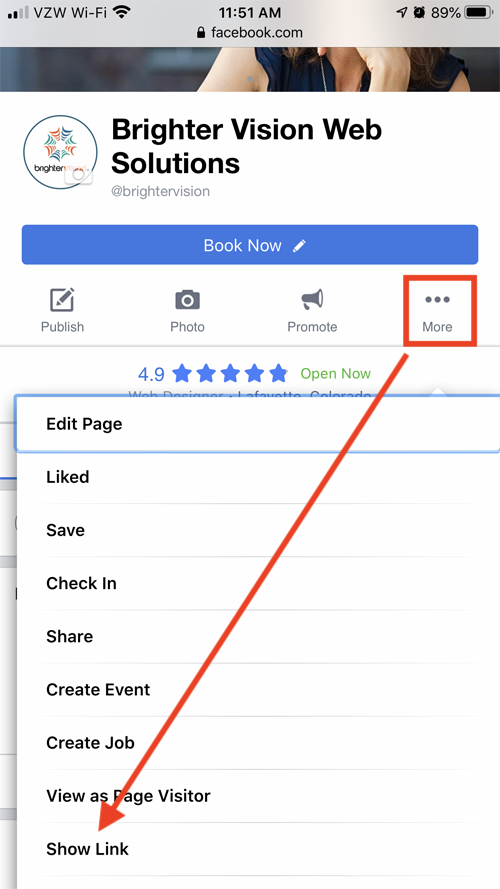
- Find the “…” More Option: On your Page’s main interface, look for a “…” (More) button or similar icon, often located below the Page’s cover photo, next to the “Like” or “Follow” buttons.
- Copy Page Link: In the menu that appears, scroll down and look for an option like “Copy Page Link” or “Share Page.” Tapping this will copy the URL to your clipboard.
Discovering Group URLs
Facebook Groups are hubs for community interaction. Sharing their URLs helps grow your community.
- Log in to Facebook (Desktop):
- Go to Your Group: In the left sidebar, under “Groups,” click on the name of the Group you’re interested in, or search for it.
- Check the Address Bar: Once inside the group, the URL in your browser’s address bar is the Group’s URL.
- It might be
https://www.facebook.com/groups/GroupNameif a custom name has been set. - Otherwise, it will be
https://www.facebook.com/groups/123456789012345(the Group ID).
- It might be
- Copy the URL: Copy the URL from the address bar.
On the mobile app:
- Open the Facebook App:
- Go to Your Group: Tap the “Menu” icon, then select “Groups.” Tap on the specific Group.
- Tap the Share Icon: Inside the group, look for a share icon (often an arrow pointing right or a bent arrow) usually near the top right, or a “…” (More) menu.
- Copy Link: Select “Copy Link” from the sharing options that appear.
Best Practices for Sharing Page and Group URLs
When sharing your Page or Group URLs, consider these tips:
- Use Custom Usernames: Always aim for a custom username for your Pages and Groups to make their URLs short, memorable, and professional.
- Verify Accuracy: Before sharing, double-check that the URL you’ve copied is indeed the correct one for the intended destination.
- Contextual Sharing: Provide context when sharing a link. For example, “Join our community group on Facebook for daily tips: [link]”
- Avoid Over-Sharing: While important, don’t spam your URL. Share it strategically where it adds value.
Customizing Your Facebook URL: Enhancing Readability and Branding
One of the most powerful features related to Facebook URLs is the ability to customize them. This transforms a generic, number-heavy link into a clean, brandable address, significantly enhancing its utility for personal and professional use.
Why Customize Your Username?
Customizing your Facebook username (which directly impacts your URL) offers several distinct advantages:
- Memorability: A URL like
facebook.com/JohnDoeis far easier to remember and recall thanfacebook.com/profile.php?id=100001234567890. - Professionalism: For individuals seeking professional networking, a clean URL presents a more polished digital image.
- Branding Consistency: For businesses and public figures, aligning your Facebook URL with your brand name (
facebook.com/YourBrand) reinforces your identity across all platforms. - Ease of Sharing: Dictating
facebook.com/YourNameverbally is simple, whereas reciting a long string of numbers is impractical. - Print and Offline Marketing: Custom URLs are perfect for business cards, brochures, and advertisements, driving traffic directly to your page or profile.
Step-by-Step: Changing Your Facebook Username (and URL)
Facebook allows you to set or change your username, which in turn customizes your personal profile URL and your Page URL. Note that you can typically only change your personal username once.
For Personal Profile:
- Log in to Facebook (Desktop):
- Go to Settings & Privacy: Click on the down arrow or your profile picture in the top-right corner. Select “Settings & Privacy,” then “Settings.”
- Access General Profile Settings: In the left sidebar, ensure “General” (or “Name and contact info”) is selected.
- Edit Username: Next to “Username,” click “Edit.”
- Enter New Username: Type your desired username. Facebook will check if it’s available. Usernames can only contain alphanumeric characters (A-Z, 0-9) and periods (.), but periods cannot be at the start or end or used consecutively. They also cannot contain generic terms or extensions (e.g., .com, .net).
- Save Changes: If the username is available, click “Save Changes” and enter your Facebook password to confirm. Your URL will instantly update to
facebook.com/your.new.username.
For a Facebook Page:
- Log in to Facebook (Desktop):
- Go to Your Page: Navigate to the specific Page you manage.
- Access Page Settings: Click on “Settings” in the left sidebar menu of your Page.
- General Page Settings: Under the “General” tab, look for “Username.”
- Create/Edit Username: Click “Create Page @username” or “Edit” next to the existing username.
- Enter Desired Username: Type the username. Again, Facebook will check availability and rules.
- Create Username: Click “Create Username.” Your Page’s URL will become
facebook.com/YourPageUsername.
Considerations Before Customizing (Uniqueness, Future Use)
Before you finalize your custom URL, keep these points in mind:
- Uniqueness: Usernames are unique. Once taken, they’re gone. Choose carefully.
- Permanence: While personal usernames can sometimes be changed, it’s often a one-time deal. Page usernames are more flexible but still consider long-term implications.
- Relevance: Ensure the username accurately reflects you or your brand. Avoid anything that might become outdated or unprofessional.
- Consistency: If you have a presence on other social media platforms, try to maintain consistency in your username across all of them for easier recognition.
- Keywords: For businesses, incorporating relevant keywords into your Page’s username can subtly aid discoverability.
Security, Privacy, and Advanced URL Usage
While knowing your URL is about accessibility, understanding its implications for security and privacy is equally vital. Furthermore, Facebook URLs offer more advanced uses for savvy users.
When to Share and When to Protect Your URL
Sharing your Facebook URL is generally safe, as it only leads to publicly available information or content you’ve chosen to make public. However, always exercise caution:
- Public Profiles/Pages: If your profile or page is public, anyone with the URL can see its content. This is the intention for most business pages and public figures.
- Private Profiles: If your personal profile is set to “Friends only” or more restrictive privacy settings, sharing your URL will still allow others to find your profile, but they won’t be able to see restricted content without sending a friend request that you approve.
- Phishing Scams: Be wary of emails or messages that contain URLs that look almost like Facebook’s but have subtle differences (e.g.,
faceb00k.com,facebook-login.com). Always check the domain name carefully before clicking and entering login credentials. - Unsolicited Sharing: Avoid sharing your personal profile URL with strangers unless you’re comfortable with them knowing your Facebook identity.
Using URLs for Direct Sharing and Linking
URLs are not just for direct navigation; they are powerful tools for sharing:
- Embedding Links: Websites, blogs, and emails can embed your Facebook URL as a hyperlink, directing readers straight to your content.
- Social Media Cross-Promotion: Link your Facebook Page from your Instagram bio, Twitter profile, or LinkedIn page to drive traffic between platforms.
- QR Codes: Generate QR codes that, when scanned, automatically open your Facebook profile or page URL, perfect for print media.
- Deep Linking (Advanced): For developers, specific URLs can even open directly into certain sections of the Facebook app, providing a seamless user experience.

Troubleshooting Common URL Issues
Sometimes, you might encounter issues related to Facebook URLs:
- “Link Not Found” or “Content Not Available”: This usually means the profile, page, or group has been deleted, deactivated, or the privacy settings prevent you from viewing it. Double-check the URL for typos.
- Incorrect URL Copied: Ensure you’ve copied the entire URL from the address bar, not just part of it.
- Custom Username Issues: If you’re trying to set a custom username and it’s repeatedly rejected, it’s likely already taken or violates Facebook’s naming policies (e.g., contains prohibited characters, is too generic).
- Temporary Facebook Glitches: Occasionally, Facebook itself might experience temporary issues that affect URL functionality. Waiting a bit and trying again can often resolve these.
By understanding how to find, use, customize, and secure your Facebook URLs, you gain a greater command over your digital presence. This fundamental knowledge empowers you to connect more effectively, promote your brand, and safeguard your information in the ever-evolving landscape of online technology. Your Facebook URL isn’t just an address; it’s a key to your digital identity.
aViewFromTheCave is a participant in the Amazon Services LLC Associates Program, an affiliate advertising program designed to provide a means for sites to earn advertising fees by advertising and linking to Amazon.com. Amazon, the Amazon logo, AmazonSupply, and the AmazonSupply logo are trademarks of Amazon.com, Inc. or its affiliates. As an Amazon Associate we earn affiliate commissions from qualifying purchases.