
In the contemporary digital landscape, where high-definition displays and 4K streaming are the standard, the term “pixelation” often surfaces as a point of frustration. We have all experienced it: a video suddenly stutters into a mosaic of blocky squares, or a photo downloaded from the web looks crisp as a thumbnail but turns into a jagged mess when enlarged. While it is a common visual phenomenon, pixelation is deeply rooted in the technical architecture of how digital images are captured, stored, and rendered.
Understanding pixelation is not merely about identifying a “blurry” image; it is about understanding the fundamental relationship between data and display. As we push the boundaries of technology with Artificial Intelligence (AI) and ultra-high-resolution hardware, the mechanics of pixelation remain a critical hurdle for software developers, graphic designers, and hardware engineers alike.

Understanding the Mechanics of Pixelation
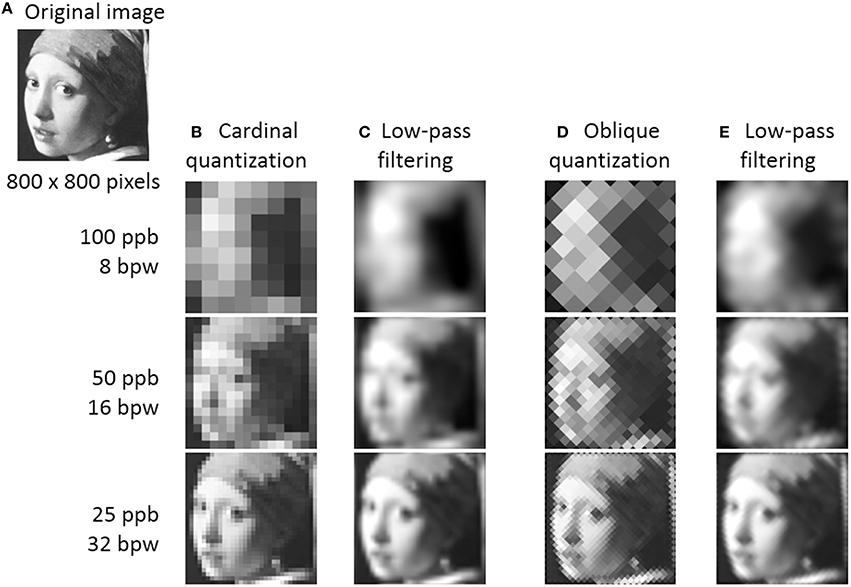
To understand why pixelation occurs, we must first define the “pixel.” The word itself is a portmanteau of “picture” and “element.” Every digital image is a grid—a massive spreadsheet of colored squares. When these squares are small enough and packed tightly together, the human eye perceives them as smooth gradients, sharp lines, and lifelike textures.
The Role of Resolution and PPI
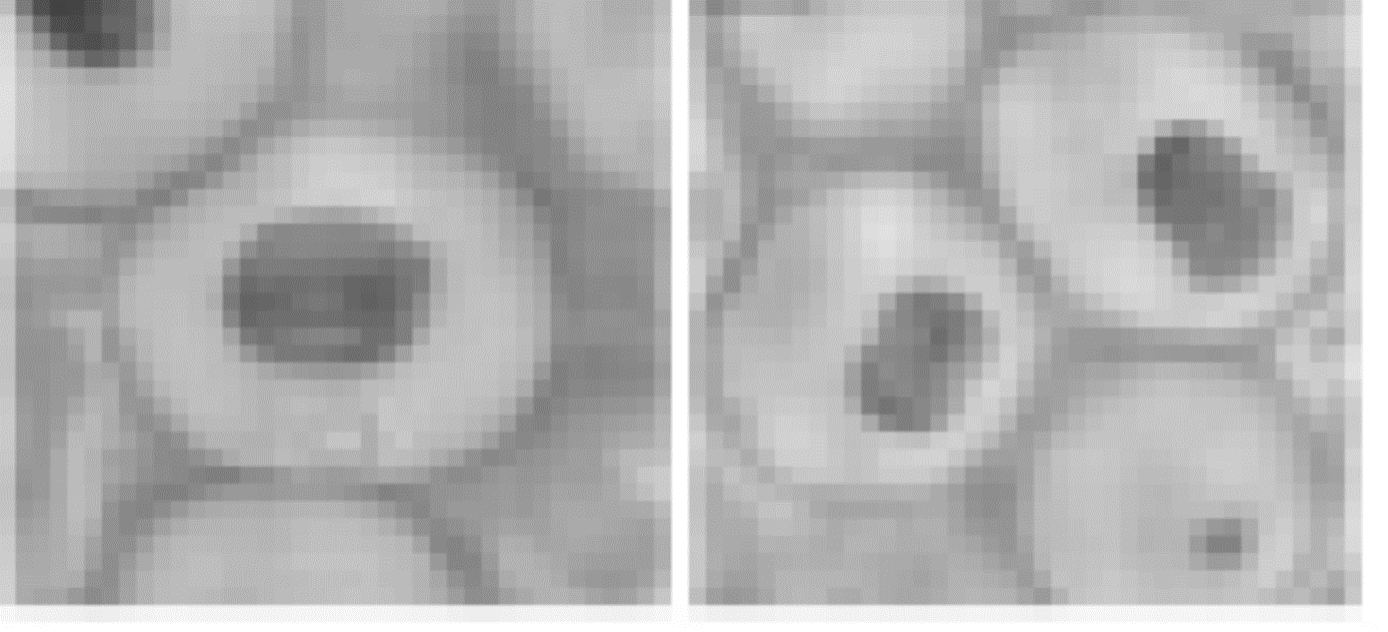
Resolution refers to the total number of pixels contained within an image, usually expressed as width x height (e.g., 1920×1080). PPI, or Pixels Per Inch, measures the density of these pixels on a physical display. When an image has a high resolution and is displayed on a screen with high PPI, the individual pixels are invisible to the naked eye. Pixelation occurs when the density of this information is too low for the size at which it is being viewed, causing the individual squares of color to become distinct and visible.
Raster vs. Vector Graphics
The technology behind the image dictates its vulnerability to pixelation. Most photographs are “raster” images (JPEGs, PNGs, GIFs). These are map-based files where every pixel is assigned a specific coordinate and color value. If you stretch a raster image, you aren’t adding new information; you are simply making the existing squares larger.
In contrast, vector graphics (used in professional logos and digital illustrations) use mathematical equations to define shapes. Because they rely on geometry rather than a fixed grid of colored blocks, vector images can be scaled infinitely without ever experiencing pixelation.
Interpolation and Guessing Data
When software attempts to “fix” or enlarge a low-resolution image, it uses a process called interpolation. The software looks at two adjacent pixels and tries to guess what the color of a new pixel between them should be. While advanced algorithms like “Bicubic” or “Lanczos” interpolation attempt to smooth these transitions, they often result in a soft, “muddy” look rather than true clarity. Pixelation is essentially the failure of the display or software to provide enough unique data points to maintain the illusion of a continuous image.
The Root Causes: Why Do Images Become Pixelated?
Pixelation is rarely a random occurrence; it is usually the result of specific technical limitations or intentional trade-offs in data management. Whether you are dealing with a digital photograph or a live-streamed video, the causes usually fall into three main categories.
Low-Resolution Capture and Sensor Limitations
The quality of a digital image begins at the sensor. In digital cameras and smartphones, the physical size of the sensor and the number of photosites (pixels) it contains determine the raw data available. If a photo is taken at a low resolution to save space, or if a small sensor is forced to perform in low light, the resulting file lacks the granular detail needed for large-scale viewing. When this file is opened on a high-resolution monitor, the computer must stretch the available data, leading to immediate pixelation.
Aggressive File Compression
Data is heavy. To make images and videos easy to share over the internet, we use “lossy” compression formats like JPEG or MPEG. These formats work by identifying areas of similar color and “averaging” them out to reduce file size. When compression is set too high, the algorithm groups too many pixels together, creating “compression artifacts.” These artifacts look like blocky, discolored squares, particularly visible in dark areas of a video or complex textures like grass or water.
Up-scaling and Digital Zoom
One of the most common causes of pixelation in consumer tech is the use of digital zoom. Unlike optical zoom, which uses a glass lens to bring a subject closer, digital zoom simply crops into the existing sensor data and blows it up. This is functionally the same as taking a small photo and stretching it in a document editor. The software is forced to enlarge the existing pixels, making the grid pattern obvious to the user.
Pixelation in Video and Streaming Technology
While static images suffer from pixelation, the phenomenon is perhaps most noticeable—and frustrating—in the realm of digital video. Video pixelation, often referred to as “macroblocking,” involves a complex interplay between network bandwidth and hardware processing power.
Bitrate and Network Congestion
A video is essentially a sequence of images (frames) played in rapid succession. The “bitrate” is the amount of data processed per second to render these frames. In streaming services like Netflix, YouTube, or Twitch, the platform uses adaptive bitrate streaming. If your internet connection slows down, the service automatically drops the bitrate to prevent the video from stopping entirely. This reduction in data results in heavy pixelation as the player struggles to render the scene with only a fraction of the necessary information.
The Impact of Codecs and Decoding
A codec (Compressor-Decompressor) is the software logic used to shrink and then expand video files. Modern codecs like H.264, H.265 (HEVC), and AV1 are designed to minimize pixelation by using “motion estimation.” Instead of refreshing every pixel in every frame, they only update the parts of the image that move. However, if the hardware decoding the video (like an older smartphone or a budget smart TV) cannot keep up with the complexity of the codec, the synchronization fails, resulting in “stutter-pixelation” or visual tearing.
Refresh Rates and Motion Blur
In high-end gaming and professional video editing, pixelation can also be linked to refresh rates. If a monitor’s refresh rate is not synchronized with the software’s output (measured in frames per second), the image may appear pixelated or “aliased” during fast movement. This is why “Anti-Aliasing” settings are so critical in PC gaming; they utilize the GPU to smooth out the jagged, pixelated edges of 3D objects in real-time.
Solutions and Prevention: Tools and Techniques for Crystal Clear Visuals
As technology evolves, our ability to fight pixelation has improved significantly. We are no longer entirely dependent on the original resolution of a file, thanks to breakthroughs in software engineering and artificial intelligence.
AI Upscaling and Neural Networks
The most significant advancement in the “anti-pixelation” movement is AI Upscaling. Technologies like NVIDIA’s DLSS (Deep Learning Super Sampling) and Adobe’s “Super Resolution” use trained neural networks to reconstruct missing data. Unlike traditional interpolation, which “guesses” colors, AI models have analyzed millions of high-resolution images. When they see a pixelated edge, they “know” what a sharp edge should look like and procedurally generate new pixels to fill the gaps. This allows 1080p content to look almost indistinguishable from native 4K.
Working with Vector-Based Software
For designers and brands, the ultimate solution to pixelation is avoiding raster formats whenever possible. By using software like Adobe Illustrator or Figma, creators work with mathematical paths. A logo designed as a vector can be scaled from a business card to a massive billboard without a single pixel appearing. In the tech world, this is known as “resolution independence.”
Best Practices for Digital Assets
To prevent pixelation in professional or personal projects, a few technical rules should be followed:
- Capture at the highest possible resolution: You can always scale down, but you can rarely scale up without losing quality.
- Use Lossless Formats for Editing: When working on a project, use formats like TIFF or PNG-24 that do not discard data every time you save.
- Optimize for the Medium: Ensure your digital assets match the target display. A 72 PPI image might look fine on an old web browser, but it will appear pixelated on a modern Retina display or 4K smartphone.
The Future: Beyond the Pixel
As we move toward “8K” displays and beyond, we are approaching the “retina limit”—the point where the human eye can no longer distinguish individual pixels even if it tries. However, until high-speed fiber internet and massive storage are universal, pixelation will remain a necessary byproduct of data compression. The goal of modern tech is not to eliminate pixels, but to manage them so intelligently that we forget they are there at all. By balancing resolution, compression, and AI-driven enhancement, we can ensure that our digital experiences remain sharp, immersive, and free from the “blocky” ghosts of the past.
aViewFromTheCave is a participant in the Amazon Services LLC Associates Program, an affiliate advertising program designed to provide a means for sites to earn advertising fees by advertising and linking to Amazon.com. Amazon, the Amazon logo, AmazonSupply, and the AmazonSupply logo are trademarks of Amazon.com, Inc. or its affiliates. As an Amazon Associate we earn affiliate commissions from qualifying purchases.