
In the ever-evolving landscape of technology, understanding the components that power our digital lives is becoming increasingly crucial. From the sleekest new gadgets to the most sophisticated AI tools, the underlying hardware plays a silent yet pivotal role in our user experience. Among these essential components, Random Access Memory, or RAM, stands out as a critical player in determining how smoothly and efficiently your computer operates. While many of us are familiar with the concept of RAM – that it’s where your computer temporarily stores data for quick access – a deeper dive into its performance metrics, particularly RAM speed, often remains a mystery.
This article aims to demystify RAM speed, explaining what it is, why it matters, and most importantly, how you can determine and even optimize it. Whether you’re a gamer seeking to maximize frame rates, a creative professional working with large files, a business owner looking to boost productivity, or simply someone who wants their everyday computing tasks to feel snappier, understanding your RAM speed is a fundamental step towards achieving peak performance.
We’ll navigate through the technical jargon, connecting it to practical implications across various domains, from the cutting-edge tech trends shaping our future to the strategic branding that defines successful businesses, and even the financial savvy required to make informed purchasing decisions.
The Fundamentals of RAM: More Than Just Capacity
Before we delve into the intricacies of speed, it’s essential to grasp the basic function of RAM. Think of your computer’s hard drive or solid-state drive (SSD) as a vast library, storing all your programs and files. When you launch an application or open a document, your computer needs to access this information rapidly. This is where RAM comes in. It acts as a temporary workspace, a desk in your office, where frequently used data is readily available. The larger your RAM capacity, the bigger your desk, allowing you to juggle more tasks and larger projects simultaneously without your computer slowing down.
However, capacity is only half the story. The speed at which your computer can read from and write to this RAM directly impacts how quickly it can fetch and process the information it needs. This speed is measured in megahertz (MHz) and is a crucial determinant of overall system responsiveness.
DDR Generations and Their Impact
The evolution of RAM technology has seen significant advancements, primarily through different generations of Double Data Rate (DDR) SDRAM. Each generation offers substantial improvements in speed and efficiency over its predecessor.
- DDR3: While largely phased out in modern systems, DDR3 was a significant upgrade over DDR2, offering higher clock speeds and lower power consumption.
- DDR4: This has been the dominant standard for several years, providing a considerable leap in bandwidth and speeds compared to DDR3. You’ll find DDR4 in many mid-range to high-end systems manufactured in the last decade.
- DDR5: The latest generation, DDR5, represents another leap forward, offering significantly higher clock speeds, greater capacity per module, and improved power efficiency. It’s increasingly becoming the standard for new high-performance systems.
The generation of DDR your RAM uses directly influences its potential speed ceiling. You cannot mix and match RAM modules of different DDR generations; they are physically incompatible and will not work together. Therefore, knowing your current DDR generation is the first step in understanding your RAM’s capabilities.
Understanding RAM Speed: MHz and Latency
When we talk about RAM speed, two primary metrics come into play:
- Clock Speed (MHz): This is the most commonly cited figure and represents the number of cycles per second the RAM can perform. Higher MHz generally translates to faster data transfer. For example, DDR4 RAM can range from 2133 MHz to over 4000 MHz, while DDR5 can push well beyond 6000 MHz.
- Latency (CL – CAS Latency): While clock speed tells you how many operations can be performed, latency tells you how long each operation takes. CAS Latency is the number of clock cycles it takes for the RAM to respond to a request for data. Lower latency is generally better, as it means quicker access to data. A common DDR4 speed might be listed as 3200 MHz CL16. This means it operates at 3200 MHz with a latency of 16 clock cycles.
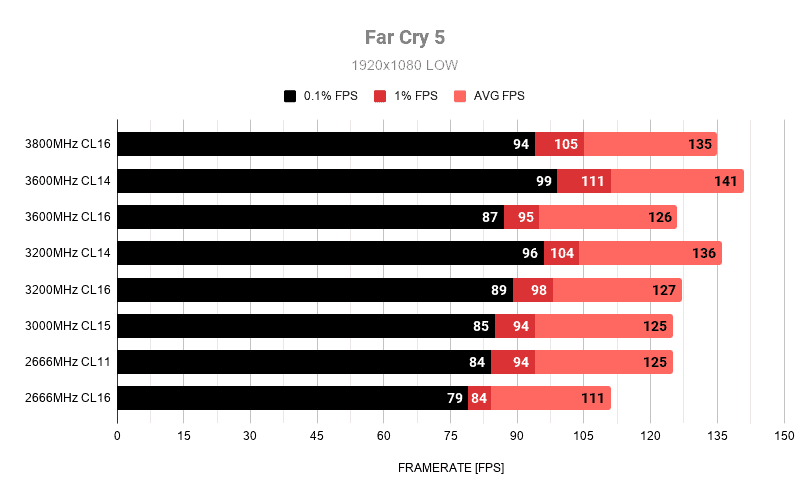
The interplay between clock speed and latency is crucial. Sometimes, RAM with a slightly lower clock speed but significantly lower latency can outperform RAM with a higher clock speed but higher latency, especially in certain applications that are sensitive to access times. For most users, however, focusing on the MHz rating of modern RAM is a good starting point.
Why Does RAM Speed Matter? Practical Implications
The impact of RAM speed is not confined to abstract technical specifications; it translates into tangible differences in your daily computing experience and the performance of specialized applications.
Enhancing Productivity and Multitasking
For professionals and everyday users alike, RAM speed directly influences the fluidity of multitasking. When you have multiple applications open – a web browser with many tabs, a word processor, an email client, and perhaps a communication app – your computer constantly shuffles data between these programs in RAM.
- Faster Application Switching: With faster RAM, switching between these open applications becomes almost instantaneous. You won’t experience frustrating delays as your computer struggles to load the new program into its active memory.
- Smoother Workflow: For tasks involving large datasets or complex operations, such as editing large spreadsheets, compiling code, or running virtual machines, faster RAM means these processes complete more quickly, reducing downtime and increasing your overall productivity. This is especially relevant in sectors embracing digital transformation and leveraging AI tools for efficiency.
Gaming Performance: Beyond the Graphics Card
For gamers, RAM speed is a crucial, often overlooked, component that significantly impacts gameplay. While a powerful graphics card is essential for rendering visuals, the CPU relies on RAM to feed it the necessary data to process.
- Higher Frame Rates: Faster RAM can deliver data to the CPU more quickly, allowing it to process game logic and instructions at a higher rate. This can translate directly into higher and more stable frame rates (FPS), leading to a smoother and more responsive gaming experience.
- Reduced Stuttering and Lag: In fast-paced games, even minor delays in data delivery can cause noticeable stuttering or input lag. Optimized RAM speed helps minimize these issues, providing a competitive edge and a more immersive experience.
- Loading Times: While SSDs have revolutionized game loading times, RAM speed also plays a role in how quickly game assets are loaded into memory once the initial file transfer is complete.
Creative Professionals and Data-Intensive Tasks
For individuals working with demanding creative software, RAM speed is paramount.
- Video Editing: Rendering high-resolution video files, applying complex effects, and previewing timelines all require immense amounts of data to be processed quickly. Faster RAM significantly reduces render times and allows for smoother playback of complex projects.
- 3D Rendering and CAD: In fields like architecture, engineering, and game development, working with intricate 3D models and complex CAD designs puts a heavy strain on system resources. Fast RAM is critical for loading these models efficiently, manipulating them without lag, and speeding up the rendering process.
- Graphic Design and Photo Editing: Working with very large image files, especially in RAW formats, benefits immensely from faster RAM. Applying filters, making edits, and exporting high-resolution images become much quicker.
How to Check Your RAM Speed: A Step-by-Step Guide
Knowing your RAM speed is straightforward, and there are several methods you can employ, depending on your operating system.
On Windows

Windows provides built-in tools to help you identify your RAM speed.
Using Task Manager
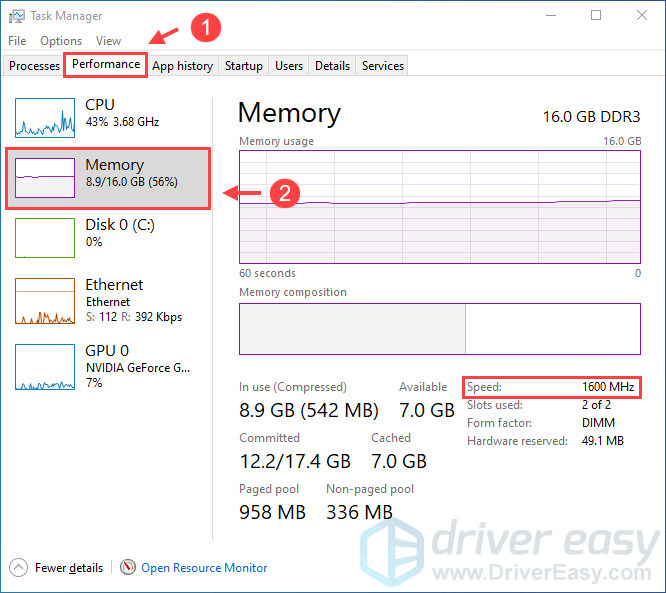
- Open Task Manager: Press
Ctrl + Shift + Escon your keyboard, or right-click on the taskbar and select “Task Manager.” - Navigate to the Performance Tab: Click on the “Performance” tab at the top.
- Select Memory: In the left-hand pane, click on “Memory.”
- View Speed and Slots Used: On the right side of the window, you’ll see information about your memory. Look for “Speed.” This will display the clock speed of your RAM modules (e.g., 3200 MHz). You will also see information about the number of slots used and the total capacity.
Using System Information
- Search for System Information: Click on the Start button and type “System Information” in the search bar. Open the application.
- Navigate to Memory: In the left-hand pane, expand “Components” and then click on “Memory.”
- Find Speed Details: On the right side, you’ll find detailed information about your RAM, including “Speed,” which will display the clock frequency.
Using Command Prompt (Advanced)
- Open Command Prompt as Administrator: Click on the Start button, type “cmd,” right-click on “Command Prompt,” and select “Run as administrator.”
- Enter the Command: Type the following command and press Enter:
wmic memorychip get capacity, speed, devicelocator, formfactor, manufacturer, partnumber, serialnumber, tag
- Interpret the Output: This command will provide a comprehensive list of your RAM modules, including their speed in MHz.
On macOS
macOS also makes it easy to find your RAM specifications.
Using System Information
- Access Apple Menu: Click on the Apple logo in the top-left corner of your screen.
- Select “About This Mac”: From the dropdown menu, choose “About This Mac.”
- View Memory Details: A window will pop up. Click on the “Memory” tab. Here, you’ll see the total memory installed and the speed (e.g., 2667 MHz DDR4). For more detailed information, click “System Report…” which will open a new window with comprehensive hardware specs.
On Linux
Linux offers various command-line tools to check RAM speed.
Using dmidecode
- Open Terminal: Launch your terminal application.
- Enter the Command: Type the following command and press Enter. You might need to precede it with
sudoif you don’t have root privileges.
bash

sudo dmidecode --type memory
- Find Speed Information: This command outputs a lot of information. Look for sections related to “Memory Device” and within those, find the “Speed” field, which will be listed in MT/s (MegaTransfers per second), which is equivalent to MHz for DDR RAM.
Using lshw
- Open Terminal: Launch your terminal application.
- Enter the Command: Type the following command and press Enter. Again,
sudomight be required.
bash

sudo lshw -c memory
- Locate Speed: Look for the “clock” or “speed” attribute associated with your memory modules.
Optimizing Your RAM for Peak Performance
Once you know your RAM speed, you might wonder if there are ways to improve it or ensure you’re getting the most out of it.
Ensuring Optimal Configuration
- Dual-Channel or Quad-Channel Mode: Most modern motherboards support dual-channel (or sometimes quad-channel) memory configurations. This means that if you install RAM modules in pairs, your system can access them simultaneously, effectively doubling the memory bandwidth. To achieve this, ensure you install identical RAM modules (same capacity, speed, and latency) in the correct slots as specified in your motherboard manual. This is a fundamental step that can significantly boost performance without any extra cost, provided you have the correct RAM slots populated.
- XMP/DOCP Profiles: Many performance-oriented RAM modules come with pre-configured overclocking profiles called XMP (Extreme Memory Profile) for Intel systems or DOCP (Direct Overclock Profile) for AMD systems. These profiles allow your RAM to run at its advertised speeds and timings automatically.
- How to Enable: To enable these profiles, you’ll need to access your motherboard’s BIOS/UEFI settings during boot-up (usually by pressing
Del,F2, orF10). Navigate to the memory settings section and select the appropriate XMP/DOCP profile. This is a crucial step for getting the advertised performance from your RAM.
- How to Enable: To enable these profiles, you’ll need to access your motherboard’s BIOS/UEFI settings during boot-up (usually by pressing
Upgrading Your RAM
If your current RAM speed is significantly lower than what your motherboard and CPU can support, or if you consistently find yourself limited by RAM capacity, an upgrade might be the most effective solution.
- Compatibility Check: Before purchasing new RAM, it’s essential to check your motherboard’s specifications for the maximum supported RAM speed, type (DDR3, DDR4, DDR5), and capacity. You can usually find this information on the motherboard manufacturer’s website.
- Matching Existing RAM (for upgrades): If you’re adding RAM to an existing system rather than replacing it entirely, it’s generally best to match the specifications of your current modules as closely as possible to ensure optimal performance and compatibility. If you mix different speeds, all modules will default to the speed of the slowest module.
- Consider RAM Capacity: While speed is important, don’t overlook RAM capacity. For most modern multitasking, 16GB is a good starting point. 32GB or more is recommended for demanding tasks like video editing, 3D rendering, or extensive gaming.
Maintaining Your System
While not directly related to RAM speed itself, general system maintenance can impact overall performance.
- Keep Drivers Updated: Ensure your motherboard and chipset drivers are up to date.
- Monitor Temperatures: Overheating can cause components, including RAM, to throttle their performance. Ensure your system has adequate cooling.
- Avoid Bloatware: Unnecessary background applications can consume RAM resources, slowing down your system. Regularly clean up startup programs and uninstall unused software.
Conclusion: A Key to Unlocking Your Computer’s Potential
Understanding your RAM speed is more than just a technical curiosity; it’s a fundamental aspect of optimizing your computing experience. Whether you’re a tech enthusiast pushing the boundaries of AI tools, a brand strategist analyzing market trends, or an individual managing personal finances for better investment returns, your computer’s performance directly influences your efficiency and success.
By knowing how to check your RAM speed and understanding the factors that influence it – from DDR generations to latency – you are empowered to make informed decisions. Whether it’s configuring your BIOS for optimal performance, understanding the benefits of dual-channel memory, or deciding when an upgrade is necessary, this knowledge allows you to unlock your computer’s true potential. In a world where speed and efficiency are paramount, paying attention to your RAM speed is a simple yet incredibly effective way to ensure your digital tools are working as hard and as fast as you are.
aViewFromTheCave is a participant in the Amazon Services LLC Associates Program, an affiliate advertising program designed to provide a means for sites to earn advertising fees by advertising and linking to Amazon.com. Amazon, the Amazon logo, AmazonSupply, and the AmazonSupply logo are trademarks of Amazon.com, Inc. or its affiliates. As an Amazon Associate we earn affiliate commissions from qualifying purchases.