
In the fast-paced world of technology, acquiring a new iPhone is often an exciting event. However, the prospect of meticulously setting up a brand-new device, transferring data from an old one, and reconfiguring all your settings can feel like a daunting task. Thankfully, Apple has introduced a solution designed to streamline this process: Quick Start. This intuitive feature allows users to effortlessly transfer their data and settings from a previous iPhone or iPad to a new one with minimal effort. This article will delve into what Quick Start is, how it works, its benefits, and how to leverage it for a smooth and efficient iPhone upgrade. We’ll also explore how this technology aligns with broader trends in tech adoption and personal productivity.

The Evolution of iPhone Setup: From Manual to Magical
Before Quick Start, setting up a new iPhone involved a more manual and time-consuming process. Users typically had to:
- Back up their old device: This usually meant connecting to a computer and using iTunes or iCloud to create a backup.
- Restore from backup: Once the new iPhone was powered on, users would select the option to restore from an iCloud or iTunes backup, waiting for the entire process to complete.
- Re-download apps: Even with a restored backup, users often found themselves waiting for apps to re-download and install.
- Re-enter passwords and settings: Many settings, Wi-Fi passwords, and app logins would need to be re-entered manually.
While these methods were functional, they lacked the seamlessness and speed that modern users expect. The introduction of Quick Start marked a significant leap forward, transforming the iPhone setup experience from a chore into a remarkably intuitive and almost magical process. This shift reflects a broader trend in the tech industry towards user-friendly interfaces and automated solutions that reduce friction and enhance the overall user experience.
Understanding iPhone Quick Start: How it Works
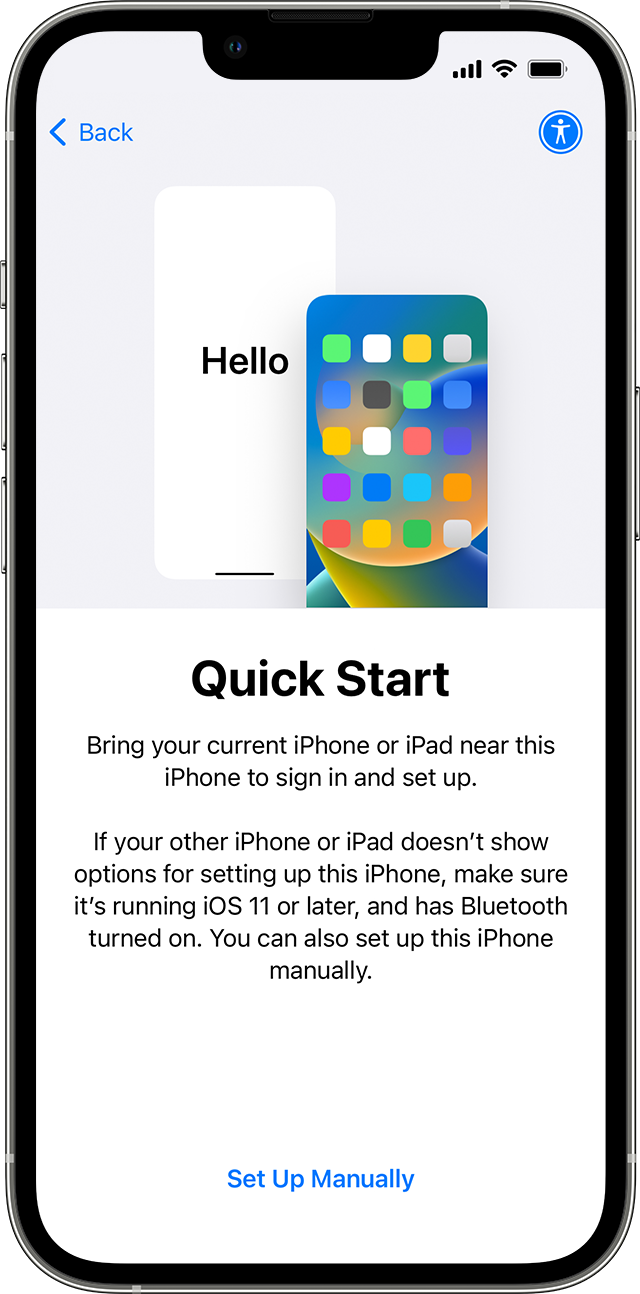
At its core, Quick Start is a feature that leverages Bluetooth and Wi-Fi to facilitate the transfer of essential data and settings from your old iPhone or iPad to your new one. It’s designed to be initiated as soon as you power on your new iPhone for the first time, or after you’ve reset it to factory settings.
The Initial Encounter: Bringing Your Devices Together
When you turn on your new iPhone and place it near your current iOS device (which needs to be running iOS 11 or later, or iPadOS), a screen will appear on your old device prompting you to use your Apple ID to set up the new iPhone. This is the gateway to the Quick Start experience.
Data Transfer Options: Tailoring Your Upgrade
Once you confirm your Apple ID, Quick Start presents you with two primary data transfer options:
- Transfer Directly from iPhone: This is the most direct and often the fastest method. It involves a peer-to-peer transfer of your data and settings directly from your old device to your new one using Wi-Fi. For this to work effectively, both devices should be connected to power, and your old device should have its Wi-Fi and Bluetooth enabled. The transfer time will vary depending on the amount of data you have.
- Download from iCloud: If you don’t have your old device readily available or prefer a less direct method, you can choose to download your data and settings from your most recent iCloud backup. This requires your new iPhone to connect to Wi-Fi and then log in to your Apple ID to access and restore your iCloud backup. This option can be convenient if you have a very large amount of data or if your old device isn’t physically with you.
Seamless Setup and Personalization
Regardless of the transfer method chosen, Quick Start guides you through a series of steps to personalize your new iPhone. This includes:
- Setting up Face ID or Touch ID: You’ll be prompted to configure your biometric authentication for secure device access.
- Creating a Passcode: A strong passcode is essential for device security.
- Transferring Apps and Data: The magic happens here. Quick Start intelligently transfers your app data, settings, Wi-Fi networks, Apple Pay information, and other crucial preferences. It even attempts to download your apps in the background to minimize the time you spend waiting.
- Other iOS Features: You’ll also be guided through setting up features like Siri, Apple Pay, and other customizable preferences.
The entire process is designed to feel intuitive and guided, with on-screen instructions that are easy to follow, even for less tech-savvy users. This emphasis on a frictionless setup experience is a testament to Apple’s commitment to user-centric design within the broader tech landscape.
The Benefits of Using Quick Start
Quick Start offers a multitude of advantages that make upgrading your iPhone a significantly more pleasant experience:
1. Speed and Efficiency: Reclaim Your Time
The most apparent benefit of Quick Start is its speed. Compared to manual backups and restores, Quick Start dramatically reduces the time required to get your new iPhone up and running. This is particularly valuable for individuals who rely heavily on their phones for work, communication, or daily tasks and can’t afford extended downtime. The ability to quickly transfer your digital life means you can resume your productivity and connectivity without significant interruption. This aligns perfectly with the tech trend of seeking out tools and services that maximize efficiency and minimize time spent on mundane tasks.
2. Simplicity and User-Friendliness: A Headache-Free Transition
Quick Start democratizes the iPhone setup process. Its guided interface and intuitive prompts eliminate the need for technical expertise. Whether you’re a seasoned Apple user or a first-time iPhone owner, the process is designed to be accessible. This simplicity is crucial for user adoption and satisfaction. It removes a potential barrier to entry for new users and makes the upgrade path smoother for existing ones. This focus on ease of use is a cornerstone of modern consumer technology, making complex processes feel effortless.
3. Comprehensive Data Transfer: Keeping Your Digital Life Intact
Quick Start doesn’t just transfer basic settings; it aims to bring your entire digital ecosystem over to your new device. This includes:
- App Data and Settings: Your game progress, social media login details, and app-specific preferences are preserved.
- Photos and Videos: Your cherished memories are seamlessly transferred.
- Contacts and Calendar Entries: All your important personal and professional information remains accessible.
- Messages: Your conversation history is restored.
- Wi-Fi Network Information: You won’t have to re-enter your home or office Wi-Fi passwords.
- Apple Pay Information: Your payment cards are ready to use on your new iPhone.
This comprehensive transfer ensures that your new iPhone feels like an extension of your old one from the moment you start using it, minimizing the sense of starting from scratch. This level of data preservation is increasingly important in a world where our digital lives are so intertwined with our daily routines.
4. Enhanced Security and Privacy: Setting Up Safely
During the Quick Start process, you are also prompted to set up essential security features like Face ID or Touch ID and create a strong passcode. This ensures that your new device is protected from the outset, aligning with the growing emphasis on digital security and privacy. By integrating these security steps into the initial setup, Apple helps users build a secure foundation for their device usage.
Leveraging Quick Start for a Smooth Upgrade
To make the most of the Quick Start feature, here are some essential tips:
1. Preparation is Key: Before You Begin
- Update Your Old Device: Ensure your current iPhone or iPad is running the latest compatible version of iOS or iPadOS. This usually means iOS 11 or later for Quick Start to function. Go to Settings > General > Software Update.
- Charge Both Devices: Connect both your old and new iPhones to power sources. This prevents either device from shutting down mid-transfer, which could disrupt the process.
- Ensure Sufficient Storage: Make sure your new iPhone has enough storage capacity to accommodate all the data you intend to transfer.
- Enable Bluetooth and Wi-Fi: Both Bluetooth and Wi-Fi must be turned on on your old device for Quick Start to detect it.
2. The Step-by-Step Process: A Guided Journey
- Power On Your New iPhone: Turn on your new iPhone and place it near your current iOS device.
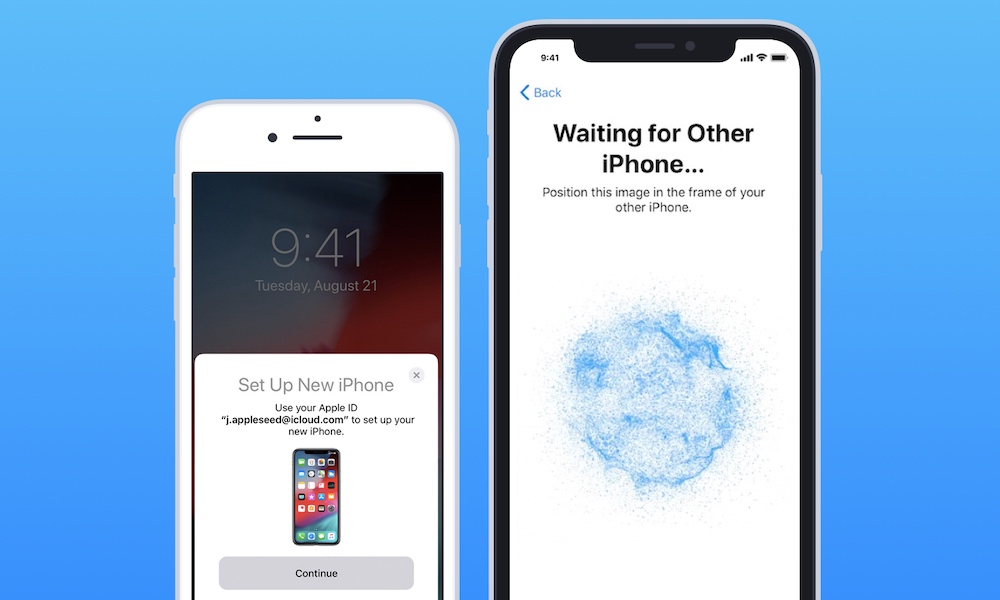
- Initiate Quick Start: Your current device will display a prompt to set up your new iPhone. Tap “Continue.”
- Authenticate with Apple ID: Confirm the Apple ID shown on the screen or enter a different one.
- Scan the Animation: A swirling animation will appear on your new iPhone. Hold your current iPhone over the new one to scan this animation using the camera.
- Enter Passcode: Enter your old iPhone’s passcode on your new iPhone.
- Set Up Face ID or Touch ID: Follow the on-screen instructions to set up your biometric authentication.
- Choose Data Transfer Method: Select either “Transfer Directly from iPhone” or “Download from iCloud.”
- Agree to Terms and Conditions: Review and accept the terms and conditions.
- Configure Essential Settings: Follow the prompts to set up Siri, Apple Pay, and other desired features.
- Wait for Data Transfer: The transfer process will begin. Keep both devices close and connected to power. The time will vary based on the amount of data.
- Complete Setup: Once the transfer is complete, your new iPhone will restart, and you can begin using it with all your data and settings intact.
3. Troubleshooting Common Issues
While Quick Start is generally reliable, occasional issues can arise:
- Quick Start Not Appearing: Ensure both devices are close, Bluetooth and Wi-Fi are enabled, and both are running compatible software versions. A restart of both devices can sometimes resolve this.
- Slow Transfer Speeds: Check your Wi-Fi connection quality. Ensure both devices are connected to a strong and stable network. Avoid transferring large amounts of data over congested networks.
- Transfer Interrupted: If the transfer is interrupted, try initiating Quick Start again. If you were downloading from iCloud, you might be able to resume from where you left off.
Quick Start: A Testament to Tech Innovation and User Experience
The introduction and refinement of Quick Start exemplify Apple’s consistent dedication to enhancing the user experience in the technology sector. It’s a prime example of how thoughtful software development can transform potentially frustrating processes into seamless, efficient ones. This feature not only simplifies the act of upgrading to a new iPhone but also reflects a broader trend in the tech industry towards automation and personalization.
In the realm of Technology Trends, Quick Start embodies the move towards intuitive interfaces and “set it and forget it” functionalities. Users are no longer expected to be IT experts to manage their devices. Instead, technology is designed to adapt to their needs and minimize the learning curve. This aligns with the rise of AI Tools that can automate complex tasks and personal assistants that learn user preferences.
From a Brand perspective, Quick Start reinforces Apple’s reputation for user-centric design and its commitment to providing a cohesive ecosystem. By making the upgrade process so smooth, Apple encourages continued loyalty and reduces the friction that might lead users to consider other platforms. The ability to maintain a consistent personal brand experience across devices, with all your digital assets readily available, is a significant advantage. This also ties into Marketing and Design, where a seamless user journey is a key selling point.
In terms of Money, while not directly a financial tool, Quick Start indirectly impacts personal and business finance by saving time and reducing the potential for costly errors or data loss during an upgrade. For businesses, efficient device deployment can lead to increased employee productivity. For individuals, saving time on setup can translate into more time for income-generating activities or personal financial management, aligning with the principles of Productivity and Online Income.
In conclusion, Quick Start on iPhone is far more than just a data transfer tool. It’s a carefully crafted feature that showcases the power of thoughtful design and technological innovation. It simplifies the often-arduous task of setting up a new device, ensuring that users can quickly and easily access their digital world. By embracing Quick Start, you can transform your next iPhone upgrade from a potential headache into a remarkably smooth and efficient experience, allowing you to focus on what matters most.
aViewFromTheCave is a participant in the Amazon Services LLC Associates Program, an affiliate advertising program designed to provide a means for sites to earn advertising fees by advertising and linking to Amazon.com. Amazon, the Amazon logo, AmazonSupply, and the AmazonSupply logo are trademarks of Amazon.com, Inc. or its affiliates. As an Amazon Associate we earn affiliate commissions from qualifying purchases.