
The modern digital landscape is defined by the “subscription economy,” a model where software as a service (SaaS) and streaming platforms dominate user interaction. Paramount Plus, a major player in the streaming wars, offers a vast library of content, but there comes a time for every user to audit their digital ecosystem. Because Apple integrates third-party services deeply into its iOS framework, canceling a subscription like Paramount Plus involves navigating specific technical pathways within the Apple environment.
Understanding how to manage these digital entitlements is a fundamental skill for any iPhone user. Unlike the early days of software where a one-time purchase granted perpetual use, today’s app-based services rely on complex billing APIs managed by Apple’s App Store. This guide provides an exhaustive technical walkthrough for terminating your Paramount Plus subscription directly through your iOS device, while explaining the underlying mechanics of how Apple handles your digital subscriptions.
The Architecture of iOS Subscriptions
Before diving into the “how,” it is essential to understand the “why” regarding the iOS subscription architecture. When you sign up for Paramount Plus through the app on an iPhone, you are generally not entering a direct billing relationship with Paramount. Instead, you are utilizing Apple’s In-App Purchase (IAP) system. In this scenario, Apple acts as the Merchant of Record (MoR).
This technical distinction is vital. It means that Paramount Plus does not have your credit card information; Apple does. Consequently, the Paramount Plus customer support team cannot manually cancel your subscription if it was initiated via the App Store. The control resides entirely within your Apple ID. This centralized management system is designed for user convenience and security, allowing you to view, modify, and terminate all third-party app services from a single interface within the iOS Settings app.
Deleting the Paramount Plus app from your iPhone home screen does not communicate with Apple’s billing servers. The application is merely a gateway to the content; the subscription is a server-side entitlement linked to your Apple ID. To stop the recurring billing cycle, you must interact with the subscription management API via the system settings.
Step-by-Step: Canceling Paramount Plus via iOS Settings
The most efficient way to terminate your Paramount Plus service is through the native Settings application on your iPhone. This method is the primary technical route for managing any service billed through your Apple account.
Navigating to Your Apple ID Profile
Start by unlocking your iPhone and locating the “Settings” app, represented by the gear icon. At the very top of the Settings menu, you will see your name and profile picture. This section houses your Apple ID, iCloud, and Media & Purchases data. Tapping this header opens the command center for your digital identity on the Apple platform.
Accessing the Subscriptions Sub-Menu
Within the Apple ID screen, locate the “Subscriptions” tab. This section is a dedicated portal that queries Apple’s servers to generate a real-time list of every active and expired service linked to your account. When you tap this, your iPhone may take a brief moment to load, as it is communicating with the App Store’s database to retrieve your current billing status.
Modifying the Paramount Plus Entitlement
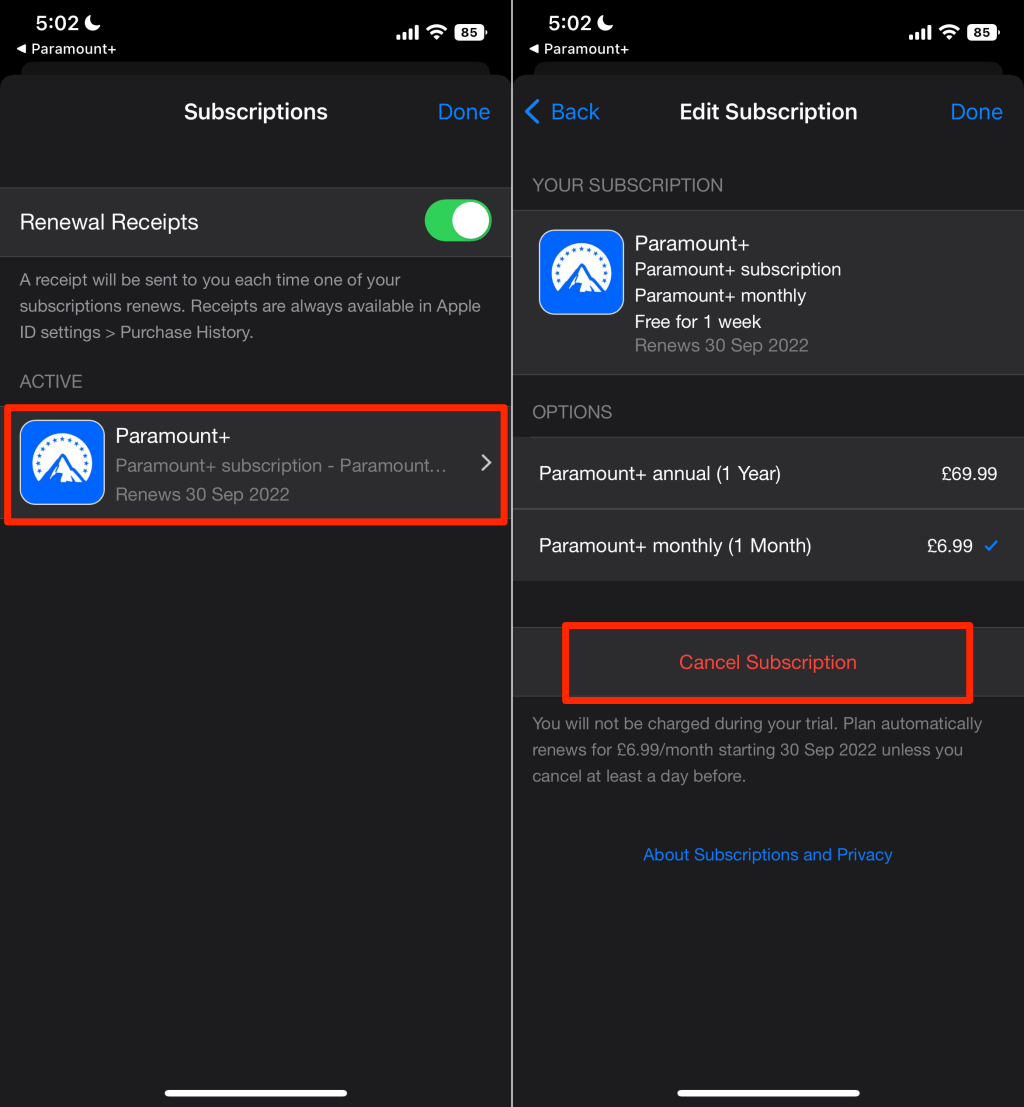
Once the list populates, look for Paramount Plus under the “Active” heading. Tapping on the service will reveal the “Edit Subscription” screen. This page displays critical technical data, including:
-
The current plan type (e.g., Essential or Paramount+ with SHOWTIME).
-
The next billing date.
-
The price of the next renewal.
At the bottom of this screen, you will find the “Cancel Subscription” button (or “Cancel Free Trial” if you are within a promotional period). Tapping this button initiates a confirmation prompt.
Finalizing the Cancellation Logic
Apple’s system will ask you to confirm the cancellation. It is important to note the technical behavior of the service post-cancellation: iOS is designed to keep your subscription active until the end of the current billing cycle. For example, if your subscription was set to renew on the 30th of the month and you cancel on the 15th, your Apple ID retains the “entitlement” to access Paramount Plus content for the remaining 15 days. Once the cycle hits its expiration date, the status in your Settings menu will shift from “Active” to “Expired,” and the recurring billing trigger will be disabled.
Alternative Technical Routes: The App Store and Web Methods
While the Settings app is the standard path, iOS provides redundancy through the App Store app. Additionally, some users may find themselves in a “Direct Billing” scenario, which requires a different technical approach.
Using the App Store Interface
If you prefer to use the App Store app:
-
Open the App Store.
-
Tap your profile icon or photo in the upper right-hand corner.
-
Select “Subscriptions” from the account overlay.
This route leads to the exact same subscription management API found in the Settings app. It is a useful alternative if you are already browsing for new software and decide to perform an account audit.
Troubleshooting Direct Billing (The Web Path)
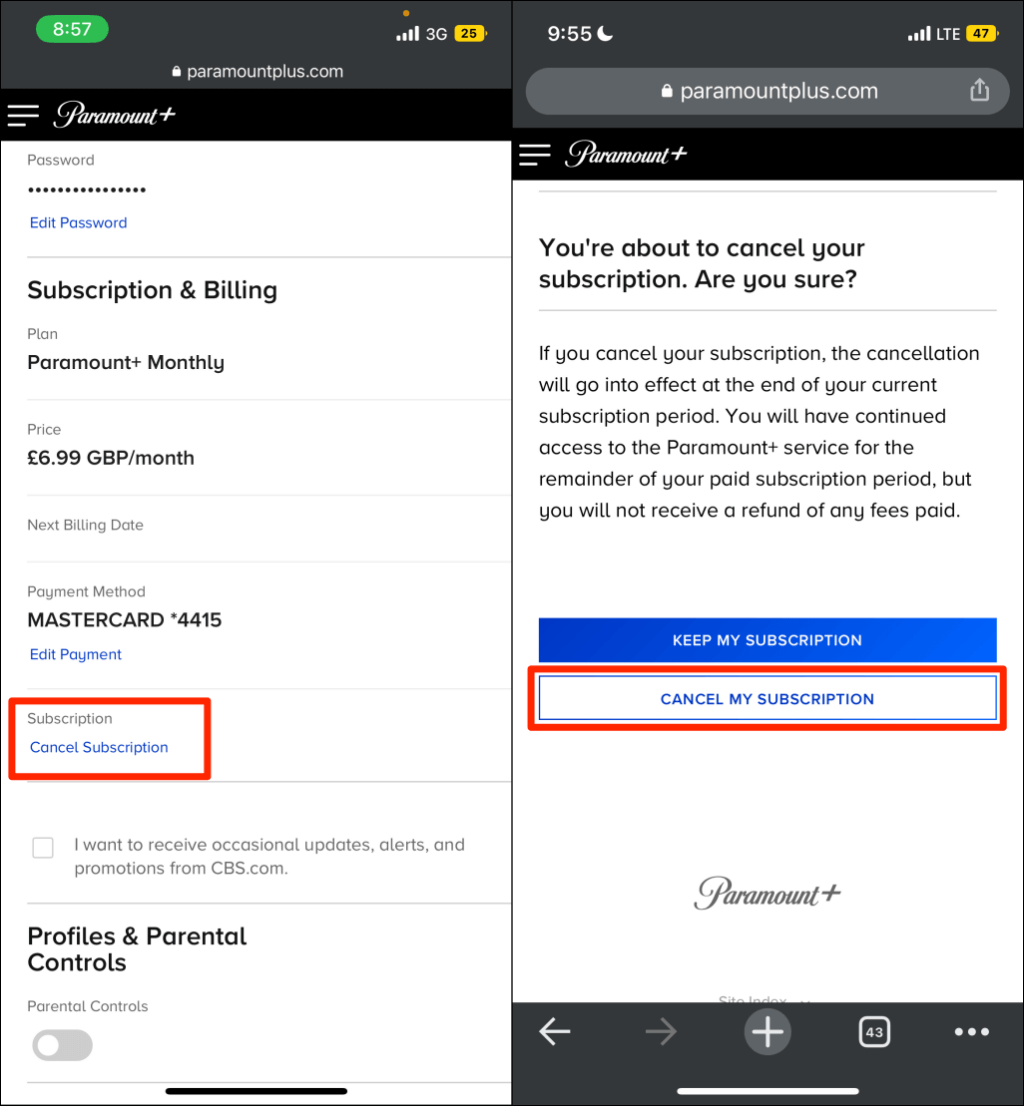
A common technical hurdle occurs when a user navigates to the Subscriptions menu only to find that Paramount Plus is not listed. This happens if the subscription was not created using an In-App Purchase. If you signed up for Paramount Plus on a desktop browser or a smart TV using a credit card directly, Apple’s MoR system has no record of the transaction.
In this technical edge case, you must use a web browser (Safari or Chrome) on your iPhone:
-
Navigate to ParamountPlus.com.
-
Log in with your credentials.
-
Access the “Account” section via the user menu.
-
Locate the “Subscription & Billing” section and follow the prompts to “Cancel Subscription.”
This highlights the importance of knowing your “billing origin.” If you pay via Apple, you cancel via Apple. If you pay via Paramount directly, you must use their web-based administrative tools.
Managing Your Digital Footprint: Best Practices for App Subscriptions
Canceling a subscription is part of a broader technical workflow regarding digital hygiene and security. Once you have initiated the cancellation of Paramount Plus, there are several professional steps you should take to ensure your iPhone’s ecosystem remains optimized.
Monitoring Third-Party Access
Many streaming apps request various permissions, such as Background App Refresh and Tracking. Once you have canceled your subscription and no longer intend to use the app, it is a best practice to disable these permissions. Navigate to Settings > Privacy & Security > Tracking to ensure the app is no longer collecting data. Similarly, under Settings > General > Background App Refresh, you can toggle off Paramount Plus to save battery life and data bandwidth.
Offloading vs. Deleting the App
If you have canceled the subscription but think you might return in the future, consider “Offloading” the app rather than deleting it. Offloading (Settings > General > iPhone Storage > Paramount+) removes the binary files of the app to save space but preserves the local cache and user data. If you reinstall the app later, your login states and preferences will be restored. If you have no intention of returning, a full deletion is preferable to clear all associated local data.
Security and Payment Method Audit
The cancellation process is an ideal time to review your Apple ID payment methods. In the “Payment & Shipping” section of your Apple ID settings, ensure that your primary and backup payment methods are up to date. Removing expired cards or updating your Apple Pay configuration ensures that your other active subscriptions—like iCloud storage or Apple Music—do not experience service interruptions due to billing failures.
Troubleshooting Common Technical Issues
Even with a streamlined UI, technical glitches can occur during the cancellation process. Understanding how to troubleshoot these ensures you aren’t charged for a service you intended to terminate.
“Cancel Subscription” Button is Missing
If you see the Paramount Plus subscription in your Apple ID list but the “Cancel” button is missing, it usually indicates that the cancellation has already been processed, but the subscription has not yet reached its expiration date. Check for a message in red or grey text that says “Expires on [Date]” instead of “Renews on [Date].” If it says “Expires,” your work is done.
Discrepancies in Family Sharing
If you are part of an Apple Family Sharing group, the “Organizer” is typically responsible for the billing. However, subscriptions are often tied to the specific Apple ID that initiated the trial or purchase. If you cannot find the subscription on your device, check with the Family Organizer to see if the service is being billed through their account. Digital entitlements in a Family Sharing environment can be complex, and only the account holder who initiated the IAP can usually terminate it.

Requesting a Refund
If you forgot to cancel a trial and were charged, simply canceling the subscription won’t automatically trigger a refund. To handle this technically, you must visit reportaproblem.apple.com. Log in with your Apple ID, select “I’d like to request a refund,” and choose the Paramount Plus charge from your recent purchase history. This creates a ticket within Apple’s billing support system, which is independent of the Paramount Plus app itself.
By mastering these technical pathways, you maintain full control over your digital subscriptions. Whether you are rotating streaming services to access different content libraries or simply tightening your digital budget, knowing how to navigate the iOS subscription API ensures that your iPhone remains a tool for your convenience, rather than a source of unexpected costs.
aViewFromTheCave is a participant in the Amazon Services LLC Associates Program, an affiliate advertising program designed to provide a means for sites to earn advertising fees by advertising and linking to Amazon.com. Amazon, the Amazon logo, AmazonSupply, and the AmazonSupply logo are trademarks of Amazon.com, Inc. or its affiliates. As an Amazon Associate we earn affiliate commissions from qualifying purchases.