
Navigating the modern streaming landscape requires more than just a keen eye for quality content; it necessitates a technical understanding of the various software ecosystems that power these services. Paramount Plus, like many of its competitors, is integrated into a vast array of platforms, including direct web interfaces, mobile app stores, and third-party streaming hardware. Because of this fragmentation, there is no single “cancel” button that works for everyone. The method you must use is strictly dictated by the digital gateway through which you initially established your subscription.
Understanding the Paramount Plus Ecosystem and Billing Sources
Before attempting to terminate your service, you must identify your “billing origin.” In the world of software-as-a-service (SaaS), third-party integrations allow users to sign up for subscriptions via intermediaries like Apple, Google, Amazon, or Roku. This creates a technical handshake where the intermediary handles the financial transaction and then signals to Paramount Plus that the user is authorized to access the content.
If you attempt to cancel a subscription on the Paramount Plus website that was originally purchased through the Apple App Store, the website’s user interface (UI) will likely redirect you or, in some cases, fail to provide a cancellation option entirely. This is because Paramount Plus does not have the administrative permission to alter a financial contract held by Apple. Therefore, the first step in the technical process of unsubscribing is verifying your original point of purchase. You can usually find this by checking your bank statement or searching your email for the original “Welcome” or “Receipt” message.
Identifying Your Billing Platform
If you are unsure where you signed up, navigate to the “Account” section on the Paramount Plus website. Under the “Subscription & Billing” header, the system will typically display a message such as “Your subscription is billed through [Platform Name].” If it shows a credit card number or PayPal account directly, you are billed by Paramount. If it mentions a third party, you must follow the specific protocols for that software environment.
Step-by-Step Cancellation Guide for Every Major Device
The technical workflows for cancellation vary significantly across operating systems. Below are the precise paths for the most common digital environments.
Direct Web-Based Cancellation
For users who signed up directly through the Paramount Plus website using a computer or mobile browser, the process is handled through the service’s primary web server.
-
Authentication: Navigate to paramountplus.com and log in with your credentials.
-
Account Navigation: Click on your profile icon in the top-right corner and select “Account.”
-
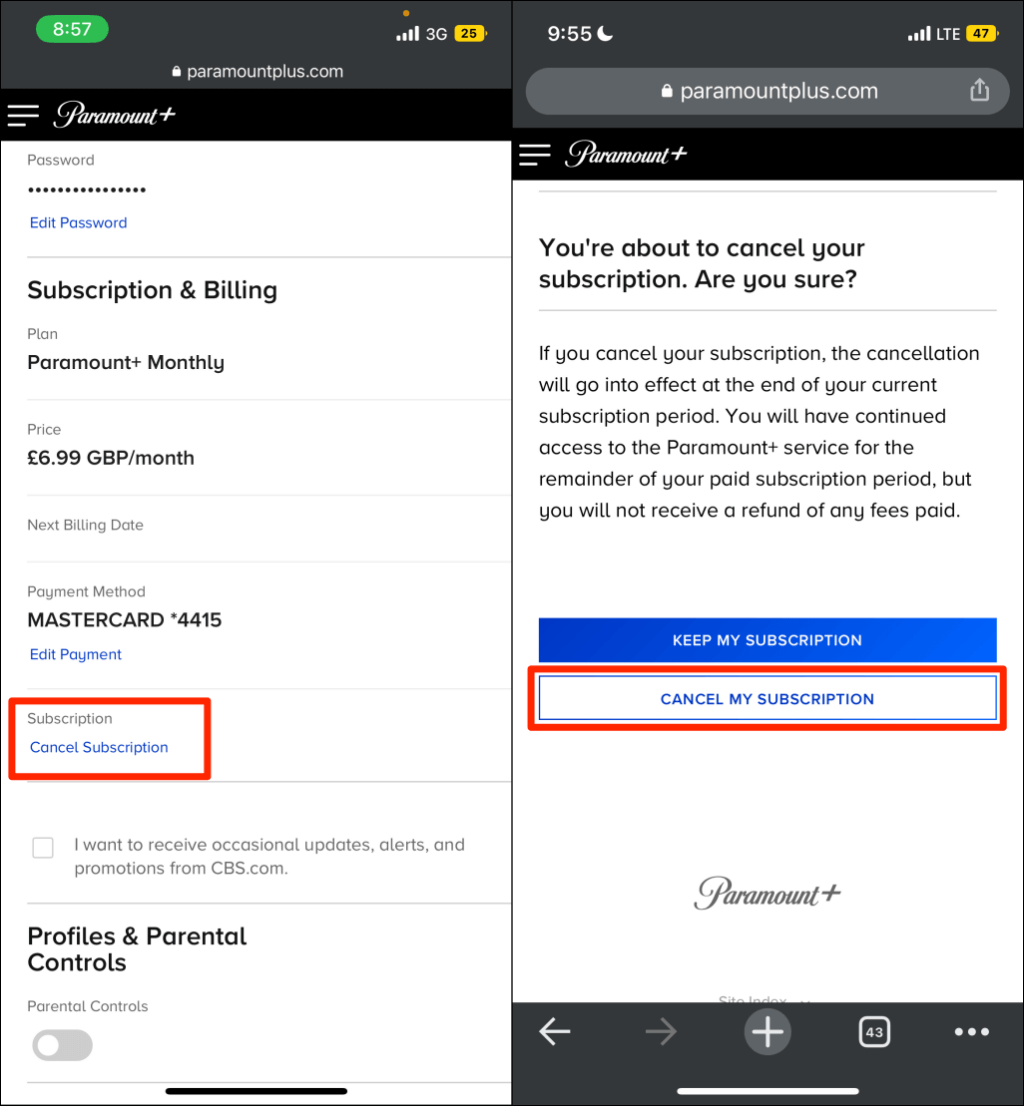
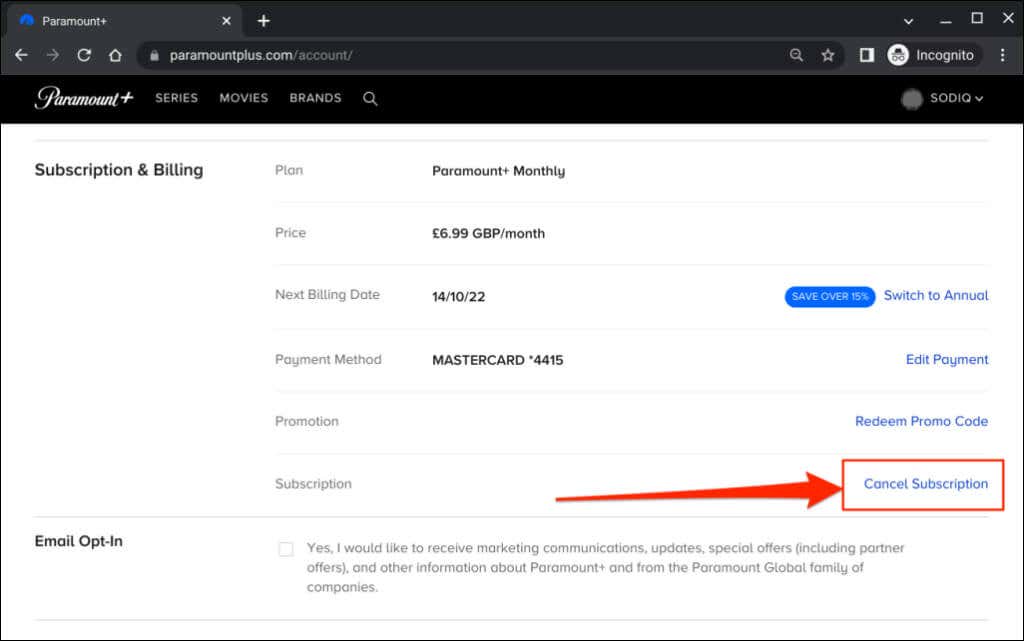
The Subscription Module: Locate the “Subscription & Billing” section. Here, you will find the “Cancel Subscription” link.
-
Confirmation Flow: Most modern UI designs incorporate a “retention flow”—a series of prompts asking if you are sure or offering a discounted rate to stay. You must click through these prompts until you receive a final confirmation page and a subsequent confirmation email.
The Apple Ecosystem (iOS, iPadOS, and tvOS)
When you subscribe via an iPhone, iPad, or Apple TV, your subscription is tied to your Apple ID. This is managed through the “Subscriptions” API in the iOS settings, not within the Paramount Plus app itself.
-
Settings Integration: Open the “Settings” app on your iOS device.
-
Identity Management: Tap on your Name/Apple ID at the top of the menu.
-
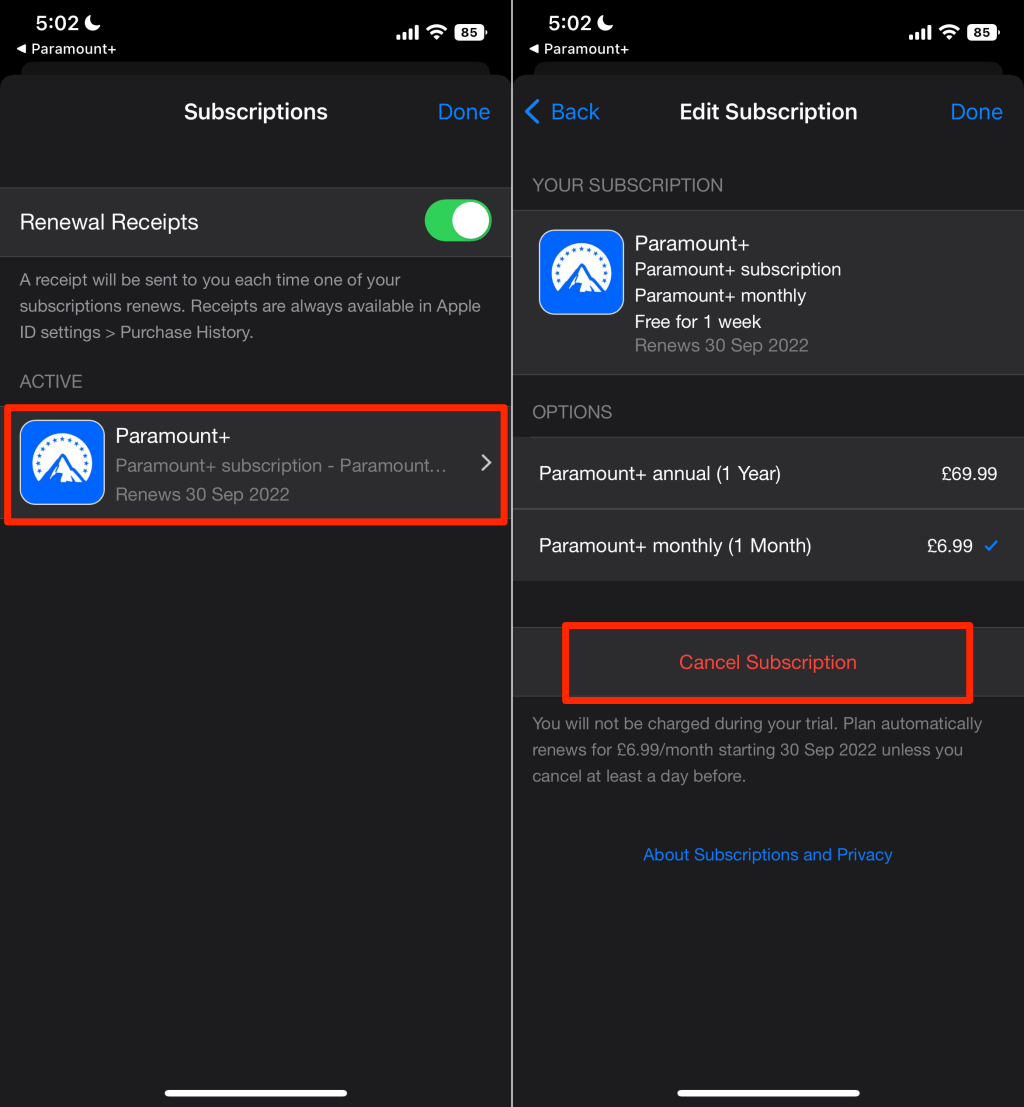
Subscription Overlay: Select “Subscriptions.” This will query Apple’s servers for all active recurring payments.
-
Termination: Locate “Paramount+” in the list, tap it, and select “Cancel Subscription.” If you are on an Apple TV, you can find these settings under Users and Accounts > [Your Account] > Subscriptions.
Android and Google Play Management
For Android users, the subscription is a digital asset managed by the Google Play Store.
-
Store Access: Open the Google Play Store app.
-
Profile Menu: Tap the profile icon at the top right of the screen.
-
Payments and Subscriptions: Navigate to “Payments & subscriptions” and then select “Subscriptions.”
-
Action: Find Paramount Plus in the list and select “Cancel subscription.” Google often asks for a reason for cancellation; providing this is optional but required to move to the final confirmation button.
Third-Party Streaming Hardware: Roku and Amazon Fire TV
Roku and Amazon use their own proprietary billing systems (Roku Pay and Amazon Pay) to manage “channels” or “apps.”
-
For Roku: Highlight the Paramount Plus channel on your home screen, press the asterisk (*) button on your remote, and select “Manage subscription” followed by “Cancel subscription.”
-
For Amazon Fire TV: While you can sometimes manage this on the device, it is technically more reliable to log into your Amazon account via a web browser. Go to “Accounts & Lists” > “Memberships & Subscriptions” and locate the Paramount Plus “Prime Video Channel” or app subscription to terminate the auto-renewal.
Troubleshooting Technical Barriers and “Dark Patterns”
Occasionally, users encounter technical friction when trying to unsubscribe. This can be caused by software bugs, cache conflicts, or “dark patterns”—design choices intended to make it difficult to leave a service.
The Vanishing Cancellation Button
If the “Cancel Subscription” button is missing from your account page, it is usually indicative of a synchronization error between the app and the billing server. This often happens if a payment is currently pending or if there is a discrepancy in the account’s status. To resolve this, ensure you are not using a VPN, as geographic IP masking can sometimes disable certain account management features based on regional licensing agreements.
Cache and Browser Incompatibility
Web-based cancellations can sometimes fail due to outdated browser cookies or aggressive ad-blockers that interfere with the scripts required to process the cancellation request. If the “Confirm” button does not respond to clicks, try the following technical steps:
-
Clear your browser’s cache and cookies for the last 24 hours.
-
Disable all browser extensions (specifically ad-blockers and privacy shields).
-
Attempt the cancellation in an “Incognito” or “Private” window to ensure a clean session.
Account Link Mismatches
A common issue occurs when users have multiple email addresses. You may be logged into one account on your device while the subscription is actually tied to a different identity. Verify the “Account” or “Profile” section in the app to ensure the email address matches the one receiving the billing statements.
Optimizing Your Digital Security Post-Cancellation
Unsubscribing from a service is a critical component of digital hygiene. When you stop using a platform, you should also take steps to secure your data and minimize your digital footprint.
Revoking Third-Party App Permissions
If you used “Sign in with Apple,” “Sign in with Google,” or “Sign in with Facebook” to create your Paramount Plus account, the service still has a technical token allowing it to communicate with that third-party provider. After your subscription ends, navigate to the security settings of your Google or Apple account and revoke the “Authorized App” status for Paramount Plus. This terminates the API link and prevents any further data exchange.
Managing Payment Information
If you billed directly through Paramount Plus, your credit card information remains stored on their servers even after the subscription is canceled. While most companies retain this to make “resubscribing” easier, it represents a potential security risk in the event of a data breach. If the platform allows, delete your stored payment method after the final billing cycle has concluded. If the UI requires at least one payment method on file, consider replacing your actual card with a temporary virtual card number with a $0 limit.
The Evolving Landscape of Digital Subscription Management
The difficulty users face when trying to answer “how do i unsubscribe” is a symptom of the “Subscription Creep” era. Software companies have moved toward recurring revenue models, which rely on the friction of cancellation to maintain high retention rates. From a technical standpoint, this has led to the development of complex billing hierarchies.
However, regulatory pressure is shifting the technical requirements for these platforms. In many jurisdictions, “Click to Cancel” laws are being enacted, requiring that the technical process for unsubscribing be just as simple as the process for signing up. For developers and UI designers at companies like Paramount Plus, this means moving toward more transparent account dashboards and unified billing APIs that can handle cross-platform requests more gracefully.
By understanding the underlying software architecture of your subscription—whether it is an API-based link through an app store or a direct database entry on a web server—you gain the technical agency required to manage your digital assets effectively. Successful unsubscription is not just about clicking a button; it is about navigating the specific digital infrastructure that governs your access to the service. Once the cancellation is confirmed, ensure you retain the confirmation code or email, as this serves as your technical proof of contract termination should any automated billing errors occur in the future.
aViewFromTheCave is a participant in the Amazon Services LLC Associates Program, an affiliate advertising program designed to provide a means for sites to earn advertising fees by advertising and linking to Amazon.com. Amazon, the Amazon logo, AmazonSupply, and the AmazonSupply logo are trademarks of Amazon.com, Inc. or its affiliates. As an Amazon Associate we earn affiliate commissions from qualifying purchases.