
In the rapidly evolving landscape of financial technology, the transition from physical leather wallets to digital ecosystems has moved from a futuristic concept to a daily necessity. At the forefront of this revolution is Google Pay, commonly known as GPay. This application is not merely a digital version of your credit card; it is a sophisticated software platform designed to streamline transactions, secure financial data, and integrate various aspects of digital commerce into a single interface. Understanding how to use GPay effectively requires a deep dive into its setup, its various transactional capabilities, and the robust security protocols that keep your data safe.
Getting Started: Setting Up Google Pay for Seamless Transactions
The initial setup of GPay is a critical phase where the software bridges the gap between your physical banking credentials and the digital world. Because the application handles sensitive financial information, the onboarding process is designed to be both user-friendly and highly secure.
Installation and Initial Configuration
The first step is downloading the Google Pay app from the Google Play Store for Android users or the Apple App Store for iOS users. While GPay is natively integrated into the Android ecosystem, it functions as a highly capable standalone app on iOS. Upon launching the app, you will be prompted to sign in with your Google Account. This connection is vital, as it allows GPay to sync your payment methods across different Google services, such as the Chrome browser and YouTube.
Once logged in, the app will request various permissions. For the best experience, enabling location services is recommended, as it allows the app to suggest nearby stores that accept contactless payments and helps with fraud prevention by verifying where a transaction is taking place.
Adding Payment Methods: Credit, Debit, and Beyond
The core of GPay is its ability to store and deploy payment methods. To add a card, tap the ‘Payment’ tab or the ‘Add a card’ prompt. You can use your phone’s camera to scan the card details automatically or enter them manually. GPay supports a wide array of credit and debit cards from major global banks, as well as specialized cards like prepaid accounts.
Beyond standard banking cards, GPay allows for the integration of digital-only banks and even certain transit cards. Once the information is entered, your bank will require a verification step. This usually involves a one-time password (OTP) sent via SMS or email, or a quick verification through your bank’s own mobile app. This multi-factor authentication (MFA) ensures that the person adding the card is indeed the authorized owner.
Verification Protocols: Ensuring Identity and Security
Before you can make your first contactless payment, the software ensures that your device meets specific security standards. For Android users, the device must be NFC-enabled (Near Field Communication) and must pass Google’s “Play Protect” security check. If a device is “rooted” or has its bootloader unlocked, GPay may disable contactless payment features to protect the user from potential malware that could intercept financial data.
Navigating the Interface: Key Features and Functionalities
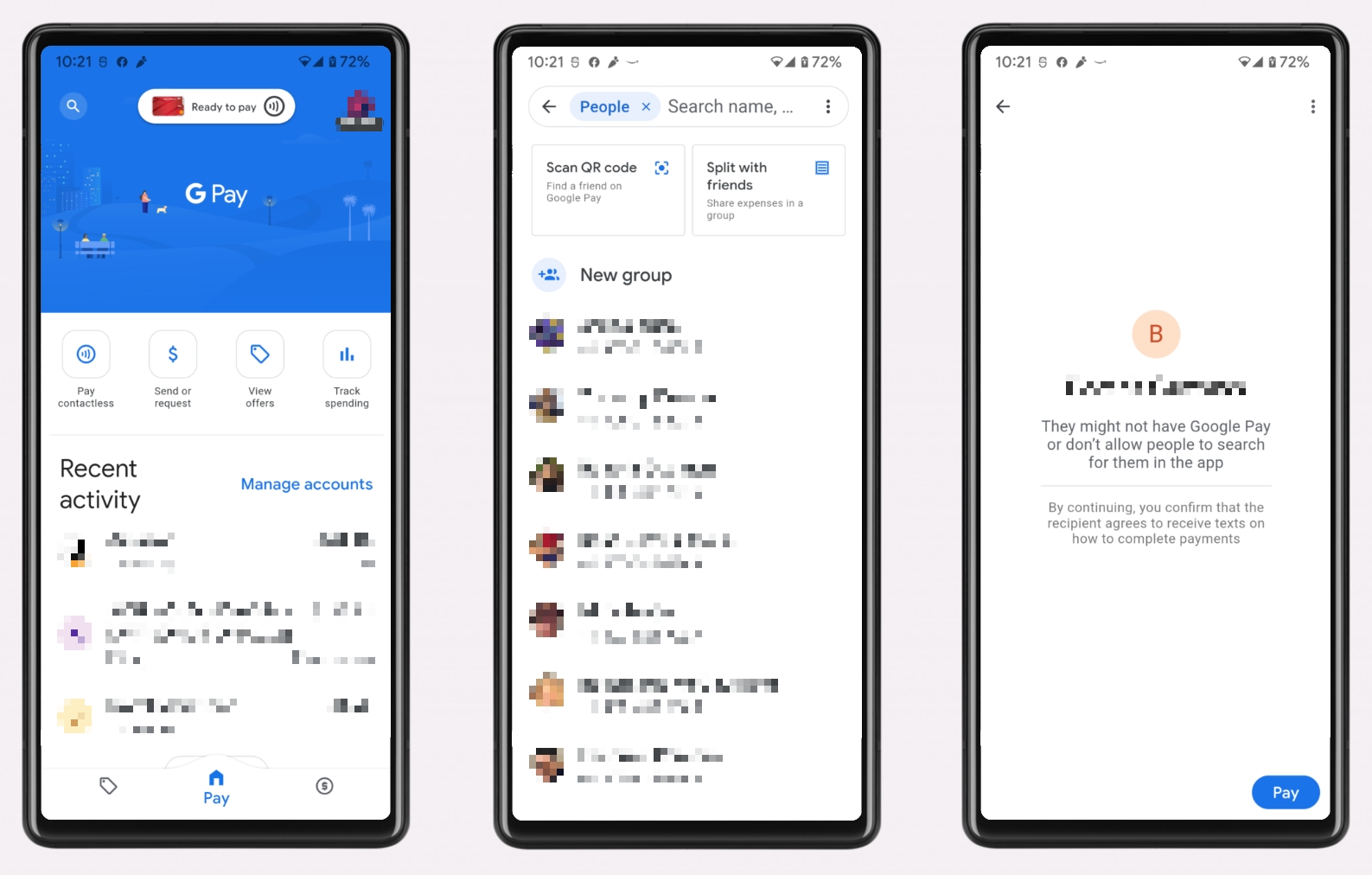
Once the setup is complete, the GPay interface serves as a command center for your digital transactions. The app is divided into logical sections that cater to different financial needs, from in-store shopping to peer-to-peer transfers.
Making In-Store Payments with NFC Technology
The most common use of GPay is the “Tap to Pay” feature. This utilizes NFC technology, which allows two electronic devices to communicate over a very short distance (usually 4 centimeters or less). To pay in a store, ensure NFC is turned on in your phone’s settings. You do not even need to open the GPay app for most transactions; simply unlock your phone and hold the back of the device near the contactless terminal.
The software communicates with the terminal using a secure token, a process we will explore in the security section. Once the checkmark appears on your screen, the transaction is complete. This method is significantly faster than inserting a chip card and eliminates the wear and tear associated with physical cards.
Sending and Receiving Money with P2P Transfers
GPay simplifies the process of sending money to friends, family, or small vendors. By navigating to the “Pay” or “Send” tab, you can search for contacts by name, phone number, or email address. In regions where the Unified Payments Interface (UPI) is supported, GPay links directly to your bank account for real-time transfers. In other regions, it may use a linked debit card or a GPay balance.
The app also includes a “Split Expense” feature. This is particularly useful for group dinners or shared rent. You can select multiple contacts, enter the total amount, and GPay will calculate the individual shares and send request notifications to each participant, tracking who has paid and who is still outstanding.
Paying Bills and Managing Subscriptions
Modern iterations of GPay have expanded into utility and bill management. Users can link their accounts for electricity, water, internet, and mobile services directly within the app. GPay often fetches the latest bill amount automatically and sends a notification when a payment is due. This centralized management reduces the risk of late fees and provides a clear history of your recurring expenses.

Advanced Features and Ecosystem Integration
GPay is more than a payment tool; it is a comprehensive digital wallet that integrates with the broader tech ecosystem to simplify travel, shopping, and identity management.
Loyalty Programs, Rewards, and Digital Passes
One of the most efficient uses of GPay is the digitizing of loyalty cards. Instead of carrying a dozen plastic tags on your keychain, you can scan the barcodes of your loyalty cards into GPay. When you are at a checkout counter, simply pull up the card in the app for the cashier to scan.
Furthermore, GPay integrates with airlines and event platforms. When you receive a boarding pass or a concert ticket in your Gmail, the software can automatically suggest adding it to your GPay wallet. These passes appear on your lock screen when the time for the flight or event approaches, ensuring you don’t have to fumble through emails at the gate.
Google Pay for Web and In-App Purchases
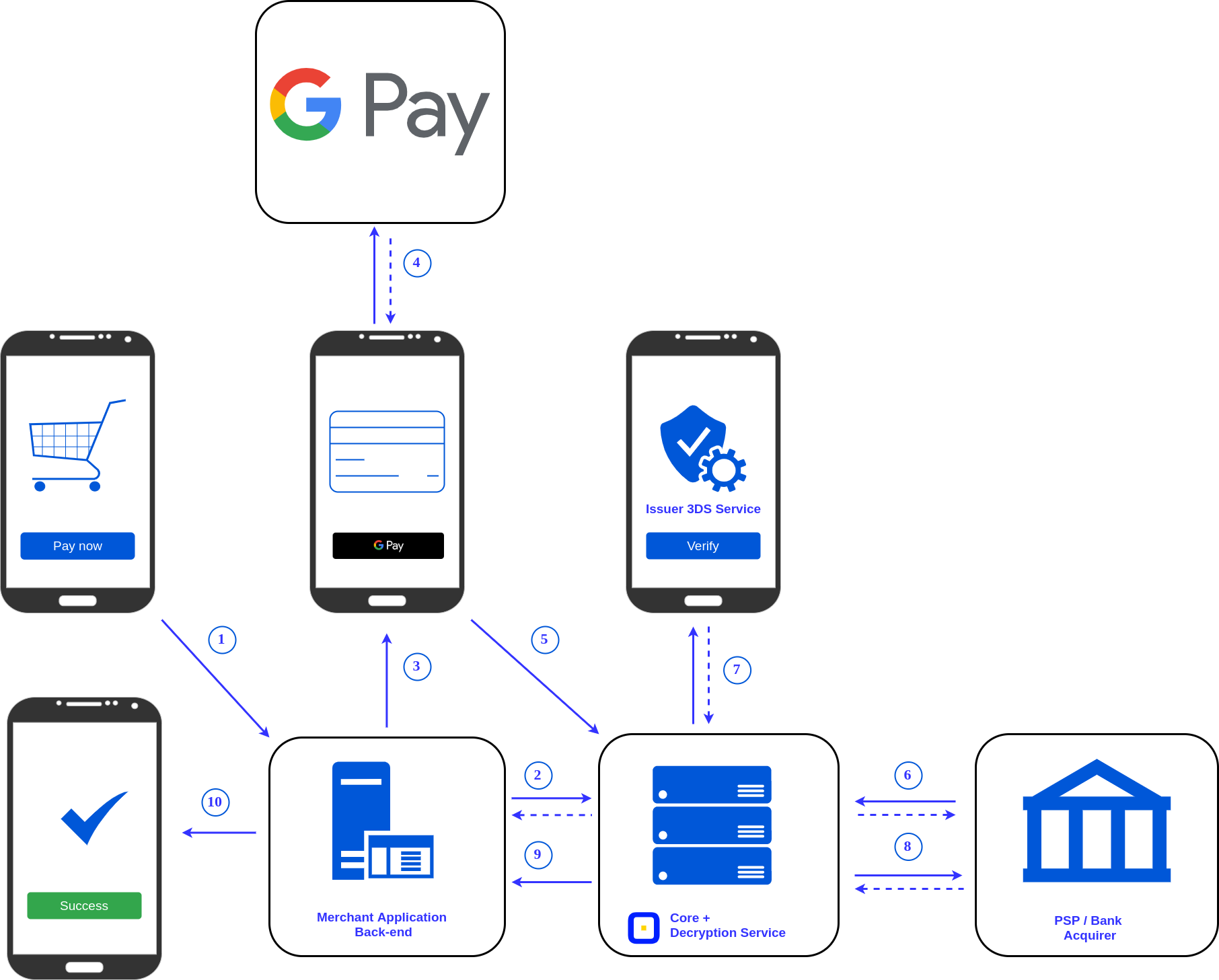
The utility of GPay extends to the digital realm. When shopping on websites or within other apps, look for the “Buy with Google Pay” button. Selecting this option eliminates the need to manually enter your 16-digit card number, expiration date, and CVV for every purchase. Instead, GPay securely provides the merchant with the necessary payment info. Because GPay is integrated into the Chrome browser, it can also autofill payment forms on sites that do not have a native GPay button, provided you have enabled the “Allow sites to check if you have payment methods saved” setting.
Managing Multiple Devices and Cross-Platform Syncing
If you use multiple devices—such as a smartphone, a tablet, and a Wear OS smartwatch—GPay synchronizes your cards and transaction history across all of them. For Wear OS users, GPay is a game-changer. By adding your cards to your watch, you can make payments by simply hovering your wrist over a terminal, allowing for a truly hands-free experience. Each device maintains its own secure token, meaning that even if you lose one device, your payment credentials on the others remains secure.
Digital Security: Protecting Your Financial Data in the GPay Ecosystem
Security is the cornerstone of the GPay architecture. Google employs several layers of advanced technology to ensure that your financial information remains private and protected from unauthorized access.
Virtual Account Numbers (Tokenization)
The most critical security feature of GPay is tokenization. When you add a card to the app, GPay does not store the actual card number on your device, nor does it share it with merchants during a transaction. Instead, it creates a “Virtual Account Number” or a token. When you tap to pay, the merchant receives this unique, one-time-use code. Even if a merchant’s database is compromised, the hackers only gain access to useless tokens rather than your actual credit card details.
Biometric Authentication and Screen Lock Requirements
GPay enforces strict authentication rules. To use the app for payments, your device must have a screen lock enabled (PIN, pattern, password, or biometrics like fingerprint or facial recognition). For many transactions, especially larger ones, the app requires a biometric “handshake” before authorizing the payment. This ensures that even if someone gains physical possession of your phone, they cannot make purchases without your biometric data or PIN.
Fraud Detection and Privacy Controls
Google’s sophisticated AI and machine learning algorithms work in the background to monitor for suspicious activity. If a transaction occurs that seems out of character for your spending habits or location, GPay may flag it for review or require additional verification. Additionally, GPay provides a high level of privacy control. Users can opt-out of personalized offers and choose whether their transaction history is used to customize other Google services.
Troubleshooting and Optimizing Your GPay Experience
While GPay is designed to be seamless, users may occasionally encounter technical hurdles. Understanding how to resolve these ensures an uninterrupted digital payment experience.
Common Technical Hurdles and Solutions
The most frequent issue users face is a “Transaction Declined” or “Phone Not Detected” error at the terminal. This is often caused by the phone’s NFC antenna not being aligned correctly with the reader. Each phone model has its NFC chip in a different location (usually near the top or the center-back).
Another common issue is an outdated app or operating system. GPay requires the latest security patches to function. If you encounter errors, check the Play Store or App Store for updates. Furthermore, ensure that “Battery Saver” mode is not disabling NFC or background data sync, as this can prevent the app from processing transactions in real-time.
Maximizing Cashback and Promotional Offers
To get the most out of GPay, users should regularly check the “Offers” or “Explore” tab. Google frequently partners with retailers and service providers to offer cashback or discounts for using GPay. These rewards are often credited directly to your GPay balance or linked bank account. By paying attention to these promotions, savvy users can turn their everyday software tool into a source of consistent savings.
In conclusion, GPay is a powerful piece of technology that offers a more secure, efficient, and integrated way to handle finances. By mastering its setup, exploring its diverse features—from NFC payments to digital boarding passes—and understanding its tokenization-based security, you can fully embrace the benefits of the digital wallet era. As financial tech continues to advance, GPay remains a benchmark for how software can simplify the complexities of modern commerce.
aViewFromTheCave is a participant in the Amazon Services LLC Associates Program, an affiliate advertising program designed to provide a means for sites to earn advertising fees by advertising and linking to Amazon.com. Amazon, the Amazon logo, AmazonSupply, and the AmazonSupply logo are trademarks of Amazon.com, Inc. or its affiliates. As an Amazon Associate we earn affiliate commissions from qualifying purchases.