
In the ecosystem of modern computing, few components are as critical to the user experience as the Graphics Processing Unit (GPU). Whether you are a competitive gamer seeking the highest possible frame rates, a creative professional rendering complex 3D environments, or a casual user wanting a smooth interface in Windows 11, the GPU is the engine driving those visuals. However, even the most powerful hardware is only as effective as the software that commands it. This software is the graphics driver—a crucial layer of code that acts as the translator between your operating system, your applications, and your hardware.

Keeping your graphics card drivers up to date is not merely a matter of routine maintenance; it is a vital practice for ensuring system stability, security, and peak performance. As software developers release more demanding games and applications, hardware manufacturers like NVIDIA, AMD, and Intel frequently release driver updates to optimize how the hardware handles these new workloads. In this guide, we will explore the nuances of why these updates matter, how to identify your specific hardware, and the step-by-step methods for maintaining a high-performance visual system.
Why Keeping Your Graphics Drivers Up to Date Matters
The primary reason most users seek driver updates is performance. For gamers, this is often quantified in “Game Ready” drivers. When a major title like Cyberpunk 2077 or Call of Duty launches, NVIDIA and AMD typically release dedicated drivers optimized specifically for those engines. These updates can provide double-digit percentage increases in frame rates and eliminate graphical artifacts or “stuttering” that can plague day-one releases.
Beyond gaming, professional applications in the Adobe Creative Cloud, Autodesk, and DaVinci Resolve suites rely heavily on GPU acceleration. “Studio” drivers are often released specifically for these users, prioritizing stability and certification over the bleeding-edge speed tweaks found in gaming drivers. Updating ensures that your hardware is utilizing the latest APIs, such as DirectX 12 Ultimate or Vulkan, which allow for advanced features like hardware-accelerated ray tracing and AI-driven upscaling (DLSS or FSR).
Finally, we must consider system stability and security. Modern GPUs are complex processors that manage memory and power consumption independently. Outdated drivers can lead to the dreaded “Blue Screen of Death” (BSOD), system crashes, or power inefficiencies that cause laptops to overheat. Furthermore, as GPUs are increasingly used for compute tasks and even AI processing, they become targets for security vulnerabilities. Driver updates often include patches for “privilege escalation” bugs that could theoretically allow malicious software to bypass standard OS security protocols.
Identifying Your Hardware: NVIDIA, AMD, or Intel?
Before you can update your drivers, you must know exactly what hardware is residing inside your chassis. While many users are aware of their brand—NVIDIA’s GeForce, AMD’s Radeon, or Intel’s Arc/Iris—knowing the specific model number is essential for downloading the correct package.
Using the Windows Device Manager
The most direct way to identify your GPU is through the Windows Device Manager.
-
Right-click the Start button and select Device Manager.
-
Locate the section labeled Display adapters and click the arrow to expand it.
-
Here, you will see the name of your graphics card (e.g., NVIDIA GeForce RTX 3080 or AMD Radeon RX 6700 XT).
Using System Information
For a more detailed view, including the current driver version and BIOS information:
-
Press the Windows Key + R, type
msinfo32, and hit Enter. -
Navigate to Components > Display.
-
This screen provides the “Driver Version” currently installed. Knowing this version number is helpful to determine if a newer version is actually available on the manufacturer’s website.
Laptop Considerations
If you are using a laptop, you likely have “Switchable Graphics.” This means your system has both an integrated GPU (iGPU) built into the processor (usually Intel or AMD) and a discrete GPU (dGPU) for high-performance tasks. In this scenario, it is often necessary to update both drivers to ensure the system switches between them seamlessly without crashing.
Method 1: Using Official Manufacturer Software
For the vast majority of users, the easiest and most reliable way to manage updates is through the official software suites provided by the manufacturers. These tools automate the detection of your hardware and notify you the moment a new update is available.
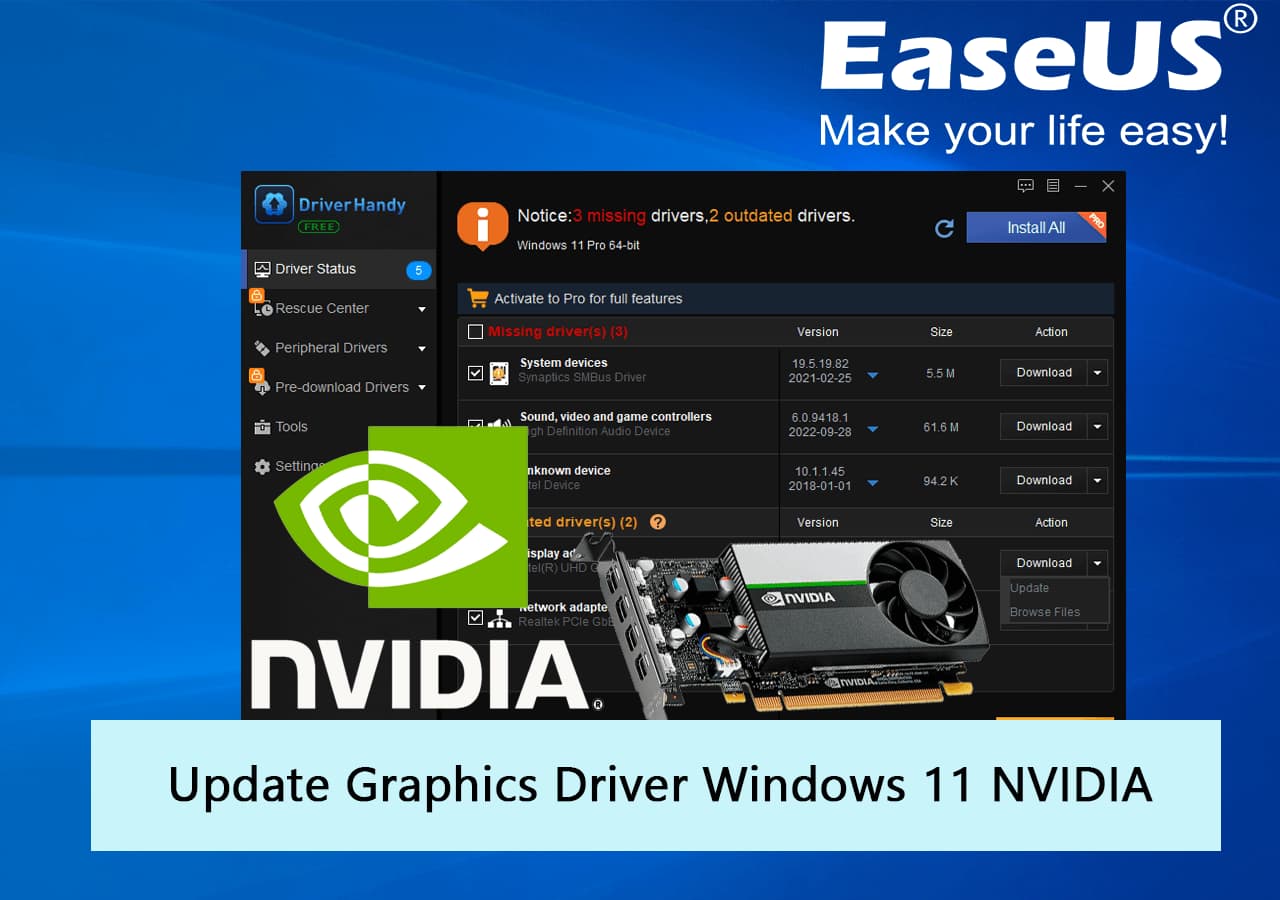
NVIDIA: GeForce Experience and the NVIDIA App
NVIDIA users have traditionally used “GeForce Experience,” though the company is currently transitioning to a unified “NVIDIA App.” Both tools function similarly:
-
Open the application and navigate to the Drivers tab.
-
Click Check for Updates.
-
If a new version is found, click Download.
-
Once downloaded, choose Express Installation. This will automatically update the driver while preserving your settings.
AMD: Radeon Software Adrenalin Edition
AMD’s software is often praised for its comprehensive feature set. To update:
-
Right-click on your desktop and select AMD Software: Adrenalin Edition.
-
On the Home tab, look at the top-right corner under the Software & Driver section.
-
Click Check for Updates. If one is available, select Download & Install.
-
AMD also offers a “Factory Reset” option during installation, which is useful if you have been experiencing stability issues.
Intel: Driver & Support Assistant (DSA)
With the rise of Intel Arc dedicated GPUs and the continued dominance of Intel Iris Xe integrated graphics, Intel has streamlined its process.
-
Download and install the Intel Driver & Support Assistant from Intel’s website.
-
The tool runs in your system tray and opens a browser window to show you exactly which drivers are out of date.
-
It provides a “Download All” option that simplifies the update process for the GPU, Wi-Fi, and Bluetooth chips simultaneously.
Method 2: Manual Installation via Manufacturer Websites
There are scenarios where automated software might fail—perhaps due to a firewall restriction, a corrupted installation, or an offline workstation. In these cases, manual installation is the gold standard.
Step-by-Step Manual Update
-
Visit the Download Page: Go to the official driver page for NVIDIA, AMD, or Intel.
-
Input Your Specs: Use the dropdown menus to select your Product Type, Product Series, Product Model, and Operating System (e.g., Windows 11).
-
Select Driver Type: NVIDIA users will often have to choose between “Game Ready Drivers” (for gamers) and “Studio Drivers” (for editors/designers). Choose the one that fits your primary use case.
-
Download the Installer: Save the
.exeor.msifile to your desktop. -
Run as Administrator: Right-click the downloaded file and select “Run as administrator.” Follow the on-screen prompts. During the process, your screen may flicker or turn black momentarily; this is normal as the old driver is being swapped for the new one.
Advanced Troubleshooting: Using Display Driver Uninstaller (DDU)
Sometimes, simply “updating” a driver isn’t enough. If you are moving from an NVIDIA card to an AMD card, or if you are experiencing persistent crashes despite having the latest drivers, old registry keys and file fragments might be causing conflicts. This is where a “Clean Install” using Display Driver Uninstaller (DDU) becomes necessary.
When to Use DDU
DDU is a community-developed utility that nukes every trace of a graphics driver from your system. You should use it if:
-
You are experiencing “driver timeout” errors.
-
You have upgraded your physical GPU to a different brand.
-
Your driver installer keeps failing with a generic error message.
How to Perform a Clean Install
-
Download DDU and your new driver installer beforehand.
-
Disconnect from the Internet: This prevents Windows Update from automatically installing a basic (and often outdated) driver the moment you reboot.
-
Boot into Safe Mode: This is critical. Safe Mode prevents the OS from loading the active driver, allowing DDU to delete files that would otherwise be “in use.”
-
Run DDU: Select your GPU type (NVIDIA/AMD/Intel) and choose “Clean and restart.”
-
Install the New Driver: Once the system reboots into normal Windows, run the driver installer you downloaded in Step 1.
-
Reconnect to the Internet: Once the installation is successful, you can safely go back online.

Summary and Best Practices
Maintaining your graphics drivers is a small task that yields significant rewards in longevity and performance. For the average user, checking for updates once a month or whenever a major new game is released is a healthy cadence.
A few final tips for a smooth experience:
-
Avoid Third-Party “Driver Updater” Software: Many “free” tools found online are bloatware or malware. Only trust drivers directly from NVIDIA, AMD, Intel, or your laptop manufacturer (like Dell or ASUS).
-
Keep Your OS Updated: Modern drivers often require specific versions of Windows (like the 22H2 or 23H2 updates) to function correctly.
-
Backup: If you are a professional in the middle of a critical project, avoid updating your drivers until the project is finished. While rare, new drivers can occasionally introduce regressions that might disrupt your workflow.
By following these steps, you ensure that your hardware remains a capable tool for years to come, squeezing every possible bit of power and visual fidelity out of your silicon investment.
aViewFromTheCave is a participant in the Amazon Services LLC Associates Program, an affiliate advertising program designed to provide a means for sites to earn advertising fees by advertising and linking to Amazon.com. Amazon, the Amazon logo, AmazonSupply, and the AmazonSupply logo are trademarks of Amazon.com, Inc. or its affiliates. As an Amazon Associate we earn affiliate commissions from qualifying purchases.