
In the contemporary computing landscape, the graphics processing unit (GPU) has evolved from a simple component used to render basic desktop interfaces into a powerhouse of parallel processing. Whether you are a creative professional rendering 8K video, a competitive gamer seeking high frame rates, or a data scientist leveraging CUDA cores for machine learning, your hardware is only as effective as the software that communicates with it. This software is the display driver. Understanding how to update your display driver—and doing so correctly—is one of the most vital maintenance tasks for any PC user.
A display driver acts as the essential translator between your operating system (Windows, Linux, or macOS) and your graphics hardware. Without an optimized, up-to-date driver, your system may experience graphical artifacts, frequent crashes, poor energy efficiency, or a complete inability to launch modern applications. This guide provides an in-depth exploration of the methodologies for updating display drivers, troubleshooting common installation issues, and optimizing your settings for peak performance.
The Critical Function of Display Drivers in the Digital Ecosystem
Before diving into the “how,” it is important to understand the “why.” Display drivers are not static files; they are complex pieces of software that undergo constant revision by hardware manufacturers like NVIDIA, AMD, and Intel. These updates serve three primary purposes: performance optimization, bug fixes, and feature expansion.
Performance Optimization and Game Readiness
For gamers, driver updates are often timed with the release of major “AAA” titles. Manufacturers release “Game Ready” drivers that include specific optimizations for new game engines. These optimizations can result in significant increases in frames per second (FPS) and reductions in latency. Similarly, for professionals using software like Adobe Premiere Pro, AutoCAD, or Blender, updated drivers ensure that the GPU acceleration features—such as hardware encoding and real-time ray tracing—function at maximum efficiency.
Security and System Stability
Like any software, display drivers can have vulnerabilities. Because the graphics driver operates at a low level of the system (often with kernel-level access), a security flaw could theoretically allow malicious actors to compromise the entire machine. Regular updates patch these security holes. Furthermore, as operating systems receive updates (such as a new version of Windows 11), the display driver must be updated to remain compatible with the new OS architecture, preventing the dreaded “Blue Screen of Death” (BSOD).
Support for New Hardware Technologies
Hardware manufacturers frequently unlock new capabilities through software. Technologies such as AI-driven upscaling (NVIDIA DLSS, AMD FSR, Intel XeSS), variable refresh rate (G-Sync and FreeSync), and high dynamic range (HDR) support often require the latest driver versions to function correctly. If you are using an older driver, you might be leaving significant visual fidelity on the table.
Primary Methods for Updating Drivers on Windows Systems
There are several ways to update your display driver, ranging from automated OS-level updates to manual installations from the manufacturer’s website. The method you choose depends on your technical comfort level and your specific performance needs.
Using Windows Update for Basic Functionality
For many casual users, Windows Update is the simplest path. Microsoft works with hardware vendors to distribute “WHQL” (Windows Hardware Quality Labs) certified drivers. These drivers have undergone rigorous testing for stability.
To use this method:
-
Open Settings and navigate to Windows Update.
-
Click Check for updates.
-
If a driver is available, it will download and install automatically.
However, Windows Update often lags behind the latest releases. If you are a gamer or a professional, this method may not provide the cutting-edge optimizations found in the manufacturer’s direct releases.
Utilizing Device Manager for Manual Checks
The Device Manager provides a more targeted way to check for updates without waiting for a global Windows Update cycle.
-
Right-click the Start button and select Device Manager.
-
Expand the Display adapters section.
-
Right-click your GPU (e.g., NVIDIA GeForce RTX 4070 or AMD Radeon RX 7800 XT) and select Update driver.
-
Choose Search automatically for drivers.
If Windows finds a newer version in its database, it will apply it immediately. If it says you already have the best driver, it may still be worth checking the manufacturer’s website, as Microsoft’s database is not always exhaustive.
Manufacturer-Specific Software Suites
The most recommended method for power users is using the proprietary software provided by the GPU manufacturer. These suites provide an all-in-one interface for driver updates, performance monitoring, and game optimization.
-
NVIDIA GeForce Experience / NVIDIA App: This tool notifies you the moment a new driver is released. It allows for a “one-click” installation and offers features like ShadowPlay for recording and optimal game settings.
-
AMD Software: Adrenalin Edition: AMD’s suite is highly integrated, offering robust overclocking tools and performance metrics alongside driver management.
-
Intel Graphics Command Center / Arc Control: For users with Intel Integrated Graphics or the new Arc dedicated GPUs, this software ensures the latest media codecs and gaming optimizations are active.
Advanced Troubleshooting: Performing a Clean Driver Installation
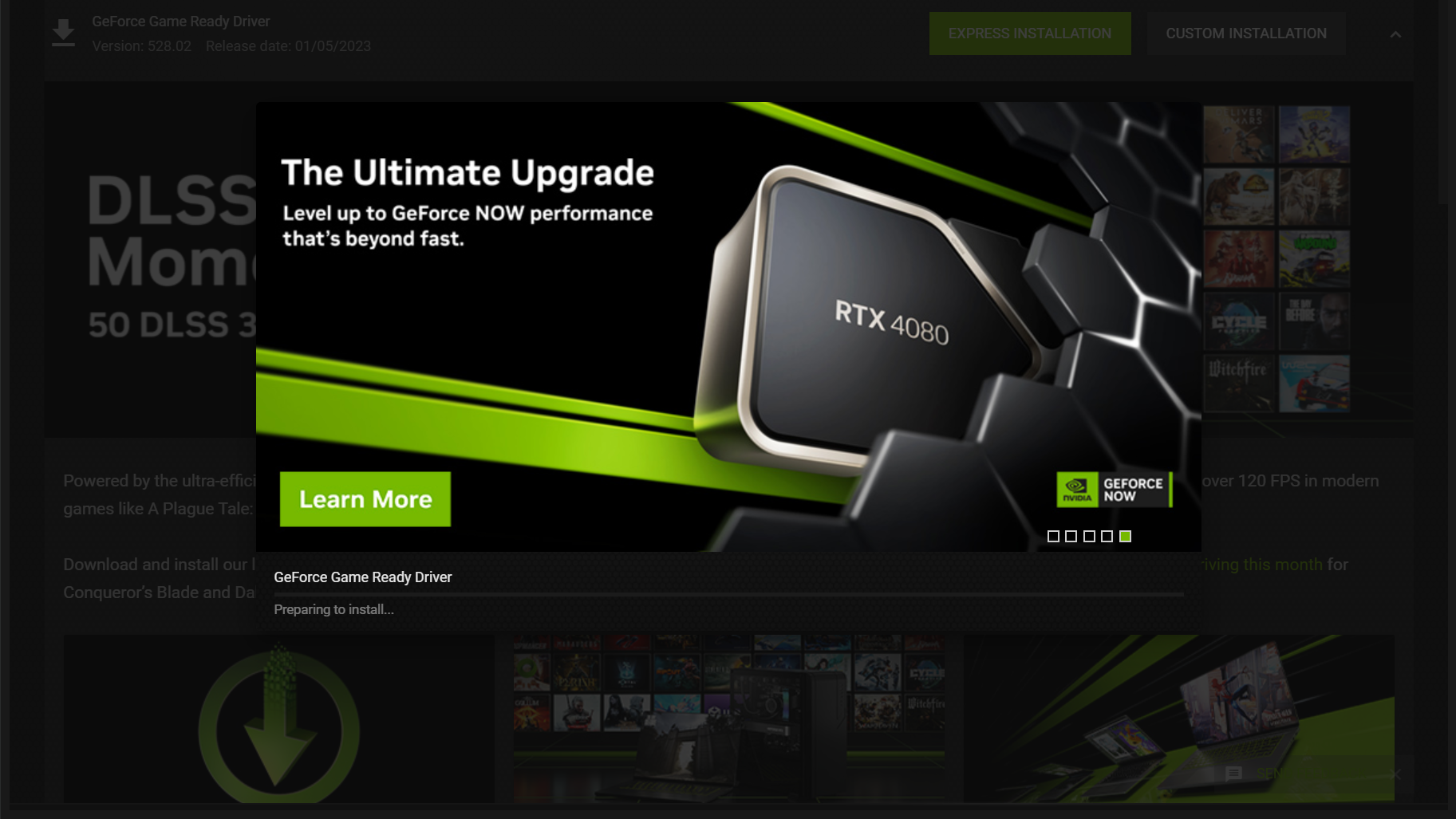
Sometimes, simply clicking “update” is not enough. Over time, residual files from old driver versions can accumulate, leading to software conflicts, stuttering, or “driver time-outs.” In these instances, a “clean installation” is necessary.
When to Consider a Clean Install
A clean install is advisable if you are switching GPU brands (e.g., moving from NVIDIA to AMD), if you are experiencing persistent graphical glitches, or if a standard update fails repeatedly. A clean install wipes all previous driver data, registry keys, and settings before installing the fresh version.
Using Display Driver Uninstaller (DDU)
For the most thorough cleaning, tech enthusiasts use a third-party utility called Display Driver Uninstaller (DDU).
-
Download the latest driver from the manufacturer’s website but do not run it yet.
-
Download DDU and boot your computer into Safe Mode.
-
Run DDU to remove all traces of the current display driver.
-
Restart your computer in normal mode.
-
Install the new driver you downloaded in step one.
This process ensures that no legacy “junk” interferes with the new software, providing a pristine environment for the GPU to operate.
Managing Beta vs. WHQL Drivers
When downloading drivers manually, you may encounter different versions. WHQL Drivers are the standard, stable releases. Beta Drivers (or “Optional” in AMD’s case) include the very latest features and support for games that haven’t been released yet. While Beta drivers offer the best performance for new titles, they may contain bugs. If stability is your priority, stick to WHQL releases; if you are a “day-one” gamer, the Beta versions are often a necessity.
Optimizing Your Display Driver for Specific Use Cases
Updating the driver is only the first step; configuring it for your specific workload is where you truly find value. Modern drivers offer a plethora of settings that can be adjusted to suit different needs.
Tailoring Drivers for Gaming
Gamers should dive into their driver’s control panel to manage features like Low Latency Mode (NVIDIA Reflex) or Anti-Lag (AMD). These features reduce the delay between a mouse click and the action appearing on screen. Additionally, managing “Shader Cache” sizes within the driver can help reduce stuttering in open-world games by pre-compiling graphical assets.
Drivers for Creative Professionals: Studio vs. Game Ready
NVIDIA offers a unique choice: the Game Ready Driver or the Studio Driver. While they share the same core code, the Studio Driver undergoes extensive testing with creative applications like Maya, DaVinci Resolve, and the Adobe Creative Cloud. If your PC is a workstation first and a gaming machine second, switching to the Studio Driver via the NVIDIA App can significantly reduce crashes during long video renders or complex 3D modeling sessions.
Multi-Monitor and High-Resolution Setups
If you use multiple monitors or high-refresh-rate displays (144Hz and above), your display driver is responsible for managing the bandwidth. Within the driver settings, you can configure “Display Stream Compression” (DSC) and ensure that your color depth is set to 10-bit or 12-bit for HDR content. Updates often improve how the GPU handles the transition between different resolutions, preventing flickering or window-rearrangement issues when waking the computer from sleep.
Future Trends: The Convergence of AI and Driver Software
The future of display drivers is inextricably linked with Artificial Intelligence. We are moving away from traditional rasterization and toward AI-assisted rendering. As this technology matures, the “update” process will become even more critical, as the AI models residing within the drivers are constantly being refined.
AI-Driven Performance and Image Reconstruction
We have already seen the impact of AI with NVIDIA’s DLSS 3.5 (Deep Learning Super Sampling) and Ray Reconstruction. These technologies use AI models to “guess” what pixels should look like, allowing a GPU to output a 4K image while only rendering at 1080p internally. Future driver updates will likely include updated AI “weights” that improve image quality in specific games without requiring any changes to the game’s code itself.
Security in the Age of Kernel-Level Drivers
As the complexity of drivers grows, so does the attack surface for cyber threats. We can expect future display drivers to incorporate more robust hardware-level security features. This may include isolated environments for driver execution to prevent a compromised driver from affecting the rest of the system. For the user, this means that staying updated will be as much about digital security as it is about visual performance.
In conclusion, the display driver is the lifeblood of your visual experience. By moving beyond basic Windows updates and mastering the art of manual installations, clean uninstalls, and specific optimizations, you ensure that your hardware investment is fully realized. In an era where software defines the capabilities of hardware, keeping your display driver current is the single most effective way to maintain a fast, secure, and visually stunning computing environment. Whether you are chasing the highest possible frame rates or ensuring a stable render for a client deadline, the health of your display driver should always be a top priority.
aViewFromTheCave is a participant in the Amazon Services LLC Associates Program, an affiliate advertising program designed to provide a means for sites to earn advertising fees by advertising and linking to Amazon.com. Amazon, the Amazon logo, AmazonSupply, and the AmazonSupply logo are trademarks of Amazon.com, Inc. or its affiliates. As an Amazon Associate we earn affiliate commissions from qualifying purchases.