
In the modern digital landscape, the “subscription economy” has transformed how we consume media, software, and services. SiriusXM, a titan in the satellite radio and streaming space, offers a robust ecosystem of content, but there often comes a time when a user needs to offload digital baggage. Whether you are streamlining your monthly software expenses or transitioning to alternative streaming platforms, navigating the cancellation process requires a clear understanding of the service’s technical interface and various administrative pathways.
Canceling a SiriusXM subscription is not always as simple as clicking a single button. Because the service bridges the gap between hardware-integrated satellite receivers (in vehicles) and standalone digital streaming apps, the technical steps vary depending on how you originally provisioned your account. This guide provides a comprehensive technical walkthrough for terminating your service across web portals, mobile ecosystems, and third-party billing platforms.
Navigating the Digital Dashboard: Canceling via the Web Portal
For the majority of subscribers who signed up directly through the SiriusXM website, the primary method of management is the Online Self-Service portal. This web-based interface is designed to handle account modifications, plan upgrades, and—to a certain extent—cancellations.
Step-by-Step Web Instructions
To begin the process, navigate to the official SiriusXM website using a desktop browser. While mobile browsers can access the site, the desktop version provides a more stable UI for navigating deep account settings.
-
Authentication: Log in to your “Online Account Center” using your primary credentials. If you have forgotten your password, utilize the “Forgot Password” API trigger to reset your access via your registered email.
-
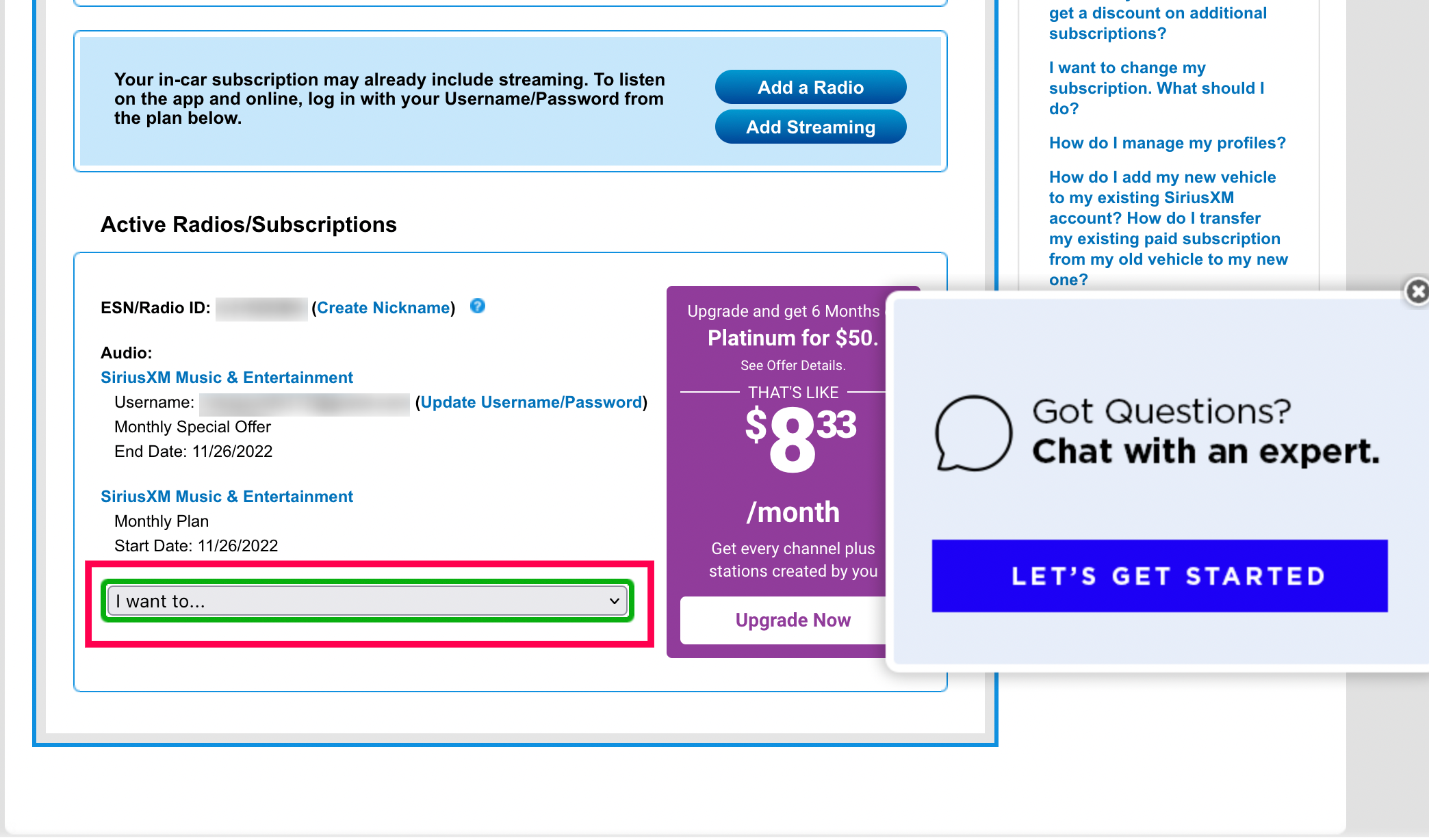
Locate the Subscription Tab: Once authenticated, navigate to the “Manage Your Account” section. Here, you will see a dashboard displaying your active Radio IDs or ESNs (Electronic Serial Numbers).
-
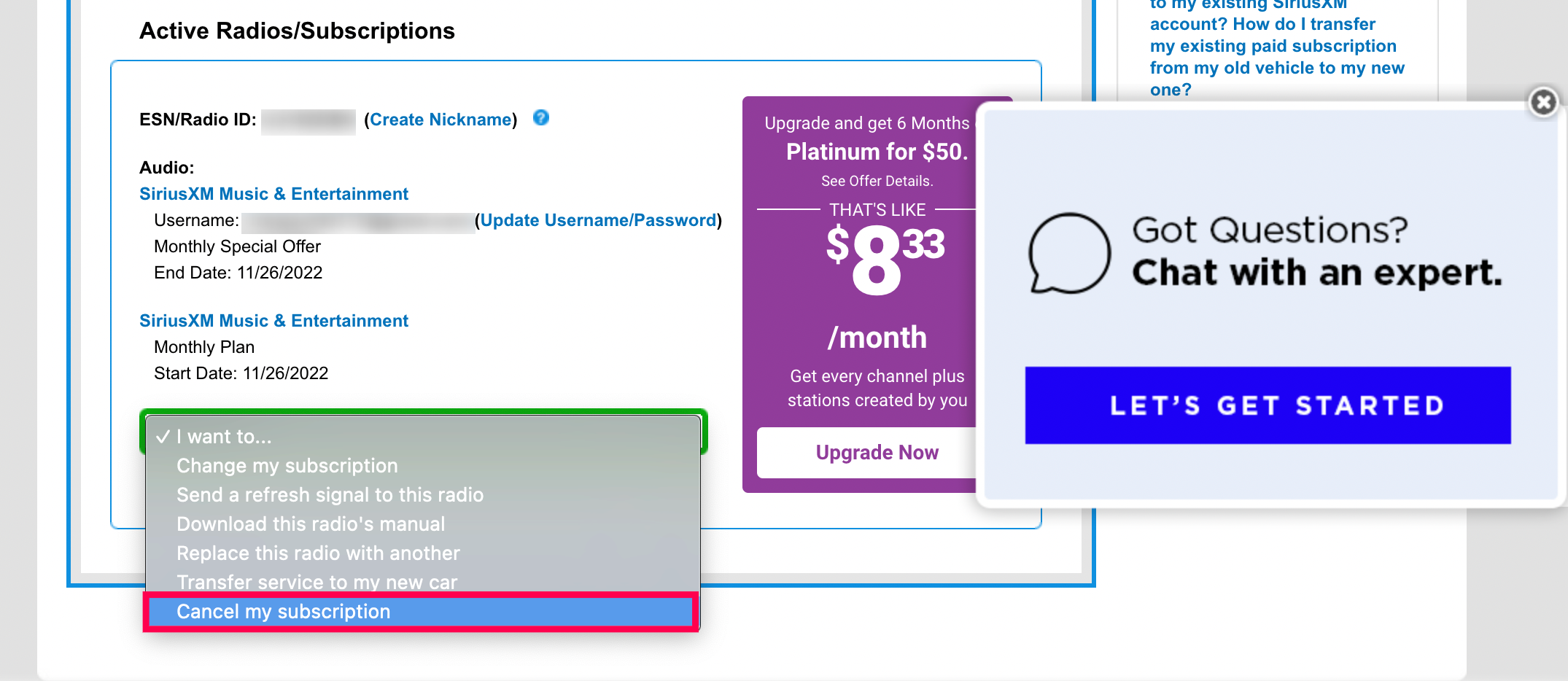
The “Modify” Workflow: Select the specific subscription you wish to terminate. Look for a link or button labeled “Modify,” “Cancel,” or “Manage.”
-
Digital Retention Hurdles: Be prepared for a series of automated retention prompts. The system is programmed to offer technical downgrades or promotional pricing tiers (e.g., transitioning from a “Platinum” plan to a “Streaming Only” plan). To proceed with a full cancellation, you must consistently bypass these offers.
-
Confirmation and Documentation: Upon successful completion of the automated flow, the system should generate a cancellation confirmation number. It is a critical digital best practice to screenshot this page or save the confirmation email, as this serves as your technical receipt should billing continue erroneously.
Troubleshooting Login Issues
Many users encounter technical friction during login, particularly if their account was created at a dealership during a vehicle purchase. If the system does not recognize your email, you may need to “Find Your Account” using your Radio ID or VIN (Vehicle Identification Number). The Radio ID can usually be found by tuning your satellite radio to Channel 0. This hardware-software handshake is essential for identifying the correct account in SiriusXM’s database.
Managing App-Based Subscriptions: iOS and Android
If you subscribed to SiriusXM through a mobile application store rather than the website, your billing relationship is not directly with SiriusXM, but with Apple or Google. In these instances, the SiriusXM web portal will not have the administrative permissions to cancel your subscription.
Canceling through the Apple App Store (iOS)
For iPhone and iPad users, the subscription is tied to your Apple ID. The cancellation must be handled within the iOS ecosystem’s subscription management settings.
-
Open the Settings app on your device.
-
Tap your Apple ID/Name at the top of the menu.
-
Navigate to Subscriptions.
-
Locate “SiriusXM” in the list of active services.
-
Select Cancel Subscription.
From a technical standpoint, this sends a signal to Apple’s billing API to cease the recurring charge at the end of the current billing cycle. Access to the streaming content will typically remain active until the expiration date of the pre-paid period.
Managing Google Play Store Subscriptions (Android)
Android users follow a similar protocol within the Google Play environment.
-
Open the Google Play Store app.
-
Tap your profile icon at the top right corner.
-
Select Payments & subscriptions > Subscriptions.
-
Find the SiriusXM entry and tap Cancel subscription.
-
Follow the prompts to confirm.
It is important to note that simply deleting the SiriusXM app from your phone does not terminate the subscription. The app is merely the interface; the subscription is a server-side permission that must be formally revoked through the store’s billing management tools.
Utilizing the SiriusXM Online Chat and Support Channels
In certain jurisdictions or for specific account types (such as older legacy plans), the “Cancel” button may not be available in the self-service dashboard. In these cases, you must engage with the company’s digital support infrastructure.
The Automated Assistant vs. Live Agents
SiriusXM utilizes a hybrid support model. When you initiate an online chat, you are first greeted by an AI-driven “Virtual Assistant.” This bot is capable of handling basic technical queries and account lookups. To cancel, you must often type “Cancel Subscription” or “Speak to an agent” to bypass the bot and enter the queue for a live representative.
The live chat interface is the most efficient way to handle cancellations without picking up a phone. However, be aware that chat agents are equipped with a “retention playbook.” This is a structured technical workflow designed to offer incentives to prevent churn. Clear, concise communication—stating “I want to cancel my service, no offers please”—is the most effective way to navigate this interaction.
Technical Requirements for Live Chat
Ensure your browser’s pop-up blocker is disabled and that you are not using a VPN that might interfere with the chat’s geolocation or security protocols. High-latency connections can sometimes cause the chat session to time out, which may require you to restart the process. Always ask the agent to provide a “Chat Transcript ID” or a “Reference Number” before closing the window.
Third-Party Billing and Car Dealership Integrations
A significant portion of SiriusXM’s user base comes from “Trial” accounts integrated into new or used vehicles. Understanding the technical handover between a trial and a paid subscription is vital.
Dealing with Integrated Vehicle Trials
Most modern vehicles come with a factory-installed SiriusXM module. When the trial period ends, the service usually lapses automatically unless you have provided credit card information for a “trial-to-paid” conversion. If you did provide payment info during the activation of a trial, you must proactively cancel before the trial expires to avoid an automated transition to a full-price monthly plan.
If you sell your vehicle, the subscription does not automatically cancel. The account is linked to your persona and payment method, not the physical hardware of the car once you have moved past the initial trial phase. You must manually remove the Radio ID from your account via the “Manage Vehicles” section of the web portal.
Portability and Device Management
One technical alternative to cancellation is “Transferring” a subscription. If you are canceling because you bought a new car, you can use the Online Account Center to transfer the remaining balance and service days from your old Radio ID to the new one. This is handled through the “Transfer Subscription” utility in the device management settings, which updates the ESN authorization on the satellite network.
Digital Best Practices for Subscription Security and Management
Canceling a service like SiriusXM is part of a larger digital hygiene strategy. As we accumulate dozens of “Software as a Service” (SaaS) and media subscriptions, the technical overhead of managing these accounts grows.
Privacy Concerns and Data Retention
When you cancel, your account data remains in SiriusXM’s database for a period determined by their data retention policy. This allows for easy “win-back” offers and account reactivation. If you wish to have your data purged for privacy reasons, you may need to submit a formal “Data Deletion Request” (DSR) if you are in a jurisdiction covered by regulations like the GDPR or CCPA.
Using Subscription Tracking Tools
To prevent “zombie subscriptions”—services you pay for but do not use—consider employing digital financial tools or “subscription managers.” These apps connect to your bank’s API to identify recurring charges. While they cannot always cancel the service for you (due to the security silos of platforms like SiriusXM), they provide a centralized dashboard to track renewal dates and technical contact points for all your digital services.

Conclusion
Terminating a SiriusXM subscription involves navigating a multi-layered digital environment. Whether you are interacting with the web portal’s UI, the mobile app store’s billing API, or the live chat support system, the key to a successful cancellation is identifying your specific account type and following the corresponding technical path. By securing a confirmation number and monitoring your billing statements for 30 days post-cancellation, you ensure that your digital footprint and financial commitments remain precisely where you want them. In an era defined by persistent connectivity, mastering the technical “exit” is just as important as the initial “onboarding.”
aViewFromTheCave is a participant in the Amazon Services LLC Associates Program, an affiliate advertising program designed to provide a means for sites to earn advertising fees by advertising and linking to Amazon.com. Amazon, the Amazon logo, AmazonSupply, and the AmazonSupply logo are trademarks of Amazon.com, Inc. or its affiliates. As an Amazon Associate we earn affiliate commissions from qualifying purchases.