
The landscape of home entertainment has undergone a seismic shift from physical media to digital-on-demand services. At the forefront of this evolution is Amazon Prime Video, a platform that serves not just as a repository for subscription-based content, but as a sophisticated digital storefront for the latest cinematic releases. Understanding how to rent movies on Amazon requires more than a simple click; it involves navigating a complex ecosystem of hardware compatibility, software interfaces, and digital rights management (DRM) protocols. This guide provides a comprehensive technical overview of the rental process, ensuring users can optimize their viewing experience across all digital frontiers.

Navigating the Prime Video Interface and Infrastructure
Amazon’s digital storefront is integrated directly into the Prime Video application and the broader Amazon retail website. For a user, the primary challenge often lies in distinguishing between content included with a Prime membership and content available for individual rental or purchase. This distinction is governed by the platform’s UI/UX design, which uses specific “ribbons” and iconography—such as the “Prime” checkmark—to categorize titles.
The Search and Discovery Algorithm
When searching for a title, Amazon’s backend architecture prioritizes results based on availability and user history. To find a rental, users must navigate to the “Store” tab within the Prime Video app or search for a specific title in the Amazon search bar, filtering by “Movies & TV.” The technical architecture of the search function utilizes metadata tags (e.g., release date, studio, resolution) to surface the correct version of a film. Often, a single movie may have multiple listings—one for standard definition (SD), one for high definition (HD), and another for 4K Ultra HD (UHD). Selecting the correct “Technical Specification” at the point of rental is crucial for ensuring the stream matches the capabilities of the output hardware.
Prime Video vs. The Amazon Store
It is essential to understand that the rental mechanism operates on a transactional video-on-demand (TVOD) model. Unlike the subscription video-on-demand (SVOD) model used for Prime-inclusive content, TVOD transactions trigger a specific billing API that interacts with the user’s “1-Click” payment settings. This streamlined technical process is designed to reduce friction, allowing for immediate access to the license key required to decrypt the video stream.
Platform-Specific Rental Protocols
The process of renting a movie varies significantly depending on the device being used, primarily due to the varying commercial policies and software limitations of different operating systems.
Renting via Web Browsers and Desktop Applications
The most direct method for renting movies is through a standard web browser (Chrome, Firefox, Safari, or Edge). This method avoids the “In-App Purchase” hurdles found on mobile platforms. When a user selects a rental on the website, the Amazon servers verify the geographical IP address to ensure licensing compliance for that specific region. Once the transaction is confirmed, the rental license is tied to the Amazon account’s Universal Unique Identifier (UUID), making the content available across all registered devices.
The iOS and Android Challenge: In-App Purchase Restrictions
One of the most frequent technical roadblocks users encounter is the inability to rent movies directly within the Prime Video app on certain mobile devices, such as the iPhone or some Android tablets. This is not a technical glitch but a strategic response to the fee structures imposed by Apple and Google. Both companies traditionally demand a percentage (often 15-30%) of in-app transactions.
To circumvent this, Amazon employs a “cross-platform fulfillment” strategy. Users are directed to complete the rental transaction through a mobile browser. Once the purchase is finalized on the web, the app’s database refreshes via an API call, and the movie appears in the “My Stuff” or “Purchases & Rentals” tab of the native application, ready for streaming or local download.
Smart TVs and Dedicated Streaming Hardware
For devices like the Amazon Fire TV Stick, Roku, or integrated Smart TVs, the rental process is integrated directly into the OS. These devices use secure payment gateways that are pre-authorized. On a technical level, these devices often utilize “Silent Authentication” to keep the user logged in, meaning the transition from browsing to renting is handled by the device’s internal secure enclave to protect financial data.
Decoding Streaming Quality and Technical Requirements
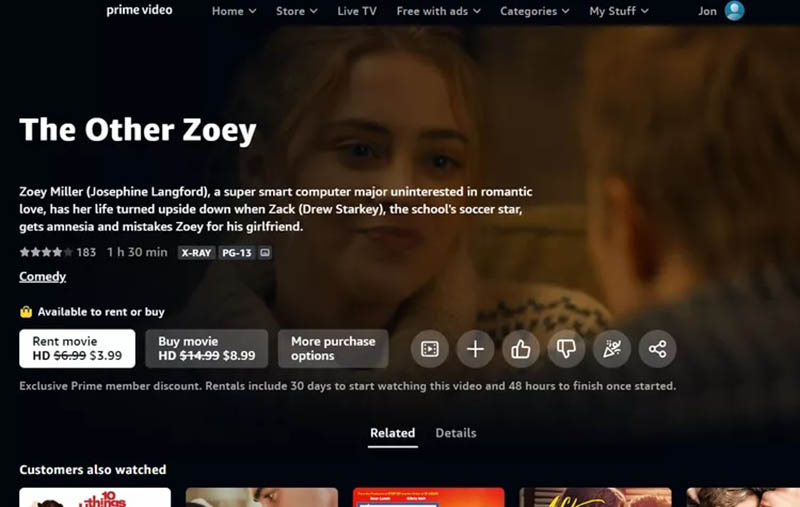
Renting a movie is only half the process; the other half is ensuring that the technical delivery of the content meets modern standards. Amazon offers various tiers of quality, each with its own set of hardware requirements.
Bandwidth and Bitrate Management
The quality of a rental—whether SD, HD, or 4K—is determined by the available bandwidth. Amazon uses Adaptive Bitrate Streaming (ABS), which adjusts the video quality in real-time based on the user’s network conditions.
-
SD (Standard Definition): Requires approximately 1 Mbps.
-
HD (High Definition): Generally requires 3.5 to 5 Mbps.
-
4K UHD (Ultra High Definition): Requires a stable connection of at least 15-25 Mbps.
If the network’s throughput drops, the player will dynamically switch to a lower bitrate to prevent buffering, a process managed by the HLS (HTTP Live Streaming) or DASH (Dynamic Adaptive Streaming over HTTP) protocols.
Hardware Compatibility: HDR and Audio Codecs
For users renting 4K content, the entire hardware chain must be compliant. This includes:
-
HDCP 2.2 Support: The High-bandwidth Digital Content Protection protocol must be supported by the HDMI cable, the streaming device, and the TV to prevent unauthorized recording of the digital signal.
-
HDR10/Dolby Vision: These are high-dynamic-range formats that provide better contrast and color. Amazon supports multiple HDR formats, but the playback device must be capable of decoding the metadata.
-
Audio Pass-through: Many Amazon rentals feature Dolby Atmos or 5.1 Surround Sound. To utilize these, the app must be configured to pass the raw audio data to an external receiver or soundbar capable of decoding the specific codec (such as EAC3).
Digital Rights Management (DRM) and Rental Constraints
When you rent a movie on Amazon, you are not “owning” a file; you are purchasing a temporary license. This license is governed by strict DRM rules that dictate how and when the content can be consumed.
The 30-Day and 48-Hour Windows
The industry-standard rental window follows a two-tiered countdown:
-
The 30-Day Window: Once the rental is paid for, you typically have 30 days to begin watching the movie. During this time, the license is stored in your account’s digital library.
-
The 48-Hour Window: As soon as you press “Play” for the first time, a secondary timer begins. You generally have 48 hours to finish the movie or watch it as many times as you like. This “Start-to-Finish” window is strictly enforced by the platform’s DRM server, which logs the timestamp of the initial playback request.
Offline Viewing and Download Limits
The Prime Video app allows users to download rented movies for offline viewing on mobile devices and tablets. However, this introduces further technical restrictions. The encrypted file is stored in the device’s local cache, and the DRM license must be “checked out” before going offline. If the 48-hour viewing window expires while the device is offline, the app will automatically delete the local cache or revoke access to the file until a network connection is established to verify the license status.
Security and Troubleshooting for Digital Rentals
Maintaining the security of digital transactions and the stability of the playback environment is paramount for a seamless user experience.
Securing the Payment Gateway
Amazon utilizes TLS (Transport Layer Security) encryption for all rental transactions. Users can further secure their accounts by enabling a “Prime Video PIN.” This adds a software-level authentication layer, preventing unauthorized rentals by children or guests. From a technical standpoint, this PIN is verified on Amazon’s servers before the “1-Click” API is triggered, acting as a gatekeeper for the financial transaction.

Resolving Common Playback Errors
Many technical issues during a rental stem from “Handshake Errors” between the app and the hardware. Common error codes (like Error 7031 or 8056) often point to issues with browser compatibility or silverlight/HTML5 player conflicts.
-
Cache Clearance: If a rental fails to load, clearing the application cache forces the app to re-fetch the DRM license from the server.
-
Geographic Restrictions: If a user attempts to access a rented movie while traveling abroad using a VPN, the rental may be blocked. Amazon employs sophisticated VPN detection algorithms to ensure content is only viewed in regions where the studio has granted distribution rights.
The process of renting movies on Amazon is a masterclass in modern digital distribution. By understanding the interplay between UI categories, platform-specific constraints, and the underlying streaming technologies, users can ensure they are getting the highest quality experience for their investment. As the technology continues to advance toward 8K streaming and more integrated AI-driven discovery, the fundamental principles of managing digital licenses and hardware compatibility remain the cornerstone of the virtual cinema experience.
aViewFromTheCave is a participant in the Amazon Services LLC Associates Program, an affiliate advertising program designed to provide a means for sites to earn advertising fees by advertising and linking to Amazon.com. Amazon, the Amazon logo, AmazonSupply, and the AmazonSupply logo are trademarks of Amazon.com, Inc. or its affiliates. As an Amazon Associate we earn affiliate commissions from qualifying purchases.