
In the modern digital landscape, the Amazon ecosystem has become an almost inescapable infrastructure. For over a decade, Amazon Prime has transitioned from a simple expedited shipping service into a massive technological conglomerate spanning cloud storage, streaming media, smart home integration, and digital literature. However, as the digital economy evolves, many users are finding themselves overwhelmed by “subscription fatigue” or are seeking to minimize their digital footprint. Whether you are streamlining your software dependencies or migrating to a different set of digital tools, understanding the technical process of closing an Amazon Prime account—and the cascading effects it has on your data—is essential for any tech-savvy consumer.

Navigating the cancellation process requires more than just clicking a button; it involves understanding user interface (UI) design choices intended to retain users and managing the various digital assets tied to the subscription. This guide provides a deep dive into the technical steps, the impact on your integrated devices, and the preservation of your digital data.
The Technical Architecture of Prime: What You Are Leaving Behind
Before initiating the cancellation process, it is vital to understand the technological web that Amazon Prime weaves across your devices. Prime is not a monolithic service; it is a gateway to a suite of interconnected applications and cloud services. When you terminate a Prime membership, you aren’t just losing “free shipping.” You are fundamentally altering the permissions and access levels of several high-traffic applications.
Cloud Storage and Amazon Photos
One of the most significant technical implications of closing a Prime account involves Amazon Photos. Prime members receive unlimited full-resolution photo storage and 5 GB of video storage. Once the membership is terminated, the account reverts to the standard 5 GB limit for both photos and videos. If your cloud library exceeds this limit, the system’s data retention policy dictates that you may lose access to these files or they may be permanently deleted after a grace period. From a digital asset management perspective, it is critical to export these files via the Amazon Photos desktop app or web interface before proceeding.
Prime Video and Digital Rights Management (DRM)
While your purchased movies and TV shows remain accessible on your Amazon account, the loss of Prime Video access removes a massive library of high-bitrate streaming content. For users who rely on the Amazon Fire TV ecosystem, the UI will shift. The integration of “Prime-inclusive” content throughout the dashboard will be replaced by prompts to rent or buy, or ads for third-party services. This changes the metadata processing and recommendation algorithms associated with your user profile.
Kindle and the Digital Library
While the Kindle Unlimited service is a separate subscription, Prime Reading is a core benefit of the Prime membership. Terminating Prime immediately revokes your digital license to any titles borrowed through the Prime Reading catalog. If you use a Kindle Paperwhite or Scribe, these titles will be removed during the next sync with Amazon’s servers.
Step-by-Step Guide to Cancelling via Web and App Interfaces
Amazon’s user experience (UX) is notoriously designed with “dark patterns”—design choices that make it intentionally difficult to complete certain tasks, such as cancelling a subscription. To successfully navigate the “Confirm Cancellation” gauntlet, follow these technical workflows.
Method 1: Desktop Browser (The Most Controlled Environment)
The desktop version of the site offers the most granular control over account settings and is less likely to suffer from mobile UI glitches.
-
Authentication: Log in to your Amazon account. Ensure you are using a secure connection and that your session is authenticated via Two-Factor Authentication (2FA) if enabled.
-
Accounts & Lists: Hover over the “Accounts & Lists” dropdown in the top-right corner and select “Prime Membership.”
-
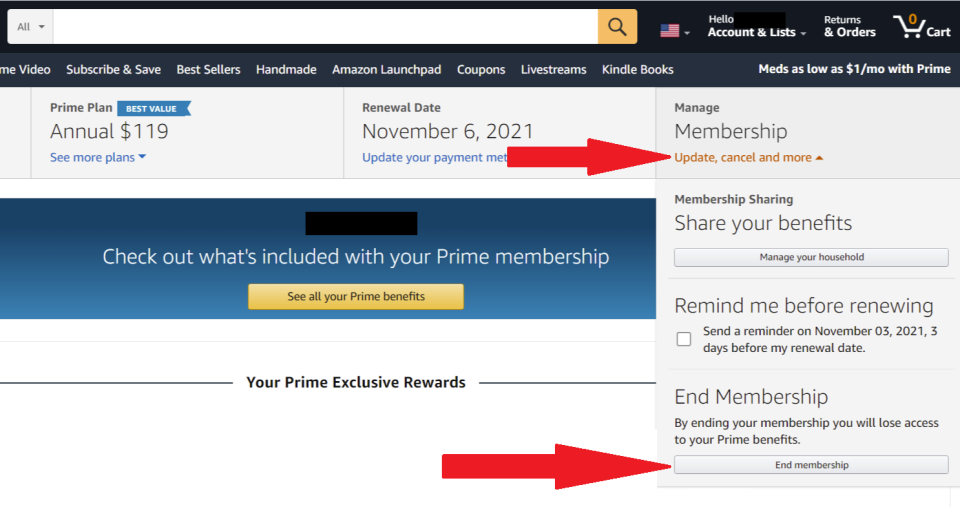
The Management Console: On the Prime management page, look for the “Manage Membership” bar located on the right side of the header. Click the “Update, cancel and more” link.
-
End Membership: Click the button labeled “End Membership.”
-
The Three-Stage Confirmation: Amazon will typically present three separate pages designed to discourage cancellation.
-
Page 1 (The “Value” Summary): This page displays how much you have used Prime services. Scroll to the bottom and click “I Do Not Want My Benefits.”
-
Page 2 (The Switch to Annual/Monthly): This page suggests switching to a different billing cycle. Ignore these prompts and click “Continue to Cancel.”
-
Page 3 (The Final Confirmation): This page often offers a “Pause” option or a reminder of when your benefits will end. Click “End on [Date]” to finalize.
-
Method 2: The Amazon Mobile App (iOS and Android)
The mobile interface utilizes a condensed navigation menu which can be harder to navigate.
-
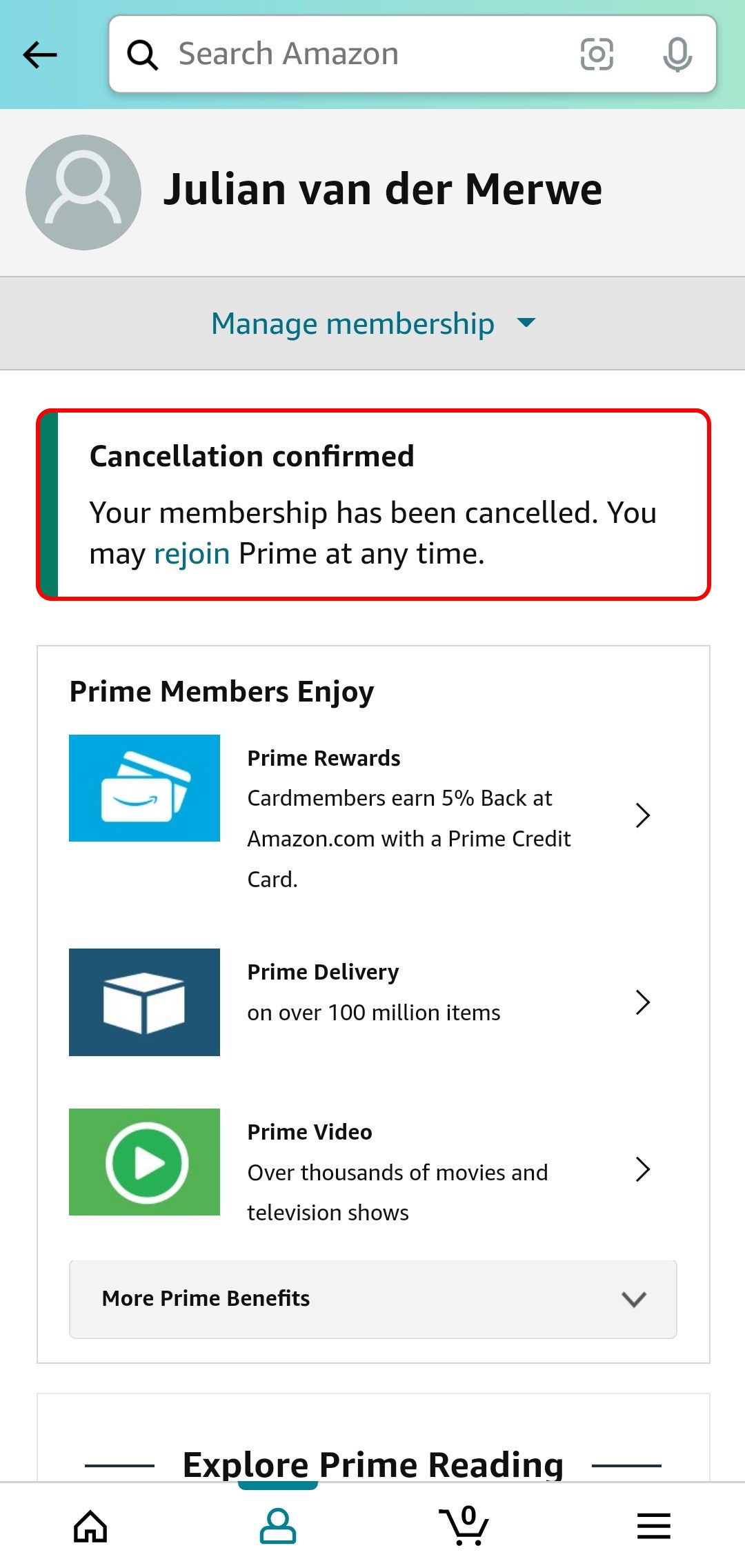
Menu Navigation: Tap the three-line (hamburger) menu icon or the “User” icon at the bottom of the app.
-
Your Account: Navigate to “Your Account” and scroll down to “Account Settings.”
-
Manage Prime Membership: Select “Manage Prime Membership.”
-
The Workflow: Follow the same three-stage confirmation process described in the desktop method. Note that the “End Membership” button may be hidden within a collapsible “Manage Membership” menu at the top of the screen.
Managing the Post-Prime Technical Fallout
Once the cancellation is processed, the work of a digital minimalist or tech-focused user is not complete. There is a “cleanup” phase required to ensure that your devices and data remain secure and functional without the Prime layer.
Auditing Smart Home Integrations
If you have integrated Amazon Alexa into your home, the loss of Prime affects certain functionalities. For example, Amazon Music (Prime version) will no longer be available as a default music provider for your Echo devices. You may need to reconfigure your “Music & Podcasts” settings in the Alexa app to link to Spotify, Apple Music, or another service. Additionally, “Prime-only” shopping features via voice commands will be disabled.
Removing Payment Latency
One of the most important technical security steps after cancelling any major subscription is auditing your “1-Click” settings. Amazon often retains credit card information to facilitate easy re-subscription. If you intend to use the account strictly for physical goods occasionally, go to “Your Payments” and ensure that only the necessary cards are active. If you are planning to abandon the ecosystem entirely, removing all stored payment methods is a best practice for digital security and preventing unauthorized API calls or accidental purchases.
Firmware and App Updates
If you use Amazon-branded hardware like Fire Tablets or Fire TV sticks, be aware that these devices are heavily optimized for Prime members. Without a subscription, these devices become essentially “ad-supported” portals for other services. Tech enthusiasts often use this transition point to “sideload” the Google Play Store on Fire Tablets or install third-party launchers on Fire TV sticks to regain control over the UI, as the native Amazon OS will continue to push Prime-related metadata to your home screen even after cancellation.
Privacy, Security, and Data Portability
From a digital security standpoint, cancelling a subscription is an opportune time to perform a privacy audit. Amazon tracks an immense amount of user data, from search history to viewing habits on Prime Video.
Data Portability (The GDPR/CCPA Approach)
Before or after you close your Prime account, you have the right (depending on your jurisdiction) to request a copy of your data. Navigating to the “Request Your Data” section of the Amazon Privacy central allows you to download a comprehensive log of your interactions with the platform. This includes your Alexa voice recordings, your advertising profile, and your search history. For the privacy-conscious user, analyzing this data provides insight into the “digital twin” Amazon has constructed of your consumer habits.
Transitioning to Open-Source or Niche Alternatives
The closure of a Prime account often signals a shift toward more specialized tech tools. Instead of the “everything” app approach, many are moving toward:
-
Self-Hosted Media: Using tools like Plex or Jellyfin to host local media libraries, reducing reliance on DRM-restricted streaming.
-
Digital Privacy Tools: Moving from Amazon Photos to encrypted options like Ente or self-hosted solutions like Immich.
-
RSS and Niche E-readers: Shifting away from the Kindle ecosystem toward EPUB-friendly devices like Kobo or Boox, which allow for greater file-type flexibility.
Conclusion: Reclaiming the Digital Desktop
Closing an Amazon Prime account is more than a financial decision; it is a technical recalibration. By successfully navigating the cancellation process, you are effectively dismantling a complex web of software integrations that have likely influenced your digital habits for years. This process requires a proactive approach to data backup, a keen eye for avoiding manipulative UX design, and a strategic plan for managing smart devices in the post-Prime era.
The transition may reveal just how deeply embedded these large-scale tech ecosystems become in our daily lives. However, for those looking to optimize their digital environments, prioritize privacy, or simply reduce the noise of a crowded app interface, the technical effort required to “de-Prime” is a vital step toward digital autonomy. As the tech world moves toward more modular and user-centric services, the ability to cleanly exit a major ecosystem is a skill every modern user should master.
aViewFromTheCave is a participant in the Amazon Services LLC Associates Program, an affiliate advertising program designed to provide a means for sites to earn advertising fees by advertising and linking to Amazon.com. Amazon, the Amazon logo, AmazonSupply, and the AmazonSupply logo are trademarks of Amazon.com, Inc. or its affiliates. As an Amazon Associate we earn affiliate commissions from qualifying purchases.