
The landscape of digital home entertainment has undergone a radical transformation over the last decade. While subscription-based video-on-demand (SVOD) services like Netflix and Disney+ dominate the conversation, the transactional video-on-demand (TVOD) model remains a cornerstone for cinema enthusiasts who want permanent access to specific titles. Amazon Prime Video stands as a titan in this space, offering a hybrid platform that blends subscription content with a massive retail storefront. Navigating this ecosystem requires an understanding of cross-platform compatibility, digital rights management (DRM), and the specific technical hurdles presented by mobile operating systems.
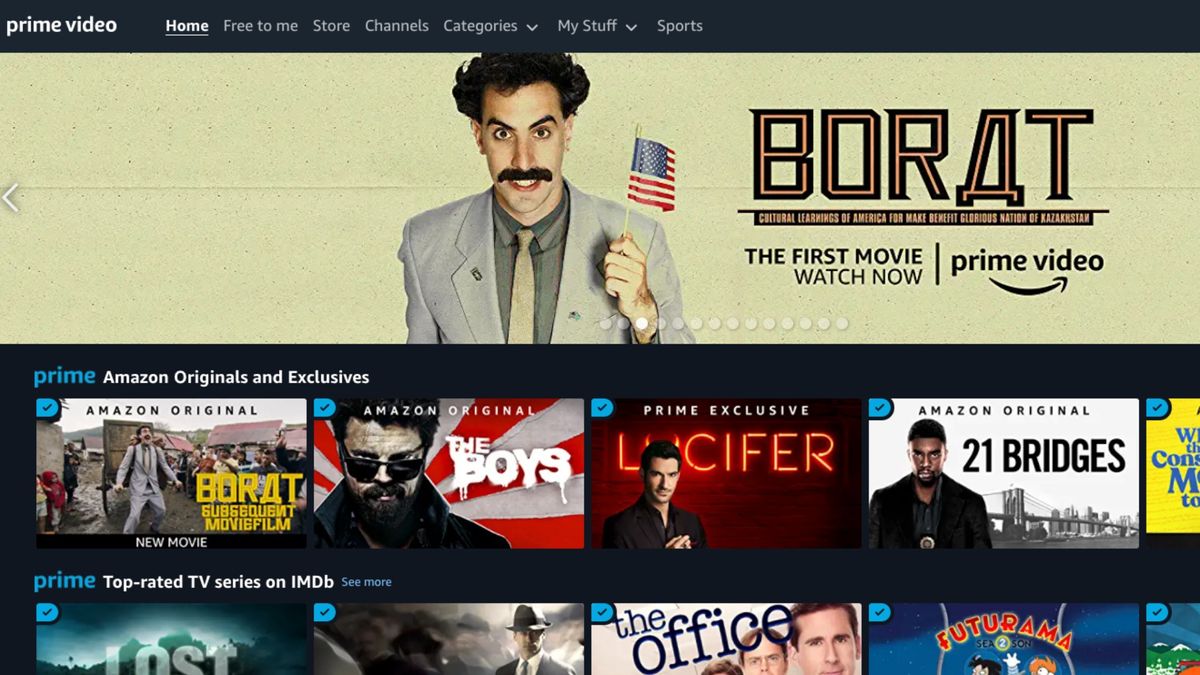
Understanding the Prime Video Architecture: Rental vs. Purchase
Before diving into the technical steps of acquisition, it is essential to distinguish between the various tiers of content available within the Amazon Prime Video interface. Unlike platforms that are purely subscription-based, Amazon integrates its retail roots into its streaming software.
The Hybrid Interface
When you browse Prime Video, you encounter three primary categories of content: “Included with Prime,” “Rent,” and “Buy.” The “Included with Prime” titles are accessible as long as your subscription is active. However, purchasing a movie grants you a perpetual license to stream or download that title, regardless of your Prime membership status. From a technical standpoint, buying a movie moves the asset into your “Your Video Library,” a cloud-based digital locker that syncs across all registered devices.
Digital Rights and Ownership
It is important to understand that “buying” a digital movie on Amazon is technically the purchase of a limited license to view that content. This license is governed by Digital Rights Management (DRM) protocols that prevent unauthorized copying or distribution. Amazon utilizes sophisticated encryption to ensure that the content remains within the Prime Video app or authorized browsers. For the user, this means that while you “own” the movie, you are reliant on the Amazon infrastructure to access it.
Resolution Standards: SD, HD, and UHD
When purchasing a movie, users are often presented with different price points based on resolution.
-
Standard Definition (SD): Suitable for older devices or limited bandwidth environments.
-
High Definition (HD): The standard for most modern smartphones and laptops, typically offering 1080p resolution.
-
Ultra High Definition (UHD/4K): Offers the highest fidelity, often including High Dynamic Range (HDR) metadata for better contrast and color.
From a technical perspective, purchasing the UHD version is usually the most future-proof option, as Amazon’s player will automatically downscale the quality if the playback device or network speed cannot support the full 4K stream.
Navigating Platform-Specific Purchase Hurdles
The process of buying a movie on Amazon Prime is not uniform across all devices. This is largely due to the “platform tax” or in-app purchase commissions enforced by Apple and Google. Understanding these technical restrictions is key to a seamless experience.
Purchasing via Web Browsers (PC and Mac)
The most direct and unrestricted way to buy movies is through a desktop web browser.
-
Navigate to the Amazon website and log in to your account.
-
Select the “Prime Video” tab or go directly to the “Store” section.
-
Search for the title you wish to acquire.
-
On the product detail page, you will see buttons for “Rent” and “Buy.” Ensure you select the correct resolution (HD or UHD).
-
Click “Buy.” The payment will be processed using your default 1-Click payment method.
The iOS and Android Challenge
If you use the Prime Video app on an iPhone, iPad, or an Android device, you may notice that the option to “Buy” is missing. This is because Apple and Google take a 30% cut of in-app digital purchases. To avoid this, Amazon often disables purchasing within the native apps on these platforms.
The Workaround: To buy a movie for your mobile device, you must open your device’s mobile web browser (like Safari or Chrome), go to the Amazon website, and complete the purchase there. Once the transaction is finalized on the web, the movie will automatically appear in the “Library” section of your Prime Video app, ready for streaming or offline download.

Smart TVs and Media Streamers
Devices like the Amazon Fire TV Stick, Roku, and most Smart TVs integrated with the Prime Video app generally allow for direct purchases. Since the Fire TV is an Amazon product, the integration is seamless. You simply use your remote to select the “Buy” button, and the transaction is authorized via your linked Amazon account. On third-party devices like Roku, you may be prompted to enter a PIN to authorize the purchase.
Technical Requirements for Optimal Playback
Buying the movie is only the first half of the process; ensuring your hardware can deliver the intended experience is the second. Amazon’s delivery system uses adaptive bitrate streaming, which adjusts the video quality in real-time based on your internet connection.
Bandwidth and Connectivity
To enjoy a purchased movie in its highest quality, your network must meet specific technical thresholds:
-
SD: 1.0 Mbps minimum.
-
HD: 5.0 Mbps minimum.
-
UHD/4K: 15.0 Mbps minimum (25 Mbps is recommended for a buffer-free experience).
For users with inconsistent internet, Amazon offers a “Download” feature on mobile devices and the Windows 10/11 app. This allows you to download the entire file to local storage, bypassing the need for a high-speed connection during playback. Note that these downloads are still encrypted and can only be played within the Prime Video application.
Hardware Compatibility for 4K UHD
If you have purchased a movie in 4K UHD, your hardware chain must be compliant with specific standards.
-
Display: You need a 4K-compatible screen.
-
HDCP 2.2: Your HDMI cables and ports must support HDCP 2.2 (High-bandwidth Digital Content Protection). If you are using an external media player (like a Fire Stick) plugged into an older HDMI 1.4 port, the stream will be downgraded to 1080p HD despite your UHD purchase.
-
Codecs: Amazon uses the HEVC (H.265) codec for 4K content, which requires significant processing power. Older laptops or cheap streaming sticks may struggle with stuttering if they lack hardware-level HEVC decoding.
Managing Your Digital Library and Security
As your collection grows, managing your assets and securing your account against unauthorized purchases becomes a technical necessity.
Using the 1-Click System
Amazon’s “1-Click” settings are the engine behind digital movie purchases. By default, Amazon uses the credit card and billing address associated with your 1-Click settings for all instant digital transactions. It is vital to keep this updated to avoid transaction failures. If you have multiple cards on file, you can designate a specific one for “Digital Downloads” within your account preferences.
Implementing Purchase Restrictions and PINs
Because Amazon makes it incredibly easy to buy movies—often with just one or two clicks—accidental purchases are a common issue, especially in households with children.
-
Go to “Prime Video Settings” on the Amazon website.
-
Navigate to the “Parental Controls” tab.
-
Set a “Prime Video PIN.”
-
Enable “Purchase Restrictions.”
Once enabled, any attempt to buy or rent a movie will require the entry of a 5-digit PIN, adding a necessary layer of security to your digital wallet.
Library Synchronization and Troubleshooting
Occasionally, a purchased movie may not appear immediately on all devices. This is usually a sync cache issue. On most smart TVs, you can go to the app settings and select “Sync Library” or “Refresh Content.” On mobile devices, logging out and back in typically forces the app to ping the Amazon servers and update the metadata for your digital locker.
The “Movies Anywhere” Integration
For US-based users, one of the most powerful technical features of buying movies on Amazon is “Movies Anywhere.” By linking your Amazon account to a Movies Anywhere account, your purchases from participating studios (Disney, Warner Bros, Universal, Sony) will automatically sync to other platforms like Apple TV (iTunes), Vudu, and Google Play. This provides a level of platform-agnosticism that protects your investment, ensuring that even if you switch from an Android ecosystem to an Apple ecosystem, your Amazon-purchased movies will follow you.

Conclusion: The Future of Digital Acquisition
Buying movies through Amazon Prime Video offers a sophisticated blend of convenience and high-end technical specs. By understanding the nuances of device-specific billing, ensuring your hardware meets HDCP 2.2 standards, and securing your account with PINs, you can build a robust digital library that rivals physical media in quality and exceeds it in accessibility. As streaming continues to evolve, the ability to curate a personal collection within a global ecosystem remains a premier choice for the modern digital consumer.
aViewFromTheCave is a participant in the Amazon Services LLC Associates Program, an affiliate advertising program designed to provide a means for sites to earn advertising fees by advertising and linking to Amazon.com. Amazon, the Amazon logo, AmazonSupply, and the AmazonSupply logo are trademarks of Amazon.com, Inc. or its affiliates. As an Amazon Associate we earn affiliate commissions from qualifying purchases.