
The transition from linear television to video-on-demand (VOD) services has fundamentally altered the way we consume media. At the center of this digital revolution is Amazon Prime Video, a platform that has grown from a secondary perk of a shipping membership into a global streaming powerhouse. However, while the service is accessible on almost any screen, the most immersive way to experience its library of 4K Ultra HD movies and original series is on a large-format television. Navigating the various hardware requirements, software interfaces, and connectivity standards can be a complex task. This guide provides a comprehensive technical roadmap for integrating Amazon Prime Video into your home theater ecosystem.
Supported Hardware and Device Ecosystems
Before initiating the setup process, it is essential to understand the hardware landscape. Amazon has ensured broad compatibility across the electronics market, but the user experience can vary significantly depending on the underlying operating system of your device.
Smart TVs and Integrated Platforms
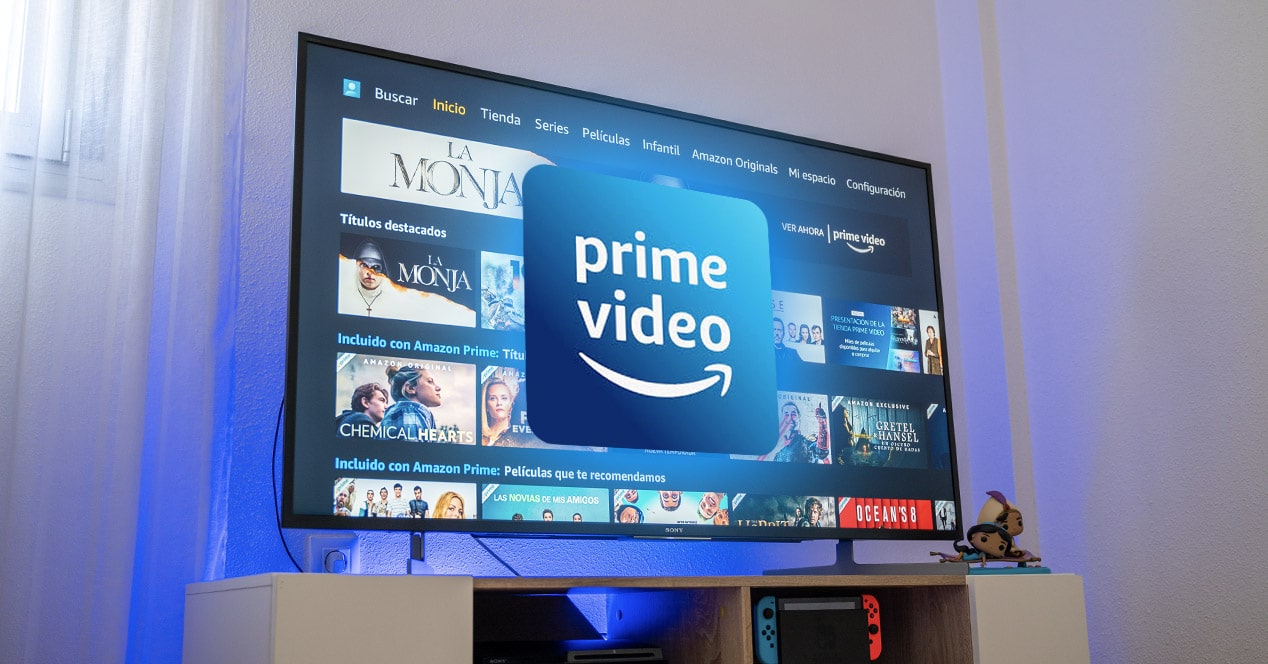
The majority of modern Smart TVs manufactured within the last five to seven years come with the Prime Video app pre-installed or available via an integrated app store. Manufacturers like Samsung (using Tizen OS), LG (using webOS), and Sony, Vizio, or Hisense (often using Android TV or Google TV) have native support for the platform. On these devices, the application is optimized for the TV’s specific processor, often allowing for the most stable 4K and HDR playback without the need for additional cables.
External Streaming Media Players
For users with older “dumb” TVs or those who find their Smart TV’s interface sluggish, external streaming sticks and boxes are the gold standard.
-
Amazon Fire TV Devices: This is the native ecosystem for Prime Video. Because Amazon manufactures these devices (Fire TV Stick 4K, Fire TV Cube), the integration is seamless. The home screen prioritizes Prime content, and Alexa voice integration is deeply embedded.
-
Roku, Apple TV, and Chromecast: These third-party devices offer a neutral platform. On Apple TV 4K, for instance, Prime Video integrates with the “TV” app to aggregate your watch history. On Chromecast with Google TV, you can use the Google Assistant to search for Amazon Originals.
Gaming Consoles and Set-Top Boxes
High-performance gaming consoles like the PlayStation 5 and Xbox Series X/S are more than just gaming machines; they are robust media centers. The Prime Video app on these consoles leverages their high-speed GPUs to provide a fluid UI. Additionally, many cable and satellite providers, such as Comcast Xfinity or Cox, now include the Prime Video app directly within their proprietary set-top boxes, allowing users to switch from live news to streaming without changing inputs.
Step-by-Step Installation and Activation
Once you have identified your hardware, the next phase involves software installation and secure account authentication. Unlike mobile apps, TV-based streaming apps often utilize a “leanback” authentication method to spare the user from typing complex passwords using a remote control.
Downloading and Launching the App
If the app is not on your home screen, navigate to your device’s App Store or Content Store. Use the search function to find “Prime Video.” Once downloaded, launch the application. You will be greeted with a “Sign In” or “Register Your Device” screen.
The Secure Link Method
The most efficient way to log in is via the web-based registration code.
-
A 5-6 character alphanumeric code will appear on your TV screen.
-
On a computer or smartphone, open a web browser and go to
amazon.com/mytv. -
Log in to your Amazon account if prompted.
-
Enter the code displayed on your TV.
-
Within seconds, the TV screen will refresh, and your profile will be active.
This method is technically superior to manual entry because it utilizes encrypted tokens, ensuring your primary password is never exposed on the TV hardware itself, which may be on a less secure network.
Casting and Mirroring Alternatives
If your TV does not support the native app, or if you are in a temporary location like a hotel, you can use “Casting.” If you have a Chromecast or a TV with built-in Chromecast/AirPlay:
-
Open the Prime Video app on your mobile device.
-
Ensure the phone and the TV are on the same Wi-Fi network.
-
Tap the “Cast” icon (or “AirPlay” for Apple devices).
-
Select your TV from the list.
The phone acts as a remote, while the TV pulls the stream directly from Amazon’s servers.
Optimizing the Streaming Experience for 4K and HDR
Simply getting the app to run is only half the battle. To truly take advantage of high-budget productions like The Rings of Power, your technical environment must be tuned for high-bitrate data delivery and color accuracy.
Network Infrastructure and Bandwidth
Streaming in 4K (Ultra HD) requires a significant amount of data. Amazon recommends a minimum download speed of 15 Mbps for 4K content and 5 Mbps for HD. However, these are “bare minimums.” To account for network fluctuations and other devices in the home, a 25-50 Mbps overhead is preferable.
-
Wired vs. Wireless: Whenever possible, use an Ethernet cable to connect your TV or streaming box directly to your router. This eliminates the latency and interference issues inherent in Wi-Fi.
-
5GHz Wi-Fi: If you must use Wi-Fi, ensure your device is connected to the 5GHz band rather than the 2.4GHz band. 5GHz offers higher data throughput, though it has a shorter range.
Hardware Standards: HDMI and HDCP
To stream 4K or HDR content through an external device (like a Fire Stick), your hardware chain must support specific protocols. Your HDMI cable should be rated as “High Speed” (HDMI 2.0 or higher). Furthermore, the TV port must be HDCP 2.2 compliant. HDCP (High-bandwidth Digital Content Protection) is a form of digital copy protection; if any link in the chain (the stick, the cable, or the TV port) is not HDCP 2.2 compliant, the stream will automatically downgrade to 1080p.
Audio Configurations
For a cinematic experience, Prime Video supports Dolby Atmos and 5.1 Surround Sound. Ensure your audio settings on the TV or streaming device are set to “Auto” or “Bitstream” to allow your soundbar or A/V receiver to decode the high-quality audio metadata directly.
Troubleshooting Common Technical Failures
Even with the best hardware, streaming technology is prone to occasional glitches. Understanding how to diagnose these issues can save hours of frustration.
Resolving Connection and Playback Errors
If you encounter “Error 1060” or a spinning loading icon, the issue is likely network-related.
-
The Power Cycle: The “turn it off and on again” rule applies here. Unplug your TV and your router for 60 seconds. This clears the system cache and re-establishes a fresh handshake with your ISP.
-
App Updates: Manufacturers frequently release patches to fix bugs. Check your device’s settings menu for “Software Updates” to ensure both the TV OS and the Prime Video app are current.
Buffering and Quality Drops
If the image appears blurry, it is because Amazon’s adaptive bitrate technology is lowering the quality to prevent the video from stopping entirely. If your internet speed is sufficient, check if other devices on your network are hogging bandwidth (such as large game downloads or other 4K streams). In some cases, clearing the app cache in the “Settings > Applications” menu of an Android-based TV can resolve persistent stuttering.
Advanced Features and User Management
Prime Video offers several technical tools to customize the viewing experience and maintain digital security within a household.
Profiles and Personalization
Amazon allows for up to six user profiles. Each profile maintains its own “Watchlist” and personalized recommendations based on an independent viewing algorithm. When you launch the app on your TV, always ensure you are in the correct profile to avoid cluttering the recommendations of other family members.
Parental Controls and Security
If you have children, you can set a “Prime Video PIN” via the Amazon website under “Account Settings.” Once enabled, this PIN will be required to bypass age-restricted content or to make digital purchases (rentals or buy-to-own movies) directly from the TV interface. This is a crucial step for preventing unauthorized charges on your Amazon account.

Data Usage Monitoring
For users with capped data plans from their Internet Service Provider (ISP), Prime Video includes settings to limit data consumption. Within the app’s settings menu on many devices, you can choose between “Good,” “Better,” and “Best” quality. Choosing “Good” will significantly reduce the amount of data used per hour by capping the resolution and bitrate, which is an essential feature for those on limited fiber or satellite connections.
By understanding the synergy between hardware compatibility, network optimization, and software configuration, you can transform your television into a high-performance portal for Amazon’s vast content library. Whether through a native Smart TV app or a dedicated streaming peripheral, the key to a seamless experience lies in a robust setup and an optimized home network.
aViewFromTheCave is a participant in the Amazon Services LLC Associates Program, an affiliate advertising program designed to provide a means for sites to earn advertising fees by advertising and linking to Amazon.com. Amazon, the Amazon logo, AmazonSupply, and the AmazonSupply logo are trademarks of Amazon.com, Inc. or its affiliates. As an Amazon Associate we earn affiliate commissions from qualifying purchases.