
In the modern digital economy, the subscription-based model has become the standard for accessing everything from cloud storage to entertainment and expedited shipping. Amazon Prime is perhaps the most ubiquitous example of this “Software as a Service” (SaaS) approach to retail. However, because many users interact with Amazon through various devices—ranging from smart TVs and mobile apps to Kindles and desktop browsers—it is surprisingly common for individuals to lose track of their subscription status. Whether you are auditing your monthly digital expenses or trying to confirm access to a specific Prime-exclusive feature, knowing exactly where to look within the Amazon interface is essential.
Determining whether you have an active Amazon Prime subscription involves navigating a multi-layered user interface designed to manage a massive ecosystem of services. Below is a comprehensive technical guide on how to verify your status across different platforms and identify the digital markers of a Prime account.
Checking Your Status Through the Digital Interface
The most direct way to confirm your membership is through the account management tools provided in the Amazon software ecosystem. Depending on your primary device, the steps to access this information vary slightly, but the underlying data remains synced across the cloud.
Desktop Browser Navigation
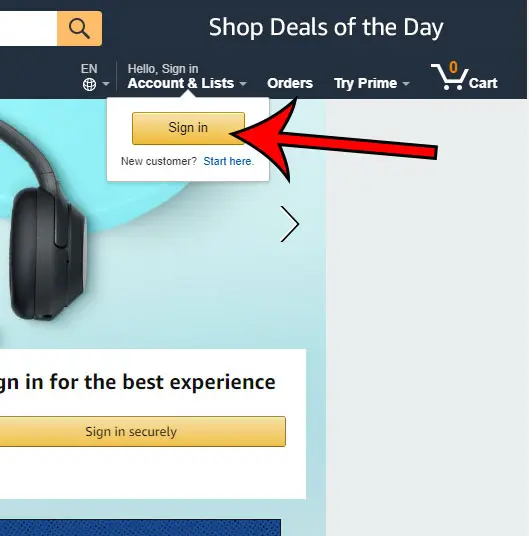
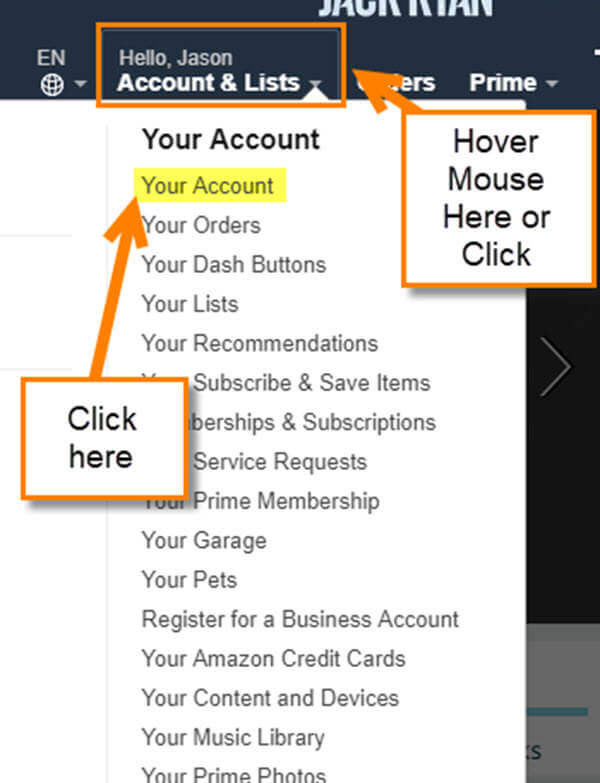
For most power users, the desktop browser offers the most granular view of account settings. To check your status, navigate to the Amazon homepage and ensure you are signed in. In the top-right corner, you will see a module labeled “Account & Lists.”
Hovering over this menu reveals a dropdown list. Click on “Your Prime Membership.” This specific landing page is the central hub for your subscription data. If you have an active membership, the page will prominently display your plan type (such as “Prime Monthly” or “Prime Annual”), the date of your next renewal, and the payment method currently on file. If your membership has lapsed or was never activated, this page will instead prompt you to join Prime or offer a trial, serving as a definitive indicator of your status.
The Mobile App Interface
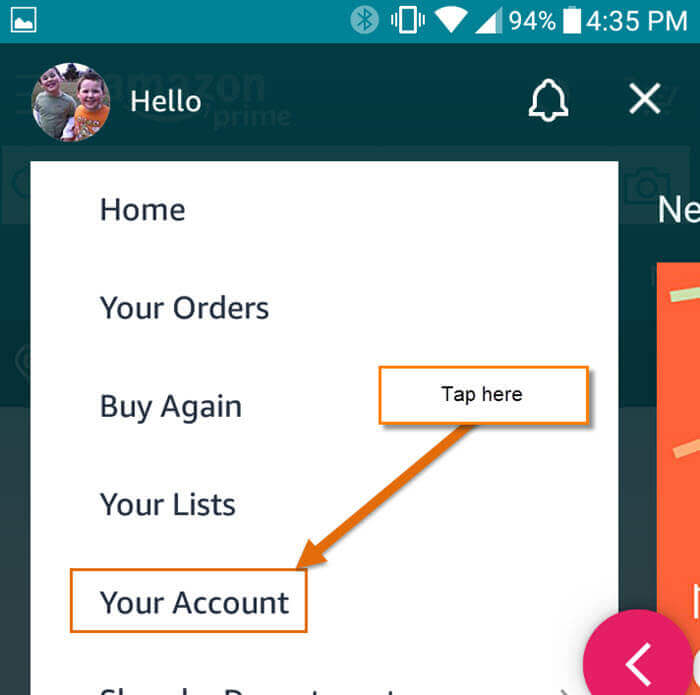
Given that a significant portion of digital commerce occurs via mobile devices, the Amazon shopping app (available on iOS and Android) is designed for rapid account management. To verify your Prime status on mobile, tap the person icon (the “User” tab) located in the bottom navigation bar.
At the top of this screen, you will typically see a series of buttons. Look for “Your Account.” Within the “Account Settings” sub-section, there is a dedicated line item for “Manage Prime Membership.” Tapping this will load your membership details. A key UI indicator in the mobile app is the “Prime” logo next to the Amazon logo at the top left of the home screen; if the logo simply says “Amazon” without the “Prime” branding, it is a strong visual cue that your current logged-in session does not have active benefits.
Indicators Beyond the Account Dashboard
Sometimes, technical glitches or multiple email addresses can make the direct dashboard approach confusing. In these cases, you can look for “digital breadcrumbs” left by the subscription service across your various communication channels and the platform’s user experience.
Reviewing Digital Invoices and Billing
Amazon’s billing system generates a digital paper trail for every transaction. If you suspect you are being charged for Prime but cannot see it on your primary account, your email archives are the first place to look. Search your inbox for “Your Amazon Prime Membership” or “Amazon Prime Renewal.”
Furthermore, checking your financial institution’s online portal can provide clarity. Amazon Prime charges typically appear with specific descriptors such as “AMZN Prime,” “Amazon Prime Member,” or “Prime Member Fee.” By cross-referencing the date of the charge with the accounts you own, you can identify which digital identity is associated with the subscription. This is particularly useful for users who may have accidentally started a trial on a secondary email address used for digital downloads or Kindle purchases.
Identifying UI Changes on Product Pages
The Amazon interface is dynamic; it changes based on the user’s membership status to encourage conversion or highlight benefits. When you are logged into an account with Prime, product search results will feature the “Prime” checkmark logo next to the price. This indicates that the item is eligible for expedited shipping at no additional cost.
Furthermore, on the individual product detail page, the “Buy Box” (the area where the ‘Add to Cart’ button resides) will display specific delivery windows, such as “FREE Delivery Wednesday” or “FREE Overnight.” If the interface asks you to “Join Prime to get fast, free delivery” or displays standard shipping costs, the software has identified you as a non-Prime user.
Exploring the Prime Ecosystem of Apps and Services
Amazon Prime is no longer just a shipping program; it is an integrated digital suite. One of the most effective ways to tell if you have an active membership is to attempt to access the peripheral applications that are bundled with the subscription.
Multimedia Platforms: Prime Video and Music
Prime Video is a core pillar of the membership. To test your status, navigate to the Prime Video website or open the app on a smart TV. If you have an active subscription, you will be able to stream “Included with Prime” titles without a prompt to purchase or rent. If the software presents a “Start your 30-day free trial” banner or restricts access to the “Prime” category of the library, your membership is likely inactive.
Similarly, Amazon Music provides a tiered experience. While there is a free version of the app, the Prime-integrated version allows for ad-free listening and a larger catalog of songs. If the app interface identifies you as a “Prime Member,” usually visible in the settings or the splash screen, you have your answer.
Cloud Storage and Gaming Benefits
For the tech-savvy user, Amazon Photos and Prime Gaming are excellent verification tools. Amazon Photos offers unlimited full-resolution photo storage to Prime members. If you upload a batch of photos and the app warns you about hitting a 5GB limit (the standard free tier for all Amazon customers), your Prime benefits are not active.
Prime Gaming (formerly Twitch Prime) requires users to link their Amazon account to their Twitch account. By visiting the Prime Gaming portal, you can see if you are eligible to “Claim” free monthly games or a free Twitch channel subscription. The “Claim” button will only be functional if the underlying Amazon account has a valid Prime status.
Securing Your Account and Managing Subscriptions
Understanding your Prime status is also a matter of digital security and financial health. In an era of “ghost subscriptions,” where recurring fees go unnoticed for months, regular auditing of your digital accounts is a best practice.
Prime Student and Shared Family Accounts
A common point of confusion arises from “Amazon Household,” a feature that allows two adults to share Prime benefits. If you are part of a Household, you may have access to Prime shipping and Video, but you are not the primary bill-payer. To check this, go to the “Manage Your Household” section under account settings. Here, the software will show who the “Head of Household” is and which features are being shared.
Furthermore, Prime Student accounts are a separate software tier. They offer the same benefits but are often billed at a different frequency or subsidized rate. If you are a student, your membership page will reflect this status, often requiring a “.edu” email verification to maintain the discounted rate.
Preventing Unintended Renewals
If your investigation reveals that you do have Amazon Prime but you do not wish to keep it, the software provides a clear path to modification. Within the “Manage Membership” tab, you can select “Update, cancel and more.” Amazon’s current UI allows you to set a reminder three days before your membership renews, or to “End Membership” immediately.
From a technical perspective, it is important to note that even after clicking “End Membership,” your Prime status will typically remain “Active” until the end of the current billing cycle. The software preserves your access to the digital library and shipping benefits until the precise timestamp of your subscription expiration, at which point the UI will revert to the standard Amazon experience.
By systematically checking the account dashboard, monitoring UI changes on product pages, and testing access to the broader app ecosystem, you can gain a clear and accurate understanding of your Amazon Prime status. This ensures you are neither missing out on the technology you are paying for nor paying for a service you no longer require.
aViewFromTheCave is a participant in the Amazon Services LLC Associates Program, an affiliate advertising program designed to provide a means for sites to earn advertising fees by advertising and linking to Amazon.com. Amazon, the Amazon logo, AmazonSupply, and the AmazonSupply logo are trademarks of Amazon.com, Inc. or its affiliates. As an Amazon Associate we earn affiliate commissions from qualifying purchases.