
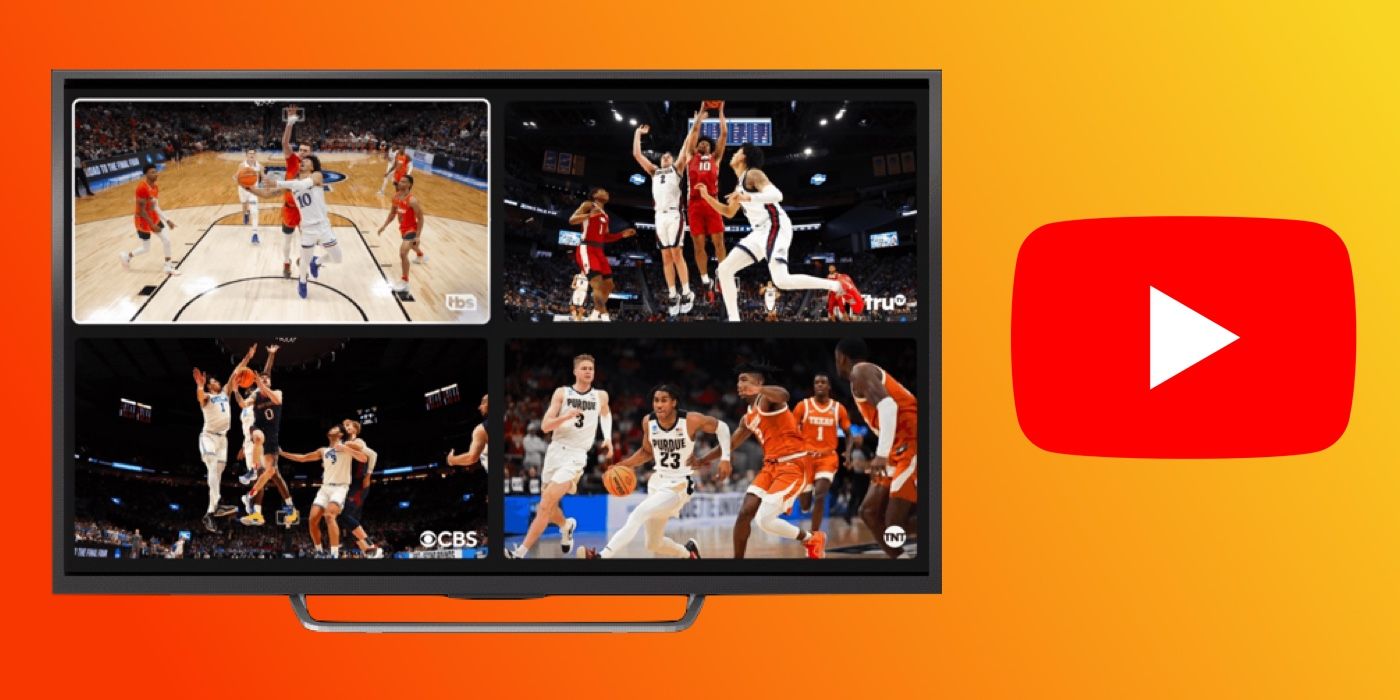
The landscape of digital broadcasting has undergone a radical transformation over the last decade, shifting from linear cable models to dynamic, data-driven streaming ecosystems. Among the most significant advancements in this space is the introduction of “Multiview” by YouTube TV. This feature, which allows users to watch up to four live streams simultaneously on a single screen, represents a major milestone in software engineering and cloud-based video processing. For sports enthusiasts, news junkies, and power users, understanding how to leverage this technology is essential for maximizing the value of a high-speed internet connection and modern streaming hardware.
Understanding the Technology Behind Multiview
To appreciate how to watch Multiview on YouTube TV, one must first understand the technical hurdle Google had to overcome to make it viable. Traditionally, displaying multiple high-definition video streams at once required significant local processing power. If a device like a smart TV or a low-end streaming stick attempted to decode four separate 1080p or 4K streams simultaneously, the hardware would likely overheat or experience severe frame rate drops.
YouTube TV solved this through “server-side compositing.” Instead of your device doing the heavy lifting, YouTube’s massive data centers ingest the multiple feeds, stitch them together into a single video frame, and then transmit that consolidated stream to your device. This means that even a budget-friendly streaming device can display a complex four-pane Multiview layout because, from the hardware’s perspective, it is only decoding one single video stream.
Server-Side vs. Client-Side Processing
The shift to server-side processing is what makes Multiview accessible to a broad audience. In a client-side model, your device would need to manage four separate buffers and synchronize them perfectly. By moving this to the cloud, YouTube TV ensures that the audio and video across all four windows remain perfectly in sync, regardless of the user’s local hardware limitations.
Hardware Compatibility and Requirements
While the server does the hard work, you still need a compatible interface to trigger and view these streams. Multiview is currently supported on:
-
Smart TVs: Modern sets running Android TV, Google TV, Samsung Tizen (2016+), and LG webOS.
-
Streaming Devices: Chromecast with Google TV, Roku, Apple TV (4K and HD), and Amazon Fire TV sticks.
-
Mobile and Web: While initially restricted to living room devices, YouTube TV has begun rolling out Multiview support for iOS and Android mobile devices, allowing users to track multiple games on the go.
Step-by-Step Guide to Accessing Multiview
Accessing Multiview is designed to be intuitive, yet it remains hidden behind certain navigation layers depending on the event schedule. Because the streams are pre-packaged by YouTube TV’s engineers (often referred to as “Multiview segments”), they typically appear during major live events such as the NFL Sunday Ticket, NCAA March Madness, or major news cycles.
Navigating the YouTube TV Interface
To find a Multiview stream, start by launching the YouTube TV app on your primary streaming device. Navigate to the “Home” tab. During active sports windows, you will typically see a dedicated “Multiview” row. If you are already watching a game that is part of a Multiview package, you can often press “Down” on your remote to see a prompt that says “Watch in Multiview.”
Selecting this option will open a sub-menu showing various combinations of games. For instance, during the NFL season, you might see one Multiview window featuring four specific regional games and another featuring a different combination. Once you select a layout, the screen will split, and you will begin receiving the composite stream.
Controlling Audio and Interaction
The most common question users ask once they have four screens running is: “How do I choose which game I’m hearing?”
-
Audio Selection: Use the directional pad on your remote to highlight one of the four windows. A white or colored border will indicate which stream is currently “active.” The audio will automatically switch to the highlighted window.
-
Full-Screen Toggle: If a specific moment in one game catches your eye, pressing the “Select” or “OK” button on your remote while that window is highlighted will instantly bring that stream to full-screen.
-
Returning to Multiview: To go back to the quad-view, simply press the “Back” button on your remote. This seamless transition is a testament to the low-latency encoding YouTube TV uses to swap between composite and individual streams.

Customizing Your Viewing Experience
One of the more recent updates to the platform is the “Build Your Own Multiview” feature, specifically designed for sports like the NBA and MLB. While YouTube TV started with pre-selected “bundles,” they have increasingly moved toward allowing users to select their preferred games from a list. To do this, you select a primary game and then look for the “Build a Multiview” option in the overlay menu. This allows for a more personalized “Command Center” feel, tailored to the specific teams you follow.
Optimizing Your Setup for High-Performance Streaming
Because Multiview involves a composite stream that is often high-bitrate to maintain clarity across four smaller windows, your home network environment plays a critical role in the quality of the experience.
Network Bandwidth and Latency
While a single 1080p stream might require 5-8 Mbps of stable bandwidth, a Multiview stream—especially if it is being delivered in 4K—can demand significantly more. For a buffer-free experience, a connection of at least 25-50 Mbps is recommended. However, bandwidth isn’t the only factor; latency (ping) is crucial for live sports.
To optimize your network:
-
Use Ethernet: Whenever possible, connect your Smart TV or streaming box via an Ethernet cable. Wired connections are far more stable than Wi-Fi and reduce the “jitter” that can cause the Multiview stream to drop to a lower resolution.
-
5GHz Wi-Fi: If you must use Wi-Fi, ensure your device is connected to the 5GHz band rather than the 2.4GHz band. 5GHz offers higher data throughput, which is necessary for the dense data packets found in composite video streams.
-
Router Placement: Ensure your router is not obstructed. High-frequency signals are easily blocked by walls and furniture, which can degrade the signal precisely when you need maximum performance for a quad-view setup.
Software Maintenance and Updates
From a technical standpoint, the YouTube TV app is a container that receives frequent “over-the-air” updates. If you find that Multiview is not appearing or is stuttering, check for system updates on your device. Clearing the app’s cache (specifically on Android TV or Fire TV devices) can also resolve issues where the server-side stitching isn’t being interpreted correctly by the local player.
The Future of Interactive Sports Broadcasting
Multiview is more than just a convenience; it is a precursor to a more interactive and data-rich era of television. As 5G technology and fiber-optic internet become more ubiquitous, the constraints on bitrates will continue to loosen, allowing for even more complex Multiview configurations.
Expansion Beyond Sports
While sports are the primary use case today, the tech niche is already seeing applications for Multiview in news and entertainment. Imagine a “Breaking News” Multiview where a user can watch CNN, MSNBC, Fox News, and the BBC simultaneously during a global event. Or a “Red Carpet” Multiview for awards shows that allows viewers to watch the main broadcast alongside various “camera angles” from the floor. The underlying infrastructure YouTube TV has built for the NFL and NBA is easily transferable to these other domains.
AI Integration and Personalized Streams
The next logical step for Multiview technology is the integration of Artificial Intelligence. In the future, we may see “Smart Multiviews” that automatically change the highlighted audio or switch the windows based on real-time data. For example, if a game is in the final two minutes and the score is within three points, the AI could automatically move that game to the top-left quadrant and switch the audio to it, ensuring the viewer never misses a “clutch” moment.
Furthermore, as personalization algorithms become more sophisticated, your Multiview row will likely be curated based on your betting slips, fantasy football roster, or viewing history. This level of software-driven customization is what separates modern streaming platforms from the “one-size-fits-all” approach of legacy cable.

Conclusion
Mastering Multiview on YouTube TV is a blend of knowing the right UI shortcuts and ensuring your technical infrastructure—hardware and network—is up to the task. By leveraging server-side compositing, YouTube TV has democratized a feature that was once the exclusive domain of high-end sports bars with expensive matrix switchers. Whether you are tracking four games on a Sunday afternoon or monitoring multiple news feeds, Multiview represents the cutting edge of what is possible in the intersection of cloud computing and consumer entertainment. As the feature continues to evolve with custom “Build Your Own” options and broader device support, it remains the gold standard for how we interact with live, multi-stream content in the digital age.
aViewFromTheCave is a participant in the Amazon Services LLC Associates Program, an affiliate advertising program designed to provide a means for sites to earn advertising fees by advertising and linking to Amazon.com. Amazon, the Amazon logo, AmazonSupply, and the AmazonSupply logo are trademarks of Amazon.com, Inc. or its affiliates. As an Amazon Associate we earn affiliate commissions from qualifying purchases.