
The transition from traditional broadcast television to the era of the smart TV represents one of the most significant shifts in consumer technology over the last two decades. A smart TV is no longer just a display for external signals; it is a sophisticated computing device equipped with an operating system, internal storage, and internet connectivity. Understanding how to use a smart TV effectively involves more than just knowing how to change channels—it requires mastering a digital ecosystem that integrates streaming media, smart home control, and interactive software.
As these devices become the central hub of the modern living room, the complexity of their interfaces can be daunting for some. However, by breaking down the setup, navigation, and advanced features, users can unlock the full potential of their hardware, ensuring a seamless and high-quality viewing experience.
Setting Up the Foundation: Connectivity and Initial Configuration
The “smart” in smart TV refers primarily to the device’s ability to connect to the internet and interact with other networked gadgets. Without a stable connection, a smart TV reverts to being a standard monitor. Therefore, the first step in using a smart TV is establishing a robust network foundation.
Network Connection: Wired vs. Wireless
While almost all modern smart TVs come with built-in Wi-Fi, the choice between a wireless and a wired (Ethernet) connection is critical. For users planning to stream content in 4K Ultra HD or 8K resolution, a wired connection is often superior. Ethernet provides a dedicated, interference-free pipeline that ensures consistent bitrates, reducing the likelihood of buffering.
If a wired connection is not feasible, utilizing the 5GHz band of a dual-band Wi-Fi router is recommended. While 2.4GHz has a longer range, the 5GHz band offers significantly higher data speeds and is less prone to interference from other household electronics. Positioning the router within a clear line of sight to the TV can further stabilize the connection.
Software Updates and Account Integration
Upon the first boot, the television will likely prompt for a firmware update. It is vital to complete this immediately. Manufacturers frequently release patches that improve system stability, patch security vulnerabilities, and optimize the user interface.
Furthermore, most smart TVs require a brand-specific account (such as a Samsung, LG, or Google account) to access their respective app stores. Integrating these accounts allows for cloud synchronization of preferences, watchlists, and purchase history. For those using platforms like Google TV or Android TV, this integration also links the television to a broader ecosystem of mobile apps and services, creating a unified user experience across devices.
Navigating the User Interface and Operating Systems
Unlike the static menus of the past, modern smart TV operating systems (OS) are dynamic and content-driven. The experience varies significantly depending on the manufacturer, as each utilizes a different software architecture.
Understanding Major Platforms
There are four primary operating systems currently dominating the market:
-
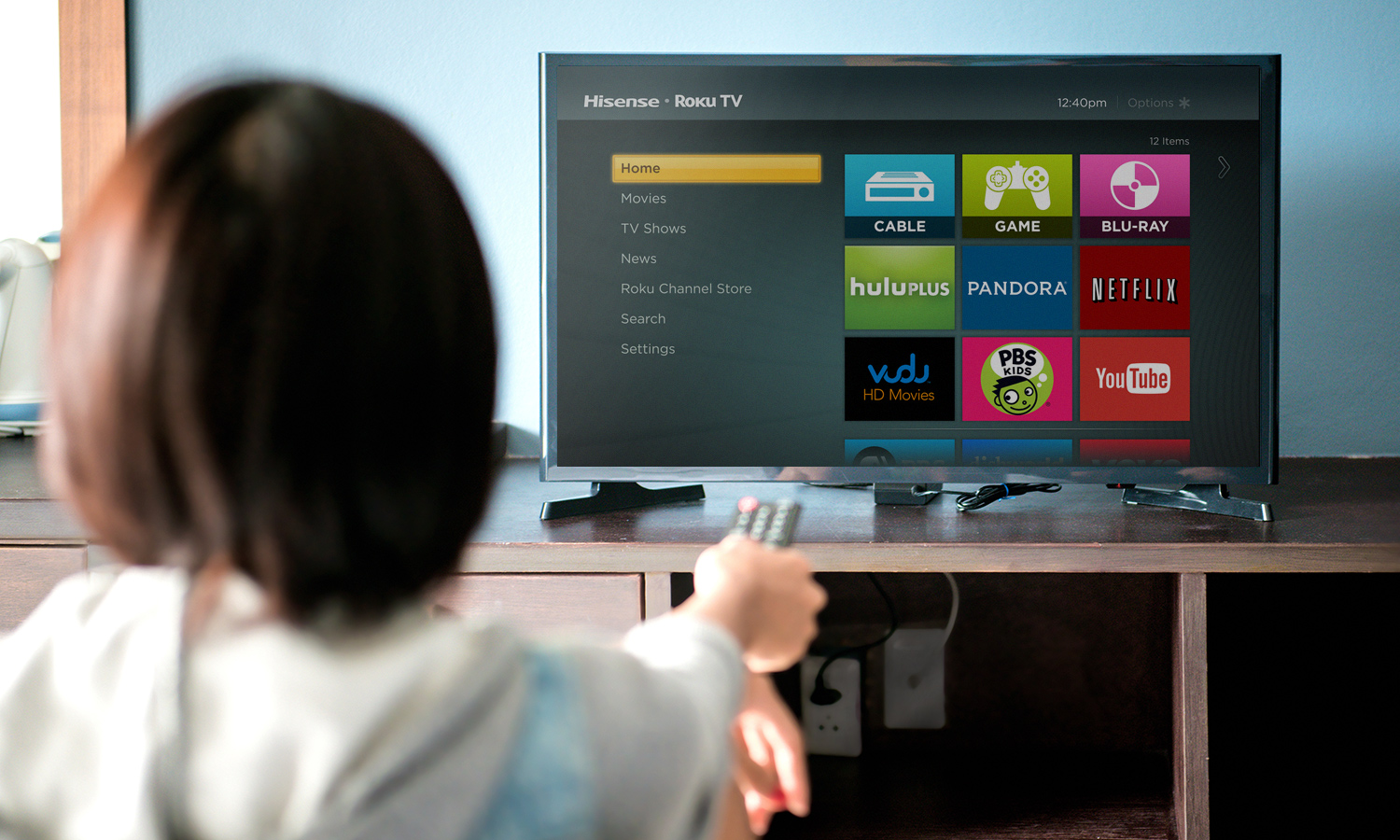
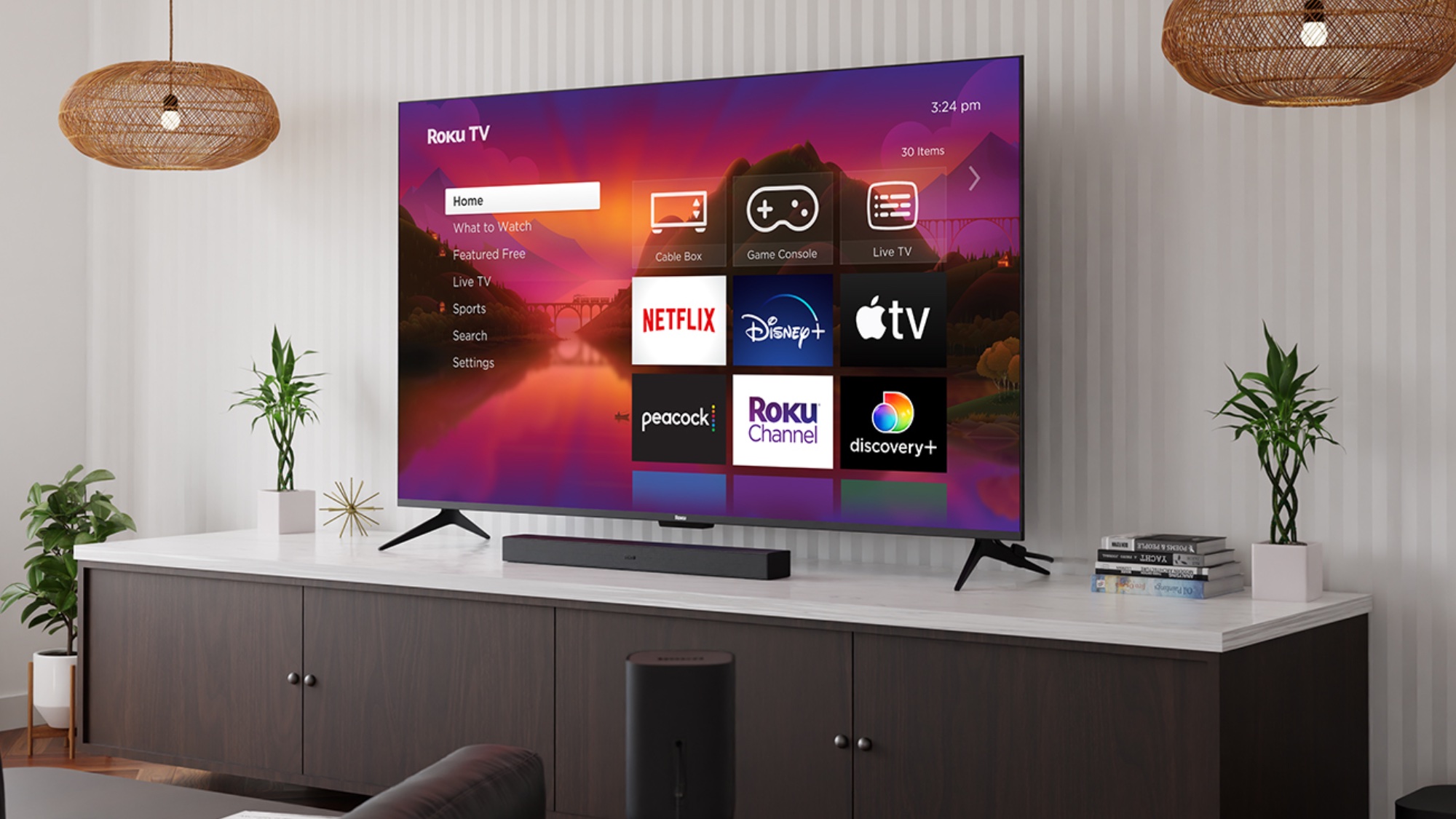
Roku TV: Known for its simplicity, Roku uses a grid-based layout that prioritizes ease of use and a powerful cross-platform search function.
-
WebOS (LG): This system features a customizable ribbon or “launcher bar” at the bottom of the screen, allowing users to switch between apps without leaving their current program.
-
Tizen OS (Samsung): Similar to WebOS, Tizen offers a sleek, minimalist interface with a focus on smart home integration through the SmartThings ecosystem.
-
Google TV/Android TV: This is a content-first platform that uses AI algorithms to recommend shows and movies from across all installed streaming services directly on the home screen.
Customizing the Home Screen
To use a smart TV efficiently, one must curate the home screen. Most platforms allow users to pin their most-used applications—such as Netflix, YouTube, or Disney+—to the front of the list. By removing bloatware and rearranging tiles, you can minimize the time spent navigating menus. On many systems, long-pressing the “OK” or “Select” button on an app icon will trigger a sub-menu that allows for moving or deleting the application.
Maximizing Content Consumption and App Management
The primary utility of a smart TV lies in its ability to run applications. These apps range from global streaming giants to niche specialized tools like weather trackers, fitness programs, and even casual video games.

The App Store and Installation
Every smart TV has a dedicated marketplace (e.g., the LG Content Store, Samsung App Store, or Google Play Store). When searching for apps, it is important to check for official versions to ensure security and performance. Users should also be mindful of the TV’s internal storage capacity. High-end TVs may have 16GB or more, but budget models often have limited space. Regularly uninstalling apps that are no longer in use helps maintain system speed and prevents “storage full” errors during software updates.
Voice Control and AI Assistants
Modern remotes have evolved beyond a sea of buttons. Most now feature a dedicated microphone button for voice search. Utilizing AI assistants like Alexa, Google Assistant, or Siri (via HomeKit) can drastically reduce the friction of searching for content. Instead of typing a movie title with an on-screen keyboard, a user can simply say, “Play Succession on Max,” and the TV will launch the app and the specific title simultaneously.
Furthermore, these assistants allow for deeper technical control. Commands such as “Switch to HDMI 2” or “Set a sleep timer for 30 minutes” are much faster than navigating through deep settings menus.
Advanced Features and Home Ecosystem Integration
Beyond media consumption, a smart TV acts as a bridge between various digital devices in a household. Leveraging these integration features turns the TV into a multi-functional tool.
Screen Mirroring and Casting
Two of the most powerful features are “Casting” and “Mirroring.” For Android users, the Chromecast protocol is standard, while Apple users rely on AirPlay 2. These protocols allow you to “throw” content from a smartphone or tablet directly to the TV screen. This is particularly useful for sharing personal photos, viewing social media feeds on a larger display, or using a mobile device as a controller for a presentation.
For PC users, many smart TVs support “Wireless Display” (WiDi) or Miracast, which allows the TV to function as a second monitor for a laptop without the need for a physical HDMI cable. This is an essential feature for remote workers or those looking to expand their digital workspace into the living room.
The TV as a Smart Home Hub
High-end smart TVs often include a “Home Dashboard.” This interface allows users to monitor and control other IoT (Internet of Things) devices. From the comfort of your couch, you can view a live feed from a front-door camera, dim the smart lights for a “movie mode” setting, or receive a notification when a smart washing machine has finished its cycle. Manufacturers are increasingly adopting the “Matter” standard, which ensures that different brands of smart home gear can talk to each other through the TV’s central interface.
Optimizing Performance and Digital Security
To truly master the use of a smart TV, one must venture into the settings to optimize the hardware for both performance and privacy.
Picture and Sound Calibration
Out of the box, most TVs are set to a “Store” or “Vivid” mode, which uses unnaturally high brightness and blue-tinted color temperatures to look impressive in showrooms. For a better home experience, switching to “Cinema,” “Movie,” or “Filmmaker Mode” provides more accurate color reproduction as the director intended.
Additionally, users should explore the “Motion Smoothing” or “Interpolation” settings. While this makes sports look fluid, it creates a “soap opera effect” on movies. Disabling this feature is usually recommended for standard cinematic content. On the audio side, if you are not using a soundbar, look for “Clear Voice” or “Dialogue Enhancement” settings to help differentiate speech from background music.
Privacy Settings and Data Security
Because smart TVs are connected to the internet and collect data on viewing habits, privacy is a valid concern. Most manufacturers use a technology called ACR (Automatic Content Recognition), which identifies what you are watching to provide targeted advertisements.
Users can navigate to the “Privacy” or “Terms and Conditions” section of the settings menu to opt-out of personalized advertising and ACR data collection. Furthermore, it is a best practice to disable the TV’s microphone when not in use if the hardware supports a physical mute switch, or to review the permissions granted to third-party applications. Just like a smartphone or a PC, keeping the TV’s operating system updated is the best defense against digital security threats.
By understanding these five pillars—connectivity, navigation, app management, ecosystem integration, and optimization—any user can transform their smart TV from a simple screen into a powerful, personalized command center for their digital life.
aViewFromTheCave is a participant in the Amazon Services LLC Associates Program, an affiliate advertising program designed to provide a means for sites to earn advertising fees by advertising and linking to Amazon.com. Amazon, the Amazon logo, AmazonSupply, and the AmazonSupply logo are trademarks of Amazon.com, Inc. or its affiliates. As an Amazon Associate we earn affiliate commissions from qualifying purchases.