
The transition from traditional cable to over-the-top (OTT) streaming services has fundamentally changed how we consume media. YouTube TV has emerged as a leader in this space, offering a robust cloud-based DVR and a sophisticated interface. However, in an era of “subscription fatigue,” many users find themselves needing to prune their digital overhead. Managing a subscription to a platform as integrated as YouTube TV requires more than just a simple click; it involves navigating the Google ecosystem, understanding cross-platform billing protocols, and managing data retention policies.
Whether you are switching to a competitor, cutting back on digital services, or simply taking a break from live television, understanding the technical nuances of the cancellation process is essential. This guide provides an exhaustive walkthrough of how to terminate your YouTube TV service across various devices while ensuring your digital footprint and data are managed according to your preferences.
Navigating the YouTube TV Interface: Step-by-Step Cancellation Procedures
The method you use to unsubscribe from YouTube TV depends largely on the device you used to sign up. Because YouTube TV is a Google product, it is deeply integrated into the Google account infrastructure. However, billing often follows different paths if the subscription was initiated via a third-party app store like Apple or through a mobile service provider.
Canceling via a Web Browser (Desktop/Laptop)
For most users, the most reliable method to manage a subscription is through a desktop web browser. This interface provides the most comprehensive view of your account settings and billing history.
-
Authentication: Navigate to tv.youtube.com and ensure you are signed in to the specific Google Account associated with the subscription. In many households, multiple Google accounts are active; canceling on the wrong account will not stop the charges on the primary one.
-
Accessing Settings: Click on your profile avatar in the top-right corner of the interface and select “Settings” from the dropdown menu.
-
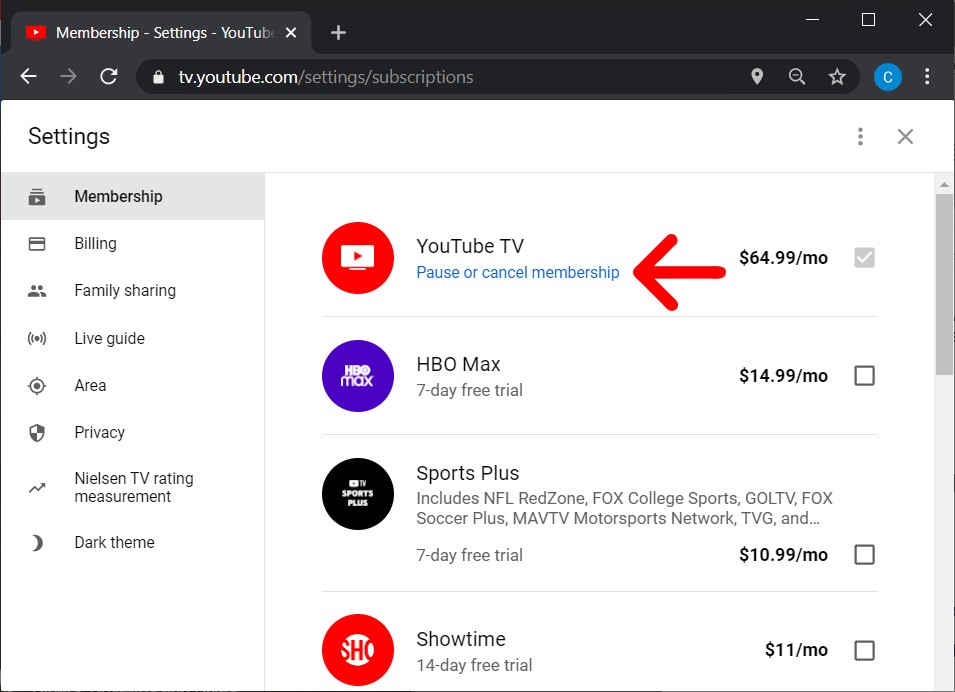
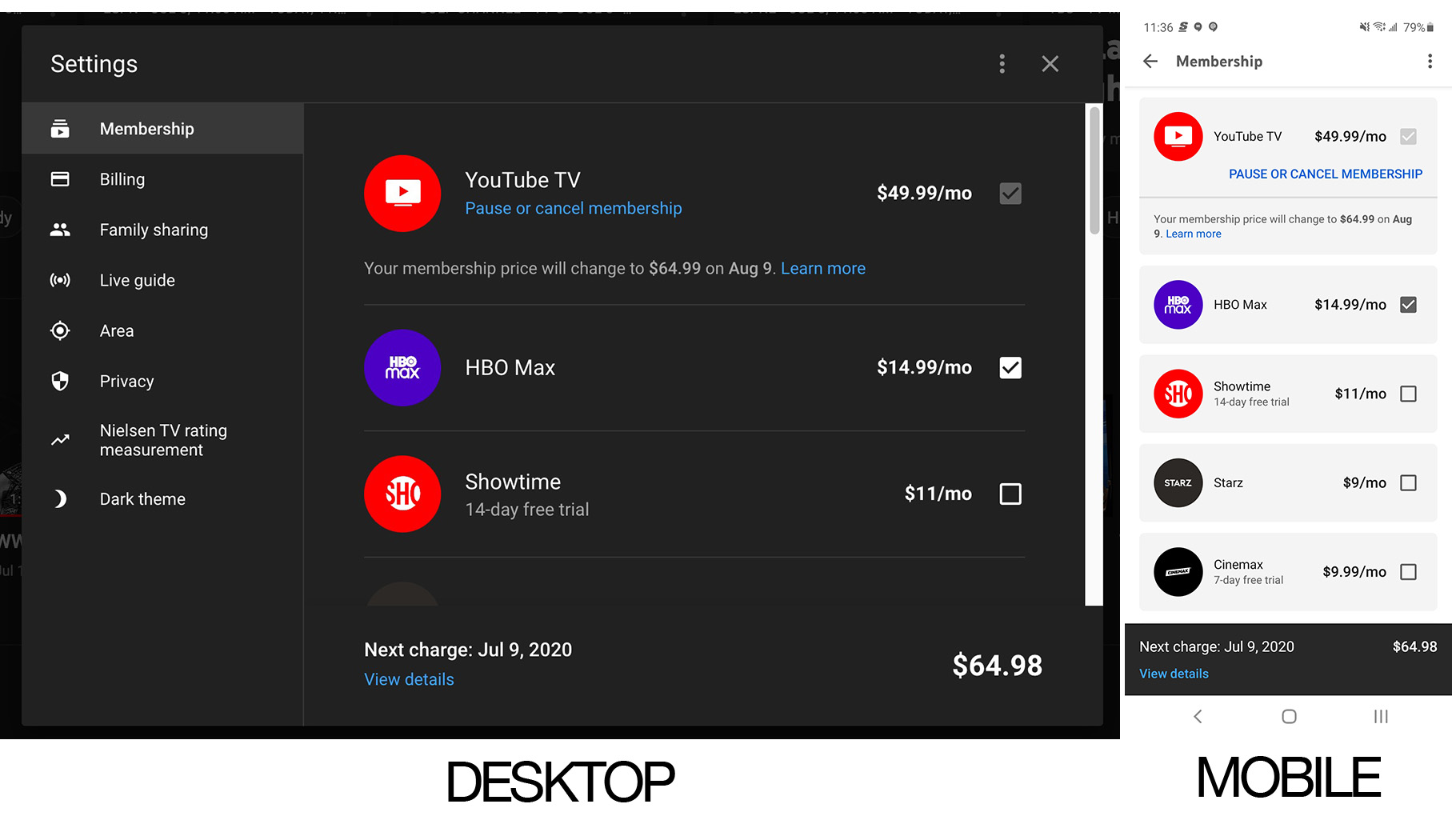
Membership Management: Under the “Membership” tab, you will see your current base plan and any added “bolt-on” networks (like HBO Max or Sports Plus).
-
The Deactivation Trigger: Click the “Manage” button next to your base plan. Here, Google will present you with two options: “Pause” or “Cancel.”
-
Finalizing the Request: Select “Cancel membership.” You will likely be prompted to provide a reason for leaving—a standard data-collection practice for Google’s product retention teams. Follow the prompts until you receive a confirmation screen and an automated email.
Managing Subscriptions on Android Devices
Since YouTube TV and Android are both part of the Alphabet ecosystem, the integration is seamless. You can cancel directly within the application.
-
Open the YouTube TV app on your Android smartphone or tablet.
-
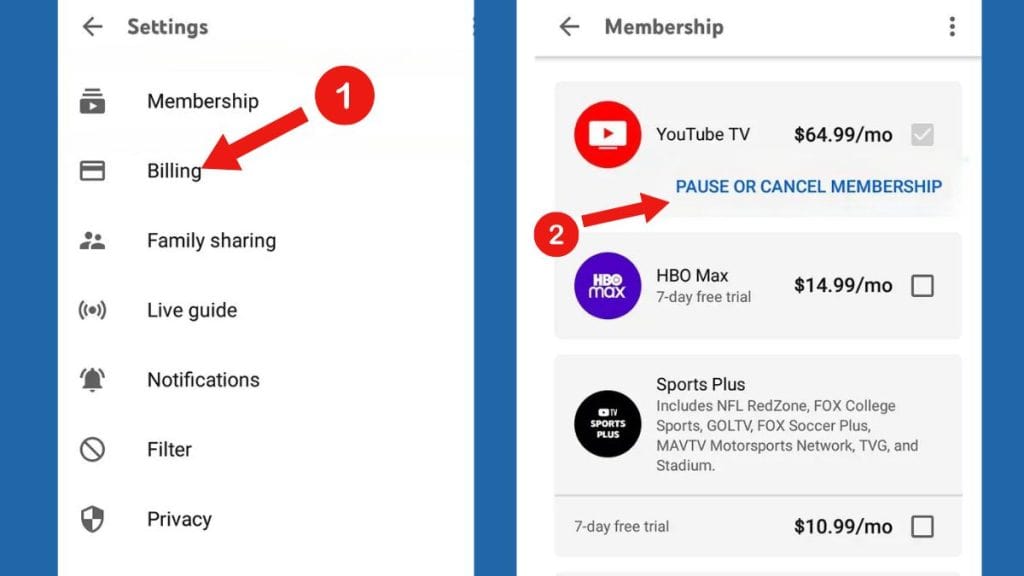
Tap your profile picture and go to “Settings,” then “Membership.”
-
Tap “Manage” and select “Cancel membership.”
-
Follow the on-screen instructions to confirm the termination.
The iOS and Apple Ecosystem Limitation
A critical technical distinction exists for users on iPhone or iPad. Due to the long-standing disputes regarding Apple’s in-app purchase commissions (often referred to as the “Apple Tax”), Google frequently disables the ability to sign up for or cancel subscriptions directly within the iOS app to avoid the 30% fee.
If you signed up for YouTube TV through the Apple App Store, you must manage the subscription through your Apple ID settings:
-
Open the “Settings” app on your iOS device.
-
Tap your name at the top, then tap “Subscriptions.”
-
Locate YouTube TV in the list and select “Cancel Subscription.”
If you signed up via the web but are using the app on an iPhone, the “Membership” section in the app may simply tell you to visit a web browser to make changes. This is a deliberate architectural choice to bypass third-party payment processing fees.
Understanding the “Pause” vs. “Cancel” Architecture
One of the unique software features of YouTube TV is the ability to “Pause” a membership. This is a technical middle ground designed for users who may be traveling or who only watch specific seasonal content, such as NFL games or specific television seasons.
Technical Benefits of Pausing
When you choose to pause your subscription rather than cancel it, Google maintains your account state in a “dormant” mode. You can set the pause duration for anywhere between 4 weeks and 6 months.
-
Billing Suspension: Your billing cycle stops at the end of the current period.
-
Data Preservation: Unlike a full cancellation, your “Library” (Cloud DVR) settings, watch history, and personalized recommendations remain intact and ready for your return.
-
Automatic Reactivation: At the end of the selected period, the system will automatically resume the subscription and charge the payment method on file. This is a crucial detail for users to note to avoid unexpected charges.
What Happens to Your Cloud DVR Data?
YouTube TV’s primary selling point is its unlimited Cloud DVR. When you cancel your subscription, the fate of your recorded data follows a specific technical timeline. Google typically retains your DVR recordings for 21 days after your membership ends. If you reactivate within that window, your library remains available. After 21 days, the pointers to those recordings are purged from your account profile, although your basic “Home” preferences and “Watch History” are usually stored longer as part of your general Google Account data.
Post-Cancellation: Security, Data Retention, and Access Logistics
Canceling the service is only one part of managing your digital footprint. As a savvy tech user, you should also consider how this affects your broader Google account and what happens to your payment information.
Google Account Integration and Permissions
YouTube TV requires extensive permissions to function, including access to your location (to verify local affiliate broadcasting rights) and your YouTube history. Even after canceling, the YouTube TV “service” remains an authorized app on your Google account.
To audit these permissions, visit the “Security” section of your Google Account settings. Look for “Third-party apps with account access.” While YouTube TV is a first-party app, you may find third-party “TV Everywhere” apps (like the ESPN app or FXNow) that you authenticated using your YouTube TV credentials. Once your subscription ends, these tokens will eventually expire, but manually revoking access is a best practice for maintaining digital security.
Removing Payment Methods and Third-Party API Access
If YouTube TV was the only service you were paying for via Google Pay, you might consider removing your credit card information from the system entirely. However, be cautious: if you use Google One for cloud storage or have an active YouTube Premium subscription, removing the payment method could trigger a service interruption across those platforms.
Furthermore, if you use automated tools or smart home integrations (like Google Home or Alexa) that rely on YouTube TV for “Live TV” commands, these integrations will fail once the subscription is terminated. You may need to update your “Media” or “Video” settings in your smart home hub to point to a new service provider.
Troubleshooting Common Subscription Management Issues
Even with a clear interface, technical glitches can occur during the unsubscription process. Understanding the backend logic can help you resolve these issues without needing a lengthy support call.
Dealing with Billing Cycles and Pro-rated Access
YouTube TV does not typically offer pro-rated refunds. If you are 10 days into a 30-day billing cycle and you cancel, the software is programmed to maintain your access until the end of the 30-day period. On the “Membership” page, your status will change to “Membership canceled,” but the “Expires on” date will indicate the end of your current cycle.
If you find that you are still being charged after cancellation, it is often due to a “Ghost Account.” This happens when a user has multiple Google accounts (e.g., a personal Gmail and a work G Suite account) and inadvertently signed up for the service on the one they don’t frequently check. Always verify the “Bill to” email address on your bank statement.
Verifying Cancellation Status via Logs
If you want to be absolutely certain the cancellation was processed, you can check your Google Activity logs. Google logs almost every interaction with its services. By visiting myactivity.google.com, you can filter by “Subscriptions” to see a timestamped log of when the cancellation request was submitted and confirmed by the server. This serves as a definitive digital receipt in case of a billing dispute.
The Streaming Ecosystem Post-YouTube TV
As you move away from YouTube TV, you are re-entering a competitive market of streaming protocols and software-as-a-service (SaaS) models. The technical landscape is shifting toward fragmented “Direct-to-Consumer” apps (like Disney+, Max, and Peacock) and other “Virtual Multichannel Video Programming Distributors” (vMVPDs) like Hulu + Live TV or FuboTV.
When evaluating your next move, consider the technical requirements of the alternative. Some services require specific hardware (like a proprietary set-top box), while others are optimized for specific operating systems (like the Apple TV 4K or Roku). Managing your subscriptions effectively is a core component of modern digital literacy. By understanding the underlying structures of these platforms—from Cloud DVR retention policies to cross-platform billing hangups—you can ensure that your digital life remains streamlined, secure, and cost-effective.
The process of unsubscribing from YouTube TV is a straightforward exercise in software navigation, provided you understand where the “levers” are located within the Google ecosystem. By following these steps and understanding the technical implications of your choice, you can regain control over your digital services and ensure that you are only paying for the technology you actively use.
aViewFromTheCave is a participant in the Amazon Services LLC Associates Program, an affiliate advertising program designed to provide a means for sites to earn advertising fees by advertising and linking to Amazon.com. Amazon, the Amazon logo, AmazonSupply, and the AmazonSupply logo are trademarks of Amazon.com, Inc. or its affiliates. As an Amazon Associate we earn affiliate commissions from qualifying purchases.