
In the contemporary landscape of digital entertainment, YouTube TV has emerged as a premier Over-the-Top (OTT) streaming service, replacing traditional cable for millions of households. However, as with any sophisticated software ecosystem that relies on cloud synchronization, high-bandwidth data transmission, and cross-platform compatibility, technical friction is inevitable. Whether you are encountering persistent buffering, application crashes, “Playback Error” messages, or a UI that has become unresponsive, knowing how to properly reset YouTube TV is a fundamental skill for the modern cord-cutter.
Resetting YouTube TV is not a singular action but a hierarchy of interventions ranging from a simple application refresh to a comprehensive factory reset of the hardware environment. This guide explores the technical nuances of these procedures, ensuring your streaming experience remains seamless and high-performing.
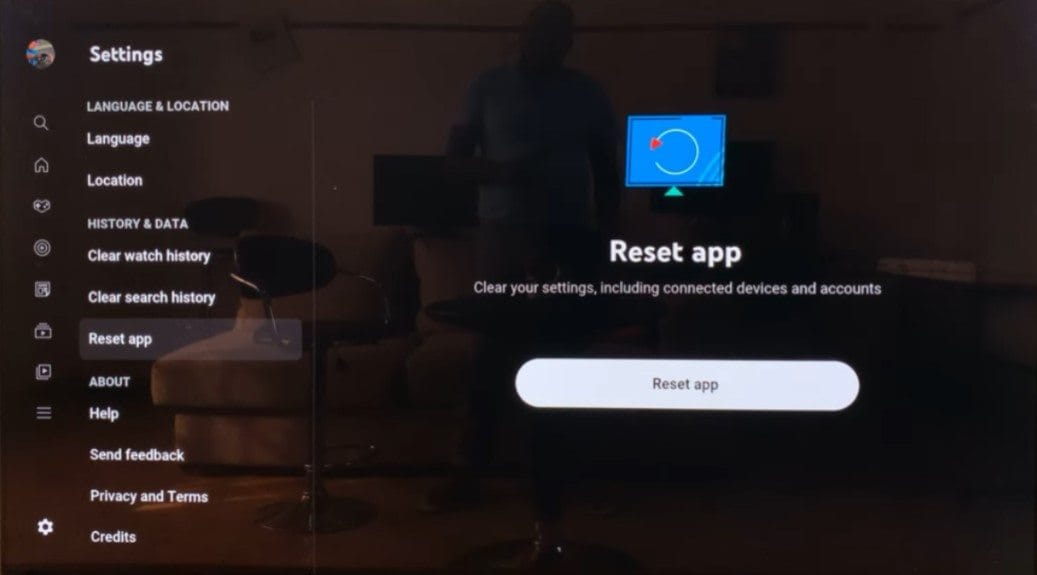
Addressing Software Glitches: App-Level Reset Strategies
The most common issues within the YouTube TV interface are often localized to the application’s temporary memory or its interaction with the operating system. Before moving to hardware-level resets, it is essential to address the software layer.
Force Closing and Restarting the Application
A “soft reset” begins with force-closing the application. Simply exiting to the home screen of your device often leaves the app suspended in the RAM, preserving the state of the error. To truly reset the app’s current session, you must terminate the process.
On devices like Apple TV, this involves double-clicking the TV button and swiping up on the YouTube TV tile. On Android TV or Google TV, navigate to Settings > Apps > YouTube TV > Force Stop. By terminating the process, you clear the active cache and force the application to re-initialize its boot sequence, which often resolves minor logic errors and authentication loops.
Clearing Cache and App Data
Over time, YouTube TV accumulates temporary files designed to speed up load times. However, these files can become corrupted or outdated, leading to performance degradation.
For users on Android-based systems (including Fire TV and Sony TVs), clearing the cache is a surgical way to reset the app without losing your login credentials. Navigate to the application settings and select “Clear Cache.” If the issues persist, “Clear Data” is the next step. Note that clearing data will effectively reset the app to its out-of-the-box state, requiring you to sign in again and reconfigure local settings. This process purges the local database and forces a fresh sync with YouTube TV’s backend servers.
Ensuring Version Compatibility
Software entropy is a common cause of “freezing.” If your YouTube TV app is several versions behind the current release, it may struggle with API calls to the server. Resetting your experience often requires a manual update check. Ensure that “Auto-Update” is enabled in your respective app store. If an update is available, installing it acts as a functional reset of the application’s core code, replacing potentially buggy files with optimized ones.
Hardware and Connectivity: The Foundation of Streaming Stability
Often, the perceived failure of the YouTube TV app is actually a symptom of hardware fatigue or network congestion. Resetting the environment in which the app operates is frequently more effective than resetting the app itself.
Power Cycling Streaming Hardware
The “Power Cycle” is the gold standard of technical troubleshooting. Streaming sticks (Chromecast, Roku, Fire Stick) and Smart TVs are essentially compact computers that suffer from memory leaks and heat-related performance throttling.
To perform a hard reset of your hardware, do not simply use the remote to turn the device off. Unplug the power cable from the wall outlet or the device itself. Wait at least 60 seconds to allow the capacitors to fully discharge, which clears the volatile memory (RAM). Replugging the device initiates a “Cold Boot,” which reloads the operating system kernel and provides a clean environment for YouTube TV to run.
Optimizing Network Infrastructure
YouTube TV requires a consistent, high-bitrate connection to deliver 4K and 1080p content without interruption. If you are experiencing the dreaded “Spinning Circle,” the reset needs to happen at the router level.

Resetting your router clears the NAT (Network Address Translation) table and re-establishes the handshake with your Internet Service Provider (ISP). If your device is connected via Wi-Fi, consider a “Network Settings Reset” on the device itself to clear saved SSIDs and IP configurations. For the most stable YouTube TV experience, technical professionals recommend using an Ethernet connection, which bypasses the radio frequency interference that often plagues wireless streaming.
The Impact of DNS and ISP Throttling
Sometimes, the reset needs to be architectural. If YouTube TV fails to load specifically on one network but works on another (like a mobile hotspot), your DNS settings may be the culprit. Resetting your DNS to a public provider like Google DNS (8.8.8.8) or Cloudflare (1.1.1.1) can bypass localized routing issues that prevent the YouTube TV app from “calling home” to its authentication servers.
Resetting User Experience and Personalization Data
Beyond technical errors, a user may wish to reset YouTube TV to change their content recommendations or correct location-based viewing errors. This involves interacting with the account’s metadata.
Refreshing Recommendation Algorithms
YouTube TV utilizes complex machine learning algorithms to suggest content based on your watch history. If your “Home” tab is cluttered with irrelevant shows, you can reset these recommendations by managing your history.
Navigate to your Profile > Settings > Privacy. Here, you can “Pause Watch History” or “Clear Watch History.” Clearing your history sends a signal to the backend algorithm to reset your preference profile. While this won’t change your recorded DVR library, it will fundamentally reset the “top picks” and “suggested” sections of the UI, allowing you to build a new preference profile from scratch.
Updating Geographic and Home Area Settings
YouTube TV relies heavily on geolocation to provide local broadcast networks (ABC, NBC, CBS, FOX). If you move or if your IP address incorrectly identifies your location, you may lose access to local channels.
To reset your location, go to Settings > Area > Home Area. You are allowed to change your Home Area only a limited number of times per year. If you are traveling, you can update the “Current Family Location” to reset the local channel lineup to your temporary vicinity. This trigger forces the app to re-verify your GPS or IP data against the digital rights management (DRM) restrictions of the local affiliates.
Managing User Profiles and Authentication
If multiple people use a single account, the profile data can become convoluted. Resetting the user environment can be as simple as switching profiles or signing out of all devices. If you suspect unauthorized access or persistent sync issues, navigate to your Google Account security settings and “Sign out of all sessions.” This forces every instance of YouTube TV globally to re-authenticate, effectively resetting the token-based handshake between your devices and the cloud.
Advanced Restoration Techniques
When standard troubleshooting fails, you must escalate to more intrusive methods to restore functionality.
Deep Reinstallation Procedures
A simple delete and reinstall is often insufficient if “Ghost Files” remain in the system directory. For a deep reset, uninstall the YouTube TV app, then restart the hardware device before reinstalling. This ensures that any temporary registry entries or file pointers associated with the previous installation are purged from the system’s memory during the reboot cycle. Once the device is back online, a fresh download ensures you are working with the most recent, uncorrupted binary files.
Factory Resets for Smart TV Ecosystems
If YouTube TV is built into your Smart TV (such as Samsung’s Tizen or LG’s webOS) and refuses to function, a factory reset of the TV may be the only solution. This is a “nuclear option” as it erases all apps and settings. However, it is often necessary when the TV’s internal flash storage becomes fragmented or when an OS-level bug interferes with the app’s sandbox environment.

Navigating API and Backend Sync Issues
Occasionally, the issue isn’t on your end. If you have reset your app, hardware, and network, and the service still fails, check the “Stats for Nerds” feature within the YouTube TV playback settings. This overlay provides real-time technical data, including “Connection Speed,” “Network Activity,” and “Buffer Health.” If the “Connection Speed” is high but “Network Activity” is zero, the issue likely resides with YouTube TV’s servers. In this instance, the only “reset” is time, as you must wait for a server-side patch or a resolution to a Content Delivery Network (CDN) outage.
By understanding the distinction between software, hardware, and account-level resets, users can systematically diagnose and resolve almost any issue within the YouTube TV ecosystem. This technical approach ensures minimal downtime and a high-fidelity viewing experience in an increasingly complex digital landscape.
aViewFromTheCave is a participant in the Amazon Services LLC Associates Program, an affiliate advertising program designed to provide a means for sites to earn advertising fees by advertising and linking to Amazon.com. Amazon, the Amazon logo, AmazonSupply, and the AmazonSupply logo are trademarks of Amazon.com, Inc. or its affiliates. As an Amazon Associate we earn affiliate commissions from qualifying purchases.