
The landscape of digital streaming has undergone a seismic shift over the last decade, transitioning from experimental “cord-cutting” alternatives to the primary method of media consumption for millions. YouTube TV stands as a titan in this space, offering a sophisticated Over-The-Top (OTT) streaming service that replicates the traditional cable experience through a cloud-based infrastructure. However, as the subscription economy grows increasingly crowded and costly, users frequently find themselves needing to prune their digital portfolios. Deleting or canceling a YouTube TV subscription is not merely about clicking a button; it involves navigating a complex web of account permissions, billing cycles, and cross-platform integrations.
Understanding the technical nuances of how YouTube TV integrates with your broader Google ecosystem is essential before initiating the deletion process. This guide provides an exhaustive technical breakdown of how to terminate your service, manage your data, and ensure that your digital footprint is handled according to your preferences.
Navigating the Subscription Architecture: Cancellation vs. Deletion
Before diving into the procedural steps, it is critical to distinguish between “pausing” a subscription, “canceling” a membership, and “deleting” the application data. In the realm of Software as a Service (SaaS), these actions trigger different backend protocols.
The Mechanics of Pausing vs. Canceling
YouTube TV offers a unique “Pause” feature that allows users to suspend their service for a duration ranging from four weeks to six months. From a technical standpoint, pausing retains your settings and Cloud DVR recordings but halts the billing cycle. This is an ideal solution for users who are traveling or experiencing temporary budget constraints.
Conversely, canceling the membership initiates a “grace period” logic. Your access remains active until the end of the current billing cycle, at which point the authentication tokens for the service are revoked. Your data, including your library of recorded shows, is typically held on Google’s servers for 21 days following the end of the billing period before it is permanently purged.
The Google Account Integration
YouTube TV is not a standalone entity; it is a service tied directly to your Google Identity (your Gmail or Google Workspace account). You cannot “delete” a YouTube TV account in the sense of a complete identity wipe without deleting your entire Google Account—an action that would result in the loss of Gmail, Photos, and Drive data. Therefore, “deleting YouTube TV” specifically refers to the permanent removal of the service subscription and the associated user profile data within the Google ecosystem.
The Step-by-Step Deletion Process Across Platforms
The method for terminating your YouTube TV service varies significantly depending on the hardware and software environment you are using. Because Google utilizes different UI/UX layouts for web, mobile, and living room devices, following the correct path for your specific device is paramount.
Deleting via Web Browser (macOS, Windows, Linux)
The web interface remains the most robust environment for managing subscription settings, as it provides the most direct access to Google’s billing API.
-
Authentication: Navigate to
tv.youtube.comand ensure you are logged into the primary account holder’s profile. In a Family Group, only the manager can initiate a cancellation. -
Accessing Settings: Click on your profile avatar in the upper right-hand corner and select “Settings.”
-
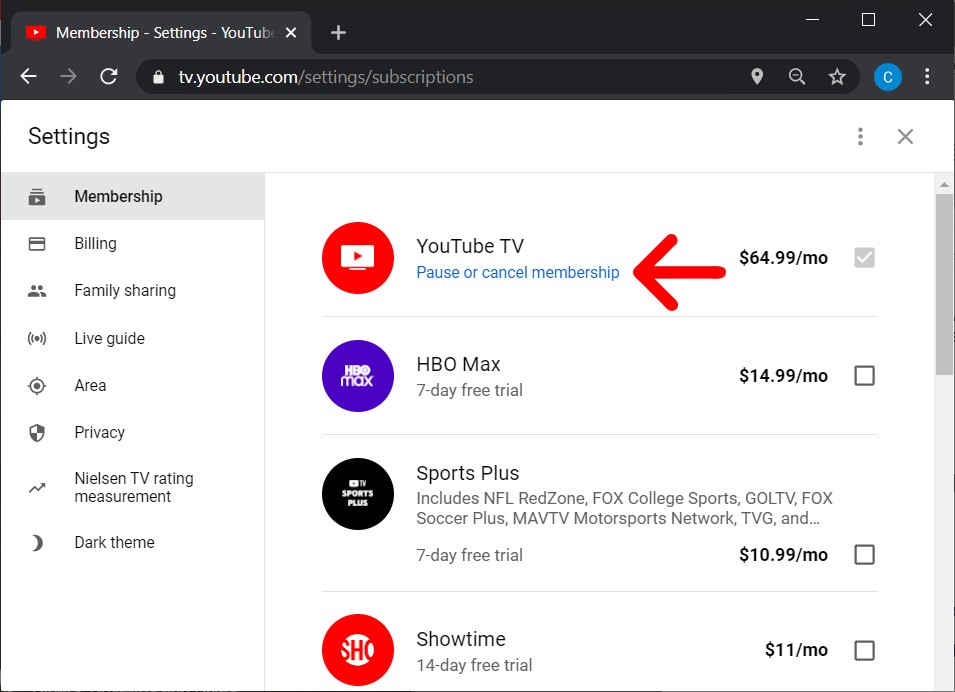
Membership Management: Under the “Membership” tab, you will see your current plan and any “add-on” networks (such as HBO Max or Sports Plus).
-
Initiating Cancellation: Click “Manage” next to the base plan. You will be presented with the option to “Pause” or “Cancel membership.” Select “Cancel.”
-
Feedback and Confirmation: Google utilizes a standard retention flow, asking for the reason for departure. Once you navigate through these prompts, you must confirm the cancellation to trigger the automated email confirmation.
Managing Subscriptions on Mobile Devices (Android and iOS)
The mobile experience is bifurcated based on the operating system’s relationship with Google.
-
Android: Since Android is a Google-owned OS, the YouTube TV app typically redirects you to the Google Play Store’s subscription management tool. You can manage this by opening the Play Store app, tapping your profile icon, and selecting “Payments & subscriptions.”
-
iOS (iPhone/iPad): If you signed up through the YouTube TV website, you must use the mobile browser (Safari or Chrome) to cancel, as Apple’s App Store policies often prevent Google from offering direct subscription management within the app to avoid the “Apple Tax.” However, if you are billed via Apple (In-App Purchase), you must navigate to your iPhone Settings > [Your Name] > Subscriptions to terminate the service.
Technical Implications: Data Retention and Cloud DVR Synchronization

One of the primary technical selling points of YouTube TV is its “Unlimited Cloud DVR.” When you delete your service, you are essentially signaling the server to de-index your saved content. Understanding what happens to this data is vital for users who might consider returning to the platform in the future.
The 9-Month Retention Logic
While YouTube TV technically deletes your access to recordings immediately upon the expiration of your final billing cycle, Google’s backend architecture often retains “preferences” and “watch history” for a limited time. If you restart your subscription within 21 days, your library is usually intact. However, individual recordings have a strict 9-month expiration date from the time they were recorded. If you cancel your account and return a year later, your Cloud DVR will be entirely purged, as the metadata associated with those recordings will have exceeded the retention threshold.
Third-Party API Access
Many users use their YouTube TV credentials to log into “TV Everywhere” apps (such as the ESPN app or the FXNow app). Upon deleting your YouTube TV subscription, the OAuth tokens used to verify your subscription with these third-party providers will be invalidated. You will lose access to these auxiliary apps the moment your YouTube TV billing cycle officially closes.
Troubleshooting Common Deletion Hurdles
Despite the streamlined nature of modern web apps, technical hurdles can arise that prevent a clean deletion of the service.
Third-Party Billing Pipelines
A common point of failure in the deletion process occurs when a user is billed through a third-party intermediary such as Roku, Amazon Fire TV, or a mobile carrier like Verizon or T-Mobile. In these instances, the “Manage” button in the YouTube TV settings will often be replaced by a link directing you to the third-party’s portal.
-
Roku: You must log into the Roku Account website or use the “Options” button on the YouTube TV channel on your Roku device to manage the subscription.
-
Carrier Billing: If your YouTube TV is bundled with your cellular plan, you must use the carrier’s internal dashboard (e.g., the “My Verizon” app) to remove the “Add-on” service. Failure to do this through the carrier will result in continued charges, even if you stop using the app.
Handling the “Family Group” Conflict
If you are part of a Google Family Group, deleting your YouTube TV profile can be complicated if you are not the “Family Manager.” If you are a member and wish to leave, you can simply remove yourself from the group. However, if the Family Manager cancels the subscription, access is revoked for all five additional members simultaneously. If you wish to maintain your watch history and recommendations while moving to your own separate subscription, you must ensure that your Google account remains active while the shared subscription is terminated.
Security and Privacy: Clearing Your Digital Footprint
For the tech-savvy user, deleting the subscription is only half the battle. To truly “delete” YouTube TV from your digital life, you should address the data Google has collected regarding your viewing habits.
Managing Activity Controls
Every show you watch on YouTube TV is logged under your Google “Web & App Activity.” To clear this:
-
Navigate to
myactivity.google.com. -
Filter by “YouTube” or “YouTube TV.”
-
Delete the history associated with the service. This prevents Google’s algorithms from using your past TV viewing habits to influence recommendations across YouTube and Google Search.
Revoking App Permissions
Over time, you may have granted various smart TVs, set-top boxes, and third-party apps permission to access your YouTube TV data. After canceling your subscription, it is a best practice to visit your Google Account Security settings and review “Third-party apps with account access.” Revoking access for old devices ensures that no “ghost” sessions remain active, which is a critical step for maintaining digital security.

Future-Proofing Your Digital Media Strategy
Deleting YouTube TV often marks a transition toward a more modular media consumption strategy. From a technical perspective, the market is moving toward “App Switching,” where users move between services based on content availability rather than long-term loyalty.
When you delete YouTube TV, you are freeing up high-bandwidth resources on your home network and potentially reducing the background data usage associated with “Live TV” tiles and automatic updates. For those looking for alternatives, the tech market offers a variety of paths:
-
On-Demand Migration: Moving toward services like Netflix or Disney+, which utilize a different delivery architecture (CDN-based vs. Live Stream).
-
Hardware-Based Solutions: Implementing an OTA (Over-the-Air) antenna with a networked tuner like HDHomeRun, which allows you to broadcast local channels over your home Wi-Fi without a monthly subscription fee.
Ultimately, the process of deleting YouTube TV is a testament to the control users now have over their digital environments. By understanding the technical layers—from billing APIs to data retention policies—you can ensure a clean break from the service while maintaining the integrity of your broader Google account and digital privacy.
aViewFromTheCave is a participant in the Amazon Services LLC Associates Program, an affiliate advertising program designed to provide a means for sites to earn advertising fees by advertising and linking to Amazon.com. Amazon, the Amazon logo, AmazonSupply, and the AmazonSupply logo are trademarks of Amazon.com, Inc. or its affiliates. As an Amazon Associate we earn affiliate commissions from qualifying purchases.