
YouTube TV has revolutionized the way we consume live television by merging the reliability of traditional broadcasting with the flexibility of cloud-based software. For households transitioning from cable to streaming, one of the most significant technical advantages is the ability to maintain individual user profiles through a single subscription. By leveraging Google’s robust “Family Sharing” infrastructure, YouTube TV allows a primary subscriber to share their access with up to five additional people.
Understanding how to add an account to YouTube TV is not merely about clicking a few buttons; it involves navigating the Google ecosystem, understanding geolocation constraints, and optimizing the digital experience for every member of the household. This guide provides an in-depth technical walkthrough of the process, the prerequisites required, and the underlying architecture that makes multi-user streaming possible.

The Architecture of YouTube TV Family Groups
Before diving into the procedural steps, it is essential to understand the technical framework that supports multiple accounts. YouTube TV operates on a “Family Group” model. When you purchase a subscription, you become the “Family Manager.” This role grants you the administrative authority to invite other Google accounts to join your subscription without sharing your personal password or sensitive login credentials.
The Benefit of Individualized Profiles
Unlike traditional cable boxes where every user sees the same DVR list and channel lineup, YouTube TV treats each added account as a distinct entity. Each of the six total members receives their own personal DVR library with unlimited storage space, unique watch histories, and personalized recommendations. The software’s algorithm tracks individual viewing habits to refine the “Home” tab for each user, ensuring that a sports fan’s feed isn’t cluttered with their roommate’s reality TV preferences.
Technical Requirements for New Members
To be eligible for a YouTube TV family group, certain digital criteria must be met:
-
Google Account Status: Every member must have a valid Google Account. Work or school-based G-Suite accounts are often ineligible due to administrative restrictions.
-
Age Requirements: Members must be at least 13 years old.
-
Location Constraints: Under Google’s terms of service, all family members must primarily reside in the same household as the Family Manager. The software uses periodic check-ins and IP address tracking to verify that users are within the same Home Area.
-
Membership Limits: An individual can only be a member of one family group at a time and is generally limited to switching groups only once every 12 months to prevent subscription cycling.
Step-by-Step: Adding an Account to Your Subscription
Adding a user is an administrative task that must be initiated by the Family Manager. This can be accomplished through a web browser or the mobile application.
Method 1: Using a Desktop Web Browser
For most users, the web interface offers the most stable and comprehensive environment for managing account permissions.
-
Access Settings: Navigate to the YouTube TV website and sign in with the primary subscriber’s credentials. Click on the profile avatar in the top-right corner and select “Settings.”
-
Navigate to Family Sharing: On the sidebar, locate the “Family Sharing” tab.
-
Initiate Setup: Click “Manage.” If you have not yet created a family group, the system will prompt you to “Set up.”
-
Send Invitations: Click on “Invite Family Member.” This will open a dialog box where you can enter the email address or phone number of the person you wish to add.
-
Confirm and Send: Once you select the contact, click “Send.” Google will dispatch an email invitation containing a unique join link to the recipient.
Method 2: Using the YouTube TV Mobile App
The process on mobile devices is streamlined for users on the go, utilizing the native sharing features of iOS and Android.
-
Open the App: Ensure you are logged in as the Family Manager.
-
Enter Settings: Tap your profile picture and select “Settings.”
-
Family Sharing Setup: Tap on “Family Sharing” and then “Set Up.”
-
Invite Members: Use the “Invite Family Member” button. On mobile, the software may request permission to access your contacts to make finding the recipient easier.
-
Finalize: After choosing the recipient, tap “Send” to trigger the invitation email.
The Recipient’s Perspective: Accepting the Invite
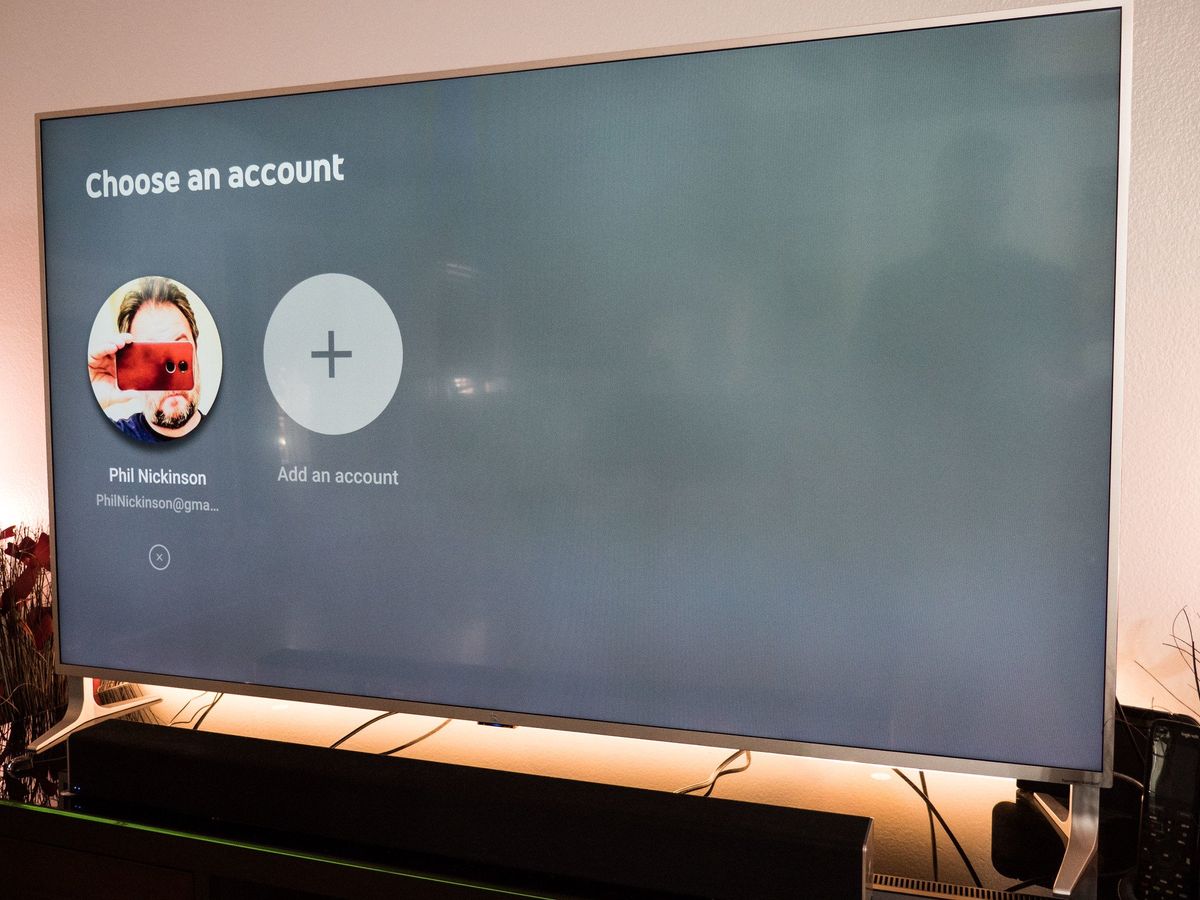
The process is not complete until the invited member accepts the invitation. The recipient must open the email from Google and click “Accept Invitation.” They will then be guided through a brief onboarding process that confirms their location and explains how their data will be handled within the group. Once accepted, the new member can sign into the YouTube TV app on any device using their own Google credentials.
Managing Permissions and Troubleshooting Access
Once accounts are added, the Family Manager retains control over the digital household. However, because this is a shared technical environment, certain issues can arise regarding concurrent streams and geographic boundaries.
Managing Concurrent Streams
While YouTube TV allows for six accounts per household, it is important to note the hardware limitations. By default, the service allows for three concurrent streams across the entire family group. This means that if four family members attempt to watch different channels simultaneously, one will be blocked. For high-demand households, Google offers a “4K Plus” add-on that enables unlimited concurrent streams on the home Wi-Fi network, providing a technical solution for larger families.
Handling “Outside of Home” Errors
One of the most common technical hurdles when adding an account is the “Outside of Home” error. YouTube TV uses geolocation data to ensure users are within their designated broadcast area.
-
The Check-In Requirement: Every added member must occasionally sign into the YouTube TV app from the Family Manager’s home Wi-Fi network. This “check-in” validates their status as a household member.
-
Traveling: Members can use the service while traveling, but they may see local channels from the city they are visiting rather than their home city. If a member does not check in from the home location for more than 90 days, their access may be temporarily suspended until they return to the primary residence.
Removing an Account
Digital security is paramount, and there may come a time when a member needs to be removed. The Family Manager can revoke access at any time by returning to the “Family Sharing” settings, clicking on the member’s profile, and selecting “Remove Member.” This immediately terminates their access to the live stream and their recorded DVR content.
Optimizing the Multi-User Tech Experience
To get the most out of a multi-account setup, users should take advantage of the advanced software features integrated into the YouTube TV platform.
Personalized DVR and the “Library” Tab
The crown jewel of the YouTube TV multi-account system is the individual Library. When a user adds a show to their library, it is recorded in the cloud and stored for up to nine months. Because these libraries are siloed, User A’s recording of a three-hour football game does not impact User B’s ability to record a movie marathon. There is no “storage limit” in the traditional sense; the software manages the cloud bandwidth dynamically.
Customizing the Live Guide
Each added account can technically customize their “Live” view. By accessing the settings on a web browser, individual users can reorder their channel lineup or hide channels they never watch. This customization is account-specific, meaning a child’s profile can be restricted to only show educational or cartoon networks in their guide, while the parents maintain access to news and sports at the top of their list.
Integration with Smart Home Ecosystems
For households using Google Home or Nest Hub devices, adding individual accounts to YouTube TV allows for seamless voice-command integration. Through “Voice Match” technology, the smart display can recognize who is speaking and automatically pull up that specific person’s YouTube TV profile and DVR. This level of cross-device integration highlights the sophistication of the Google tech stack, making the transition between devices—from mobile to smart TV to smart display—entirely frictionless.

Conclusion
The ability to add multiple accounts to YouTube TV is more than just a convenience; it is a sophisticated implementation of cloud-based identity management. By separating the subscription from the individual user profile, YouTube TV provides a personalized, secure, and highly scalable entertainment solution. Whether you are managing a busy household or simply looking to share the cost of entertainment with residents, understanding the technical nuances of Family Groups ensures a smooth, uninterrupted viewing experience for everyone involved. As streaming technology continues to evolve, the shift toward these individualized, multi-user platforms represents the future of digital media consumption.
aViewFromTheCave is a participant in the Amazon Services LLC Associates Program, an affiliate advertising program designed to provide a means for sites to earn advertising fees by advertising and linking to Amazon.com. Amazon, the Amazon logo, AmazonSupply, and the AmazonSupply logo are trademarks of Amazon.com, Inc. or its affiliates. As an Amazon Associate we earn affiliate commissions from qualifying purchases.