
The transition from traditional broadcast television to on-demand streaming has fundamentally altered the way we consume media. At the heart of this revolution is YouTube, a platform that has evolved from a simple video-sharing site into a sophisticated ecosystem of content ranging from 4K documentaries to live news and educational seminars. To fully leverage the power of YouTube in a living room environment, logging into your account on a Smart TV or streaming device is essential. This process synchronizes your viewing history, subscriptions, and personalized recommendations, transforming a generic interface into a curated media hub.
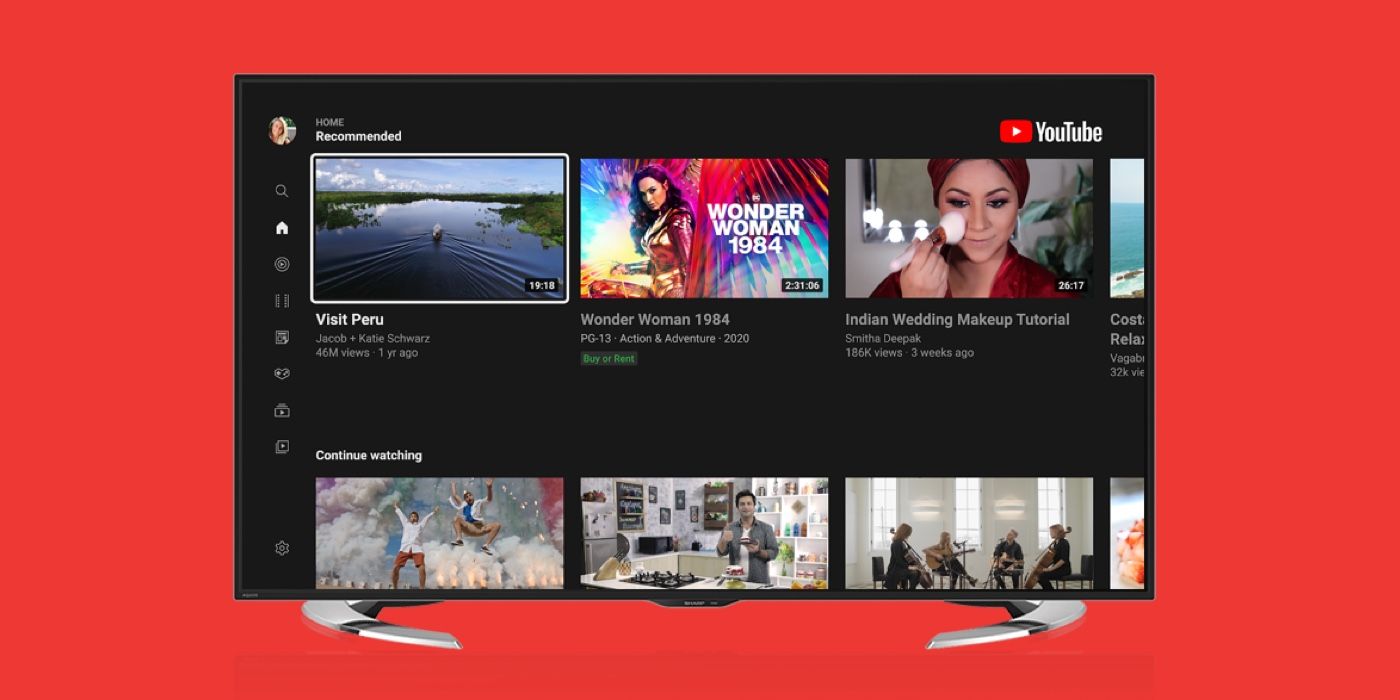
However, the technical architecture of Smart TVs—often referred to as “Leanback” interfaces—differs significantly from mobile or desktop environments. Inputting complex passwords via a remote control can be cumbersome, leading developers to create multiple streamlined authentication protocols. This guide explores the various technical methods to log into YouTube on your TV, troubleshoots common connectivity issues, and offers insights into optimizing your digital security during the process.
Primary Methods for Device Authentication
The “Leanback” experience is designed for simplicity, and Google has implemented several ways to authenticate your account without requiring you to type your full email and password using a d-pad remote. Depending on your hardware and software version, one of the following methods will be most effective.
The Activation Code Method (youtube.com/activate)
The most common and technically reliable way to link your YouTube account to a television is through the web-based activation code. This method utilizes a secondary device—such as a smartphone or laptop—to handle the credentials, which is then communicated to the TV via Google’s servers.
-
Launch the App: Open the YouTube app on your Smart TV, Roku, or Fire Stick. Navigate to the left-hand menu and select “Sign In.”
-
Retrieve the Code: The TV will display an 8- or 9-character alphanumeric code. It will also provide a URL, typically
youtube.com/activate. -
Authorize on a Secondary Device: On your phone or computer, navigate to the provided URL. Ensure you are logged into the Google account you wish to use on the TV.
-
Enter the Code: Type the code displayed on your TV screen into the browser field. Click “Next” and then “Allow” to grant the YouTube TV app permission to access your account data.
-
Synchronization: Within seconds, the TV interface will refresh, and your profile will be active.
Mobile Device Syncing
If your smartphone and your Smart TV are connected to the same Wi-Fi network, you can often bypass codes entirely. This method relies on Local Area Network (LAN) discovery protocols like DIAL (Discovery-and-Launch) or Google’s proprietary Cast technology.
When you open the YouTube app on your television, a prompt may appear on your mobile device asking if you want to sign in to the TV using your current mobile profile. By tapping “Continue as [Name],” the mobile app transmits an encrypted token to the TV app, instantly authenticating the session. This is the fastest method but requires both devices to be on the same sub-network and have “Background App Refresh” or similar permissions enabled.
Manual Login
For those who prefer a direct approach or are operating on a network that blocks cross-device communication (such as some hotel or corporate Wi-Fi), the manual login remains an option. This involves using the on-screen keyboard to enter your Google credentials. While functional, it is the most prone to user error and is often the most time-consuming due to the limitations of standard remote controls.
Platform-Specific Nuances and Software Ecosystems
While the YouTube app maintains a relatively consistent UI across devices, the underlying operating systems (OS) can influence the login experience. Understanding these nuances helps in navigating potential software roadblocks.
Android TV and Google TV
Devices running Android TV (like Sony Bravia, Nvidia Shield, or Chromecast with Google TV) offer the most seamless integration. Because these devices require a Google account for the OS itself, the YouTube app often signs you in automatically using the system-wide credentials. If you wish to use a different account, you can add multiple Google profiles in the “Accounts & Sign In” section of the TV settings, which will then appear as options within the YouTube app’s account switcher.
Apple TV (tvOS)
The YouTube experience on tvOS is highly polished but follows Apple’s strict privacy and security protocols. When logging in, users can often use the “Sign In with iPhone” feature. If both devices are nearby, your iPhone will receive a notification to use FaceID or TouchID to authorize the YouTube login on the Apple TV. This leverages the Apple Keychain ecosystem to securely pass credentials without manual input.
Gaming Consoles (PlayStation and Xbox)

Modern consoles like the PlayStation 5 and Xbox Series X/S treat YouTube as a high-performance media application. These platforms typically default to the youtube.com/activate method. It is important to note that these apps are frequently updated to support 4K 60fps playback and HDR. Ensure your console’s system software is up to date to avoid “Session Expired” errors, which occur when the app’s security certificates are out of alignment with the server.
Smart TV Brands (Samsung, LG, Vizio)
Proprietary operating systems like Samsung’s Tizen or LG’s webOS use web-wrapped versions of the YouTube app. These versions are highly dependent on the TV’s built-in browser engine. If you encounter issues logging in on these sets, it is often due to a “Cookie” or “JavaScript” error within the TV’s firmware. Updating the TV’s software (Firmware) via the system settings menu is the primary solution for these hardware-specific glitches.
Troubleshooting Technical Hurdles
Technical friction is inevitable in complex software ecosystems. If you find that the login process fails or the app hangs during the “Connecting” phase, consider the following technical variables.
Network and DNS Issues
A stable internet connection is the baseline requirement, but the quality of that connection matters for authentication. If your TV is set to a custom DNS (like a VPN or an ad-blocking DNS), it may struggle to reach Google’s authentication servers.
-
Fix: Revert your TV’s network settings to “Automatic” or “DHCP” to ensure it can resolve
accounts.google.comcorrectly. -
Time Sync: Ensure your TV’s date and time settings are set to “Automatic.” If the TV’s internal clock is out of sync with the actual time, the SSL/TLS certificates used for secure login will be rejected as invalid, preventing any login attempt from succeeding.
Firmware and App Version Mismatch
Streaming services frequently update their API (Application Programming Interface) to improve security and add features. If your TV is running an outdated version of the YouTube app, it may use a deprecated authentication protocol that Google no longer supports.
- Solution: Visit your TV’s App Store (e.g., LG Content Store or Samsung Smart Hub) and check for updates. If the app remains buggy, uninstalling and reinstalling it clears the local cache and forces the system to fetch the latest stable build.
Account Permissions and 2FA
If you have Two-Factor Authentication (2FA) enabled on your Google account—which is highly recommended—the TV login may require an extra step. After entering the code on your phone, you might receive a prompt to “Tap Yes on your phone” or enter a code from a Google Authenticator app. If you have “Advanced Protection” enabled on your account, some older Smart TVs may be blocked entirely from signing in due to their lack of support for physical security keys.
Security, Privacy, and Optimizing the Experience
Once logged in, the YouTube experience on TV changes from a passive broadcast to an active, personalized stream. However, this level of integration requires a focus on digital security and account management.
Managing Connected Devices
Every time you log into a TV, that device is granted an OAuth token to access your account. Over time, as you upgrade hardware or log in at friends’ houses, these tokens accumulate. It is a best tech practice to periodically visit your Google Account Security settings (myaccount.google.com/security) and review “Your Devices.” If you see a TV you no longer use, revoke its access to ensure your viewing habits and data remain private.
The Benefits of a Logged-In Profile
The technical advantages of maintaining a logged-in state are significant:
-
Watch Later and Playlists: Access your carefully curated lists directly from the sidebar.
-
Algorithm Accuracy: The “Recommended” feed on the home screen uses your watch history to surface content, which is significantly more accurate when logged in.
-
YouTube Premium: If you subscribe to Premium, logging in is the only way to remove advertisements and enable background play/music features on the TV.
-
Remote Control via Phone: Once logged in, your phone can act as a sophisticated remote. By tapping the “Cast” icon, you can queue videos from your phone to play on the TV, essentially using the TV as a high-resolution display for your mobile-driven discovery.
Guest Mode and Switching Accounts
Smart TVs are often shared household devices. To prevent your children’s viewing habits from influencing your recommendations (or vice versa), utilize the “Switch Account” feature within the YouTube app. Most modern versions of the app allow you to add multiple profiles and select the active one upon launch. Additionally, if you have guests over, you can use “Guest Mode” or “Incognito,” which allows them to search for videos without affecting your account history or data profile.
By understanding the underlying mechanisms of TV-based authentication—from activation codes to LAN discovery—you can ensure a seamless and secure transition to the big screen. As Smart TV hardware continues to evolve, the integration between mobile ecosystems and television interfaces will only deepen, making these login procedures the gateway to a truly unified digital media experience.
aViewFromTheCave is a participant in the Amazon Services LLC Associates Program, an affiliate advertising program designed to provide a means for sites to earn advertising fees by advertising and linking to Amazon.com. Amazon, the Amazon logo, AmazonSupply, and the AmazonSupply logo are trademarks of Amazon.com, Inc. or its affiliates. As an Amazon Associate we earn affiliate commissions from qualifying purchases.