
As the landscape of television continues its rapid migration from traditional coaxial cables to cloud-based streaming, YouTube TV has emerged as a titan in the industry. For millions of American households, it represents the primary gateway to live sports, local news, and premium entertainment. However, as with any sophisticated software-as-a-service (SaaS) platform, technical glitches, billing discrepancies, or account synchronization issues can occur. When these hurdles arise, many users prefer the directness of a human conversation.
Navigating the support infrastructure of a technology giant like Google requires a different approach than the legacy “1-800” numbers of the past. This guide provides a comprehensive technical walkthrough on how to contact YouTube TV by phone in the USA, ensuring you reach a verified representative while maintaining your digital security.

Navigating the YouTube TV Support Ecosystem
In the modern tech era, customer service has evolved into an asynchronous, data-driven model. Unlike traditional cable providers that maintained massive call centers with long hold queues, YouTube TV utilizes an “on-demand” support system. This shift is designed to reduce wait times and ensure that the agent who speaks with you is already briefed on your specific account status and technical environment.
The Shift from Direct Inbound Lines to Request-Based Support
One of the most important things to understand about YouTube TV support is that there is no static, publicly listed inbound phone number that users can dial directly to reach a technician. If you find a “YouTube TV Support Number” on a random third-party website or via a search engine ad, exercise extreme caution. These are frequently “phishing” traps or third-party “tech support” scams designed to gain remote access to your computer or steal your credit card information.
Instead, YouTube TV operates on a “Callback” system. You initiate the request through the official app or website, and a Google support specialist calls you—usually within minutes. This system verifies your identity through your active login, making the support session more secure and efficient.
Why Google Uses a Callback System
From a technical standpoint, the callback system allows Google to perform preliminary diagnostics on your account before the phone rings. When you submit a request, the system logs your device type, your current location (relevant for local channel issues), and your billing status. By the time the agent says “hello,” they have a dashboard in front of them detailing your subscription history and any known service outages in your area. This reduces the time spent on basic data entry and gets straight to the resolution.
Step-by-Step Guide to Requesting a Phone Call
To speak with a live person, you must navigate through the YouTube TV interface. The process is slightly different depending on whether you are using a mobile device or a desktop computer.
Using the YouTube TV Mobile App (iOS and Android)
For most users, the mobile app is the most convenient way to trigger a support call.
-
Open the App: Ensure you are logged into the Google account associated with your YouTube TV subscription.
-
Access Settings: Tap on your profile picture in the top-right corner of the screen.
-
Navigate to Help: Select the “Help” option from the menu. This will open the YouTube TV Help Center within the app.
-
Contact Us: Look for the “Contact Us” button, usually located at the bottom of the Help screen.
-
Describe the Issue: Type a brief description of your problem (e.g., “billing error” or “cannot stream on Roku”).
-
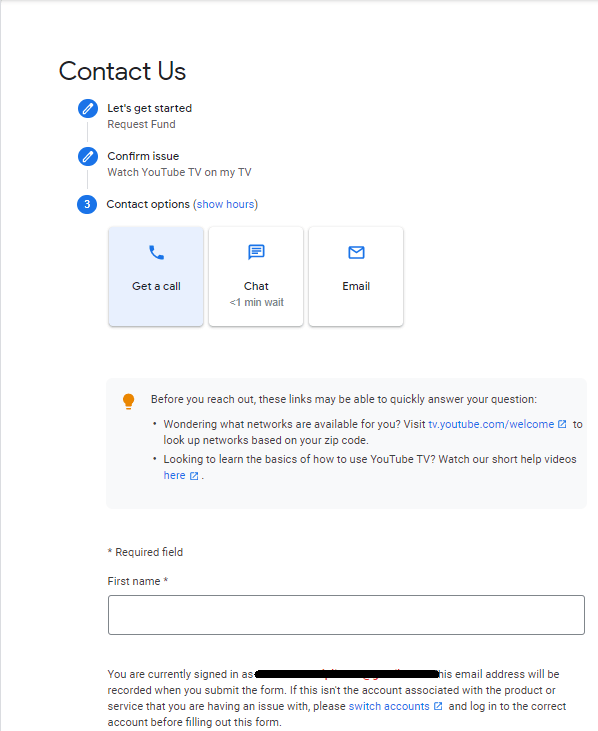
Choose the Contact Method: The system will present you with several options: “Chat,” “Email,” or “Get a Call.” Select “Get a Call.”
-
Enter Your Details: You will be prompted to enter your phone number and your name. Confirm the request, and your phone will typically ring within 2 to 10 minutes.
Requesting Support via Web Browser
If you are working on a computer, the web interface offers a robust way to manage your support requests.
-
Visit the Help Center: Go to
support.google.com/youtubetv. -
Sign In: Click the “Sign In” button at the top right to ensure the support specialist can see your account details.
-
Find the Contact Link: Scroll to the bottom of the page or look for the “Contact Us” link in the navigation menu.
-
Follow the Prompts: Similar to the app, you will be asked to categorize your issue. This helps the AI route your call to the correct department (e.g., technical support vs. billing).
-
Select Phone Support: Choose the “Call Me” or “Request a Call” option. Ensure your phone is nearby and not set to “Do Not Disturb,” as the incoming call may appear from an unfamiliar area code or as “Google.”
Resolving Common Technical Issues via Phone Support
While many issues can be resolved through self-service articles, certain technical complexities necessitate a phone conversation.
Billing and Subscription Management
Billing is the most common reason users seek phone support. Because YouTube TV is tied to your broader Google Pay ecosystem, errors can occur if you have multiple Google accounts or if a payment method was updated in one place but not the other.
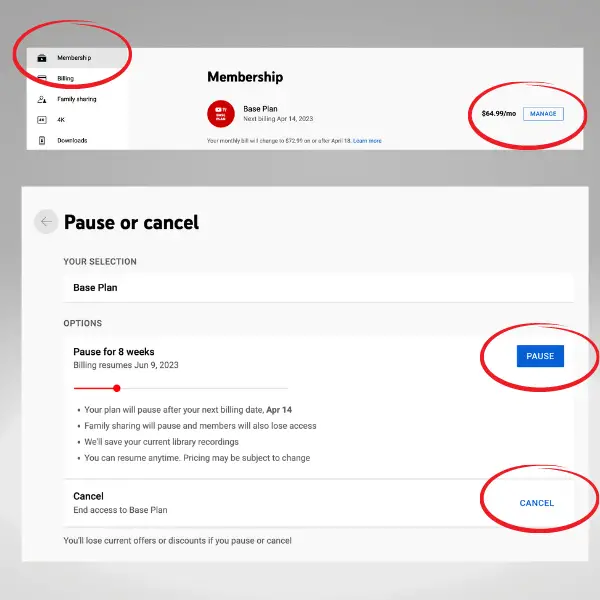
A phone representative can help with:
-
Prorated Refunds: If you were charged for a service you canceled, an agent can manually override the automated billing system to issue a refund.
-
Family Sharing Conflicts: If a family member is unable to access the subscription despite being in the same household, a technician can verify the “Home Area” settings and reset the sharing permissions.
-
Promotion Application: If a “3-week free trial” or a “t-mobile discount” failed to apply correctly, the billing department can manually apply the credit to your next invoice.
Troubleshooting Streaming Quality and Buffering
Streaming quality is often dictated by the “handshake” between the YouTube TV app and your hardware. If you are experiencing constant buffering on a high-speed fiber connection, the issue might be server-side or related to your device’s cache.
During a phone call, the technician may walk you through:
-
ISP Throttling Diagnostics: They can help determine if your Internet Service Provider is specifically throttling video traffic from Google’s servers.
-
App Cache Clear: On devices like Firestick or Chromecast, clearing the app’s cache is a common fix that an agent can guide you through step-by-step.
-
Codec and Resolution Settings: They can explain how to adjust the “Stats for Nerds” overlay to identify if the issue is frame-drop related or bandwidth-limited.
Location and Local Channel Access
YouTube TV uses a combination of IP address tracking and device GPS to determine your “Current Playback Area.” If you are in New York but the app thinks you are in Chicago, you will lose access to your local news and sports. This is a common issue for users with VPNs or certain mesh Wi-Fi systems. A phone agent can perform a manual location override once you provide proof of your physical residence, ensuring your “Home Area” matches your billing ZIP code.
Security Best Practices: Avoiding Support Scams
As a tech-savvy user, it is vital to recognize that the popularity of YouTube TV makes its users a target for cybercriminals.
Identifying “Fake” YouTube TV Phone Numbers
If you search “YouTube TV Customer Service” on a search engine, the first few results might be sponsored ads. Scammers often buy these ads to display a fake phone number. When you call, they may claim there is a “security breach” on your account and ask you to download software like AnyDesk or TeamViewer. Google will never ask you to download third-party remote access software to fix a YouTube TV issue.
Always initiate the call through the official tv.youtube.com portal or the official app. If a number is provided to you via a text message or an email that you didn’t initiate, do not call it.
How YouTube TV Actually Contacts You
When you request a callback, the agent will usually introduce themselves as being from Google or YouTube TV support. They will already know your name and the issue you described in the form. They will not ask for your password, your full credit card number (though they may ask for the last four digits for verification), or your Social Security number. If the person on the phone asks for any of these, hang up immediately.
Alternatives to Phone Support for Faster Resolution
While phone support is effective, it isn’t always the fastest route. Depending on the time of day, the “Get a Call” option may have a 30-minute wait, whereas other digital channels might be instantaneous.
Live Chat Support
The Live Chat feature is available 24/7 and is often the best choice for simple questions. It allows you to share screenshots of error codes directly with the agent. This is particularly useful for resolving “Error Code 4” or “Playback Error” messages where the specific alphanumeric string is needed for the technician to look up the bug in their internal database.
The YouTube TV Help Center and Community Forums
For issues related to “How-To” (e.g., “How do I record a specific show?”), the Help Center is exhaustive. Furthermore, the official YouTube TV subreddit and Google Community Forums are monitored by “Product Experts” who are not Google employees but possess deep technical knowledge of the platform. They often post workarounds for known bugs long before the official support channels have a scripted response.
Social Media (X/Twitter)
The handle @TeamYouTube on X (formerly Twitter) is a highly responsive channel for reporting widespread outages. If you see the “YouTube TV is down” trending, don’t bother with a phone call; the social media team will provide real-time updates as their engineers work on a global fix.
By understanding the technical framework of Google’s support system and following the verified callback procedure, you can resolve your YouTube TV issues efficiently while keeping your digital identity secure. Whether it’s a billing error or a 4K streaming glitch, the right support is only a few clicks away.
aViewFromTheCave is a participant in the Amazon Services LLC Associates Program, an affiliate advertising program designed to provide a means for sites to earn advertising fees by advertising and linking to Amazon.com. Amazon, the Amazon logo, AmazonSupply, and the AmazonSupply logo are trademarks of Amazon.com, Inc. or its affiliates. As an Amazon Associate we earn affiliate commissions from qualifying purchases.