
In the rapidly evolving landscape of over-the-top (OTT) streaming services, YouTube TV has emerged as a premier alternative to traditional cable. One of its most powerful features is the ability to support multiple users under a single subscription. However, navigating the technical nuances of adding an account—and ensuring that each user has a personalized, seamless experience—requires a clear understanding of the Google Family Sharing ecosystem.
Unlike traditional cable boxes that often require additional hardware or fees for extra rooms, YouTube TV leverages the cloud to provide distinct profiles for up to six household members. This guide provides an in-depth exploration of how to add accounts, manage the family group, and optimize the technical setup for a superior viewing experience.

Understanding the YouTube TV Family Sharing Ecosystem
Before diving into the procedural steps, it is essential to understand the underlying infrastructure. YouTube TV does not use a standalone “profile” system in the same way Netflix or Disney+ does. Instead, it utilizes Google’s “Family Sharing” framework. This means that each person you add must have their own individual Google Account.
The Role of the Family Manager
Every YouTube TV subscription is tethered to a “Family Manager.” This is the individual who purchased the subscription and whose payment method is on file. The Family Manager acts as the administrator for the group, possessing the sole authority to invite or remove members. From a technical standpoint, the Family Manager’s account serves as the hub for the subscription’s billing and geographic “Home Area” settings.
Individual Profiles vs. Shared Access
When you add an account to YouTube TV, you are not merely sharing a password. You are granting a specific Google Account access to the subscription service. This is a critical distinction for digital security and privacy. Each added member gets their own private Library (DVR), personalized recommendations, and unique watch history. No one in the family group can see what another member is watching or what they have recorded, ensuring a level of privacy that traditional DVRs cannot match.
Limitations and Requirements
While the system is robust, there are specific technical constraints to keep in mind:
-
Member Limit: You can add up to five additional members (six total, including the Manager).
-
Age Requirements: Family members must be at least 13 years old (or the applicable age in your country) to have a standard Google Account.
-
Geographic Proximity: Google requires all members of a family group to reside primarily in the same household. The system verifies this using periodic IP pings and location data. If a member does not check in from the “Home Area” for an extended period, their access may be restricted.
Step-by-Step: Adding a New Account via Family Sharing
The process of adding an account is split into two phases: the invitation sent by the Family Manager and the acceptance by the new member.
Creating and Managing the Family Group
If you are the Family Manager, you can initiate this process through a web browser or the mobile app. The web interface is generally recommended for its clarity.
-
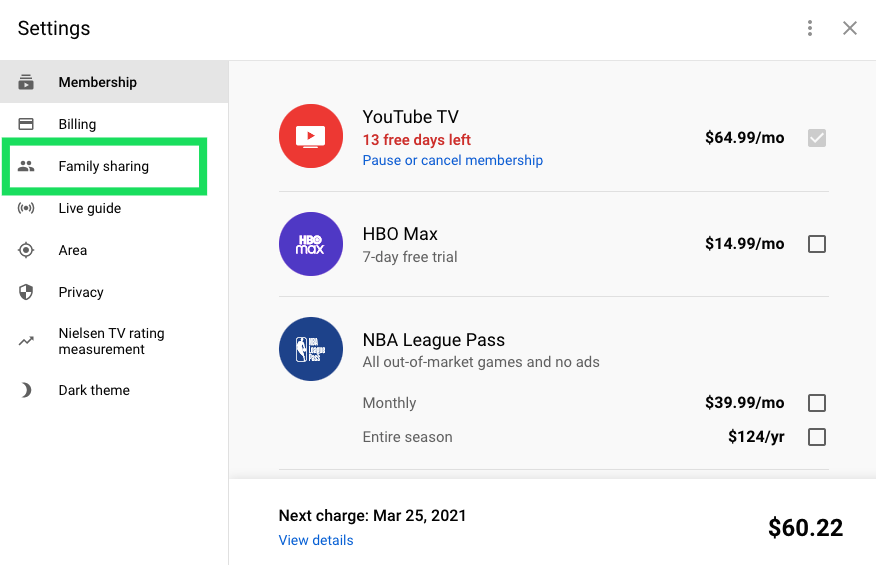
Access Settings: Open YouTube TV in your web browser and click on your profile icon in the top-right corner. Select “Settings.”
-
Navigate to Family Sharing: In the sidebar, look for the “Family Sharing” tab.
-
Set Up the Group: If you haven’t yet created a family group, click “Set Up.” You will be guided through a series of prompts to confirm your eligibility and payment method.
-
Send Invitations: Once the group is active, click “Manage” or “Add Member.” Enter the email address of the person you wish to add. They must have a Google Account (Gmail) for this to work effectively.
Accepting the Invitation
The person receiving the invite must take action to activate their access.
-
Check Email: The invitee will receive an email from Google with the subject “You’re invited to join [Name]’s family group.”
-
Join the Family: Click the “Accept Invitation” button. The user will be redirected to a confirmation page that outlines what information is shared with the Family Manager (typically just their name, photo, and email address).
-
Configuration: Once they join, they can sign into the YouTube TV app on any device using their own credentials.
Managing Accounts Across Different Devices
Adding the account is only the first half of the equation. In a modern smart home, managing how these accounts interact with hardware—such as Smart TVs, Roku sticks, or Apple TVs—is vital for a frictionless user experience.
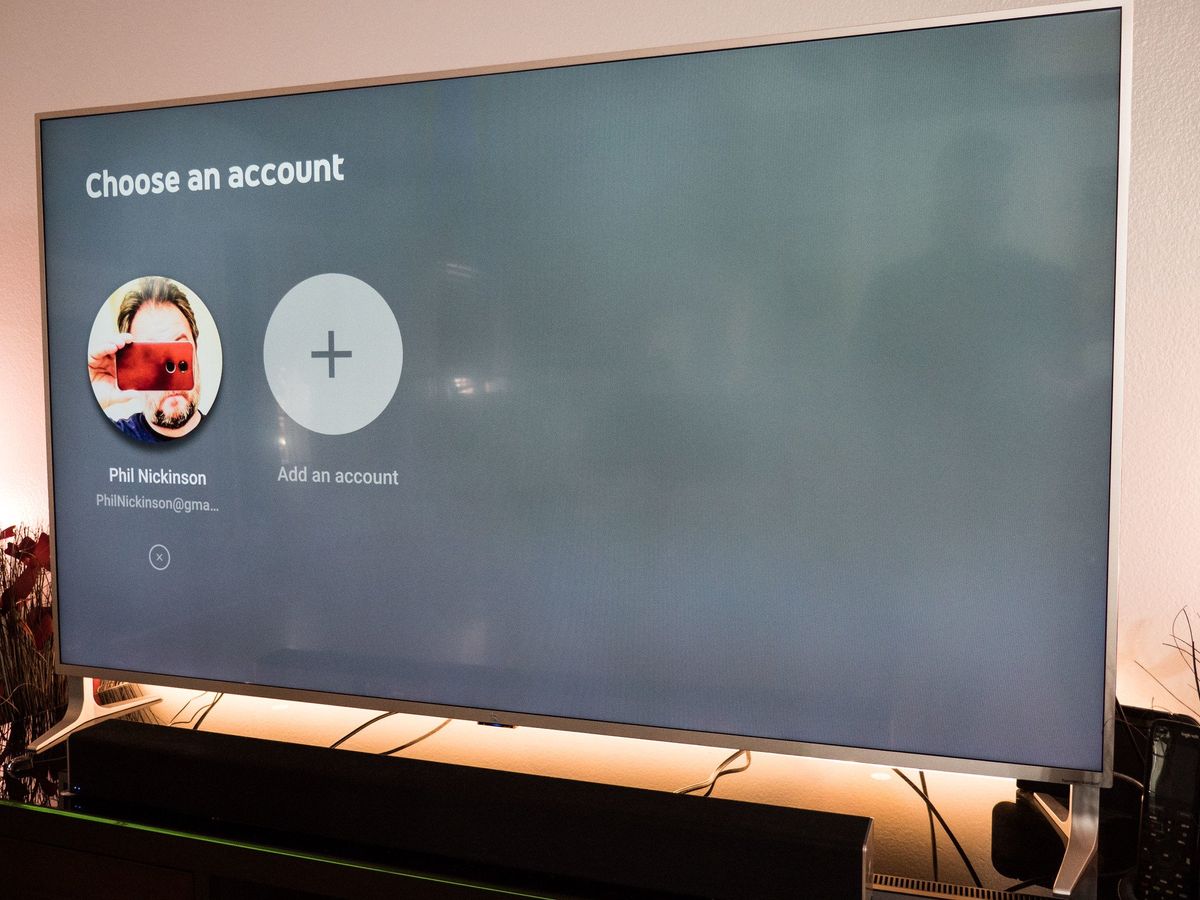
Configuring Profiles on Smart TVs and Streaming Sticks
On a living room device, YouTube TV allows for quick profile switching. Once multiple accounts are associated with the “Family Group,” the app will often prompt users to select “Who’s watching?” upon launch.
To add a member’s profile to a specific TV device:
-
Open the YouTube TV app.
-
Select the profile icon.
-
Select “Switch Account.”
-
Choose “Add Account.” The TV will display a code.
-
The new user should go to
tv.youtube.com/starton a mobile device or laptop, sign in with their Google Account, and enter the code displayed on the TV.
This link ensures that the specific hardware is authorized to access that user’s unique cloud-based profile.
Mobile and Web Interface Integration
On mobile devices, the process is even simpler. Because Android and iOS devices are often already signed into a Google Account, the YouTube TV app will typically detect the account automatically. If a user needs to switch accounts on a shared tablet, they can simply tap their profile picture and select the desired account from the list of Google accounts currently signed into the device.
Switching Between Profiles Efficiently
The “Switch Account” feature is the cornerstone of the multi-user experience. It prevents a parent’s sports-heavy algorithm from being cluttered by a child’s cartoons. It also ensures that “Continue Watching” queues remain accurate. For households with many users, it is recommended to enable the “Profile Selection” screen on startup within the app settings to ensure the correct user is always logged in before playback begins.
Technical Benefits of Individual User Profiles
The decision to add separate accounts rather than sharing one set of credentials offers significant technical advantages, primarily centered around data personalization and storage management.
Personalized Recommendations and Watch History
YouTube TV uses sophisticated machine learning algorithms to curate the “Home” tab. These algorithms analyze viewing habits, search history, and live TV preferences. By having individual accounts, each user benefits from a tailor-made interface. This eliminates the “discovery noise” that occurs when multiple people with diverse tastes share a single profile.
Individual DVR Storage Limits and Privacy
Perhaps the most significant technical feature of YouTube TV is its “Unlimited DVR.” When you add an account, that user receives their own unlimited storage space. Recordings made by one user do not appear in the library of another.
Furthermore, from a data management perspective, there are no conflicts regarding “recording limits.” In traditional systems, recording five shows at once might hit a tuner limit. In YouTube TV’s cloud-based architecture, every user can record an unlimited number of simultaneous programs without affecting the performance or storage of other family members.
Notification Settings and Live Guide Customization
Each account can customize their “Live Guide.” If one user prefers news and another prefers movies, they can reorder the channel lineup to suit their needs. These settings are saved at the account level in the cloud. Similarly, mobile notifications for “Key Plays” in sports or “New Episode” alerts are sent only to the specific user who has requested them, preventing notification fatigue for the rest of the household.
Troubleshooting and Security Best Practices
Even with a streamlined process, technical hurdles can arise when managing multiple accounts.
Resolving “Family Group” Errors
The most common error occurs when a user is already a member of another Google Family Group. Google accounts can only belong to one family group at a time. To join a YouTube TV family, the user must first leave any existing family group (used for Google One, Play Store sharing, or YouTube Premium).
Location Requirements and Periodic Check-ins
YouTube TV is strictly tied to “Local Market” areas for broadcast networks like ABC, NBC, CBS, and Fox.
-
The 90-Day Rule: Family members must connect to the YouTube TV app from the Family Manager’s home Wi-Fi network at least once every 90 days. This “check-in” confirms they are still part of the household.
-
Travel Grace Period: While users can watch while traveling, they will see the local channels of the city they are visiting, while their DVR will continue to record shows from their home market. If a user is away from the home area for more than 3 months, their access may be suspended until they return.
Securing Your Google Account
Since access to YouTube TV is tied to a Google Account, the security of the subscription depends on the security of those individual accounts. Users should be encouraged to:
-
Enable Two-Factor Authentication (2FA): This prevents unauthorized users from hijacking the account and potentially altering subscription settings.
-
Monitor Device Activity: Family Managers should periodically review the “Managed Members” list to ensure only authorized individuals have access.
-
Use Strong Passwords: Avoid using the same password for the Google Account as other streaming services.
By understanding the synergy between Google’s Family Sharing and the YouTube TV app interface, users can maximize the value of their subscription. The transition from a single-user setup to a multi-account household not only organizes the viewing experience but also leverages the full power of cloud-based television—providing privacy, personalization, and unlimited storage for every member of the family.
aViewFromTheCave is a participant in the Amazon Services LLC Associates Program, an affiliate advertising program designed to provide a means for sites to earn advertising fees by advertising and linking to Amazon.com. Amazon, the Amazon logo, AmazonSupply, and the AmazonSupply logo are trademarks of Amazon.com, Inc. or its affiliates. As an Amazon Associate we earn affiliate commissions from qualifying purchases.