
The transition from traditional linear cable to over-the-top (OTT) streaming services has fundamentally changed the landscape of home entertainment. Among the leading contenders in this space is YouTube TV, Google’s premium live television service. Unlike the standard YouTube platform, which focuses on user-generated content, YouTube TV offers a comprehensive suite of live broadcast networks, cable channels, and sports networks. However, for many users, the primary hurdle remains the technical setup: moving the experience from a small smartphone screen to the primary display in the living room. Watching YouTube TV on your television involves a synergy of compatible hardware, stable network configurations, and software synchronization.

Understanding the Hardware Ecosystem for YouTube TV
Before initiating the setup process, it is essential to determine if your existing hardware supports the YouTube TV application. The service is built on a high-bandwidth infrastructure that requires specific processing power and operating system versions to function smoothly.
Smart TVs and Native Integration
Most modern Smart TVs manufactured within the last five to seven years come equipped with integrated app stores that support YouTube TV natively. This includes televisions running on Android TV or Google TV (such as Sony and Hisense), Samsung Smart TVs (2016 models and newer), LG Smart TVs (2016 models and newer running webOS), and Vizio SmartCast models. The primary advantage of native integration is convenience; the application is controlled directly through the TV’s original remote, and there is no need for additional HDMI cables or external power sources.
Streaming Media Players
If you possess a “dumb” TV or an older smart model with an obsolete app store, external streaming media players are the most efficient solution. Devices such as the Roku Streaming Stick, Amazon Fire TV Stick, Apple TV (4th Generation or 4K), and Chromecast with Google TV act as the brain of your entertainment system. These devices plug directly into an HDMI port and provide a dedicated interface for streaming apps. In the tech community, these are often preferred over built-in TV apps because they typically feature faster processors and receive more frequent software updates.
Gaming Consoles and Alternative Hardware
For households with gaming setups, YouTube TV is accessible through the PlayStation 4, PlayStation 5, Xbox One, and Xbox Series X/S. Using a console eliminates the need for extra hardware and leverages the console’s superior graphical processing power for a snappier user interface. Additionally, some cable boxes from providers like TiVo and Xfinity now allow for the installation of third-party apps, though this is less common than using a dedicated streaming stick.
Step-by-Step Installation and Activation Process
Once the hardware is identified, the process of bringing live TV to your screen involves two main phases: installation and authentication. Because YouTube TV relies on a subscription model tied to a Google Account, the “handshake” between your TV and your account must be secure.
Downloading the Application
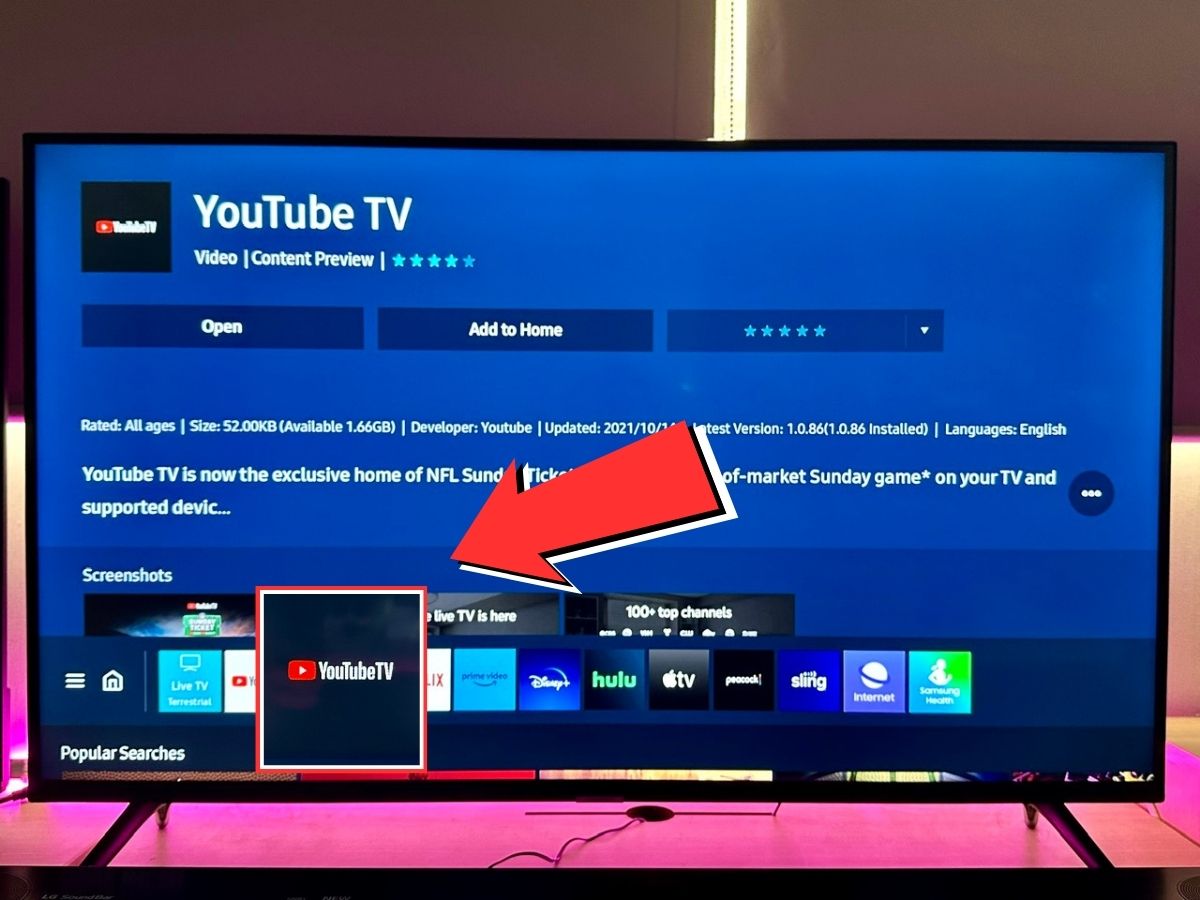
Navigate to your device’s respective app store—whether it is the Google Play Store, the Roku Channel Store, or the Amazon Appstore. Search for “YouTube TV.” It is critical not to confuse this with the standard “YouTube” app. While they share a similar aesthetic, the YouTube TV app is a distinct piece of software designed specifically for live grid guides and DVR functionality. Once found, select “Install” or “Get.”
The Activation Code Method (tv.youtube.com/start)
The most common way to sign in on a television is via the activation code method. This avoids the frustration of typing long email addresses and passwords using a directional pad on a remote.
-
Open the YouTube TV app on your TV and select “Sign In.”
-
An alphanumeric code will appear on your television screen.
-
On a computer or smartphone already signed into your Google account, open a web browser and navigate to
tv.youtube.com/start. -
Enter the code displayed on your TV.
-
Grant permission for the device to access your YouTube TV subscription.
Within seconds, the television interface will refresh, automatically logging you into your profile.
Signing In via Mobile Device
For users with a Chromecast or a TV with built-in Chromecast functionality, you can bypass the TV app interface entirely. By opening the YouTube TV app on your smartphone, you can tap the “Cast” icon and select your television. This “pushes” the stream to the TV, though it still utilizes the TV’s internet connection to pull the data, ensuring the quality remains high-definition.
Optimizing the Viewing Experience: Settings and Features
Simply getting the picture on the screen is only the beginning. To truly replicate and improve upon the cable experience, you must dive into the technical configurations that YouTube TV offers.
Managing the Live Guide and Customizing Channels
One of the most significant advantages of YouTube TV over traditional cable is the ability to customize the channel lineup. Through the mobile app or web browser, users can navigate to “Settings” and then “Live Guide.” Here, you can hide channels you never watch and reorder your favorites to the top. These changes sync instantly to your TV, providing a streamlined browsing experience that eliminates “channel clutter.”
Utilizing the Unlimited Cloud DVR
YouTube TV’s most disruptive feature is its unlimited Cloud DVR. Unlike physical hardware DVRs that have limited storage space, YouTube TV records programs to the cloud. On your TV interface, you can select any show, movie, or sports team and click “Add to Library.” From that point forward, every airing of that content will be recorded. The tech behind this allows for multiple simultaneous recordings without taxing your local hardware or internet bandwidth, as the recording happens on Google’s servers.
Adjusting Video Quality and Playback Settings
For those with a high-end 4K television, checking your resolution settings is vital. While most broadcast television is limited to 720p or 1080i, YouTube TV offers a “4K Plus” add-on for specific live events and on-demand content. Within the video player on your TV, you can select the gear icon to view “Stats for Nerds”—a technical overlay that shows your current resolution, connection speed, and frame drops. This is an invaluable tool for diagnosing whether you are receiving a true HD signal.
Troubleshooting Common Connection and Playback Issues
Even with a robust setup, digital streaming can encounter bottlenecks. Understanding the technical requirements for a buffer-free experience is key to maintaining a high-quality stream.
Network Stability and Bandwidth Requirements
YouTube TV requires a minimum of 3 Mbps for standard definition, 7 Mbps for a single HD stream, and at least 25 Mbps for 4K content. However, these are bare minimums. In a household with multiple devices, a stable connection of 100 Mbps or higher is recommended. If you experience buffering, the first step is to switch from a 2.4GHz Wi-Fi band to a 5GHz band, which offers higher data throughput. For the ultimate stability, connecting your Smart TV or streaming device via an Ethernet cable (hardwiring) is the gold standard for avoiding wireless interference.
Location Permissions and Home Area Settings
Because YouTube TV provides local broadcast stations (ABC, NBC, CBS, Fox), it uses your IP address and device GPS to determine your “Home Area.” If you are using a VPN or if your ISP assigns you an IP address from a different region, you may encounter a “Playback Error” or see the wrong local news. To fix this, you must occasionally “check in” on your mobile device’s YouTube TV app while connected to your home Wi-Fi, which updates the location permissions for your television.
App Crashes and Software Updates
If the app becomes sluggish or crashes, it is often due to a saturated cache. On Android-based TVs, you can go to Settings > Apps > YouTube TV > Clear Cache. On other devices, a simple power cycle (unplugging the TV for 30 seconds) can clear the temporary memory and resolve software conflicts. Always ensure your TV’s firmware is up to date, as manufacturers frequently release patches to improve app compatibility and security.
Future-Proofing Your Home Entertainment Setup
As the tech industry moves further toward integrated smart homes, YouTube TV continues to evolve. Integration with Google Assistant allows users to change channels or search for shows using voice commands through a Nest Mini or the TV remote. Furthermore, the introduction of “Multiview” allows sports fans to watch up to four games simultaneously on one screen—a feature that requires significant server-side processing but provides a seamless end-user experience.
The shift from cable to YouTube TV on your main television is more than just a cost-saving measure; it is an upgrade to a more flexible, data-driven viewing experience. By choosing the right hardware, following a structured activation process, and optimizing your network settings, you can ensure that your home theater remains at the cutting edge of digital streaming technology. As long as you maintain a robust internet connection and keep your software updated, the future of television is no longer a wire coming out of the wall—it is an app on your screen.
aViewFromTheCave is a participant in the Amazon Services LLC Associates Program, an affiliate advertising program designed to provide a means for sites to earn advertising fees by advertising and linking to Amazon.com. Amazon, the Amazon logo, AmazonSupply, and the AmazonSupply logo are trademarks of Amazon.com, Inc. or its affiliates. As an Amazon Associate we earn affiliate commissions from qualifying purchases.