
In an increasingly interconnected digital world, email remains a cornerstone of communication, both personal and professional. For millions globally, Gmail is synonymous with email, offering a robust, feature-rich, and largely reliable service. Yet, beneath its user-friendly interface lies a sophisticated technical infrastructure that enables seamless access to your messages across various devices and applications. A fundamental component of this infrastructure, particularly for those who prefer dedicated email clients over web interfaces, is the Internet Message Access Protocol (IMAP). Understanding “what IMAP server is Gmail” goes beyond merely knowing a server address; it’s about grasping the underlying technology that empowers modern email synchronisation and accessibility.
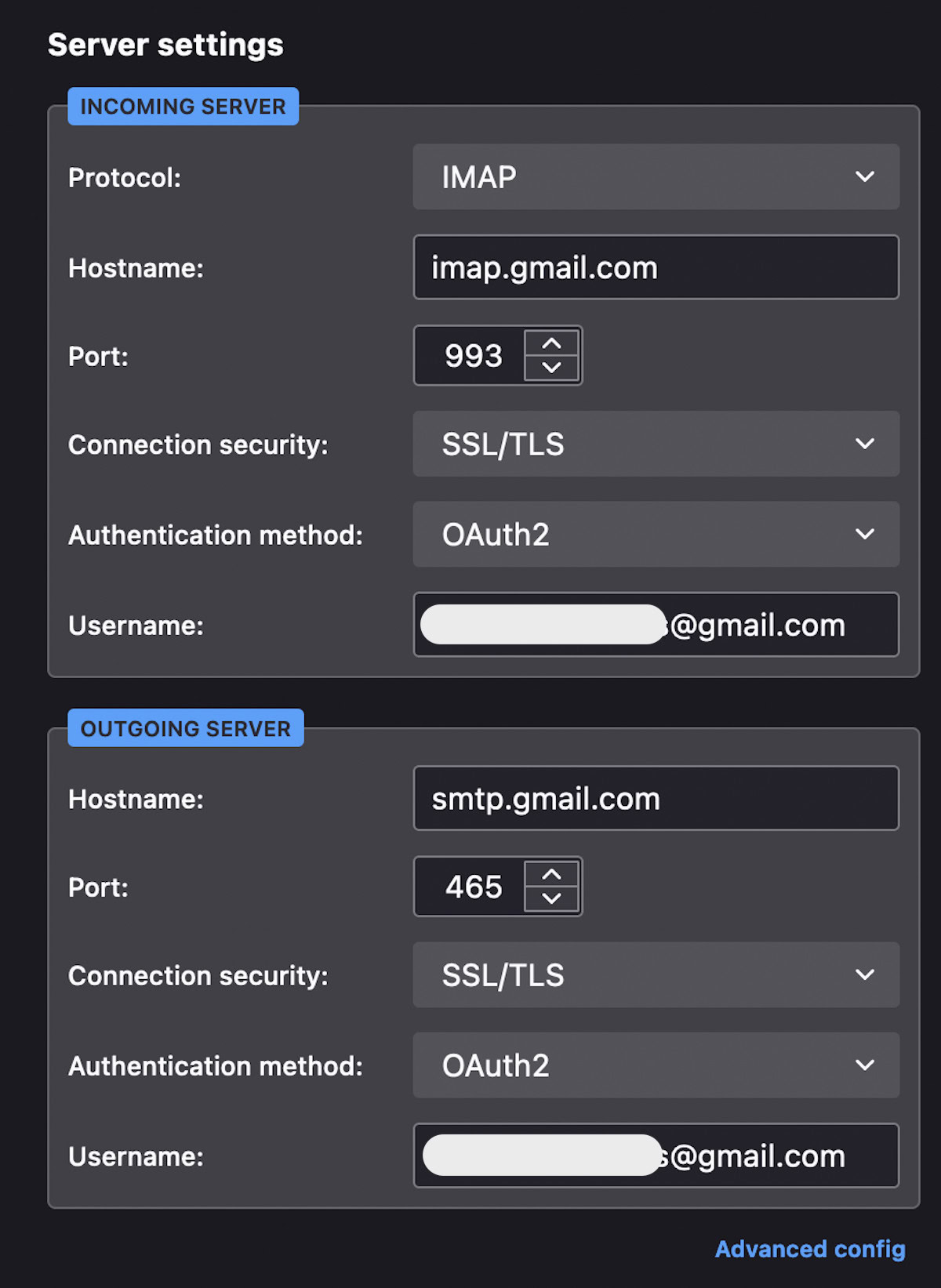
At its core, Gmail leverages IMAP to provide a dynamic and synchronised email experience. Unlike older protocols, IMAP is designed for permanent server storage and continuous synchronisation. This means that when you access your Gmail through an email client like Microsoft Outlook, Apple Mail, or Mozilla Thunderbird, IMAP ensures that your actions (reading, deleting, moving messages) are reflected instantaneously on the server and across all other devices connected to your account. The specific IMAP server address for Gmail is a crucial piece of information for anyone configuring an email client, acting as the digital gateway through which your client communicates with Google’s vast email infrastructure.
Understanding IMAP: The Backbone of Modern Email Access
The Internet Message Access Protocol (IMAP) is one of two primary internet standard protocols for retrieving email, the other being POP3 (Post Office Protocol version 3). While both serve to pull emails from a server to a client, their methodologies and capabilities differ significantly, with IMAP emerging as the superior choice for contemporary multi-device usage patterns.
How IMAP Works: A Client-Server Symphony
IMAP operates as a client-server protocol where the email client (e.g., Outlook) communicates directly with the email server (e.g., Gmail’s IMAP server). The key distinction of IMAP is that it allows users to view and manipulate messages on the server. When you open your email client, it connects to the IMAP server and retrieves headers of your messages. Only when you click on a specific email does the full message content get downloaded. This approach has several profound implications for how we interact with our email.
Firstly, messages remain stored on the server. This means that if your local device crashes or is lost, your emails are safe and sound on Google’s servers. Secondly, any changes you make in one email client—whether it’s marking an email as read, deleting it, moving it to a different folder, or creating new folders—are immediately synced back to the server. This server-side synchronisation is IMAP’s superpower, ensuring that the state of your inbox is consistent across all your devices, whether you’re checking email on your desktop, laptop, tablet, or smartphone. The client is merely a window into the server’s contents, not a repository that pulls all data locally and then manages it independently.
Key Benefits of IMAP for Gmail Users
For a service like Gmail, which prides itself on accessibility and integration across Google’s ecosystem, IMAP is an indispensable component. Its benefits are numerous and directly contribute to the seamless user experience Gmail is known for:
- Multi-Device Synchronisation: The most significant advantage. Your inbox, sent items, drafts, and custom folders all remain identical across every device you use to access Gmail via IMAP. Read an email on your phone, and it’s marked as read on your laptop. Delete an email on your tablet, and it’s gone from your desktop.
- Server-Side Storage: Emails are stored on the server, not just locally. This provides a robust backup solution and allows for larger mailboxes without burdening local device storage. It also means you can switch devices and pick up exactly where you left off.
- Offline Access: While IMAP primarily works online, many clients offer features to cache emails locally, allowing you to access previously viewed messages even when offline. Changes made offline are then synced to the server once an internet connection is re-established.
- Efficient Bandwidth Usage: By only downloading message headers or full messages on demand, IMAP is generally more efficient with bandwidth, especially useful for mobile devices or slower internet connections.
- Organisational Flexibility: IMAP fully supports server-side folders and labels (which Gmail uses extensively). This means your carefully organised email structure is preserved and accessible regardless of the client you’re using.
Gmail’s IMAP Configuration: Seamless Access Across Devices
For users looking to connect their favourite email clients to Gmail, understanding the specific IMAP server configuration details is paramount. Google provides a standard set of parameters that ensure secure and reliable access to your Gmail account.
The Server Address Explained: imap.gmail.com
The primary piece of information required by any email client to connect to Gmail via IMAP is the inbound mail server address. For Gmail, this address is consistently:
imap.gmail.com
This domain name resolves to Google’s powerful mail servers, which are designed to handle millions of simultaneous connections and manage vast amounts of email data. When your email client attempts to fetch new messages or synchronise changes, it directs its requests to imap.gmail.com.
Port Numbers and Security: SSL/TLS Encryption
Beyond the server address, communication channels are defined by specific port numbers. To ensure the security and privacy of your email communications, Gmail mandates encrypted connections for IMAP. This is achieved through SSL/TLS (Secure Sockets Layer/Transport Layer Security) encryption.
The standard port number for IMAP over SSL/TLS is:
993
When configuring your email client, you will typically select “SSL/TLS” or “STARTTLS” as the encryption method and ensure the port is set to 993. This encryption is critical as it scrambles your username, password, and email content during transit between your client and Google’s servers, protecting your sensitive information from eavesdropping or interception.
Authentication Methods: Usernames, Passwords, and App Passwords
To access your Gmail account, your email client needs to authenticate with the imap.gmail.com server. The standard method involves providing your full Gmail email address as the username (e.g., yourname@gmail.com) and your account password.
However, in an effort to enhance security, especially for third-party applications or older email clients that may not support modern OAuth 2.0 authentication directly, Google often recommends using “App Passwords.” An App Password is a 16-digit passcode that grants a non-Google application or device permission to access your Google Account. It’s designed for situations where 2-Step Verification (2SV) is enabled on your Google Account (which it should be for optimal security). Instead of using your regular Google account password in the email client, you generate and use a unique App Password. This is a robust security measure because if an App Password is compromised, it only provides access to the specific service it was generated for and can be revoked independently without affecting your main Google Account password.
IMAP vs. POP3: Why IMAP Reigns Supreme for Gmail Users
While IMAP is the recommended and preferred protocol for modern email access, it’s beneficial to briefly understand its predecessor, POP3, to fully appreciate IMAP’s advantages.
The POP3 Approach: Download and Delete
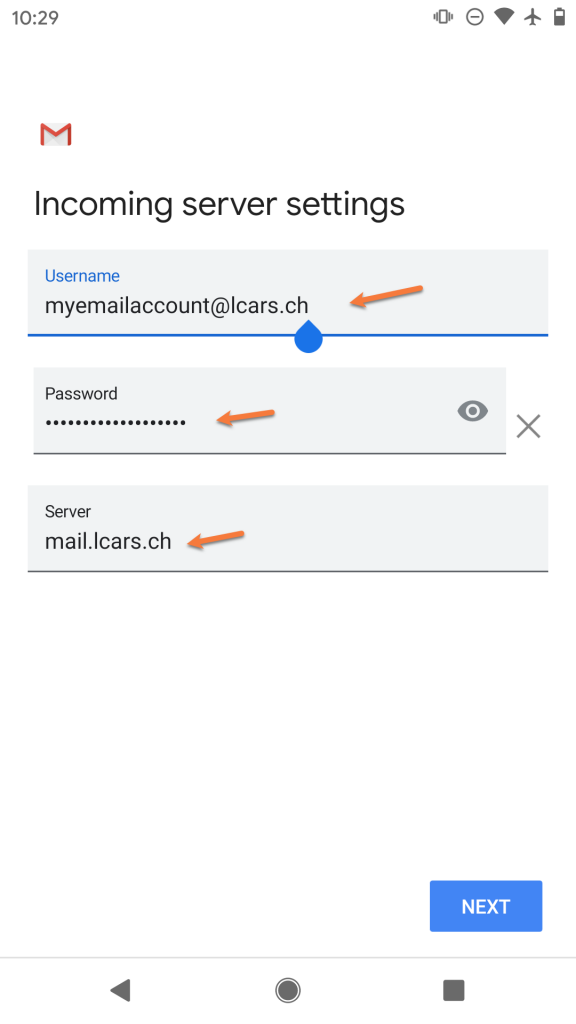
Post Office Protocol version 3 (POP3) operates on a “download and delete” model (though it can be configured to leave copies on the server). When a POP3 client connects to a server, it typically downloads all new messages to the local device and then deletes them from the server. This makes the local client the primary repository for your emails.
The significant drawbacks of POP3 in a multi-device world are evident:
- No Synchronisation: Actions taken on one device are not reflected on others. If you read an email on your desktop, it will still appear unread if you then check your mail on your phone via POP3.
- Single-Device Focus: Each device essentially gets its own copy of the inbox. Deleting an email on one device doesn’t delete it from the server or other devices.
- Local Storage Burden: All messages are downloaded and stored locally, which can quickly consume disk space on devices, especially those with limited storage.
The Synchronized Experience: The IMAP Advantage
In stark contrast, IMAP’s server-centric model offers a truly synchronised experience. This is especially critical for Gmail, where users often access their emails through the web interface, official Gmail apps, and various third-party clients.
- Consistent State: Whether you’re archiving an email, applying a label, or marking it as spam, these changes are instantly reflected across all your IMAP-connected devices and the Gmail web interface. This prevents redundant work and ensures your email organisation remains coherent.
- Centralized Mailbox: Your Gmail account truly functions as a single, central mailbox, regardless of how many different “windows” (clients) you open into it. This simplifies email management and reduces confusion.
- Enhanced Productivity: By having a consistent view of your emails, you can be more productive, knowing that any action you take will be universally applied, without needing to perform the same task repeatedly across different devices.
For these reasons, Gmail, like most modern email services, strongly encourages and fully supports IMAP as the standard for email client access, relegating POP3 to niche use cases or legacy systems.
Setting Up Gmail IMAP: A Step-by-Step Guide
Configuring an email client to use Gmail’s IMAP server is a straightforward process, but it requires attention to detail, especially regarding security settings.
Enabling IMAP in Gmail Settings
Before you even touch your email client, you must ensure that IMAP access is enabled within your Gmail account settings.
- Log in to Gmail: Open your web browser and navigate to mail.google.com.
- Access Settings: Click the gear icon in the top right corner, then select “See all settings.”
- Forwarding and POP/IMAP: Go to the “Forwarding and POP/IMAP” tab.
- Enable IMAP: Scroll down to the “IMAP access” section and ensure “IMAP access is on” is selected. If not, select it and click “Save Changes” at the bottom of the page.
Configuring Your Email Client
The exact steps will vary slightly depending on your email client (e.g., Outlook, Thunderbird, Apple Mail), but the core information remains the same. When adding a new account, you’ll typically choose “IMAP” as the account type and then provide the following details:
- Incoming Mail Server (IMAP):
imap.gmail.com - Port:
993 - Encryption Method: SSL/TLS (or simply SSL, sometimes listed as ‘Always use secure connection’)
- Username: Your full Gmail email address (e.g.,
yourname@gmail.com) - Password: Your Google Account password OR an App Password if 2-Step Verification is enabled.
- Outgoing Mail Server (SMTP):
smtp.gmail.com - Outgoing Port:
465(for SSL/TLS) or587(for STARTTLS) - Outgoing Encryption Method: SSL/TLS or STARTTLS
- Outgoing Authentication: Usually the same as incoming mail (username and password).
Most modern email clients have “auto-discovery” features that can automatically detect these settings once you enter your email address and password, simplifying the process considerably. However, it’s always good to know the underlying configuration should manual setup be required.
App Passwords for Enhanced Security
For users with 2-Step Verification enabled on their Google Account (which is highly recommended), a crucial step is generating an App Password. Using your regular Google password with third-party clients when 2SV is on will often result in authentication errors.
- Go to your Google Account: Visit myaccount.google.com.
- Security: Navigate to the “Security” section.
- App Passwords: Under “How you sign in to Google,” find “App Passwords.” You may need to sign in again.
- Generate New App Password: Select the app and device you’re using (e.g., “Mail” and “Windows Computer”), then click “Generate.”
- Use in Client: Google will provide a 16-digit password. Use this unique password in your email client’s password field instead of your regular Google Account password.
Remember, an App Password is a one-time use password for generation, but it remains valid for that specific application until you revoke it.
Troubleshooting Common IMAP Issues with Gmail
While Gmail’s IMAP service is generally robust, users occasionally encounter issues. Understanding common problems and their solutions can save considerable time and frustration.
Authentication Failures
This is perhaps the most common issue.
- Incorrect Password: Double-check your Google Account password.
- 2-Step Verification & App Passwords: If 2SV is enabled, you must use an App Password for clients that don’t support Google’s native sign-in prompts. Using your regular password will fail.
- Incorrect Username: Ensure you’re using your full Gmail address (e.g.,
name@gmail.com) as the username. - “Less Secure App Access”: Google has deprecated this feature. If you relied on it previously, you’ll now need to enable 2SV and use App Passwords.
Connection and Synchronisation Problems
- Internet Connection: Verify your internet connection is stable.
- Firewall/Antivirus: Temporarily disable your firewall or antivirus to see if it’s blocking the connection. If it works, you’ll need to create an exception for your email client.
- Incorrect Server Settings: Double-check
imap.gmail.comfor the incoming server, port 993, and SSL/TLS encryption. - Gmail Account Activity: Google may temporarily block access if it detects unusual activity. Check your Google Account security page for any alerts.
- Quota Limits: If your Gmail storage is full, you might experience issues with new mail synchronisation. Clear out old emails or purchase additional storage.
- Client-Specific Bugs: Sometimes, the issue might be with the email client itself. Ensure your client is updated to the latest version or try configuring a different client to rule out client-specific problems.

Missing or Duplicated Emails
- Synchronisation Delay: Give the client some time to fully synchronise, especially with large mailboxes.
- IMAP Folder Subscriptions: Some clients allow you to “subscribe” to specific IMAP folders. If a folder isn’t showing, check if it’s subscribed. Gmail labels often appear as folders in IMAP clients.
- POP3 Interference: If you’re also accessing your Gmail via POP3 on another client, it might be downloading and deleting emails from the server before IMAP clients can see them. Ensure you’re exclusively using IMAP across all clients for a consistent experience.
By carefully reviewing your settings and understanding the common pitfalls, you can quickly diagnose and resolve most IMAP-related issues, ensuring your Gmail access remains as fluid and reliable as Google intended.
In conclusion, “what IMAP server is Gmail” is a question with a clear technical answer: imap.gmail.com, operating securely on port 993 with SSL/TLS encryption. More broadly, however, it encapsulates Gmail’s commitment to providing a flexible, secure, and synchronised email experience that caters to the diverse needs of its vast user base, cementing IMAP’s role as the essential protocol for modern email communication.