
In the modern digital landscape, video conferencing has shifted from a niche business tool to a fundamental pillar of global communication. Whether you are a remote professional, a student attending virtual lectures, or a technophile looking to connect with peers, Zoom has emerged as the industry standard for reliable, high-quality visual communication. Getting started with the platform is a straightforward process, but truly mastering the installation and optimization of the software requires an understanding of the various technical ecosystems it inhabits.
This guide provides a deep dive into the technical pathways for acquiring Zoom, configuring your environment for peak performance, and leveraging advanced software features to ensure your digital presence is both professional and secure.
Getting Started: Downloading Zoom Across Different Devices
The first step in answering “How do I get Zoom?” is identifying the hardware platform you intend to use. Zoom’s versatility lies in its cross-platform compatibility, offering native applications for desktop environments, mobile operating systems, and even web-based clients that require no installation at all.
For Windows and macOS
To obtain the most robust version of the software, you should download the Zoom Desktop Client. This version offers the full suite of features, including advanced audio suppression, virtual backgrounds, and local recording capabilities.
-
Navigate to the Official Source: Open your preferred web browser and go to the official Zoom Download Center. It is critical to download the installer directly from the official domain to avoid bundled third-party malware.
-
Select the Desktop Client: Click the “Download” button under “Zoom Desktop Client.” The website typically detects your operating system automatically. For Windows users, you may have the option between 32-bit and 64-bit versions; modern systems should almost always utilize the 64-bit installer for better memory management.
-
Installation: Once the file (an .exe for Windows or a .pkg for macOS) is downloaded, run the installer. On macOS, you may need to grant permission in your “Security & Privacy” settings to allow the application to access your microphone and camera—a standard protocol for modern Apple security.
For Mobile Devices (iOS and Android)
The mobile experience is designed for portability without sacrificing core functionality.
-
iOS/iPadOS: Open the Apple App Store and search for “Zoom Workplace.” Tap “Get” to begin the installation. The mobile version is highly optimized for Apple’s silicon, ensuring minimal battery drain during long calls.
-
Android: Open the Google Play Store and search for “Zoom Workplace.” The Android version is compatible with a vast range of devices, though performance may vary based on the specific hardware’s processing power and camera sensor quality.
The Web Client Alternative
If you are using a device where you lack administrative privileges—such as a strictly locked-down corporate laptop—you can “get” Zoom without installing a single file. When you click a meeting link, your browser will prompt you to open the desktop app. By ignoring this prompt and selecting “Join from Your Browser,” you can access a functional, albeit slightly limited, version of the interface directly within Chrome, Firefox, or Edge.
Account Setup and Initial Configuration
Once the software is installed, the next phase of “getting” Zoom involves establishing your digital identity within the ecosystem. While you can join meetings as a guest, creating an account is essential for hosting meetings and accessing advanced customization tools.
Creating Your Account
Zoom offers several authentication methods. You can sign up using a traditional email and password combination, or utilize Single Sign-On (SSO) for corporate environments. For personal use, linking a Google or Apple account provides a seamless “one-tap” login experience, which synchronizes your contacts and calendar events automatically.
Choosing the Right Plan
From a technical and financial perspective, you must decide which tier of the service fits your needs:
-
Basic (Free): Ideal for individual users. It includes high-definition video but often features a 40-minute limit on group meetings.
-
Pro and Business: These tiers are designed for professionals. They remove time limits, increase the participant capacity to 100 or 300+, and provide cloud storage for meeting recordings.
-
Enterprise: This is for large-scale organizations requiring managed domains and advanced analytics.
Initial Software Calibration
Before your first call, navigate to the “Settings” gear icon in the desktop client. This is where you configure the technical foundation of your experience.
-
Video: Enable “HD” to ensure your outgoing stream utilizes the full resolution of your webcam. If you have limited upload bandwidth, leaving this disabled can prevent stuttering.
-
Audio: Use the “Test Speaker” and “Test Mic” functions. Professional users often opt for “Original Sound for Musicians” in the audio settings if they are using high-end external microphones, as this bypasses Zoom’s standard echo-cancellation algorithms which can sometimes compress high-fidelity audio.
Advanced Tech Tips: Optimizing Your Zoom Experience
Simply having the software is not enough; optimizing the software’s interaction with your hardware is what separates a novice user from a power user. To truly “get” the most out of Zoom, you must look at how the software handles data and processing.
Hardware Acceleration and CPU Management
Zoom is a resource-intensive application, particularly when using features like “Blur Background” or “Immersive View.” Under the “Advanced” tab in Video Settings, ensure that “Enable hardware acceleration” is checked. This offloads video processing from your CPU to your Graphics Processing Unit (GPU), resulting in a smoother frame rate and preventing your computer’s fans from spinning at maximum velocity.
Leveraging the AI Companion
The latest iterations of Zoom include an integrated AI Companion. This tool can summarize meetings in real-time, generate highlights, and even draft responses to chat messages. To activate this, you must have a licensed account and enable the feature in the web portal settings. It represents a significant technological leap, transforming a simple video tool into a comprehensive productivity suite.
Bandwidth Management
High-definition video conferencing requires a stable connection. While Zoom is excellent at scaling video quality based on your internet speed, you can manually optimize this:
-
Wired vs. Wireless: Whenever possible, use an Ethernet connection. Wi-Fi is prone to packet loss, which manifests as “frozen” screens or robotic audio.
-
Background Applications: Close high-bandwidth apps like cloud backup services or streaming platforms while on a call. Zoom prioritizes UDP (User Datagram Protocol) traffic, which is faster but less “reliable” than TCP; minimizing other network traffic gives Zoom the “cleanest” path to the server.
Security and Privacy: Protecting Your Digital Meetings
As Zoom’s popularity surged, so did the importance of its security architecture. “Getting” Zoom in a professional context means understanding how to secure your virtual space against unauthorized access.
End-to-End Encryption (E2EE)
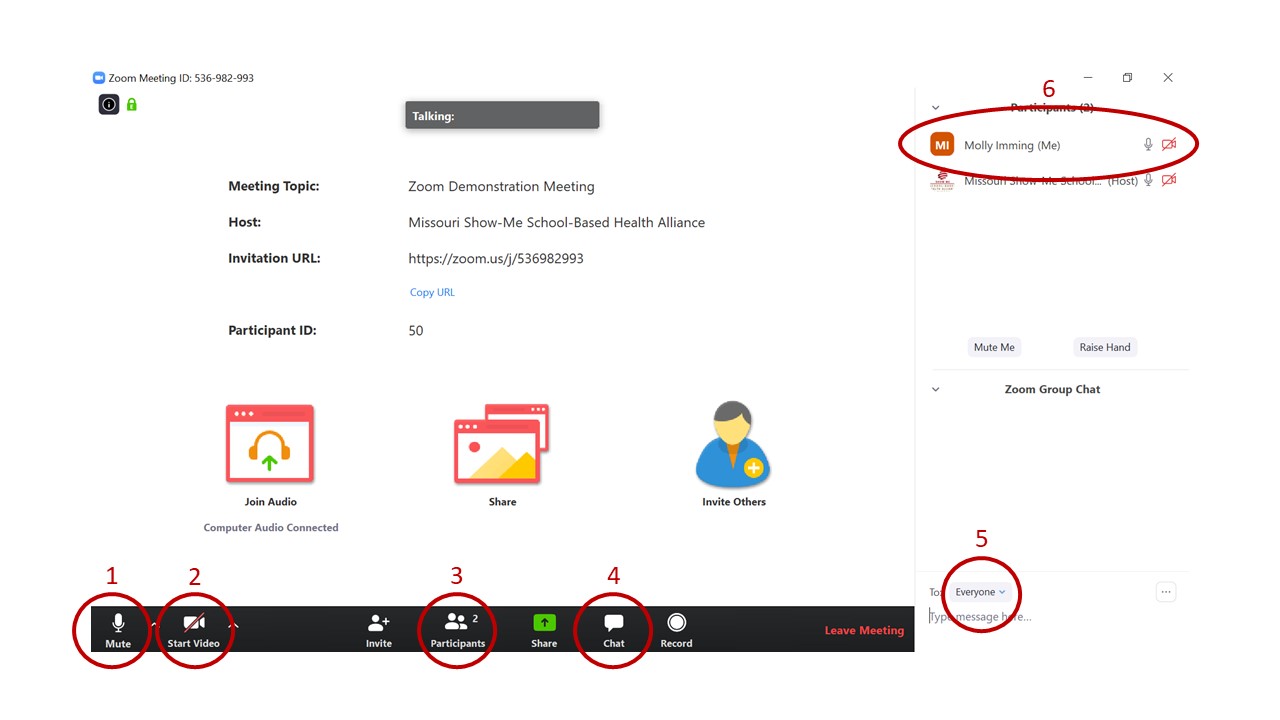
For sensitive discussions, Zoom offers End-to-End Encryption. When enabled, the cryptographic keys are generated on the participants’ devices and are never accessible to Zoom’s servers. To use this, all participants must join from the Zoom desktop or mobile app (the web client does not support E2EE). You can verify if a meeting is encrypted by looking for a green shield icon with a padlock in the top-left corner of the window.
The Waiting Room and Passcode System
To prevent “Zoombombing”—the intrusion of uninvited guests—the software utilizes a two-factor entry system.
-
Waiting Rooms: This feature allows the host to vet participants before they enter the main session. It acts as a digital foyer where the host can see the names of those trying to join.
-
Passcodes: Every meeting link can be embedded with a unique passcode. Sharing the link without the passcode (or vice versa) adds a layer of friction that detears automated bots.
Managing Permissions
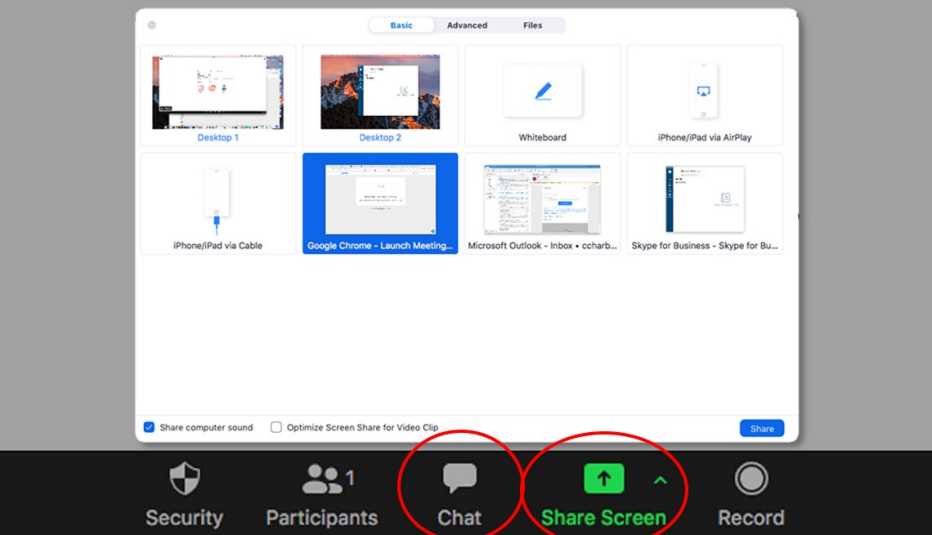
Within the “Security” icon during a live meeting, the host can dynamically toggle permissions. You can prevent participants from sharing their screens, unmuting themselves, or renaming themselves. For high-stakes webinars, these technical gatekeeping tools are essential for maintaining order and professional integrity.
Troubleshooting and Technical Support
Even the most stable software can encounter issues due to driver conflicts or network fluctuations. Knowing how to troubleshoot the Zoom client is a vital part of the user experience.
The Importance of Regular Updates
Zoom releases updates frequently to patch security vulnerabilities and introduce performance enhancements. To check for updates, click your profile picture in the top-right corner of the desktop app and select “Check for Updates.” Keeping your software at the latest version (e.g., Version 6.0 or higher) ensures compatibility with the latest API changes and operating system patches.
Resolving “Camera Not Detected” Issues
If your camera fails to initialize, the problem is often found in the operating system’s privacy settings rather than the Zoom app itself.
-
On Windows: Go to Settings > Privacy & Security > Camera and ensure “Let desktop apps access your camera” is toggled to “On.”
-
On macOS: Go to System Settings > Privacy & Security > Camera and ensure the checkbox next to Zoom is checked.

Audio Lag and Sync Issues
If your audio and video are out of sync, it is often a sign of high CPU usage or “Buffer Bloat” on your router. A quick technical fix is to leave the meeting and rejoin, which forces a handshake with a different Zoom media server that may have a lower latency path to your location. Additionally, switching from “Computer Audio” to “Phone Call” (where you dial in via a standard telephone line while remaining on video) can bypass local network congestion for critical audio clarity.
By following these technical pathways, you move beyond the simple question of “How do I get Zoom?” and instead master a complex tool that has become indispensable for the modern era. From the initial installation on your preferred hardware to the fine-tuning of AI features and security protocols, a calculated approach to this software ensures that every virtual interaction is seamless, secure, and professional.
aViewFromTheCave is a participant in the Amazon Services LLC Associates Program, an affiliate advertising program designed to provide a means for sites to earn advertising fees by advertising and linking to Amazon.com. Amazon, the Amazon logo, AmazonSupply, and the AmazonSupply logo are trademarks of Amazon.com, Inc. or its affiliates. As an Amazon Associate we earn affiliate commissions from qualifying purchases.