
In the interconnected world of travel, where flights span continents and currencies fluctuate daily, tools that empower users with granular control over their search experience are invaluable. Google Flights stands out as a premier platform for discovering airfare deals, but many users overlook a critical feature that can significantly impact their budgeting and comparison efforts: the ability to change the displayed currency. This guide delves into the technicalities and practical steps of adjusting currency settings on Google Flights, ensuring you always see prices in a format that makes the most sense for your financial planning. Mastering this simple tech trick can prevent confusion, streamline budgeting, and potentially help you identify better deals by aligning prices with your payment method or destination.
Understanding Google Flights’ Currency Mechanism
Google Flights, like many global online services, attempts to localize your experience by defaulting to a currency based on your geographic location or IP address. While convenient for most, this automatic setting isn’t always optimal, especially for international travelers, digital nomads, or those managing budgets across multiple currencies. Understanding how Google Flights handles currency display is the first step to taking control.
The Default Currency Setting
When you first land on Google Flights (flights.google.com), the platform automatically detects your approximate location and sets the display currency accordingly. For instance, if you’re browsing from the United States, prices will typically show in USD; from the UK, in GBP; and from Europe, often in EUR. This default is designed for user convenience, assuming most users prefer to see prices in their local tender. However, this intelligent guess isn’t always accurate, especially if you’re using a VPN, traveling, or if your browser’s location services are imprecise. The critical point is that this is merely a display currency, influencing how prices are presented, not necessarily the currency in which the final transaction will be processed by the airline.
Why Currency Matters for Flight Searches
The ability to switch currencies on Google Flights isn’t just a cosmetic feature; it’s a powerful tool for financial clarity and strategic planning. Imagine you’re based in the US but planning a trip to Japan and want to pay in Japanese Yen to avoid potential foreign transaction fees on your credit card. Or perhaps you’re comparing flight prices from different origin countries, each with its own local currency. Being able to toggle between USD, JPY, EUR, or any other supported currency allows for direct, apples-to-apples comparisons without the mental gymnastics of real-time conversions. It reduces the cognitive load of travel planning and minimizes the risk of miscalculations that could impact your budget.
Beyond Just Display: Potential Impact on Pricing
While the primary function of changing currency on Google Flights is to alter the display, there can be subtle implications that go beyond mere presentation. In some rare instances, airlines might have different pricing structures or promotions tied to specific currencies or regions. By viewing prices in various currencies, you might uncover these nuances. More importantly, understanding the displayed currency helps you align with your preferred payment method. If your credit card offers better exchange rates for a particular currency or waives foreign transaction fees for payments made in local currency abroad, seeing prices in that currency upfront allows for more informed decision-making. It’s a key piece of the tech puzzle for optimizing your travel expenses, even if the actual final price is determined by the airline’s system at the time of booking.
Step-by-Step Guide to Changing Currency
Changing the currency on Google Flights is a straightforward process, whether you’re on a desktop browser or a mobile device. The interface is designed for intuitive use, ensuring users can quickly adjust their preferences.
On Desktop Browsers
The desktop experience for Google Flights offers a clear and prominent way to manage currency settings.
-
Navigate to Google Flights: Open your preferred web browser and go to
flights.google.com. -
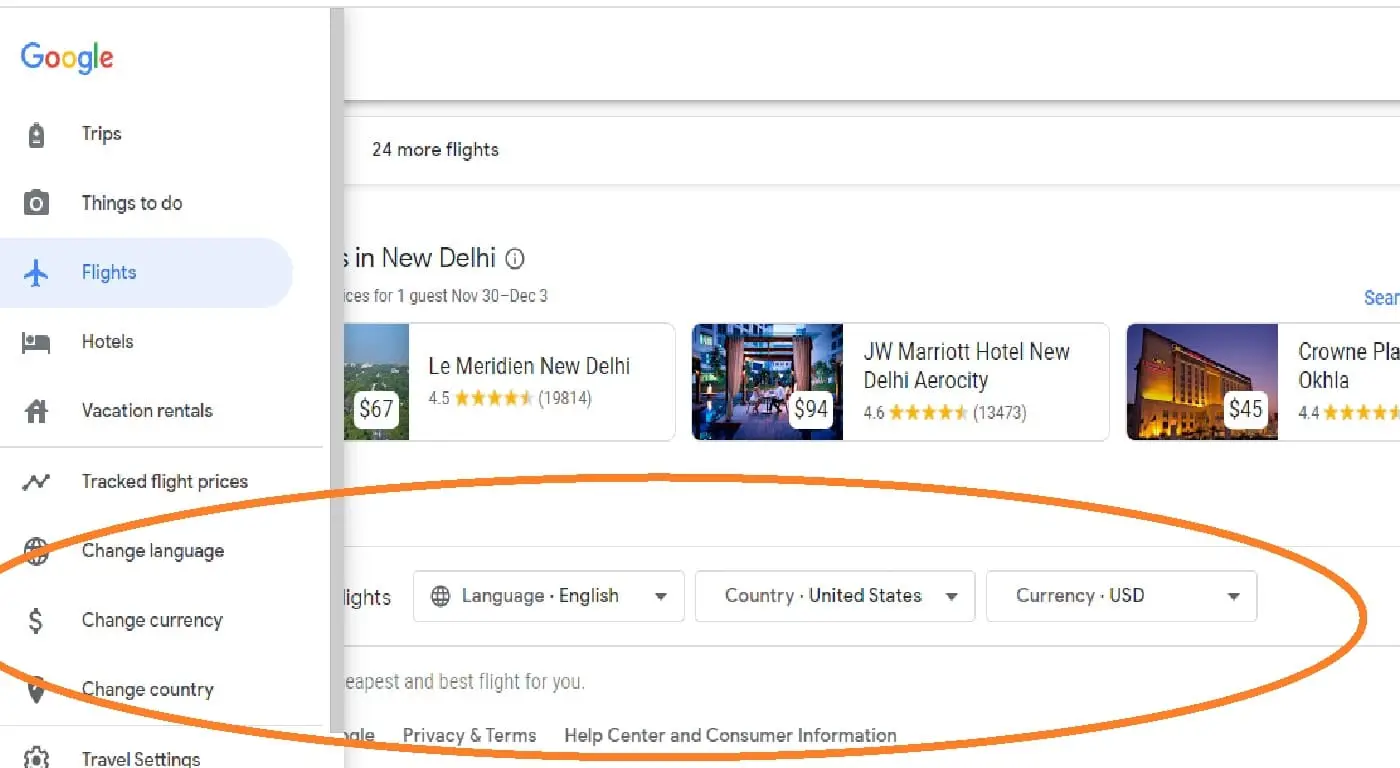
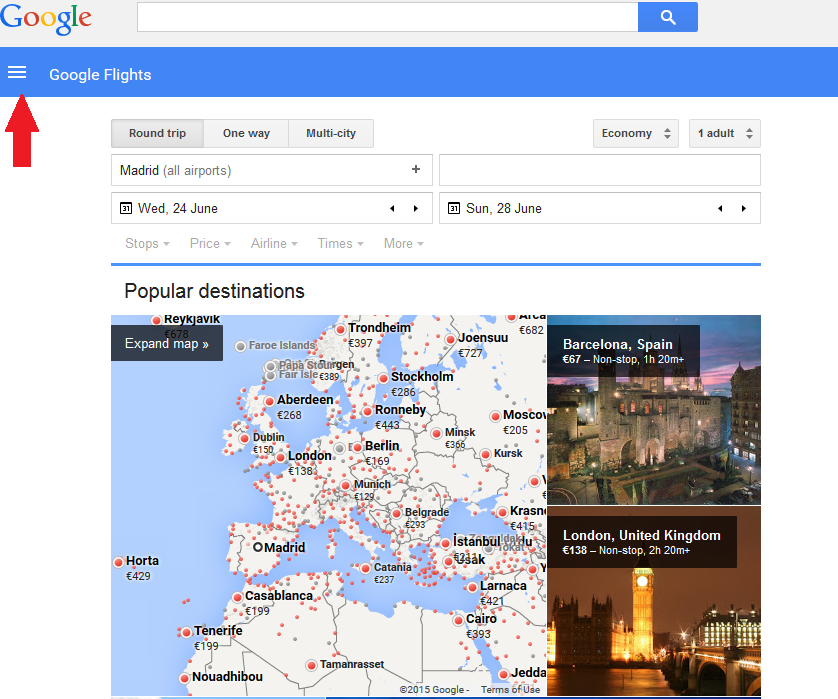
Locate the Settings Menu: Once the page loads, look for a menu or settings icon, typically represented by three horizontal lines (a “hamburger” menu) or a gear icon, usually found in the top-left or top-right corner of the page. More commonly, you’ll find the currency and country selectors directly accessible at the bottom-left or bottom-right of the page.
-
Identify the Currency Selector: At the very bottom of the Google Flights page, you should see two drop-down menus: one for “Country” and one for “Currency.” The current currency will be displayed (e.g., “USD – U.S. Dollar”).
-
Select Your Desired Currency: Click on the “Currency” drop-down menu. A list of available currencies will appear. Scroll through the list or use the search function (if available) to find the currency you wish to use.
-
Confirm the Change: Click on your chosen currency. The page will refresh automatically, and all flight prices will now be displayed in your newly selected currency. You can verify this by checking the currency symbol next to the prices and the updated currency selection at the bottom of the page.
On Mobile Devices (App/Mobile Browser)
While the Google Flights interface is slightly optimized for smaller screens, the process for changing currency remains largely similar and just as accessible.
-
Access Google Flights: If you’re using the Google Flights app, open it. If you’re using a mobile browser, navigate to
flights.google.com. -
Find the Settings/Menu Icon: On the mobile interface, you’ll typically find a menu icon (three horizontal lines) or a “More” option, usually in the top-left or top-right corner. Tapping this will open a side menu or a dropdown.
-
Locate Currency/Region Settings: Scroll through the menu options until you find settings related to “Region,” “Country,” or “Currency.” Similar to the desktop version, you might also find the currency selector directly at the bottom of the mobile page, sometimes requiring a quick scroll down.
-
Change the Currency: Tap on the current currency display. This will usually bring up a list of available currencies. Select the one you want.
-
Verify the Update: After selection, the app or mobile browser page will refresh, and all flight prices will update to reflect your chosen currency. Always double-check the prices and the currency symbol to ensure the change was successful.
Troubleshooting Common Issues
While changing currency is generally smooth, you might occasionally encounter minor tech glitches:
-
Page Not Refreshing: If the currency doesn’t change immediately, try manually refreshing your browser page (
Ctrl+RorF5on desktop, or pull down on mobile). -
Browser Cache/Cookies: Sometimes, old cached data can interfere. Clear your browser’s cache and cookies for Google Flights or try an incognito/private browsing window to see if that resolves the issue.
-
Geo-Blocking/Region Locking: In very rare cases, certain prices or options might be tied to specific geographic regions or IP addresses, irrespective of the displayed currency. If you suspect this, try using a VPN to appear from the desired region, then change the currency.
-
Browser Extensions: Ad blockers or privacy extensions can sometimes interfere with site functionality. Temporarily disable them if you’re experiencing persistent issues.
Advanced Tips for Currency Optimization
Beyond the basic steps, savvy travelers can leverage currency settings for even greater financial advantage and comparison efficiency. It’s about more than just seeing numbers; it’s about understanding their true value in different contexts.
Leveraging VPNs for Geo-Specific Pricing
One of the more advanced techniques, often discussed in travel hacking circles, involves using a Virtual Private Network (VPN). Airlines sometimes offer different prices based on the departure country or the IP address from which the booking is made. By setting your VPN to appear as if you’re browsing from a different country, you might unlock prices that are specific to that region. For instance, a flight originating in Europe might appear cheaper if you browse from an IP address in that region, even if you ultimately change the display currency on Google Flights to your home currency. This is a technical maneuver that requires careful comparison, as it doesn’t always guarantee a better deal but offers an additional layer of optimization. Ethical considerations should always be kept in mind, as some airlines might frown upon or technically restrict such practices.
Comparing Currencies for Best Deals
The true power of the currency selector comes into play when you’re actively comparing deals. Instead of mentally converting a flight price from AUD to GBP, for example, simply switch Google Flights to display prices in GBP. This immediate conversion eliminates calculation errors and makes it easier to compare the cost against your budget or other flight options. For complex itineraries involving multiple countries, the ability to quickly toggle between various local currencies can be a game-changer for precise financial planning. This is especially useful for travelers who hold multi-currency bank accounts or credit cards without foreign transaction fees, as it allows them to directly assess the best currency to pay in.
When to Stick to Your Home Currency vs. Local Currency
Deciding whether to view prices in your home currency or the local currency of your destination or point of sale is a strategic choice.
-
Home Currency: Best for initial budgeting and understanding the immediate cost relative to your existing funds. It simplifies initial comparisons and avoids the mental burden of conversion. If your bank or credit card offers competitive exchange rates and low or no foreign transaction fees, paying in your home currency might be convenient.
-
Local Currency (Destination/Point of Sale): Ideal for advanced budgeters and those looking to optimize payment. If you have a travel-friendly credit card that offers excellent exchange rates and no foreign transaction fees when paying in the local currency, or if you plan to use a local payment method, viewing prices in the local currency can give you a more accurate picture of the final cost and help you avoid Dynamic Currency Conversion (DCC) fees often imposed by merchants or online booking sites. Always aim to pay in the local currency if your card is optimized for it, to let your card issuer handle the conversion at potentially better rates.
Integrating Currency Management with Your Travel Tech Stack
Optimizing your flight search isn’t just about Google Flights; it’s about how it integrates with your broader suite of financial and travel tech tools. Effective currency management transcends a single platform.
Budgeting Apps and Currency Converters
For travelers meticulously tracking expenses, the currency displayed on Google Flights is just one piece of the puzzle. Integrating this information with personal finance and budgeting apps (like Mint, YNAB, or dedicated travel budget apps) is crucial. Many such apps allow you to track expenses in multiple currencies and convert them to your primary currency. Before committing to a flight, cross-referencing the Google Flights price with a separate, real-time currency converter app (like XE Currency or OANDA) can provide an additional layer of verification, especially for volatile currencies. These tools, when used in conjunction, create a robust financial oversight system for your travel planning.
Payment Processors and Dynamic Currency Conversion (DCC)
When you finally book a flight found on Google Flights, the payment step involves another critical currency decision: Dynamic Currency Conversion (DCC). This is where the airline or online travel agency (OTA) offers to charge you in your home currency rather than the local currency of their operation. While seemingly convenient, DCC often comes with unfavorable exchange rates and hidden fees. By mastering the currency settings on Google Flights, you become more aware of the actual local currency price. When presented with DCC at checkout, you’ll be better equipped to decline it and opt to pay in the local currency, letting your credit card or bank handle the conversion, which typically offers better rates. This tech-savvy approach prevents unnecessary costs.
Browser Extensions for Enhanced Flight Search
The ecosystem of travel tech includes various browser extensions designed to augment your flight search experience. While few directly change Google Flights’ displayed currency, many offer features like price tracking, historical price graphs, and alerts. Tools like “Google Flights Filter” or “Honey” (though primarily for coupons) can indirectly help you identify the best time to buy, irrespective of the displayed currency. Combining the granular currency control of Google Flights with these analytical extensions creates a powerful tech toolkit for identifying not just the right flight, but also the optimal price point and currency for purchase.

Conclusion
Mastering the “how-to” of changing currency on Google Flights is a fundamental skill for any digitally savvy traveler. It transforms the platform from a simple flight search engine into a personalized financial planning tool. By understanding its default mechanisms, leveraging the step-by-step currency selection, and employing advanced optimization techniques, users gain unparalleled control over their travel budgeting. Integrating this knowledge with other tech tools – from budgeting apps to understanding payment processor nuances – empowers you to make smarter financial decisions, avoid unnecessary fees, and ultimately, find the best possible value for your airfare. This seemingly small technical adjustment is a big step towards becoming a more informed and efficient global traveler.
aViewFromTheCave is a participant in the Amazon Services LLC Associates Program, an affiliate advertising program designed to provide a means for sites to earn advertising fees by advertising and linking to Amazon.com. Amazon, the Amazon logo, AmazonSupply, and the AmazonSupply logo are trademarks of Amazon.com, Inc. or its affiliates. As an Amazon Associate we earn affiliate commissions from qualifying purchases.