
In the rapidly evolving landscape of digital finance, mobile payment applications like Cash App have become indispensable tools for managing daily transactions. From sending money to friends and family to paying for goods and services, these platforms streamline financial interactions. However, merely using the app is only one part of the equation; understanding and effectively utilizing its features, especially the ability to review your transaction history, is crucial for maintaining digital financial health. This guide will delve into the technical process of accessing and interpreting your Cash App history, emphasizing its utility as a powerful digital ledger.

Understanding the Importance of Your Cash App History
At its core, your Cash App history isn’t just a list of past transactions; it’s a comprehensive digital ledger that records every interaction you’ve had within the application. For any digital platform handling financial exchanges, the ability to trace and verify past actions is a fundamental feature, ensuring transparency, accountability, and user confidence.
Beyond Simple Record-Keeping: The Utility of Transaction Logs
From a technological standpoint, the transaction history feature is more than just a convenience; it’s a critical component for the app’s integrity and user support. It serves multiple vital functions:
-
Verification and Reconciliation: Just as any robust software system maintains an audit trail, Cash App’s history allows users to verify that transactions initiated were completed correctly. This is paramount for reconciling your digital spending with external records or simply confirming payments.
-
Troubleshooting and Dispute Resolution: In the event of a suspected error, a failed transaction, or an unauthorized charge, your transaction history is the first point of reference. It provides timestamped evidence, transaction IDs, and recipient/sender details that are indispensable when contacting Cash App support or resolving disputes. Without this detailed log, diagnosing and rectifying issues would be significantly more complex, highlighting the reliance on accurate digital records in modern applications.
-
Data Integrity and Security Monitoring: Regularly reviewing your history allows users to detect any anomalous activity promptly. From a digital security perspective, this feature empowers users to act as their own first line of defense against potential fraud or unauthorized access, identifying transactions they didn’t initiate.
The Digital Ledger: Your Financial Navigator in Cash App
Consider your Cash App history as the application’s internal “black box recorder” for your financial activities. Every tap, every transfer, every investment buy or sell is logged. This digital ledger provides:
-
Comprehensive Overview: A bird’s-eye view of your financial movements, allowing you to quickly ascertain your activity within specific periods.
-
Detailed Event Logging: Each entry contains specific metadata—dates, times, amounts, participants, and transaction statuses—that contextualizes the event. This granularity is a hallmark of well-designed financial software, providing the necessary details for robust record-keeping.
-
Foundation for Future Actions: Understanding past spending patterns or payment frequencies, as recorded in your history, can inform future usage of the app, whether it’s setting up recurring payments or managing your spending habits.
The robust design of this feature underscores Cash App’s commitment to providing users with complete control and transparency over their digital funds, leveraging technology to make financial data accessible and actionable.
Step-by-Step Guide: Accessing Your Transaction History on Cash App
Accessing your transaction history on Cash App is a straightforward process, designed to be intuitive for users. The application’s interface prioritizes ease of navigation, ensuring that critical information like your activity log is readily available.
Navigating the Cash App Interface
Before diving into the history, it’s helpful to understand the basic layout of the Cash App. Upon opening the app, you’re typically greeted by the main payment screen, often displaying your current balance and options to send or request money. The key to finding your history lies in identifying the appropriate icon or tab that directs you to your past activities.
Locating the Activity Tab
-
Open Cash App: Launch the Cash App on your mobile device (iOS or Android).
-
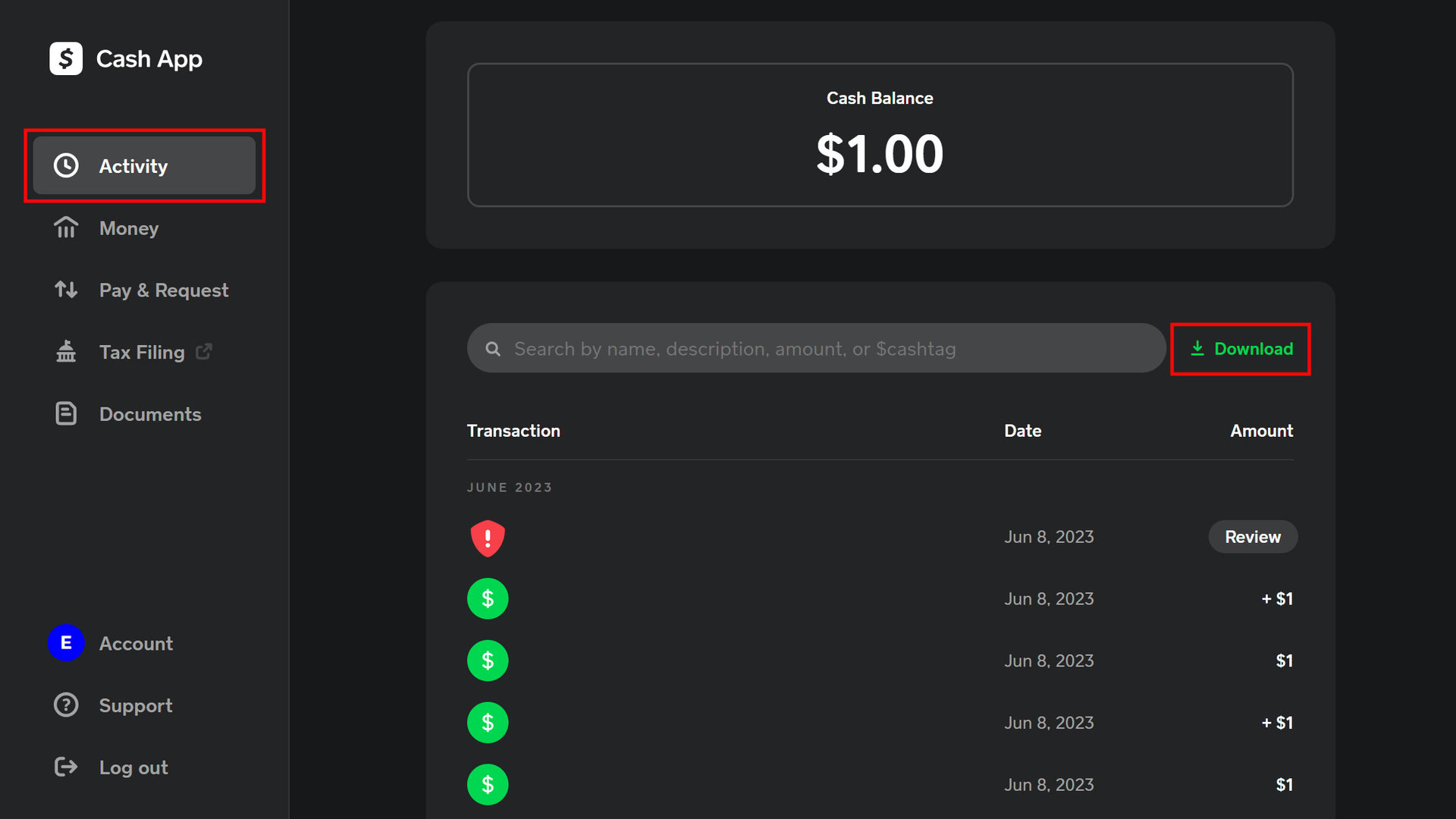
Tap the Activity Tab: Look for an icon that resembles a clock or a series of transactions (often a “watch” icon or a list icon) at the bottom-right corner of the main screen. This is typically labeled “Activity” or “History” on some versions. Tapping this icon will immediately take you to your primary transaction feed.
Once you tap the Activity tab, you’ll see a chronological list of all your recent transactions. This includes payments sent, payments received, Cash Card purchases, direct deposits, Bitcoin purchases/sales, stock investments, and any other activity within your account.
Filtering and Searching for Specific Transactions
For users with extensive transaction histories, simply scrolling can be inefficient. Cash App provides filtering and searching functionalities to help you pinpoint specific entries quickly.
-
Searching: At the top of the Activity screen, you might see a search bar. Tapping this allows you to enter keywords related to a transaction, such as a contact’s name, a dollar amount, or even a specific merchant’s name if it was a Cash Card purchase. The app will then filter the results to display only matching transactions.
-
Filtering: Some versions of Cash App offer filter options, allowing you to narrow down your history by transaction type (e.g., only payments sent, only direct deposits) or by time frame (e.g., past week, past month, custom date range). These filters are powerful tools for focused review, enabling users to isolate specific types of financial interactions without sifting through unrelated data. The precise location and appearance of these filters may vary slightly depending on your app version.
By leveraging these built-in navigational and search features, users can efficiently manage and review their financial footprint within the Cash App ecosystem, showcasing the app’s commitment to user-friendly data accessibility.
Diving Deeper: Understanding Your Cash App Activity Log
Once you’ve accessed your transaction history, the next step is to understand the information presented. Cash App’s activity log is designed to be informative, providing critical details for each transaction. Interpreting these details correctly is essential for accurate record-keeping and troubleshooting.
Deciphering Transaction Details
Each entry in your Cash App activity log is a miniature data packet containing several key pieces of information:
-
Date and Time: A precise timestamp indicating when the transaction was initiated or completed. This is crucial for chronological tracking and resolving any timing-related discrepancies.
-
Sender/Receiver: The name or Cashtag of the other party involved in the transaction. This clearly identifies who sent or received the funds, ensuring accountability.
-
Amount: The exact monetary value of the transaction.
-
Transaction ID/Receipt Number: A unique alphanumeric identifier assigned to each transaction. This is arguably the most important piece of information for support purposes, as it allows Cash App’s system to quickly locate and reference a specific event. It’s akin to a tracking number for a package.
-
Description/Note: Often, users add a memo or note to a transaction. This will appear here, providing context for the payment.
-
Status: Indicates the current state of the transaction (e.g., completed, pending, canceled, failed). Understanding these statuses is vital for knowing if a financial action was successful.
Identifying Different Transaction Types
Cash App handles various types of financial movements, and its history log categorizes these for clarity:
-
Payments Sent/Received: These are the most common entries, reflecting direct person-to-person transfers. They clearly state “Sent to [Name]” or “Received from [Name].”
-
Cash Card Purchases: Transactions made using your physical or virtual Cash Card will appear here, often detailing the merchant’s name, location, and the amount spent.
-
Direct Deposits: Incoming funds from employers or other institutions directly deposited into your Cash App balance.
-
Bitcoin Purchases/Sales: If you use Cash App for cryptocurrency, these entries will show your Bitcoin buy and sell orders, including the amount of Bitcoin, the fiat currency equivalent, and any associated fees.
-
Stock Investments: Similar to Bitcoin, entries related to buying or selling fractional shares of stocks will be recorded, detailing the stock name, quantity, and value.
-
Cash In/Out: These refer to adding money to your Cash App balance (e.g., from a linked bank account) or withdrawing money from it (e.g., transferring to a linked bank account).
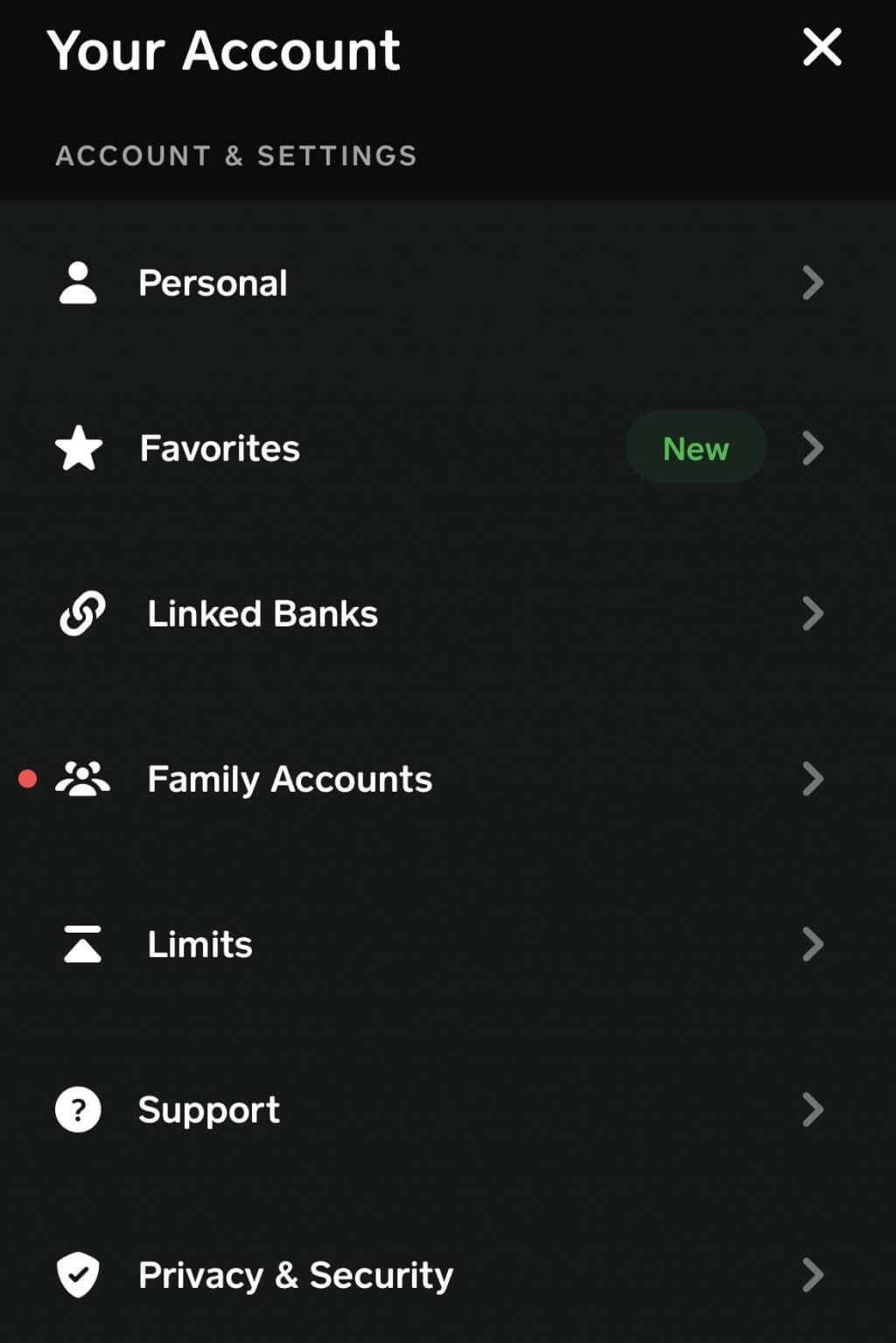
Status Indicators and Their Meanings
Understanding the status of a transaction provides immediate insight into its completion and potential next steps:
-
Completed: The transaction has successfully processed, and funds have been transferred or received.
-
Pending: The transaction is in progress. This status often appears for Cash Card purchases that haven’t fully cleared, or direct deposits that are still being processed by the sending bank. Funds are typically held in limbo during this stage.
-
Canceled: A transaction that was initiated but then manually canceled by either party before completion.
-
Failed: The transaction could not be completed for various reasons, such as insufficient funds, incorrect account details, or a security block. If a transaction fails, the app usually provides a brief explanation or guidance on how to resolve the issue.
-
Refunded: Indicates that a previous transaction (e.g., a Cash Card purchase) has been reversed, and the funds have been returned to your Cash App balance.
By accurately interpreting these details and statuses, users can maintain a clear and comprehensive overview of all their digital financial activities within Cash App, leveraging the app’s robust data presentation.
Exporting and Utilizing Your Cash App Data
While the in-app history view is excellent for quick lookups, there are times when you might need a more comprehensive or exportable version of your data. Cash App offers mechanisms to generate detailed reports and statements, crucial for record-keeping, reconciliation, or sharing with financial professionals.
Generating Monthly Statements
For a more formal and organized record, Cash App allows you to generate monthly statements. These statements consolidate all your activity within a specific month into a single document, often in a PDF format.
-
Access Statements: From the main Cash App screen, tap the profile icon (often a silhouette or your profile picture) in the top-right corner.
-
Navigate to Documents: Scroll down the profile menu until you find “Documents” or “Statements.”
-
Select Monthly Statements: Tap on “Monthly Statements.” You will typically see a list of available months.
-
Choose and Download: Select the desired month, and the app will generate a PDF statement that you can view, download, or share. These statements are usually more detailed than the in-app view, formatted for readability, and often include starting/ending balances.
These monthly statements are invaluable for anyone who needs a periodic summary of their transactions, serving as an official record of their financial interactions within the app.
Requesting a Comprehensive Activity Report
For needs that go beyond monthly summaries, such as compiling data for tax purposes or auditing personal spending over extended periods, Cash App provides an option to request a full activity report. This report is a detailed spreadsheet (often CSV format) containing every transaction.
-
Access Documents (as above): Tap the profile icon and go to “Documents.”
-
Select Annual Statements or Transaction History: Depending on the app version, you might find an option for “Annual Statements” or a direct link to “Export CSV” or “Transaction History.”
-
Request Report: Follow the prompts to request the report. This usually involves entering your email address where the report will be sent. For security reasons, the report might be password-protected, and the password sent in a separate email or displayed in the app.
-
Receive and Review: Once received, you can open the CSV file with spreadsheet software (like Microsoft Excel, Google Sheets, or Apple Numbers) to sort, filter, and analyze your data in a highly customizable format.
This comprehensive report is a powerful feature for users who require granular control and analytical capabilities over their transaction data, transforming raw in-app history into a manipulable dataset.
Integration with Other Financial Tools (Data Export Focus)
While Cash App does not offer direct integration with a wide array of external personal finance management (PFM) tools in the same way some traditional banks do, the ability to export your data in CSV format facilitates manual integration.
Once your transaction history is exported as a CSV, you can:
-
Import into PFM Software: Many third-party budgeting and financial tracking applications support CSV imports. You can manually upload your Cash App data into these tools to consolidate your financial overview across different platforms.
-
Custom Analysis: For users with spreadsheet proficiency, the CSV data can be used for advanced custom analysis, creating pivot tables, charts, or personalized financial models. This turns the raw transactional data into a flexible resource for deeper insights.
-
Archival: The exported files serve as a robust backup of your transaction history, providing an offline record independent of the Cash App itself. This is a critical practice for digital data management, ensuring you always have access to your financial logs.
By providing these export functionalities, Cash App empowers its users with the technological means to not only view their history but also to extract, analyze, and archive it according to their individual needs, extending the utility of the app beyond its immediate interface.
Troubleshooting and Best Practices for Cash App History Management
Even with a user-friendly design, users might occasionally encounter issues when accessing or interpreting their Cash App history. Furthermore, maintaining the accuracy and security of this sensitive data is paramount. Adhering to best practices ensures a smooth and secure experience.
Common Issues and Their Solutions
-
Transactions Not Showing Up:
-
Connectivity: Ensure you have a stable internet connection. Data may not load fully or correctly without it.
-
App Updates: Outdated app versions can sometimes cause display issues. Check your app store for the latest Cash App update and install it.
-
Filters Applied: Double-check if any filters (e.g., date range, transaction type) are active and preventing certain transactions from appearing. Clear all filters to see the full history.
-
Server Issues: Rarely, Cash App servers might experience temporary outages. Check Cash App’s official Twitter or status page for any reported issues.
-
Pending Status: Some transactions, especially direct deposits or certain card purchases, might remain in “Pending” status for a while before appearing as “Completed.”
-
-
Discrepancies in Transaction Details:
-
Review All Information: Carefully check the date, time, amount, and recipient/sender. A slight typo or misreading can lead to confusion.
-
Check Notes: See if a note was added to the transaction that clarifies its purpose.
-
Contact Other Party: If it’s a peer-to-peer transaction, reach out to the other person to verify details from their end.
-
Contact Cash App Support: If discrepancies persist or you suspect an error, use the in-app support feature to contact Cash App directly, providing the transaction ID.
-
Ensuring Data Accuracy and Security
The integrity and security of your transaction history are non-negotiable.
-
Regular Review: Make it a habit to regularly check your Cash App activity. This proactive approach helps identify unauthorized transactions or errors quickly, allowing for prompt action.
-
Account Verification: Ensure your Cash App account is fully verified. Verified accounts often have higher limits and sometimes access to more features, and it adds a layer of authenticity to your transactions.
-
Two-Factor Authentication (2FA): Always enable 2FA on your Cash App account. This adds an extra layer of security, requiring a second verification step (e.g., a code from your phone) in addition to your password, significantly reducing the risk of unauthorized access to your account and its history.
-
Strong, Unique Passwords: Use a complex, unique password for your Cash App account, and avoid recycling passwords used on other platforms.
Keeping Your Cash App Secure
Beyond securing your transaction history, general app security practices are vital:
-
Phishing Awareness: Be vigilant against phishing attempts. Cash App will never ask for your password, PIN, or full debit card number via email, text, or social media. Always go directly through the app for any account management.
-
Device Security: Ensure the device you use for Cash App is secured with a strong passcode or biometric authentication (fingerprint/Face ID). Keep your device’s operating system and the Cash App itself updated to benefit from the latest security patches.
-
Public Wi-Fi Caution: Avoid accessing sensitive financial apps like Cash App over unsecured public Wi-Fi networks, as these can be vulnerable to eavesdropping. Use a VPN if you must use public Wi-Fi.
-
Report Suspicious Activity: If you notice any unusual activity in your transaction history or suspect your account has been compromised, immediately report it to Cash App support through the app.
By understanding how to troubleshoot common issues and consistently applying these best practices for security and data integrity, you can ensure that your Cash App transaction history remains an accurate, reliable, and secure record of your digital financial activities, reinforcing the app’s role as a robust technological solution for modern money management.
aViewFromTheCave is a participant in the Amazon Services LLC Associates Program, an affiliate advertising program designed to provide a means for sites to earn advertising fees by advertising and linking to Amazon.com. Amazon, the Amazon logo, AmazonSupply, and the AmazonSupply logo are trademarks of Amazon.com, Inc. or its affiliates. As an Amazon Associate we earn affiliate commissions from qualifying purchases.